


This is an archived tutorial from the kirupa.com legacy collection. It covers software that may no longer be available, but it is kept online because the ideas still hold up.

Being a designer and a High School student, I make numerous presentations in differing situations. Usually, I'd carry my laptop around and give PowerPoint presentations, but I always felt that it just wasn't what I was looking for in giving my audience a clear sense of my message. Then....I discovered how to have Flash animations work along side PowerPoint content. Download my Presentation so you can Examine it and view it.
Adding Flash To PowerPoint
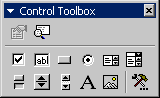
Note: Your window may look
different. I increased the width of the control to make it
fit nicely on this page.
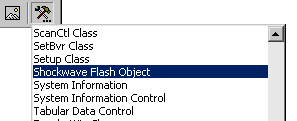
Once you have done that, you should see a cross hair replacing your mouse pointer. All you have to do now is simply click and drag on the slide where you wish to have your animation. See image below:

Now here comes the slightly complicated portion. Select the crossed rectangle you just created, and click on the "Properties" button on the Control Toolbox. See image below:
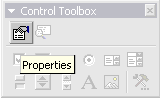
Once you have clicked the Properties, you should see another "Properties" window with various options visible. For most instances, the main captions you would modify would be the Loop, Menu, Movie, Quality. The Movie property is the most important, and you specify the location in the box. The list below will help you. A brief explanation as to what each property does is listed below. For the image of the Object Property box, click here.
Once you have entered in the values, then preview the animation. You should see the Flash animation work perfectly in the slide. If it doesn't, check to make sure you entered the file name correctly. That is usually the main reason why your animation doesn't work. I have uploaded the PowerPoint and SWF code so you can examine it to see how I did it. Click Here To Download Source.
From the Properties window, check the box for Embed. That will make sure that your animation is saved in the PPT file format. If you do not check the Embed box, you will need to make sure that both the SWF and PPT file are saved in the same folder (or as specified in PowerPoint).
Another best part about this; is that you can publish to
HTML on PowerPoint 2000. So, you can upload all the various
Files AND the SWF file onto your web site and allow the
whole world to enjoy your presentation.
I hope the information helped. If you have any questions or comments, please don't hesitate to post them on the kirupa.com Forums. Just post your question and I, or our friendly forum helpers, will help answer it.
The following is a list of related tutorial and help resources that you may find useful:
 |
How to use the Forums |
 |
New, Upcoming, and In-Progress Tutorials |
 |
How to Help out kirupa.com |
 |
Writing Tutorials |
| Cheers! | |
 |
Kirupa Chinnathambi kirupaBlog |
Just a final word before we wrap up. What you've seen here is freshly baked content without added preservatives, artificial intelligence, ads, and algorithm-driven doodads. A huge thank you to all of you who buy kirupa's books, became a paid subscriber, watch the videos, and/or interact on the forums.
Your support keeps this site going! 😇

:: Copyright KIRUPA 2026 //--