 Tutorials
Books
Videos
Forums
Tutorials
Books
Videos
Forums


This is an archived tutorial from the kirupa.com legacy collection. It covers software that may no longer be available, but it is kept online because the ideas still hold up.
Using the Command Line feature, you can execute your Applications from the command line and pass any arguments to the projector using custom defined parameters. The application can then be programmed to run any number of tasks based upon the passed arguments. Command Line Parameters can be used to initiate triggers within your Application, or set options for the end user. They provide a very powerful method of communication from the Command Line for advanced applications.
Note
This tutorial requires Zinc V2.5.
Create a new file in Macromedia Flash (or your preferred SWF Authoring tool) and add a button with the following code:
on (release) {
  cmdParam1 = mdm.Application.cmdParams(1)
  mdm.Dialogs.prompt(cmdParam1)
}
This code has two parts: The first command retrieves the
first command line parameter (which is always assigned the id "1") and returns
it to the variable cmdParam1. The second part of the code executes a prompt to
display the value of cmdParam1.
To execute a projector with command line parameters, you must launch the projector from the command line. Click on the Windows Start button and then select Run. Enter "cmd" (as shown below) in the Run dialog box:
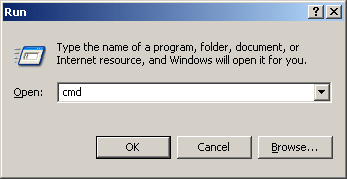
Press OK to launch the Command Line Window.
In the Command Line Window, you can now execute your projector with up to 5 additional parameters of your choice. These values can be anything from a single word to a string of numbers. Separate each parameter with a single space:
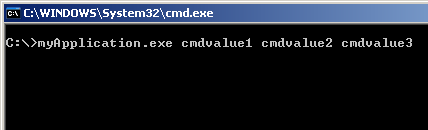
In the example above, we have the application name followed by 3 additional parameters with the values: cmdvalue1, cmdvalue2 and cmdvalue3
Once the Projector is launched and we press the button created in Step 1, the first {mdm}Script Command will retrieve the value of the first parameter (in this case, "cmdvalue1") and assign it to the variable cmdParam1.
The prompt command will then prompt the value of
cmdParam1, which will be "cmdvalue1"
Export your SWF and then compile a Projector using Zinc™ v2.5. That's all there
is to it.
If you have any questions, please post them on the MDM support forums.
 |
Jaspal Sohal www.multidmedia.com |
Just a final word before we wrap up. What you've seen here is freshly baked content without added preservatives, artificial intelligence, ads, and algorithm-driven doodads. A huge thank you to all of you who buy kirupa's books, became a paid subscriber, watch the videos, and/or interact on the forums.
Your support keeps this site going! 😇

:: Copyright KIRUPA 2026 //--