 Tutorials
Books
Videos
Forums
Tutorials
Books
Videos
Forums


This is an archived tutorial from the kirupa.com legacy collection. It covers software that may no longer be available, but it is kept online because the ideas still hold up.
A new feature in Flash MX 2004 is the ability to use imported CSS (Cascading Style Sheets) data for your text. Instead of having a large block of text using the same font, color, and style, you can use CSS to define custom text properties without having to break your text into multiple text fields.
This tutorial will briefly teach you how to apply an external CSS style to your animation. Later on, I will explain why the code works the way it does, which CSS tags are supported, and even delve into creating your own CSS tags within Flash itself. This will be fun...seriously!
The following animation is an example of a single block of text formatted with a CSS style sheet loaded from an external location:
[ ah! - the joys of CSS ]
How to CSS-ize your text:
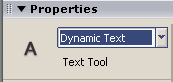
[ select dynamic text ]
[ draw your text box ]
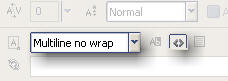
[ notice the solid dot in your timeline ]
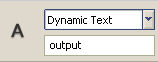
[ give your text box the instance name 'output' ]
var format = new TextField.StyleSheet();

var path = "http://www.kirupa.com/developer/mx2004/code/flash.css";

var quick = "<br><p class='one'>The quick Kirupa jumps over the lazy dog.</p><br><p class='two'>The quick Kirupa jumps over the lazy dog.</p><br><p class='three'>The quick Kirupa jumps over the lazy dog.</p><br><p class='four'>The quick Kirupa jumps over the lazy dog.</p>";

format.load(path);

format.onLoad = function(loaded) {

 if (loaded) {

  output.styleSheet = format;

  output.text = quick;

 } else {

  output.text = "Error loading CSS file!";

 }

};
[ copy and
paste the following code in your Actions panel ]
We are far from being done with this tutorial though. While we now have a working animation, it is really beneficial to you if you learn how and why the code works to display the animation. The next section will discuss the ActionScript, clarify a few vague points, and the third page will cover more CSS/Flash topics.
Let's proceed to the next section.
If you stumbled upon this page without having completed the first page, do take a few moments to catch-up with us. Click here to return to the previous section. For everyone else...you, let's continue to learn more about the ActionScript of this animation.
The following section will explain why the code works the way it does:
                    var format = new

  TextField.StyleSheet();
Before we can use CSS in Flash, we have to first create a new object to control the flow of the CSS data throughout your animation. This line creates a new style sheet object for use in Flash. The variable format will be used in the place of
new TextField.StyleSheet();A more important note is that the variable format now has access to all the cool methods that the Style Sheet class has. For example, you can simply type
format.loadto load a CSS file. Simply put, this line bridges the arcane code contained in the Style Sheet class and the simple code we all enjoy so much.var path = "http://www.kirupa.com/.../flash.css";This line specifies the location of the CSS file that will be loaded into Flash.
                    var quick = "<br><p

  class='one'>The quick Kirup...";
The variable quick contains the text that will be displayed in the text field. The actual line is quite long, so I only reproduced a very small portion above. As you can notice, the text is formatted with HTML tags. HTML tags will be rendered properly because, if you remember, you clicked the Render Text as HTML button in the Text Properties panel. I will elaborate on this line later.
format.load(path);In this line, you tell Flash to load the CSS file to the object format. Remember that format is just an extension of the TextField.StyleSheet() object/class you read earlier.
                    format.onLoad =

  function(loaded) {

 if (loaded) {

  output.styleSheet = format;

  output.text = quick;

 } else {

  output.text = "Error loading CSS file!";

 }

  };
This function actually applies the CSS formatting to the text field you created in your movie. Before we apply the CSS file though, I make sure to tell Flash to ensure the CSS file loads first before displaying the text in the text field. Only after the CSS file loads do I tell Flash to transfer the data in
formatand the HTML text inquickto the text field namedoutput.Of course, there are times when the CSS file may not load because of a misspelled name in the URL, so I have an escape command that displays "Error loading CSS file!" when the CSS file does not fully load. You can test it out by simply adding a random character to the URL in the variable Path and previewing the animation.
This section provides a quick review of this animation. First, you have a text field named output. At the same time the text field appears, the code is churning in the background. First, the variable format is bestowed with all the powers of the Textfield.StyleSheet object/class. Next the path of the CSS file and the text that will be displayed in the text field are created.
The section of code is concluded by a function that activates when the movie loads (onLoad.) First, Flash checks to make sure the CSS file is loaded, and if the CSS file is loaded, the style sheet gets applied to the text field, and finally the HTML text is displayed in the text field also. Of course, the HTML text is rendered into regular text formatted with the CSS styles you applied just one line earlier.
You are not quite done with this tutorial though. While you should be able to understand the code behind the animation, you may be interested in CSS and the properties of CSS that Flash supports.
Let's proceed to the next section.
If you stumbled upon this page without having completed the previous section, do take a few moments to catch-up with us. Click here to return to the previous section. For everyone else, let's continue to learn about CSS in Flash.
As much as I would like to, I am not good enough with CSS to explain how to use it. Instead, the following site should help you out tremendously: http://www.htmlgoodies.com/beyond/css.html I will explain how to use CSS within Flash and any extra tricks you may like.
In the ActionScript, no doubt I'm sure you noticed that a file called flash.css was being loaded from a location on the server. Well, without further delay, here is the content of the flash.css file:
.one {

 font-family: Arial, Helvetica, sans-serif;

 font-size: 8px;

 font-weight: bold;

 color: #396780;

}

.two {

 font-family: Arial, Helvetica, sans-serif;

 font-size: 12px;

 font-weight: bold;

 color: #2D5164;

}

.three {

 font-family: Arial, Helvetica, sans-serif;

 font-size: 16px;

 font-weight: bold;

 color: #1D3441;

}

.four {

 font-family: Arial, Helvetica, sans-serif;

 font-size: 24px;

 font-weight: bold;

 color: #000000;

}
[ CSS file created in
DreamWeaver MX 2004 ]
If you were the further analyze the HTML text in the variable quick, you will see a sentence that starts and ends like this:
                    <p class='one'>The quick

  Kirupa jumps over the lazy dog.</p>
Notice that the above sentence is formatted with the style "one" taken from the CSS file. If you were to replace the text one with something like four, you will notice that the text in your animation absorbs the characteristics defined by the four style in the CSS file. Also, if you were to remove the <p> tags altogether, the format of the text will be what you manually define in the Properties Panel for the text panel.
While CSS has numerous properties that it can modify for various elements beyond text, the current implementation of CSS in Flash is quite limited. The following table, copied from the Flash MX 2004 ActionScript dictionary, shows the tags Flash MX 2004 supports and interprets:
| CSS | ActionScript | Usage and supported values |
|---|---|---|
| text-align | textAlign | Recognized values are
left,
center,
and right. |
| font-size | fontSize | Only the numeric part of the value is used; units (px, pt) are not parsed; pixels and points are equivalent. |
| text-decoration | textDecoration | Recognized values are
none
and underline. |
| margin-left | marginLeft | Only the numeric part of the value is used. Units (px, pt) are not parsed; pixels and points are equivalent. |
| margin-right | marginRight | Only the numeric part of the value is used. Units (px, pt) are not parsed; pixels and points are equivalent. |
| font-weight | fontWeight | Recognized values are
normal
and bold.
|
| font-style | fontStyle | Recognized values are
normal
and italic. |
| text-indent | textIndent | Only the numeric part of the value is used. Units (px, pt) are not parsed; pixels and points are equivalent. |
| font-family | fontFamily | A comma-separated list
of fonts to use, in descending order of desirability.
Any font family name can be used. If you specify a
generic font name, it will be converted to an
appropriate device font. The following font conversions
are available: mono
is converted to _typewriter,
sans-serif
is converted to _sans,
and serif
is converted to _serif. |
| color | color | Only hexadecimal color
values are supported. Named colors (like
blue) are
not supported. |
| display | display | Supported values are
inline,
block,
and none. |
While the above list contains many of the tags you would probably use, you should be aware that when using a third-party program like DreamWeaver to create the CSS tags, several of the tags will simply be ignored by Flash. So, if your CSS file includes a line for text background-color, Flash will simply skip that line and apply the above properties that it does understand.
With that table, you have reached the end of this tutorial for now. As new updates and revisions occur, I will be sure to drop a line on the home page to inform you of that festive occasion. CSS is really useful for Flash sites that want to convey a lot of information, and now you have the ability to easily implement CSS styles using nothing more than a simple style sheet.
If you want to take a look at how I created my version of the animation, download the source file from the following link:
 |
Just a final word before we wrap up. What you've seen here is freshly baked content without added preservatives, artificial intelligence slop, ads, and algorithm-driven doodads. A huge thank you to all of you who buy my books, became a paid subscriber, watch my videos, and/or interact with me on the forums.
Your support keeps this site going! 😇


:: Copyright KIRUPA 2026 //--
