 Tutorials
Books
Videos
Forums
Tutorials
Books
Videos
Forums


This is an archived tutorial from the kirupa.com legacy collection. It covers software that may no longer be available, but it is kept online because the ideas still hold up.
One question that often appeared in my mailbox or on the forums regarded creating a text scroller that worked when text was loaded from an external text file. I had told users that it was not possible to create that effect until a user (Ged) e-mailed me with a link to Macromedia's tech note (no: 16142). In his link, I found out how to create the text scroller and make it work easily. So, here is the tutorial to help you out!
The following is an example of the animation you will have created by the end of this tutorial:
[ the text in the scroll box was loaded from a location on the server ]
Creating the Text Scroller:
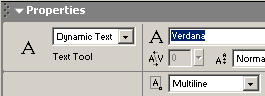
[ select Dynamic Text ]

[ the white rectangle above is the text box ]
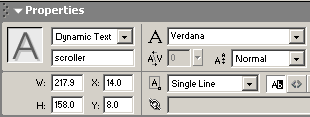
[ set the instance name of the dynamic text to scroller ]
From the Properties panel, make sure you select Multiline for the line type. That ensures your text wraps as opposed to displaying in one huge horizontal line.
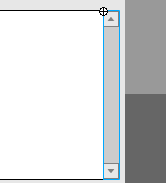
[ the scrollbar automatically snaps to the text box ]
                      loadText = new loadVars();

loadText.load("kirupa.txt");

//creating the loadVarsText function

loadText.onLoad = function() {

  scroller.text = this.kirupatext;

};
[ copy and paste the above code into the Actions dialog box ]
Creating the Text File:
                      Hello There!

I am an example of text that has been loaded from a separate location on kirupa's server.

Best of all, notice that you can scroll the contents of the text up and down by clicking on the arrows. This is a nice, useful feature that you can use on your site.
[ copy and paste the above text into Notepad ]
kirupatext=: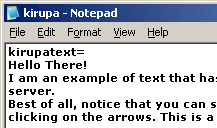
[ enter the words "kirupatext=" above the words "Hello There!" ]
Not to leave you in the dark, I will briefly summarize what the major lines of ActionScript stand for. For reference purposes, here is the copy of the code you pasted in Flash:
                      loadText = new loadVars();

loadText.load("kirupa.txt");

//creating the loadVarsText function

loadText.onLoad = function() {

  scroller.text = this.kirupatext;

};
In the first line, I am creating a loadVars function to loadText, and in the next line I initialize loadText to load kirupa.txt when the variable first gets loaded (.load). With that, I tell Flash to load the variables, the content, from the file kirupa.txt.
In the next segment of code, I create a new function and apply the variables stored in loadText (from the kirupa.txt file) to the text scroller. Remember, that the text property of a text box specified what is displayed in the text box. Therefore, the the content in scroller.text equals what the variable kirupatext equals.
Remember that kirupa.txt is the name of the Text file you saved. The variable kirupatext is the text you added to the file in your ASCII Editor (notepad).
You have just completed the tutorial! As
always, I have provided the source code for you to take a
closer look at. Click the download source link below to download
the Flash MX Flash File (FLA) for this effect.
Just a final word before we wrap up. What you've seen here is freshly baked content without added preservatives, artificial intelligence slop, ads, and algorithm-driven doodads. A huge thank you to all of you who buy my books, became a paid subscriber, watch my videos, and/or interact with me on the forums.
Your support keeps this site going! 😇


:: Copyright KIRUPA 2026 //--