 Tutorials
Books
Videos
Forums
Tutorials
Books
Videos
Forums


This is an archived tutorial from the kirupa.com legacy collection. It covers software that may no longer be available, but it is kept online because the ideas still hold up.
Ask any user what one of the most difficult Flash technique to master is. Many will say the Preloader. In Flash 4, pre-loaders were difficult to coordinate. You had to specify the loaded frame, a loop frame, and more! In Flash 5, all it takes is one frame with a few lines of code to create a preloader.
Here is how:
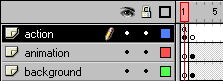
[ Notice that the First
frame is void of content except for the loading movie clip
on the 'action' layer. ]
Because you copied and pasted the code, I will explain why the code worked so you can understand the code and use it in your own animations with full understanding.
if (_framesloaded>=_totalframes)
  {
This is by far the most important line of code in the pre-loader. An if statement is being started with the condition that the number of frames currently loaded in Flash ( _framesloaded) equals the total number of frames in the animation ( _totalframes).
if (_framesloaded>=_totalframes)
  {

  gotoAndPlay (2);

  } else {

  gotoAndPlay (1);

  }
This section of code holds the statements for making the if statement produce results. If the frames are loaded from the previous section of code, you are telling Flash to play the 2nd frame (gotoAndPlay 2). If all of the frames have not yet loaded, the section of code under the 'else' executes. The gotoAndPlay (1) line is a loop that continuously loops itself until all the frames have loaded.
When the movie first loads, the first frame contains the actions for the pre-loader. Flash checks to see if all the frames have been loaded. That is the line with the _framesloaded and _totalframes. If the frames have all been loaded, Flash begins to play the animation at Frame 2. If the frames have not loaded, Flash re-plays the first frame containing the pre-loader action.
Tutorials related to this topic are:
Just a final word before we wrap up. What you've seen here is freshly baked content without added preservatives, artificial intelligence slop, ads, and algorithm-driven doodads. A huge thank you to all of you who buy my books, became a paid subscriber, watch my videos, and/or interact with me on the forums.
Your support keeps this site going! 😇


:: Copyright KIRUPA 2026 //--