 Tutorials
Books
Videos
Forums
Tutorials
Books
Videos
Forums


This is an archived tutorial from the kirupa.com legacy collection. It covers software that may no longer be available, but it is kept online because the ideas still hold up.
Extensions are a fantastic new feature to Zinc v2.5
which provide unlimited expandability to Zinc v2.5 projectors. Developers can
now create their own custom commands for {mdm}Script 2.0 based upon existing or
custom DLL files.
The Zinc™ v2.5 Extension Creator provides an interface to your DLL which can
then run internal functions via custom named {mdm}Script Commands. Extensions
can be saved and shared with other developers to extend the {mdm}Script™ 2.0
API.
Note
In this Tutorial we shall create an extension from a function found in the Windows kernel32.dll - the functions available in the kernel32.dll are documented in the Win32 Programmer's Reference which is available at the MDM File Exchange.
For advanced users, the Zinc v2 Extension Creator SDK is also available at the MDM File Exchange.
We want to create a beeping sound using our animation, and we want to do it via a DLL accessed using Zinc. The kernel32.dll is a Shared Library which is available in all Windows Systems. This DLL allows access to the entire Windows API through a series of functions. To understand and use the available functions, we can check the Win32 Programmer's Reference.
The Win32 Programmer's Reference contains detailed usage guides on each function contained in the kernel32.dll. Click on Index and type the word "beep" in the search box at the top. The Chapter on the Beep Command should be highlighted as shown below:
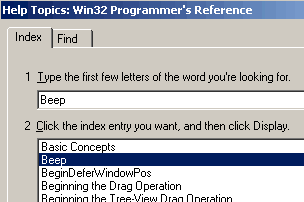
[ the win32 programmer's reference window ]
With the Beep chapter selected, press the Display button. You will see some documentation outlining how to use the Beep function:
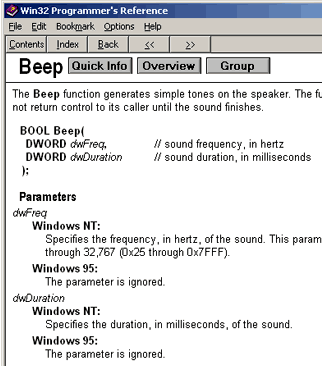
[ beep documentation ]
The Beep function within the kernel32.dll is a simple command which executes a System Beep Tone. The reference for the Beep function shows that this function has just 2 parameters:
To create a custom {mdm}Script Command based upon this DLL Function, it is important that we know how many parameters are required so good DLL documentation is extremely important.
Now that we have an idea of how to use the Beep function, let's launch Zinc v2.5 and select "Extension Creator" from the Tools menu as shown below:
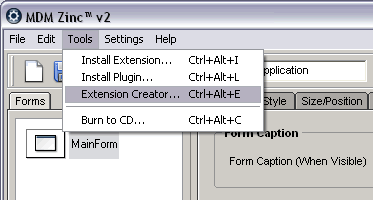
[ the Zinc Extension Creator menu-item ]
After you have selected the Extension Creator menu-item, you will see the Extension Creator window appear. From the bottom of that window, click on the Browse button. We will need to find a DLL file. The kernel32.dll file is located in the Windows / System32 Folder as shown below:
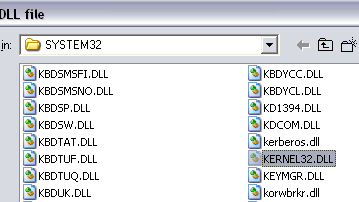
[ select your kernel32.dll file ]
Select the kernel32.dll and click on Open. The Extension Creator will then ask you to select an Extension Class name. The Extension Creator will automatically select the prefix "kERNEL32" for you. For the purpose of this Tutorial, we shall leave the prefix to this value:
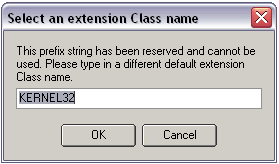
[ let's accept the default name for now ]
Click OK to accept the prefix. A second prompt will then be displayed as shown below:
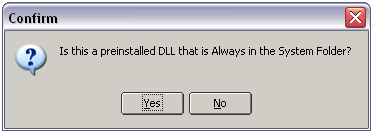
[ click yes if you are using a default, pre-installed DLL file ]
If you are connecting to a custom DLL, it is best to select "No"
at this prompt so that the DLL is packed into your final extension file. As we
are using a standard Windows DLL, we can select "Yes" at this prompt so that the
DLL is not included in the extension. Instead, the extension will search in the
appropriate system32 folder once it is installed.
Once you click on "Yes" the DLL Functions will be populated in the Extension
Creator Command List. This can take anything from 10 - 45 seconds based upon the
speed of your processor.
You should now see the Command List display all of the functions contained in your kernel32.dll file. Scroll through the list of functions in the Command List and select the kernel32.Beep function:
With kernel32.Beep selected in the functions column, click on the "Extension Definition" Tab and enter the details as shown below:
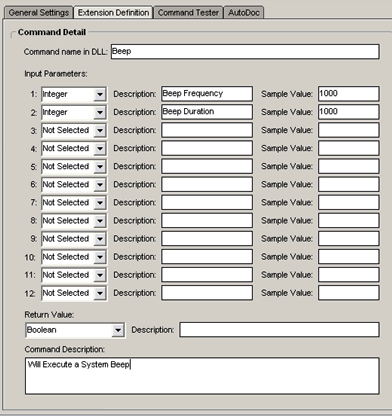
[ ensure your Extension Definition panel contains the same data ]
The Extension Creator allows you to specify up to 12 parameters
for each DLL Function. From the reference in Step 1, we know that only 2
parameters are required for the Beep Function. Set Parameter 1 and 2 to
"integer" from the drop down box and complete the Description and Sample Value
for each. For the purpose of this example, set the value for each parameter to
1000.
You can also specify a return value at the bottom which, although not required,
can help assist in debugging your custom command. In this case, we know from the
DLL Function documentation that the return value should be a Boolean.
Click on the "Command Tester" Tab. The bottom-half of your window should look
like the following:
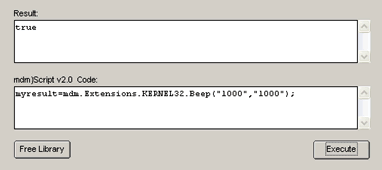
[ Command Tester area ]
With the parameters set and sample values provided, we can now
proceed to testing our command. Upon first test, you need to Load the Library by
clicking on the "Load Library" button at the bottom. Once loaded, click on the
"Execute" button to test. When clicked, you should here a System Beep which
lasts for approximately 1 second.
The exact syntax as it should be entered in your ActionScript is also generated
in the Code Pane. The value "true" should also be visible in the Result Pane. If
your test failed to play the beep sound, then the value "false" should be
visible in the Result Pane which would mean that communication was made but a
parameter or multiple parameters were incorrectly specified.
Once you are happy that your new Custom Command is working correctly in the
Command Tester, click on File and Create Extension:
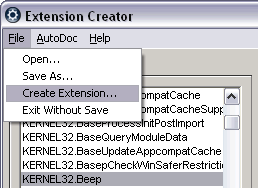
[ select Create Extension from the File menu ]
This will allow you to specify an extension name and path to save to. The extension file format is .zincx - this is the file that you can distribute and share with other users. Once you have created your Extension file, exit the Extension Creator.
Now, create a new file in Macromedia Flash (or your preferred SWF Authoring tool) and add a button with the following code which has been copied from the Command Tester:
on (release) {
  myResult = mdm.Extensions.KERNEL32.Beep("1000","1000");
}
All Custom Commands created with the Extension Creator always follow this format:
mdm.Extensions.CUSTOMCLASS.DLLFUNCTION()In this case, the CUSTOMCLASS name is "KERNEL32" and the
DLLFUNCTION name is "Beep". Please Note that these items are case sensitive, so
be sure to enter the command exactly as it is shown in the Extension Creator.
Create a Dynamic Text box on the canvas and label it "myResult" and export your
SWF movie.
If you have any questions, please post them on the MDM support forums.
 |
Jaspal Sohal www.multidmedia.com |
 |
Just a final word before we wrap up. What you've seen here is freshly baked content without added preservatives, artificial intelligence, ads, and algorithm-driven doodads. A huge thank you to all of you who buy kirupa's books, became a paid subscriber, watch the videos, and/or interact on the forums.
Your support keeps this site going! 😇

:: Copyright KIRUPA 2026 //--