


This is an archived tutorial from the kirupa.com legacy collection. It covers software that may no longer be available, but it is kept online because the ideas still hold up.
Detecting whether or not a user has a pop-up blocker enabled or not has somewhat recently become more of a concern for designers and developers. Since these blockers do not announce their presence, it is logical to assume that the best way to detect the successful launch of a pop-up is to have the pop-up send a message back to the originating window. This can be done in a number of ways, but this tutorial will cover a method of pop-up detection using Flash's LocalConnection class.
LocalConnection can be thought of as an 'instant messenger' of sorts between the instances of Flash Player running on a user's computer. You will be using this class to establish a connection with the pop-up that you attempt to launch. Before you begin, you should understand that this form of pop-up detection is not perfect, it is based on the assumption that the pop-up will load in a timely manner after the launch button is clicked, and it assumes that the Flash embedded in the pop-up executes the first frame code in that timeframe.
Note:
If the first frame of the pop-up is too large (filesize), the code may take longer to execute.
The animation below is an example of the LocalConnection Pop-Up Detector that you will be constructing in this tutorial. When the launch button is clicked, it will attempt to launch a pop-up. The TextField below the button will then display the outcome: the pop-up either launched or was blocked. You may have to close or minimize the pop-up (or tab, if your browser is set to open new tabs instead of new windows) to un-obscure the original animation.
[ click the launch button to check for a blocker ]
This method of detection can be used with any sort of pop-up launching script. This tutorial uses a simplified method of launching pop-ups, as the focus of the tutorial is on what happens after the pop-up is launched. There are various tutorials elsewhere on Kirupa that deal with more complex methods.
You will be expected to have an intermediate understanding of ActionScript and the Flash IDE for this tutorial.
var announcer:LocalConnection = new LocalConnection();
var waitTime:Number = 3000;
var checkFrequency:Number = 500;
var timeInterval:Number;
announcer.confirmPop = function():Void {
  info_txt.text = "Pop-Up Success!";
  this.close();
  clearInterval(timeInterval);
};
launcher_mc.onRelease = function():Void {
  announcer.connect("popUpDialog");
  info_txt.text = "Connecting…";
  getURL("popUp.html", "_blank");
  timeInterval = setInterval(this._parent, "timer", checkFrequency, getTimer());
};
function timer(startTime):Void {
  var elapsed:Number = getTimer()-startTime;
  if (elapsed>waitTime) {
  clearInterval(timeInterval);
  info_txt.text = "Pop-Up Failed.";
  announcer.close();
  }
}
var responder:LocalConnection = new LocalConnection();
responder.send("popUpDialog", "confirmPop");
That's it! You're now ready to test your pop-up detector. Turn to the next section to see how the ActionScript you pasted functions.
Let's take a look at the ActionScript from the previous section. Other than the LocalConnection class and an alternate usage of setInterval, the ActionScript used in this tutorial probably won't be drastically new to you. LocalConnection has too many uses to explain here, but hopefully even if you weren't looking for a pop-up detection script, this example could give you an idea for another use of LocalConnection, or perhaps ease your mind if you are forced to show content in a pop-up later on.
var announcer:LocalConnection = new LocalConnection();
var waitTime:Number = 3000;
var checkFrequency:Number = 500;
var timeInterval:Number;
Here you are declaring four variables. The first of these is creating a reference to an instance of the LocalConnection class by using its constructor function. The second variable is the amount of time (3 seconds or 3000 milliseconds) that the main movie will wait before deciding that the pop-up was blocked. You can set this to any number, but realize that the user will not like waiting very long for their content to be shown. The third variable is the frequency with which your movie will check for the pop-up. This variable is only useful if you wish to know how quickly the pop-up called back to the originating movie after it was launched. The lower the number is, the more accurate that time will be. The last variable is being declared now so that a function can use it later to store an Interval ID.
announcer.confirmPop = function():Void {
  info_txt.text = "Pop-Up Success!";
  this.close();
  clearInterval(timeInterval);
};
In this section, you are defining the function that will be called by your pop-up. Notice that it is a function of the LocalConnection (announcer) object. The function returns nothing, so the datatype of the return is 'Void', so that Flash knows not to expect a return value. The first line of the function sets the text content of our TextField to something that tells you that your pop-up has indeed launched successfully.
The next lines clear up some 'leftovers' that will not need to be used again now that your pop-up is visible to the user. It is important to note the this keyword in front of the close() method. It references the LocalConnection object, whereas the other two lines have a different scope, the main timeline. The last line of the function stops the script from checking to see if the pop-up is open; you know this must be true now.
launcher_mc.onRelease = function():Void {
  announcer.connect("popUpDialog");
  info_txt.text = "Connecting…";
  getURL("popUp.html", "_blank");
  timeInterval = setInterval(this._parent, "timer", checkFrequency, getTimer());
};
The code in this section is executed when the Launch button is pressed. First, a connection is opened so that your main movie can receive the call from your pop-up. The name is unimportant as long as your pop-up movie has the same name (you will get to that later). This is somewhat similar to an event listener, but once connected, it can receive commands as long as the function is was commanded to do is defined. (instead of waiting for an event and then executing a specific, known action ). This can be compared to a diver communicating with his or her instructor before a dive. The connection is the diver stepping up onto the platform (assuming this is the only place where the instructor is within earshot). The instructor uses the send method to tell the diver which dive to perform (which function to call), but the diver must know how to perform that dive (the function must be defined).
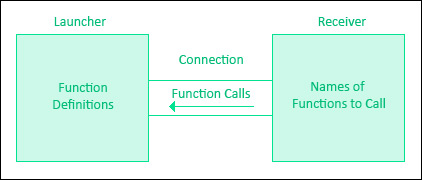
[ diagram of LocalConnection setup ]
The next two lines (the second and third) inform the user that a pop-up launch is being attempted, and then the launch itself is attempted. The last line uses a more uncommon usage of the setInterval function. The first argument is the scope of the method that is called in the second argument (it must be a String containing the method name). The third argument is how often the method will be called. The fourth argument is optional, but in this case, it is needed because it sends a parameter to the timer method. The parameter it sends is a number value from the getTimer function, which returns the amount of time the instance of Flash Player has been running. Your timer method needs this to know to display the 'Pop-up failed' message after a certain amount of time has passed.
function timer(startTime):Void {
  var elapsed:Number = getTimer()-startTime;
  if (elapsed>waitTime) {
  clearInterval(timeInterval);
  info_txt.text = "Pop-Up Failed.";
  announcer.close();
  }
}
The next function is defined differently so that it is available for use as soon as the movie initializes. This could not be done with the other functions because they require other objects to initialize before functions can be assigned. The 'elapsed' variable is the number of milliseconds after the Launch button is pressed. The if conditional statement checks to see if more time has passed than you are willing to wait for the pop-up to appear. If that is the case, the interval is cleared like in the confirmPop function (these can never both happen). The TextField's text is changed to reflect this outcome, and the LocalConnection's connection is closed as it is no longer needed.
var responder:LocalConnection = new LocalConnection();
responder.send("popUpDialog", "confirmPop");
The amount of ActionScript required for the pop-up portion of this tutorial is considerably less than the main section. This is because the bulk of the programming logic is done in the main movie. The pop-up is not guaranteed to appear (that is, indeed, a focal point of the tutorial), so its absence should not prevent the script from running.
The first line creates another LocalConnection instance. It is named the way it is so that its function is clear; it is alerting the main movie of its presence. The second line sends a function call to the popUpDialog connection, which tells the main movie to run the confirmPop function if it exists, which it does.
That's it for the tutorial! Remember, this is only one of the many possible implementations of LocalConnection. As always, the kirupa.com Forum will most likely have the answer to any question that you might have about this tutorial or other Flash-related topics. Questions, comments, and errors relating to this tutorial can also be sent in Private Message form to either Kirupa or me.
The complete, working version of the example used in this tutorial can be found here:
Have fun scripting!

|
Krilnon Reclipse |
Just a final word before we wrap up. What you've seen here is freshly baked content without added preservatives, artificial intelligence, ads, and algorithm-driven doodads. A huge thank you to all of you who buy kirupa's books, became a paid subscriber, watch the videos, and/or interact on the forums.
Your support keeps this site going! 😇

:: Copyright KIRUPA 2026 //--