 Tutorials
Books
Videos
Forums
Tutorials
Books
Videos
Forums


This is an archived tutorial from the kirupa.com legacy collection. It covers software that may no longer be available, but it is kept online because the ideas still hold up.
Sliders can be used in many ways in a site: to
control sound, to scroll a text, or more generally
to adjust the value of a variable at run-time. We
are going to see in this tutorial how to build a
very simple slider with Flash MX. Then one that is a
tiny bit more complex. And then in the extension
pack (next tutorial) how to build the corresponding
component. Nice and easy.
[ The slider we are going to build ]
All you need is a line and a dragger. If you open the source provided and look inside the library, you'll see that the dragger is a very thin rectangle, with its registration point in its center, and that the line is 100 pixels wide, with its registration point at the left end of it. I didn't pick this width at random : I chose it because most of the usual quantities have a value comprised between 0 and 100, and it's very appropriate for percentages too.
To make it really reusable, we are going to make it a little component on its own, that you can just drag and drop on your scene and have a functional slider. It won't be a proper component at first because we want the code to remain simple, but it won't be so far.
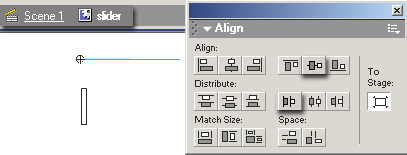
[ position of the left end of the line ]
The code:
                      this.ratio=0 ;

dragger.onPress=function(){

  this.startDrag(true,0,0,line._width,0);

  this.onEnterFrame=function(){

  ratio=Math.round(this._x) ;

  }

}

dragger.onRelease=dragger.onReleaseOutside=stopDrag;
[
the code ]
startDrag(lockCenter,left,up,right,bottom)
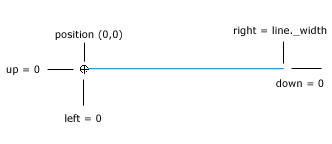
[ the parameters of the startDrag ]
You can see that when the dragger is completely
at the left of the line, this._x equals 0, and so
does the ratio, and when it's at the right of the
line, this._x equals 100, and so does the ratio.
Notice that the last line is that simple because the
line movie clip is 100 pixels wide.
Anyway, the first version of the slider is done.
All you have to do now to use it is drag and drop it
on the scene, give it an instance name, for instance
mySlider, and then get the value of the
slider using mySlider.ratio. In the
example I did, I assign the value of the slider to a
text box called ratio by putting this in the
first frame of the movie:
this.onEnterFrame=function(){

  ratio.text=mySlider.ratio;

  }
We just need to change a few things in the code of the slider to make this work. It's a basic " Rule of 3 " as we call it in French.
                      this.ratio=0 ;

dragger.onPress=function(){

  this.startDrag(true,0,0,line._width,0);

  this.onEnterFrame=function(){

  ratio=Math.round(this._x*100/line._width) ;

  }

}

dragger.onRelease=dragger.onReleaseOutside=stopDrag;
You can see that when the line is 100 pixels
wide, length equals 100, and then
this._x*100/line._width equals this._x*100/100 =
this._x, which is exactly what we had in the first
place (I'm just trying to show that the formula
works
 ).
).
[ Enter a length and press ENTER ]
Here! I hope you found this tutorial interesting.
Check back soon and we'll see how to build a nice
slider component from the A to the Z.
-pom
Just a final word before we wrap up. What you've seen here is freshly baked content without added preservatives, artificial intelligence, ads, and algorithm-driven doodads. A huge thank you to all of you who buy kirupa's books, became a paid subscriber, watch the videos, and/or interact on the forums.
Your support keeps this site going! 😇

:: Copyright KIRUPA 2026 //--
