Tutorials
Books
Videos
Forums
Tutorials
Books
Videos
Forums


While a simple sound 'on' or sound 'off' button is acceptable, a volume slider is even better! A volume slider is a small bar that you can drag to increase or decrease the volume of any sound. In this tutorial, you will learn how to create just that.
The following animation is a good example of what you will be creating. Drag the horizontal slider to the right and press the Play arrow to hear the sound. Notice how the volume increases when you slide the slider to the right and decreases when you slide the slider to the left.
[ once the music loads, increase the volume and press the play arrow ]
Creating the Animation:
 |
Download FLA and MP3 File |
_root.volume = ratio;
The entire section of code will now look like this with the code you added colored in blue:
this.ratio = 0;
dragger.onPress = function() {
this.startDrag(true, 0, 0, line._width, 0);
this.onEnterFrame = function() {
ratio = Math.round(this._x*100/line._width);
_root.volume = ratio;
};
};
dragger.onRelease = dragger.onreleaseOutside=stopDrag;
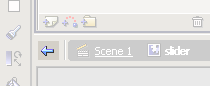
[ press the blue arrow to go to the main timeline ]
mySound.setVolume(_root.volume);
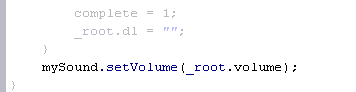
The last few lines of code in your Actions window should look similar to the following image:
[ copy and paste the line of code directly above the last bracket ]
ActionScript Explained
First, let us discuss how the sound gets
played and the volume adjusted. The following section of code can be
found on the slider movie clip:
onClipEvent (load) { The orange
colored code creates our sound object. In this tutorial, I
am calling the sound object mySound.
For information on dynamically loading a sound file, scroll
to the bottom of the page from
the following URL:
http://www.kirupa.com/developer/mx/loading.htm In the green section
of code, the actual song is preloaded before being
displayed. The total size of the sound file is determined
using getBytesTotal(). The
portion of the sound that has currently loaded is determined
using getBytesLoaded().
By using an if statement, we can tell Flash
to check if the portion of the sound file loaded does not equals the total file size of the sound file. If the
song is still downloading, the if statement will tell a
textbox 'dl' to display the text "downloading song...". If
the song has loaded, a variable called
complete is
initialized to 1. You will see where this variable is used
again. In the blue portion of the
code, setVolume() is used for the
mySound sound object. The
variable _root.volume
carries a number between 0 and 100 as
determined by the slider position (remember we set
_root.volume = ratio inside
the slider). When you combine all of the above you get the
ability to control the volume of the sound.
Now, right click on the Play button on
the stage and select Actions. The code you will see is:
The above code actually allows you to play
the sound that was loaded in the slider movie clip. If the
variable complete, located on the
mySlider (slider) movie clip, equals 1, the song
starts to play and loops 99 times before stopping. If you
recall, in the preloader I discussed in the previous
section, the variable complete
was initialized to 1 after the song was loaded. I did not
want the user to play the sound without having completely
downloaded the song. The only way to ensure that would be to
use an if statement that
prevents the song from being played unless the value of
complete = 1; which it will
once the sound is loaded.
Thanks a lot to
Shane Waldeck (lostinbeta) for helping me resolve a
childishly easy sound problem I had initially.
Just a final word before we wrap up. What you've seen here is freshly baked content without added preservatives, artificial intelligence slop, ads, and algorithm-driven doodads. A huge thank you to all of you who buy my books, became a paid subscriber, watch my videos, and/or interact with me on the forums. Your support keeps this site going! 😇
mySound = new Sound();
mySound.loadSound("sound2.mp3", false);
}
onClipEvent (enterFrame) {
downloaded = mySound.getBytesLoaded();
total = mySound.getBytesTotal();
if (downloaded != total) {
_root.dl = "downloading song...";
} else {
complete = 1;
_root.dl = "";
}
mySound.setVolume(_root.volume);
}
if
(_root.mySlider.complete == 1) {
_root.mySlider.mySound.start(0, 99);
}
}

download
final source for flash mx (mp3 not included)


:: Copyright KIRUPA 2026 //--