


Flash's built-in Tweening classes can, at best, be described as "good enough." They are optimized for the common cases, but once you start cranking up the awesomeness, you'll run into memory and performance problems. To help address this, a bevy of 3rd party tweening libraries have been unleashed upon the world.
One of my favorite such tweening libraries is TweenLite. It is extremely fast, lightweight, easy-to-use, and it comes with a lot of cool features that you may find useful. Below is an example of me using TweenLite to ease a circle to the point of your click:
[ click anywhere to see the circle move there! ]
In this tutorial, you will learn how to use the TweenLite library to create a simple tween using nothing but some sweet AS3 code.
Getting Started
First,
because TweenLite is a 3rd party library not bundled with
Flash, you will need to download it first. Go ahead and do
that by visiting the
TweenLite website and downloading the AS3 version:
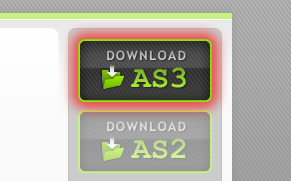
[ download the AS3 version ]
Once you have downloaded the file, extract the contents of the greensock-as3 folder to a location on disk:
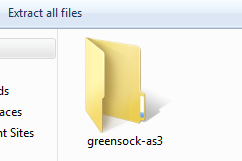
[ extract the greensock-as3 folder ]
Now that you have the TweenLite library, what we need now is a Flash application that will take advantage of it. Instead of having you create one from scratch, I'm going to instead point you to an incomplete / partial example that I have already created that you will modify instead.
Download the source files for our sample application below:
|
After the download is done, extract the file's contents to a location on disk that isn't the same location that you extracted your TweenLite library files to:
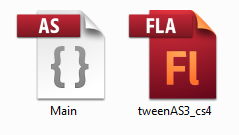
[ the two files you downloaded ]
You should now see two files - tweenAS3_cs4.fla and Main.as. Go ahead and open both of these files in Flash (CS4 or higher). Once you have opened both of these files, relax - the hard part about making this all work has been done!
Adding the TweenLite Library
To use the TweenLite library, we first need to tell the
Flash compiler about it. There are two parts to this:
Let's look at copying the library first. Go into the greensock-as3 folder that you extracted earlier. Find the folder called com:

[ find the com folder ]
Copy this com folder and paste it in the folder you extracted your AS and FLA file to:
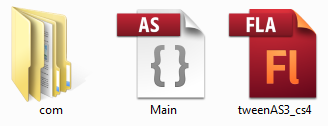
[ such a happy family! ]
Right now, your com folder should be in the same directory as your Main.as and tweenAS3_cs4.fla files. This takes care of the first step.
The next step is to tell the Flash compiler that the TweenLite library exists. The way you do that is by adding the appropriate import statements to top of the code files where the library will be used.
Go ahead and switch to Main.as and take a look at what you currently have:
The code you have in Main.as is pretty simple. You basically have some code that associates the Click event with the moveToClick event handler.
What we are going to do is add a few import statements. Below the last import statement, start typing in the following:
You will find the intellisense start to kick in as you are typing:
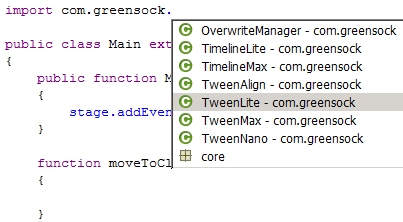
[ there is nothing really to add in this caption... ]
Having the intellisense guide you to the right class is always a good sign. After you have added the TweenLite class, go ahead and add the import statement for the easing classes:
Right now, all of your import statements will look as follows:
This is good. Once you have your import statements right, all that is left is to use the classes in your application.
Adding a Tween with some Ease
Look down at your code where your moveToClick event handler
is. We are going to add some code here that allows us to
animate the position of the circle (tweenMC) to the point of your
mouse click.
Add the following line:
Once you have added this line, test your application to make sure everything works. Click in a spot on your application to see the circle make its way to its destination.
Quick Deconstruction
The
TweenLite.to method is pretty much all you need to create
your animation. The general formula for using this method
is:
In our example, the object we are animating has an instance name of tweenMC, the duration is .5 seconds, and it has the x, y, and ease properties set. As long as you know which property to animate and the value to animate that property to, you will go far.
To learn more beyond what I've provided here, check out the excellent documentation that goes along with the TweenLite library.
Conclusion
Well, that's
all there is to this very quick trip through downloading and
using the TweenLite library in your Flash project. If you
get a chance, explore some of the more advanced things you
can do with TweenLite that go beyond what I've shown here.
Just a final word before we wrap up. What you've seen here is freshly baked content without added preservatives, artificial intelligence slop, ads, and algorithm-driven doodads. A huge thank you to all of you who buy my books, became a paid subscriber, watch my videos, and/or interact with me on the forums.
Your support keeps this site going! 😇


:: Copyright KIRUPA 2026 //--
