 Tutorials
Books
Videos
Forums
Tutorials
Books
Videos
Forums


Flash is no longer just a program that you use to create cool special effects and animations. Flash is used extensively for navigation and other interactive purposes. A key facet to navigation is hyperlinks. You are familiar with hyperlinks in browsers; you click on a link and a page loads. Flash, on the other hand, works differently.
Note
To learn how to create a Hyperlink using ActionScript
3, read the
Hyperlinks in AS3 tutorial instead.
Creating a hyperlink is not too difficult, but it does require some moderate degree of effort until you get used to hyperlinking Flash. This tutorial will help you get introduced to the 'art' of hyperlinking in Flash!Creating a hyperlink is not too difficult, but it does require some moderate degree of effort until you get used to hyperlinking Flash. This tutorial will help you get introduced to the 'art' of hyperlinking in Flash!
[ click the Flash button above ]
Creating a Hyperlink
The following steps will guide you in
creating a hyperlink:

[ circle after having been selected ]
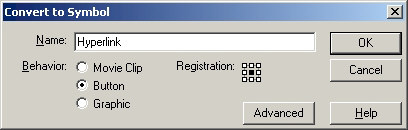
[ circle after having been selected ]
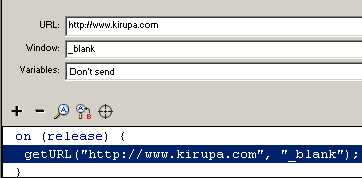
[ the action panel after filling in the fields ]
Window States
You may have noticed, that when the
button was clicked, it opened a page in a new window.
Sometimes you may not want every link to open in a new
window. Maybe you want the link to open in the current
window. That is where the Window field of the button Actions
plays a large role.
In this tutorial, you clicked the Window drop-down menu/field and picked _blank from one of four choices. To make it easier for you understand the Window states, I have provided a brief explanation about each selection in Window drop-down menu:
If you are curious as to how my FLA looks like, click the link below. You should note that my version of the FLA is an exact replica of the example you saw near the top of this page. In other words, the FLA contains the 'click the button' text and buttons states!
|
Just a final word before we wrap up. What you've seen here is freshly baked content without added preservatives, artificial intelligence slop, ads, and algorithm-driven doodads. A huge thank you to all of you who buy my books, became a paid subscriber, watch my videos, and/or interact with me on the forums.
Your support keeps this site going! 😇


:: Copyright KIRUPA 2026 //--
