Tutorials Books Videos Forums

Change the theme! Search!
Rambo ftw!

Customize Theme


Color

Background


Done

Text In Flash: Make it Legible!

by kirupa   | filed under Flash and ActionScript

A common problem plaguing Flash sites is not a lack of design. Often times, the depth and complexity in some Flash animations easily rival the paintings of famous contemporary artists. The problem is not the design, but the problem is the presentation of the content that supports the design: the text.

The following animation includes examples of three text styles that I find commonly used on many animations:

[ click on the 'good', 'bad', and 'ugly' links to see examples of text ]

Adding TextAs you could tell from clicking the three links in the animation, the text in the "good" looks the best. Why? I will give you a brief rundown of why the good and the bad and the ugly options are not proper for a Flash animation:

  1. The text in the good option is sharp and very legible. There is no blurriness in the edges and the spacing is good.
  2. Option bad is very similar to option good, but there is noticeable blurriness. Thank Flash's anti-aliasing feature for that. Overall, it makes for bad reading.
  3. Option ugly is just what the name says...ugly and of very bad quality! Unless you really want to have your users look through blurry text that is Times New Roman, you should consider using a different font besides the age-old default font.

If your site's text falls into the bad/ugly categories, don't worry. There are ways to make your text better, and this tutorial will help you to learn that.

  1. Create a new movie in Flash. Make the movie any size you want. It really doesn't matter for this tutorial.
  2. Copy the text from the following text box. Don't paste it anywhere just yet:
Once upon a midnight dreary while I pondered. weak and weary

Over many a quaint and curious volume of forgotten lore

While I nodded nearly napping suddenly there came a tapping

As of someone gently rapping rapping at my chamber door.
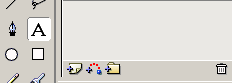
  1. Click the Text Tool icon from the toolbox on the left:

[ the text tool icon ]

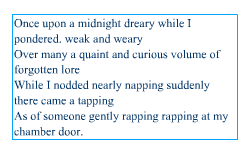
  1. After you clicked the Text Tool icon, go to your movie stage and draw a rectangular box to house the text. After you have drawn that, paste the text you copied just two steps ago.Your animation will look like the following image:

[ note the font selection and the blurriness; may be different on your screen ]

  1. Save the file and preview the animation in your browser.

More likely than not, you probably do not like what you see. The presentation of the text you are seeing in your browser is how majority of all Flash sites present their text. Let's find out how to make the text better.

Making the Text Sharp and Legible

I am sure you are interested in finding out how you can make your text better:
  1. Go back to the Flash animation and select the text with your mouse pointer.
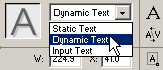
  2. The Text Properties panel will appear toward the bottom of your Flash window. Click the Static Text drop-down menu (the menu to the right of the "A" graphic). Select Dynamic Text:

[ select the Dynamic Text option ]

  1. Once you have done that, click the Font drop-down menu and select a font that you like. For the Font Size, enter an even value. Most fonts don't scale well when set to an odd value such as 9, 11, 13, 15, etc. Set your font to size 10 or 12.
  2. The next step is for you to set your font to a color that is easier to see. You should try to achieve contrast between the text color and your background.
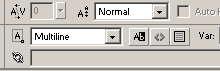
  3. The final steps involve some minor formatting. Unless you want your visitors to highlight the text you have in your Flash animation, make sure the Selectable button is not depressed. Also, click the Single Line drop-down menu and select Multiline.Your text properties panel for Step V should look like the following image:

[ the Multiline and Selectable option and button ]

  1. Preview your animation by going to File | Publish Preview | HTML.

You are finished with this lesson. You may have noticed that the text in Flash still looks blurred. The effects of the font formatting will only be visible in the browser and the Flash Player. To remove the blurriness seen while editing, go to View | Antialias. That should fix the problem with blurry text seen while editing in Flash MX.

Using Fonts For Flash Fonts

If you are on the look out for some sharp, pixel fonts that don't blur regardless of how you place them in Flash, you should give the fonts over at Fonts For Flash a shot.

To make the most out of using their fonts, try to adhere to the following guidelines:

  1. Set your font size to multiples of 8 such as 8, 16, 24. The fonts look odd at other sizes.
  2. Keep the text field positioned on whole-number x and y values.
  3. Turn off anti-aliasing while editing if the text looks blurry in the Flash authoring environment.

Just a final word before we wrap up. What you've seen here is freshly baked content without added preservatives, artificial intelligence, ads, and algorithm-driven doodads. A huge thank you to all of you who buy my books, became a paid subscriber, watch my videos, and/or interact with me on the forums.

Your support keeps this site going! 😇

Kirupa's signature!

The KIRUPA Newsletter

Thought provoking content that lives at the intersection of design 🎨, development 🤖, and business 💰 - delivered weekly to over a bazillion subscribers!

SUBSCRIBE NOW

Creating engaging and entertaining content for designers and developers since 1998.

Follow:

Popular

Loose Ends

:: Copyright KIRUPA 2026 //--