NAVIGATION:


SUPPORTERS:

FlashComponents
  Flash Templates
  Flash Gallery
  Flash Slideshow
  Flash Menu
  Flash Design
  Flash Video
  User Interface


FOLLOW:

RSS it down! Twitter it up! Facebook it like a fiend!


Launching
a Centered Pop-Up Window
         by kirupa | revised 9 October 2004

A common feature that you can see on many Flash sites is the pop-up window. While this site features several tutorials on creating variations of the pop-up window, this one is a little bit different; it is centered. You click a button and the new window opens in the center of your screen regardless of your resolution.

Click on the GO button for an example of a pop-up window that is centered on screen:

[ click the 'GO' button and a window will appear centered in your browser ]

Displaying a Centered Pop-Up Window:
  1. Create a new movie by going to File | New. Set the width and height of your movie to anything you choose.
     
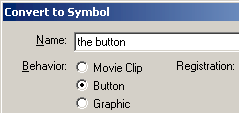
  2. Draw a circle that will act as your button. Once you have drawn your circle, select it and press F8 (Insert | Convert to Symbol). The Convert to Symbol dialog box will appear. Select Button and press OK.

[ select "Button" and press OK]

  1. Now that the circle is a button, it is time to add some actions. Right click on the button and select Actions. The Actions dialog box will appear. Copy and paste the following code:
on (release) {
//customize the window that gets opened
// 0 equals NO.
// 1 equals YES.
address = "http://www.kirupa.com/modular/pop-up.htm";
target_winName = "kirupa";
width = 400;
height = 300;
toolbar = 0;
location = 0;
directories = 0;
status = 0;
menubar = 0;
scrollbars = 1;
resizable = 0;
//sends data back to the function
openWinCentre(address, target_winName, width, height, toolbar, location, directories, status, menubar, scrollbars, resizable);
}
  1. The last step involves adding some more actions. Insert another layer on your timeline and name it "actions".
     
    Right click on the keyframe on the "actions" layer and select Actions. Copy and paste the following code into the Actions dialog box that appears:
_root.openWinCentre = function (url, winName, w, h, toolbar, location, directories, status, menubar, scrollbars, resizable) {
getURL ("javascript:var myWin; if(!myWin || myWin.closed){myWin = window.open('" + url + "','" + winName + "','" + "width=" + w + ",height=" + h + ",toolbar=" + toolbar + ",location=" + location + ",directories=" + directories + ",status=" + status + ",menubar=" + menubar + ",scrollbars=" + scrollbars + ",resizable=" + resizable + ",top='+((screen.height/2)-(" + h/2 + "))+',left='+((screen.width/2)-(" + w/2 + "))+'" + "')}else{myWin.focus();};void(0);");
}
  1. Save the animation and preview it in your browser. You will notice that the window appears perfectly centered.

Customizing the Window
Unless you want your pop-up window to display updates from the kirupa.com site, you probably want to modify the window size, content it loads, and the window's attributes such as toolbars, etc. The following information should help you to customize the window.

Right click on your button and select Actions. You will see in the first few lines, that I mentioned the property and its value. To change the URL of the page that gets opened, simply change the text in quotation marks after the word "address". To enable a property that is disabled like displaying the status bar, find the line that says "status =" and change the 0 to a 1. Simple as that. I will explain what each variable stands for in the real world:

  • address
    The address is the path to the page you want to have opened in the pop-up window.
  • target_winName
    This is the name of the window that will be opened. If you are familiar with frames, you will know that each frame-page has a name attached to it. When you link, you specify the name of that frame to load a page into.

    This tag works very similar for the pop-up window. If you want anything to be loaded into the window, you would target the window name you specify. You don't have to worry about this tag unless you are familiar with HTML. Just enter a word and move on!
  • width
    Here is where you would specify the width of the window that appears.
  • height
    Here is where you would specify the height of the window that appears.
  • toolbar
    Specifies whether you want the pop-up window to display the browser's toolbar with the back/forward buttons.
  • location
    Specifies whether you want the address bar to be displayed in your browser.
  • directories
    Specifies whether you want other toolbars installed by the user in their browser such as a Google toolbar or a Links toolbar to displayed when a page is opened.
  • status
    Specifies whether you want the status bar toward the bottom of the window to be displayed.
  • menubar
    Specifies whether you want the menu bar with the File, Edit, View Tools, etc. commands to be visible near the top of the browser.
  • scrollbars
    Specifies whether you want the scrollbars to be displayed in the window. If the content exceeds the size of the window, I highly recommend you enable the use of scrollbars. If the content snugly fits within the window, you may disable the scrollbars feature if you would like!
  • resizable
    Specifies whether the use will be able to resize the window by dragging the edges of the window.
     

As always, I have provided the source code for you to compare your version with that of mine. Make sure you have WinZip installed on your computer.

download source for flash mx

 
Acknowledgements

This tutorial was not my idea actually. Special thanks go out to Toon Puttemans and the open-source Flash community who made it possible for me to get hold of the original code!

I hope the information helped. If you have any questions or comments, please don't hesitate to post them on the kirupa.com Forums. Just post your question and I, or our friendly forum helpers, will help answer it.

The following is a list of related tutorial and help resources that you may find useful:

How to use the Forums
New, Upcoming, and In-Progress Tutorials
How to Help out kirupa.com
Writing Tutorials
 

Cheers!

Kirupa Chinnathambi
facebook | twitter


SUPPORTERS:

kirupa.com's fast and reliable hosting provided by Media Temple. flash components
Creative web apps. Make your own free flash banners and photo slideshows.
Check out the great, high-quality flash extensions. Buy or sell stock flash, video, audio and fonts for as little as 50 cents at FlashDen.

Flash Transition Effects

Flash Effect Tutorials

Digicrafts Components
Flash effects. Art without coding. Upload, publish, deliver. Secure hosting for your professional or academic video, presentations & more. Screencast.com
Streamsolutions Content Delivery Networks Flipping Book - page flip flash component.
Flash-Gallery.com - Get your flash photo gallery (flash component or swf gallery Learn how to advertise on kirupa.com
 

cdn
content delivery network (cdn)
