


This is an archived tutorial from the kirupa.com legacy collection. It covers software that may no longer be available, but it is kept online because the ideas still hold up.
Interactivity is all the rage these days. Everything has to do something interactive otherwise it is just not cool and worth using. Almost all applications you create or use these days contain some form of interactivity that goes beyond what you may have seen many years ago. When a timer hits a certain value, a movie starts to play. When you press down on your spacebar, a space ship fires a laser at a barrage of aliens. When you click on a button, you launch your browser to display a web page you specified:
[ image of Galaxian from Wikipedia ]
The fairly limited examples I showed in the previous paragraph are fairly diverse. Some are from video games, and some are from your standard run-of-the-mill applications that you use often. Despite their seeming variance, there is one thing they all share in commmon. In order to create the various components that make them up, you need to write code. If you are not someone very adept at writing code, implementing many forms of interactivity may simply be out of reach or very time consuming. To help address this problem, you have what are known as behaviors.
To paint with a broad brush, behaviors are reusable pieces of interactivity that you can easily add to your Silverlight or WPF applications using Expression Blend 3. As a user of behaviors, you can accomplish all of the tasks that I described above by just applying a behavior and tweaking a few properties.
In this article, I am not going to delve into great detail on how you can write them. Instead, I am going to introduce behaviors by taking a non-trivial example and comparing the workflow for completing a task without using behaviors as well as completing a task using behaviors.
After seeing all the demos of Deep Zoom in Silverlight, you realized that you wanted to create your own little Silverlight application that used the Deep Zoom technology to display some photos. Here is an example of something created in Deep Zoom:
[ click/pan around the above example and use your mouse wheel to zoom ]
You launch Expression Blend, and In Blend, you draw out your MultiScaleImage control and point it to some Deep Zoom images you exported. The MultiScaleImage control is what you use to You test your application, and you see something that looks like the following in your browser:
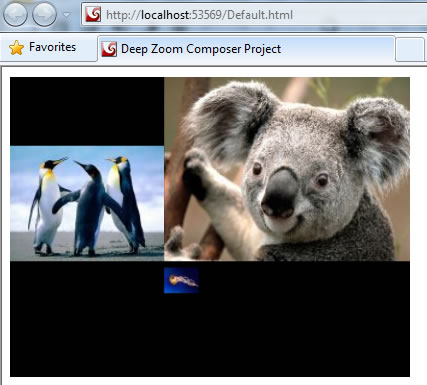
[ everything looks OK... ]
So far so good. You then try playing with your application by performing some common Deep Zoom gestures such as clicking, sliding, and rolling your mousewheel just like you saw in my example. After a few seconds, you realize that all of your clicking, sliding, and mousewheeling isn’t really doing anything to your Deep Zoom image. Nothing is happening! What is going on?
Here is what is going on. Out of the box, your MultiScaleImage control only provides you with the ability to view Deep Zoom content. Being able to interact with your content so that you can zoom and pan is something that you have to do on your own. This involves writing code...or does it? Find out in the next section.
In the previous section, you learned a little about the motivation for why we need to have easier ways of adding interactivity. In this page, let's look at how behaviors help with solving that problem.
Let’s first look at the hard way of making your MultiScaleImage control support zooming and panning. You give your MultiScaleImage control a name, jump into the code behind file, and write the code that adds zooming, panning, and mousewheel support.
The code for doing all of that properly is around 600 lines. When I copied and pasted that code it into Microsoft Word, the pasted content spanned around 7 pages:

[ that's a lot of code to write or copy/paste ]
This is 7 pages of code you will need to write for something that would provide you with the minimum level of functionality. Unless you had access to someone who is good at writing such code, your ability to create a compelling Silverlight application using Deep Zoom will be limited. This is where behaviors come in.
You may be going, while I don't have to write this code, I can easily copy and paste them from the internet. That is true, and that is significantly easier than writing the code yourself. Even though it is easier, there are still things that you need to do to make any involved code you paste work for a Silverlight or WPF application. At the very minimium, you need to add the hooks in XAML to bind the event to event handlers, adjust namespaces, and just do routing fiddling to make sure what you pasted fully works with your particular application.
In the preceding paragraphs, I showed you how complex it is to add some simple interactivity to your MultiScaleImage control. With the behaviors we introduced as part of Expression Blend 3, this same task has the potential of being easier…much easier.
Just like before, let’s say you are starting off with a simple Silverlight web application that displays some Deep Zoom content. You want to add the ability to zoom and pan your content, but you certainly don’t want to write or copy and paste hundreds of lines of code.
Instead, you continue with the project I described earlier. Instead of fiddling with code, launch the Asset Library and click on the Behaviors tab:

[ a small list of behaviors that you can use ]
You will see a collection of behaviors displayed. The behavior I want you to focus on is the one on the top-left called DeepZoomBehavior. Drag and drop that behavior onto your MultiScaleImage either via the artboard or the object tree:
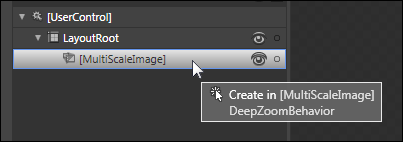
[ to apply a behavior, drag and drop it onto an element ]
Once you have dropped your DeepZoomBehavior onto your MultiScaleImage control, you will see your behavior happily attached to it:
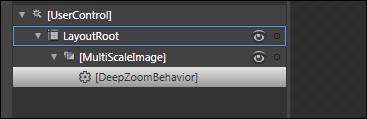
[ once your behavior is applied, it will be nested under the element you applied it to ]
All you have to do now is hit F5 to test your application. Just like before, your Deep Zoom content will display at its initial size. Unlike before, though, interacting with the content using your mouse will allow you to pan and zoom around. Even the mouse wheel works.
What I described is an example of behaviors at work. A behavior is a little reusable piece of interactivity that you can attach to any element. Once an element has been attached with a behavior, the element’s functionality is largely under the behavior’s influence. If you are a Futurama fan, think of a behavior as a brain slug attached to a host:

( image courtesy of The Infosphere )
In our example, I took the code that I would have normally written to interact with the MultiScaleImage control and placed it into a behavior. The amount of code needed to have my functionality exist is still on the order of 7 pages. What changed is the packaging and use of the code. You simply had to drag and drop this behavior onto an element. Because behaviors are self-contained and really project agnostic, you don't have to do any of the post-copy maintainence work you would normally perform when copying and pasting code from an external source.
So, there you have it. To summarize, behaviors are nothing more than code snippets packaged in a way that makes them easilly reusable. This means that you can drag and drop them on any element, modify some properties, and in the end, have the behavior influence what the element does. To tie up the problem we started with, behaviors enable you to add interactivity without writing code.
Just a final word before we wrap up. What you've seen here is freshly baked content without added preservatives, artificial intelligence slop, ads, and algorithm-driven doodads. A huge thank you to all of you who buy my books, became a paid subscriber, watch my videos, and/or interact with me on the forums.
Your support keeps this site going! 😇


:: Copyright KIRUPA 2026 //--