 Tutorials
Books
Videos
Forums
Tutorials
Books
Videos
Forums


This is an archived tutorial from the kirupa.com legacy collection. It covers software that may no longer be available, but it is kept online because the ideas still hold up.
As you may know, Windows 7 introduces an improved taskbar with some cool new features. One of these features is displaying progress information directly in the application's taskbar item itself. Instead of having to rely on looking at a progress bar inside the application like you've done in the past...
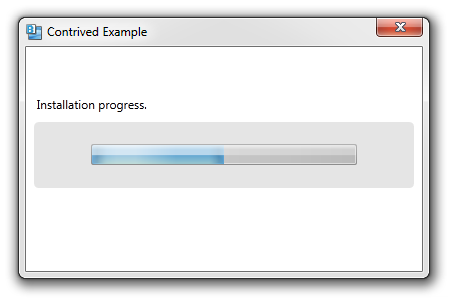
[ old school ]
...you can glance at the taskbar and get the same information with the progress information visible behind the application icon:
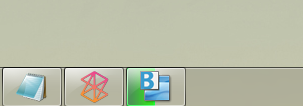
[ new school ]
In this short tutorial, I will quickly explain how you can write a few lines of code and have your application display progress information in its taskbar item.
Before we get to the code, let's make sure you have the right stuff for all of this. This functionality requires .NET4 and a version of Expression Blend that works with .NET4. If you do not have either of those prerequisites, download and install both of them from the following two links:
Once you have downloaded and installed both the .NET Framework and Blend, you are ready to start. Go ahead and launch Expression Blend, create a new WPF project, and open MainPage.xaml.cs:
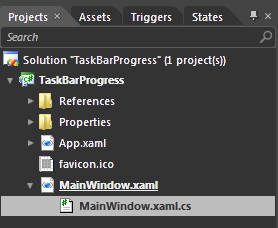
[ create a new WPF project and open MainWindow.xaml.cs ]
Right now, Blend will have your MainPage.xaml.cs code file open and ready for you to edit. This is a good point to take a quick breath before moving on.
First, let's look at how you can access the Taskbar Item via code. All of the functionality for working with your taskbar lives in the System.Windows.Shell namespace, so add the following using statement to your file:
using System.Windows.Shell;After you've added this using statement, you can work with the types that relate to your taskbar. In your constructor, directly below your InitializeComponent call, add the following code:
public MainWindow()
{
  this.InitializeComponent();
  // Insert code required on object creation below this point.
  TaskbarItemInfo taskbarItemInfo = new TaskbarItemInfo();
  this.TaskbarItemInfo = taskbarItemInfo;
}
This code doesn't really do anything that you can notice. What it does do is create a TaskbarItemInfo object called taskbarItemInfo and assigns it to your current application's TaskbarItemInfo. As you can guess, this does absolutely nothing...yet.
Like I mentioned earlier, your taskbar item in Windows 7 is partly a progress bar that uses its width to display progress:
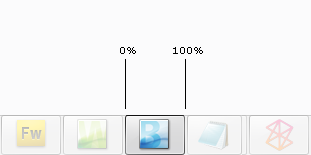
[ think of your taskbar item as a progress bar ]
The value of the progress bar is determined by the ProgressValue property that lives in the TaskBarItemInfo class. Let's add some code to what you already have. Go ahead and add the highlighted line:
public MainWindow()
{
  this.InitializeComponent();
  // Insert code required on object creation below this point.
  TaskbarItemInfo taskbarItemInfo = new TaskbarItemInfo();
  taskbarItemInfo.ProgressValue = .5;
  this.TaskbarItemInfo = taskbarItemInfo;
}
The ProgressValue property is of type double whose values go from 0 to 1, so by setting the value to .5, you are setting the progress at 50%. If you run your application right now, you will easily see that a green progress bar appears and stops about half-way through.
There is more to displaying the progress beyond just setting a simple value between 0 and 1. There are various states that you can't simplify such as errors, indeterminate situations, etc. To deal with those cases, you have the ProgressState property.
Add the highlighted line to your code:
public MainWindow()
{
  this.InitializeComponent();
  // Insert code required on object creation below this point.
  TaskbarItemInfo taskbarItemInfo = new TaskbarItemInfo();
  taskbarItemInfo.ProgressValue = .5;
  taskbarItemInfo.ProgressState = TaskbarItemProgressState.Normal;
  this.TaskbarItemInfo = taskbarItemInfo;
}
If you run your application, you won't see anything different than what you saw earlier. The reason is that your TaskbarItemProgressState, an enum that contains all of the progress states you can use, is currently set to Normal. It actually can be set to Error, Indeterminate, None, Normal, or Paused:
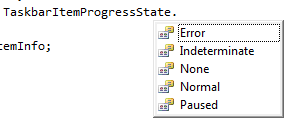
[ you can select from five predefined progress states ]
Depending on which state you select, your progress bar will look different. The following screenshot gives you a static visualization of what your progress bar looks like in each of the five states:
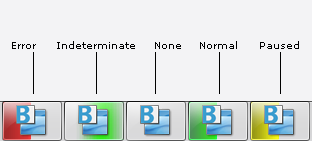
[ the five amigos in one picture ]
Whatever you set for the ProgressState will override your ProgressValue as necessary. For example, setting your ProgressState to Indeterminate will simply loop through the progress animation regardless of what you specify for your ProgressValue. Setting a ProgressState of None will not display anything as you can see above.
That is all there is to working with the taskbar progress notifications in Windows 7. As you can see, .NET 4 makes it easy to work with the native Windows 7 taskbar functionality. While you can do much of this with earlier versions of the .NET Framework, the amount of code and underlying Windows API knowledge you needed would have been too great to cover in a single page.
If you are curious to see what my application used as part of this tutorial looks like, feel free to download the source files from below:
Just remember that these source files will only work in a version of Expression Blend or Visual Studio that supports .NET 4.
Just a final word before we wrap up. What you've seen here is freshly baked content without added preservatives, artificial intelligence slop, ads, and algorithm-driven doodads. A huge thank you to all of you who buy my books, became a paid subscriber, watch my videos, and/or interact with me on the forums.
Your support keeps this site going! 😇


:: Copyright KIRUPA 2026 //--