


This is an archived tutorial from the kirupa.com legacy collection. It covers software that may no longer be available, but it is kept online because the ideas still hold up.
The classic "hello, world" application has been used since the 1970's to test whether a programming language works. Since then, it is customarily used to as the first example a programmer new to a computer language creates. In this case, it will also be used as the first of, what I hope to be, many .net tutorials that I will be writing. So it is only fitting, that this tutorial uses the classic "hello, world" as both the starting point for you to get familiarized with .net and for me to get familiar with writing tutorials for a new language.
Creating a basic console-application running on your PC is fairly simple, and many sites on the web cover how to do that. Instead, I will explain how to create a simple application for the web using ASP.NET. So to get started, you will need to install Visual Studio.
If you are using the full retail/academic version Visual
Studio 2005, you are already set. If you do not have
Visual Studio 2005, you can freely download the
fully-featured Express edition from the following
link. More specifically, for this tutorial
you will need to install
Visual Web Developer Express.
The Express editions of Visual Studio contain most of
all the features you would normally use for light to
moderate application development. The Express editions
are not shareware/trial-ware, etc. They are fully
featured applications that contain a subset of the most
often used features found in the full-blown Visual
Studio package. All .NET tutorials on this site will be
written with the Express editions of VS in mind.
The following steps will help you to create a HelloWorld .NET application that you can preview in your browser.
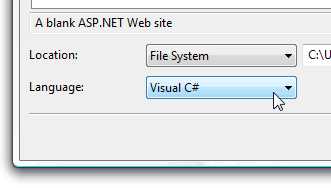
[ ensure your project is a ASP.NET Web Site with the Visual C# Language preference ]

[ your interface - click on image for larger view ]

[ click on the Design link to go to the Design view ]
We're on the right track, but there is more material to cover. In the next section, you will add and customize a Label component.
Just a final word before we wrap up. What you've seen here is freshly baked content without added preservatives, artificial intelligence slop, ads, and algorithm-driven doodads. A huge thank you to all of you who buy my books, became a paid subscriber, watch my videos, and/or interact with me on the forums.
Your support keeps this site going! 😇


:: Copyright KIRUPA 2026 //--