


This is an archived tutorial from the kirupa.com legacy collection. It covers software that may no longer be available, but it is kept online because the ideas still hold up.
In my earlier tutorial, you learned how to create a web service. Creating a web service is often just one part of the solution. You will need a way of accessing the web service and be able to retrieve useful data from it. In this tutorial I will explain how to create a simple ASP.NET page that, given an input, returns the appropriate data from an existing web service.
This tutorial is really divided into two parts. The first part outlines how to design your page to take user input and display the results, and the second part outlines the code needed to make the first part work. If you are just interested in finding out how to connect to a web service and the code needed to invoke it, feel free to skip the first part and proceed directly to the second part.
Note
If all you want to do is find out how to insert a web service and the code needed to invoke it, visit the second part of this tutorial. The first part goes over the UI needed to simulate a real application that would use a web service.
Here is a demo of what you will create: http://www.kirupafx.com/MovieInfo/Default.aspx
The following steps will guide you in setting up your project and form for sending and receiving data to our web service.
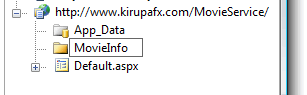
[ create a new folder and name it MovieInfo ]
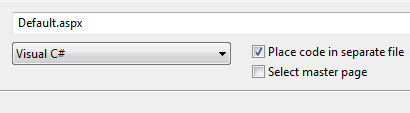
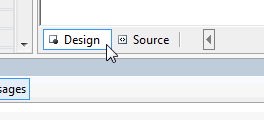

There is more of the interface that needs to be developed, and we have not even reached Part II yet!
In the previous section, you began to get your feet wet in learning how to use a web service. In this page we will pick up with where we left off and continue creating the interface for our page.
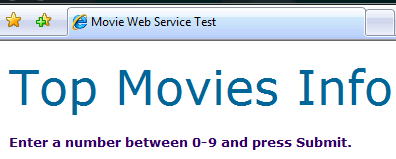
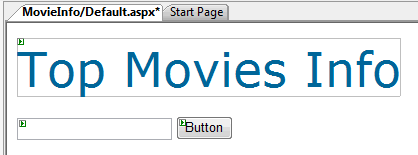
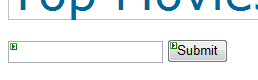
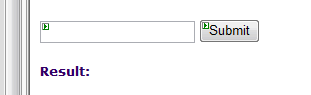
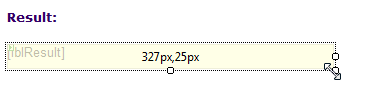
You are almost done working on the interface. There is just one more step left before we can proceed to Part II and actually work on adding our web service.
Phew, after the last few pages I'm sure you are looking forward to taking a break from designing the interface. On this page we wrap up the interface and begin adding our web service.
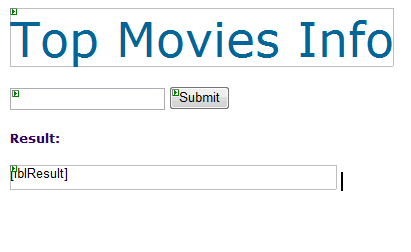
Alright! We are done creating our form, and all that is left is Part Two of this tutorial where you really learn how to get data from a web service and display the results.
Part One really dealt with the unrelated, yet necessary, job of providing the interface for sending and receiving data from our Web Service. In this section, you will get to add an existing web service and code up the interaction between the web service and our interface.
The following steps will detail how to add a web service to your project:
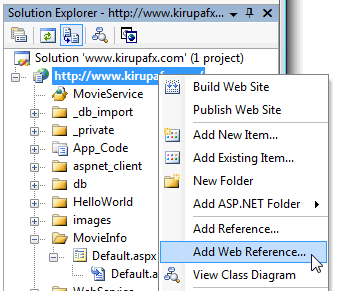
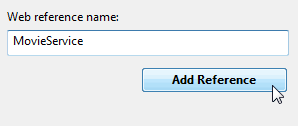
After you have pressed the Add Reference button, and if this was the first web service you have added to your project, an App_WebReferences folder will be created in your Solution Explorer:
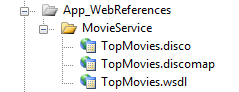
You are now done adding a web service to your project. All that is left now is to use some code to refer to our web service.
So far, we have added our Web Reference. In the next section, we will use our Web Reference to interact with the interface you created over the last few pages.
In the previous section, you added a reference to a web service. A reference by itself isn't all that helpful. We need to use the reference to do some cool(er) things, and this page will show you how.
We are finally at the stage where we can use some code to interact with our newly created web service. Before I go through explaining how to get our application to work, allow me to briefly summarize how you would use code to refer to your newly added web service.
In order to use the web service, you will need to assign a variable to it. Your variable will be of a type determined by both your web service Reference name as well as your Web Service's class name. Don't worry though, the auto-complete feature of Visual Studio makes it very easy.
In our case, our Web Reference is called MovieService. So typing MovieService followed by the dot ( . ) provides us with the following drop-down menu:
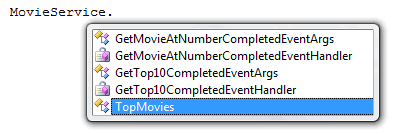
Automatically, the TopMovies item is selected, because that is a high-probability choice that you will make in this situation. So, our variable will be of type MovieService.TopMovies:
MovieService.TopMovies
  foo = new MovieService.TopMovies();
The foo variable in the above case can access all of the methods from the TopMovies.asmx web service you added under the MovieService reference. You will see more of this as we get back into finishing up our program.
Getting back to our application, our code will be added to the Default.aspx file's code-behind file. Open the Default.aspx.cs file by expanding your Default.aspx file (if it isn't already expanded already) and double-click on Default.aspx.cs:
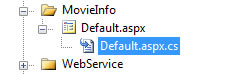
Once you have opened the Default.aspx.cs file, with the exception of the using statements, your code is pretty much empty. Copy and paste the following lines of code into the MovieInfo_Default code block:
The above code assumes you have a button called btnInput, a text input field called txtInput, and a label component called lblResult defined in the design of Default.aspx. If you followed Part 1 of this tutorial, then you do, so don't worry about it.
If you were to preview your page, you will find that your example works just as well as the example I have posted on the first page: http://www.kirupafx.com/MovieInfo/Default.aspx
Now you are done re-creating the example I posted on my home page. But beyond dragging/dropping and copying/pasting code, we really haven't done much. In the next section, we will take a look at why the code works so that you can learn how to apply modified versions of what was explained in this tutorial in your own applications.
In the previous section you completed the steps needed to get the web service example working on your server. This is the part that we have all been waiting for - the code explanation on why the code works the way it does. Over this and the next section, I will explain what each line of code does and how it enables the interaction between the interface and the web service.
MovieService.TopMovies ws;In this line, we are declaring a new variable ws with the type MovieService.TopMovies. Essentially, our ws variable will now allow us to access the various methods found in the MovieService.TopMovies class once initialized.
protected void Page_Load(object sender, EventArgs e)
{
  Page.RegisterHiddenField("__EVENTTARGET", "btnInput");
  ws = new MovieService.TopMovies();
}
The code in the Page_Load block runs when the page is loaded initially. This is a good location to get some of the default variables initialized as well as set some properties prior to the user having a chance to interact with the page.
Page.RegisterHiddenField("__EVENTTARGET", "btnInput");The above line of code is used to ensure that pressing the Enter button on the page causes our btnInput button to fire - almost as if it was clicked with the mouse. For the most part, I found this to be the easier of the ways in which Enter press functionality can be enabled.
The other ways either involved creating a Default Button or having some JavaScript that listened for an Enter press and execute some script when such a press is detected.
Overall, being able to set a KeyPress event should be much easier. Even the line of code I used above is not self-evident unless you spend some time pouring through the documentation. I will file this under the "I hope it gets fixed in the next version" cabinet.
ws = new MovieService.TopMovies();The Page_Load method is automatically invoked when the page is loaded, so when the page is loaded, the ws variable is initialized to be an object of type MovieService.TopMovies().
Ok, we are almost done. There is only one more page left, and I will wrap up the code explanation in the next section.
In the previous section we started our explanation of what the code is all about. In this page we will finish what we started and tie up some loose ends.
protected void btnInput_Click(object sender, EventArgs e)
{
  try
  {
  lblResult.Text = ws.GetMovieAtNumber(Convert.ToInt32(txtInput.Text));
  }
  catch
  {
  lblResult.Text = "Invalid Input";
  }
}
The btnInput_Click method, as you can guess, is invoked when you click the btnInput button you defined in your design of the Default.aspx page. When invoked, the following try/catch block is executed:
try
{
  lblResult.Text = ws.GetMovieAtNumber(Convert.ToInt32(txtInput.Text));
}
catch
{
  lblResult.Text = "Invalid Input";
}
Try/Catch blocks are simple ways of avoiding errors that may crash your application. If whatever code inside the try block returns an error - an exception, the code in the catch block is executed.
You will see why I need to use a Try/Catch block when you look at the following line in greater detail:
lblResult.Text = ws.GetMovieAtNumber(Convert.ToInt32(txtInput.Text));The above line takes whatever input you enter, ideally a number between 0 and 9, and sends that value to our ws object's GetMovieAtNumber method. Remember that our GetMovieAtNumber method takes an integer for its argument. The data returned by our input field will always be a string.
In order to go from a string to an integer, I use the Convert.ToInt32() method to convert a string into an integer. What if a user enters values that are not really numbers? For example, instead of inputting a value between 0 and 9, you submit a value like "foo". The Convert.ToInt32(), when faced with an input of foo, will return an exception that stops your program. Likewise, if the number entered is smaller than 0 and greater than 9, you will receive an Array out of Bounds exception that will also stop your program.
In order to avoid errors that completely stop the program from executing, try/catch blocks are used. When a non-numerical value or a value outside of the specified range is entered, an exception is still thrown. The difference is that, because of the try/catch block, the exception is caught and the code in the catch block is executed:
lblResult.Text = "Invalid Input";The above line of code is very straightforward. It sets the text property of lblResult label to "Invalid Input" if an exception is caught.
Well, the last few sentences pretty much wrap up this tutorial. If you followed this tutorial from the very beginning on Page 1, you created the interface, added a Web Reference, inserted some code, and hopefully learned how all of the various pieces work when put together.
Just a final word before we wrap up. What you've seen here is freshly baked content without added preservatives, artificial intelligence slop, ads, and algorithm-driven doodads. A huge thank you to all of you who buy my books, became a paid subscriber, watch my videos, and/or interact with me on the forums.
Your support keeps this site going! 😇


:: Copyright KIRUPA 2026 //--