


This is an archived tutorial from the kirupa.com legacy collection. It covers software that may no longer be available, but it is kept online because the ideas still hold up.
In my earlier tutorial, I talked about event handlers and how to use them. I did not go into great detail, because in many cases, your Integrated Development Environment (IDE) such as Visual Studio takes care of both binding an event to an event handler as well as creating the event handler if necessary. In most cases, the code the IDE provides for you is all you really need to detect the events. But...there are times when you need to go beyond what the IDE provides and write some code yourself.
In this article, I will focus on dealing with keyboard input. Your IDE will easily allow you to have an event handler bound to a keyboard-related event, but beyond that, though, you are on your own. That is where this tutorial comes in. I will first explain how to detect individual keys and then move on to the fun topic of how to handle key combinations such as Alt + F4, Ctrl + S, etc.
So, before we continue, you should download KeyboardEvents.zip for this tutorial, extract the files to your hard drive, and open the project up in Visual Studio. Don't worry - the interesting stuff hasn't been filled in. You'll do that yourself with help from this tutorial, for only the code unrelated to using keyboard input have already been written for you.
After you have downloaded and extracted (unzipped) the files from KeyboardEvents.zip to a location on your hard drive, open the KeyboardEvents solution in Visual Studio. When you open the Window1.xaml.cs file, you should see the following code:
namespace KeyboardEvents
{
  public partial class Window1
  {
  public Window1()
  {
  this.InitializeComponent();
  // Insert code required on object creation below this point.
  }
  private void KeyUpEventHandler(object sender, KeyEventArgs e)
  {
  }
  private void KeyDownEventHandler(object sender, KeyEventArgs e)
  {
  }
  }
}
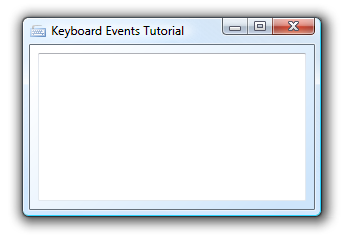
If you press F5 to run your application, you should then see the following:
[ what your application looks like ]
Your application is nothing more than a window with a textbox. When you type something in your textbox, though, the two event handlers in your code get fired because your XAML definition maps the KeyDown and KeyUp events to the KeyUpEventHandler and KeyDownEventHandler event handlers in the code-behind file Window1.xaml.cs:
<TextBox Margin="8,8,8,8" x:Name="txtMain" AcceptsReturn="True" AcceptsTab="True" Text="" TextWrapping="Wrap" KeyDown="KeyDownEventHanlder" KeyUp="KeyUpEventHanlder" VerticalScrollBarVisibility="Auto"/>By now, you should have a good idea of what event handlers (see Event Handler tutorial), so I will not focus too much on the files you downloaded. Instead, this tutorial will help you write some code in your event handlers to learn how to deal with keyboard input.
Over the next few pages, I will provide some code and explain how to perform common actions that you would normally want to do when writing an application that depends heavily on keyboard input.
Let's start by detecting which key was pressed. For example, let's say that every time the letter K is pressed, we play a default system sound. The code for doing that would be:
private void KeyDownEventHanlder(object sender, KeyEventArgs e)
{
  if (e.Key == Key.K)
  {
  System.Media.SystemSounds.Exclamation.Play();
  }
}
If you were to add the above non-grayed out lines to your KeyDownEventHandler method and run the program, everything still looks the same. When you start typing in your textbox, and more importantly, when you hit the letter K on your keyboard, the default Windows exclamation sound will play. All of your other keys simply display their letters on the screen, but you single out the letter K to also play a sound when pressed.
Let's look in detail at how the key detection works. First, I access my event argument e's Key property:
private void KeyDownEventHanlder(object sender, KeyEventArgs e)
{
  if (e.Key == Key.K)
  {
  System.Media.SystemSounds.Exclamation.Play();
  }
}
The Key property keeps track of the key currently being pressed because your KeyDownEventHandler runs every time you press down on a Key. I place e.Key as part of a condition for my if statement because I want to check whether the key currently pressed matches the key that I want pressed, which is K:
private void KeyDownEventHanlder(object sender, KeyEventArgs e)
{
  if (e.Key == Key.K)
  {
  System.Media.SystemSounds.Exclamation.Play();
  }
}
The check whether our e.Key value is equal to the letter K which is represented by Key.K. When the letter pressed matches the letter we want, the if statement becomes true and whatever we wish to execute....well, executes!
This is great for individual letters, but what if you want to provide some sort of Save functionality where your users have to press two keys such as Ctrl + S? The above approach won't work too well, solet's look at how to do that in the next section.
Note
The information from the following section is almost entirely based on my blog post on this topic: http://blog.kirupa.com/?p=68
Key combinations are a fancy pair of words to describe pressing/holding multiple keyboard buttons to perform a command. For example, if you have ever used Ctrl + S to Save, Ctrl + C, to Copy, or Alt + F4 to close an application, then you have used key combinations. There are many such combinations, and while I provided some common ones, many applications ranging from Flash to Visual Studio provide their own key combinations to help save you some time. Let's add some key combinations to our little program also.
To add key combinations, modify/overwrite your KeyUpEventHandler with the following code:
private void KeyUpEventHanlder(object sender, KeyEventArgs e)
{
  // Ctrl + S
  if ((Keyboard.Modifiers == ModifierKeys.Control) && (e.Key == Key.S))
  {
  MessageBox.Show("Save!");
  }
  // Ctrl + N
  if ((Keyboard.Modifiers == ModifierKeys.Control) && (e.Key == Key.N))
  {
  MessageBox.Show("New!");
  }
  // Ctrl + O
  if ((Keyboard.Modifiers == ModifierKeys.Control) && (e.Key == Key.O))
  {
  MessageBox.Show("Open!");
  }
}
If you run your application again and give your textbox focus (i.e. clicking inside it), pressing either Ctrl + S, Ctrl + N, or Ctrl + O will display a corresponding dialog box.
Let's look at the implementation for Ctrl + S in greater detail:
// Ctrl + S
if ((Keyboard.Modifiers == ModifierKeys.Control) && (e.Key == Key.S))
{
  ProcessSaveCommand();
}
To check if the Ctrl key has been pressed, I cannot access the Key enum and access the Ctrl key like I would any other key from the keyboard. This is the approach you used earlier to detect when the K key was pressed.
The key approach doesn't work for another reason because your commonly used Alt, Ctrl, Shift, and Windows keys can't be accessed from the Key enum at all. Instead, those four keys can only be accessed using the ModifierKeys enum and checking whether Keyboard.Modifiers is equal to that key. That's what is done in the first condition of the if statement for the Ctrl key:
Keyboard.Modifiers == ModifierKeys.ControlLearning to use ModifierKeys and setting it equal to Keyboard.Modifiers is really the tricky part of implementing key combinations. For the remaining keys, you can access them directly by checking if the key passed in by your event argument e is equal to the key on the keyboard you are checking. That can be seen in the second part of the if statement which takes care of your normal (non-modifier) key S:
(Keyboard.Modifiers == ModifierKeys.Control) && (e.Key == Key.S)One final thing to note is that you use ampersands to see if your modifier key is pressed along with your key. Think of key combinations as checking whether two inequalities are equal. In the above code, I check if the Control (Ctrl) modifier key has been pressed and whether the second key that has been pressed is the S key. When both conditions are true, then your application recognizes your key combination.
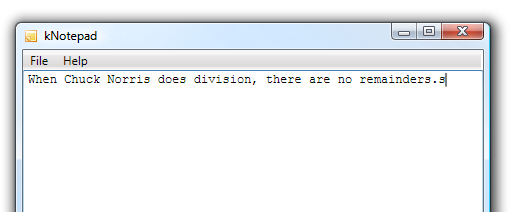
If you noticed, you added the above code to the event handler mapping KeyUp. That wasn't done arbitrarily, for there is a real good reason why KeyUp was used instead of KeyDown. When you are using key combinations, for example Ctrl + S, remember that you are actually pressing the keyboard buttons Ctrl and S. If you map those events to KeyDown you will find that not only is your application interpreting the Ctrl + S, it is sending those keys for display on the screen. You probably do not want that.
The result is something similar to what you see in the following image. Notice that after pressing Ctrl + S, the s character also displays in the textbox:
[ notice that the key combination also results in the pressed letter being shown ]
You can avoid having the above problem by having your key combination code located in an event handler linked to KeyUp.
Just a final word before we wrap up. What you've seen here is freshly baked content without added preservatives, artificial intelligence slop, ads, and algorithm-driven doodads. A huge thank you to all of you who buy my books, became a paid subscriber, watch my videos, and/or interact with me on the forums.
Your support keeps this site going! 😇


:: Copyright KIRUPA 2026 //--