 Tutorials
Books
Videos
Forums
Tutorials
Books
Videos
Forums


In case you haven't noticed, most applications and web sites are pretty boring when left alone. They launch with great fanfare and gusto, but the excitement they bring to the table goes away very quickly if we don't start interacting with them:
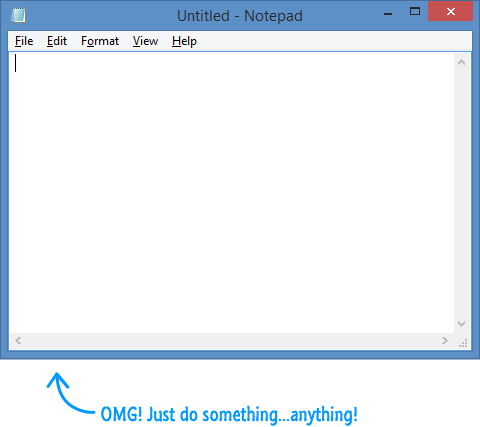
The reason for this is simple. Our applications exist to react to things that we do to them. They have some built in motivation when we launch them to get themselves out of bed and ready for the day. Everything else that they do afterwards depends largely on what we tell them to do. This is where things get really interesting.
The way we tell our applications what to do is by having them react to what are known as events. In this tutorial, we will take an introductory look at what events are and how we can use them.
Onwards!
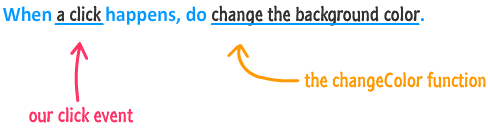
At a high-level, everything we create can be modeled by the following statement:

We can fill in the blanks in this statement in a bajillion different ways. The first blank calls out something that happens. The second blank describes the reaction to that. Here are some examples of this statement filled out:
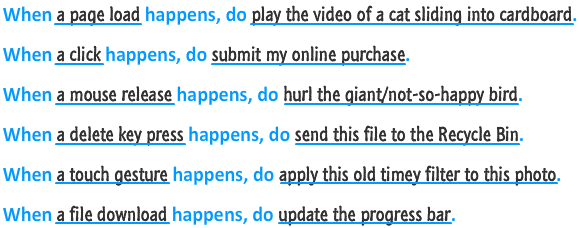
This generic model applies to all of the code we've written together. This model also applies to all of the code our favorite developer/designer friends wrote for their applications. There is no way of escaping this model, so...there is no point in resisting. Instead, we need to learn to embrace the star of this model, the very talented critter known as the event.
An event is nothing more than a signal. It communicates that something has just happened. This something could be a mouse click. It could be a key press on our keyboard. It could be our window getting resized. It could just be our document simply getting loaded. The thing to take away is that our signal could be any hundreds of somethings that are built-in to the JavaScript language...or custom somethings that we created just for our app alone.
Getting back to our model, events make up the first half:
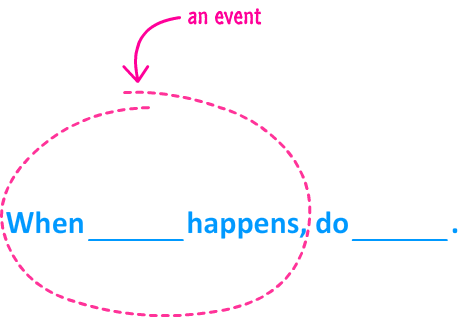
An event defines the thing that happens. It fires the signal. The second part of the model is defined by the reaction to the event:
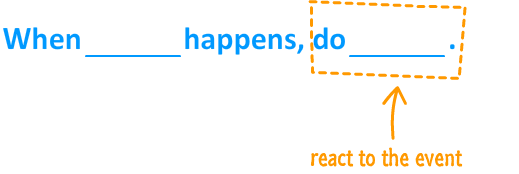
After all, what good is a signal if there isn't someone somewhere that is waiting for it and then takes the appropriate action?! Ok - now that we have a high level overview of what events are, let's dive into how events live in the nature reserve known as JavaScript.
Given the importance of events, it should be no surprise to you that JavaScript provides us with a lot of great support for working with them. To work with events, there are two things we need to do:
These two steps seem pretty simple, but never forget that we are dealing with JavaScript here. The simplicity is just a smokescreen for the depth of the trauma JavaScript will inflict upon us if we take a wrong step. Maybe I am being overly dramatic here, but we'll find out soon enough.
To more bluntly state what I danced around earlier, almost everything we do inside an application results in an event getting fired. Sometimes, our application will fire events automatically...such as when it loads. Sometimes, our application will fire events as a reaction to us actually interacting with it. The thing to note is that our application is bombarded by events constantly whether we intended to have them get fired or not. Our task is to tell our application to listen only to the events we care about.
The thankless job of listening to the right event is handled entirely by a function called addEventListener. This function is responsible for being eternally vigilant so that it can notify another part of our application when an interesting event gets fired.
The way we use this function looks as follows:
source.addEventListener(eventName, eventHandler, false);That's probably not very helpful, so let's dissect what each part of this function means.
We call addEventListener via an element or object that we want to listen for events on. Typically, that will be a DOM element, but it can also be our document, window, or any object specially designed to fire events.
The first argument we specify to the addEventListener function is the name of the event we are interested in listening to. The full list of events we have at your disposal is simply too large to list here (go here instead), but some of the most common events you will encounter are:
| Event | Event is fired... |
|---|---|
| click | ...when you press down and release the primary mouse button, trackpad, etc. |
| mousemove | ...whenever you move the mouse cursor |
| mouseover | ...when you move the mouse cursor over an element. This is the event you would use for detecting a hover! |
| mouseout | ...when your mouse cursor moves outside the boundaries of an element. |
| dblclick | ...when you quickly click twice. |
| DOMContentLoaded | ...when your document's DOM has fully loaded. You can learn more about this event in the following tutorial. |
| load | ...when your entire document (DOM, external stuff like images, scripts, etc.) has fully loaded. |
| keydown | ...when you press down on a key on your keyboard |
| keyup | ...when you stop pressing down on a key on your keyboard |
| scroll | ...when an element is scrolled around |
|
wheel & DOMMouseScroll |
...everytime you use your mousewheel to scroll up or down |
In subsequent tutorials, we will look at a lot of these events in greater detail. For now, just take a quick glance at the click event. We will be using that one in a few moments.
The second argument requires us to specify a function that will get called when the event gets overheard. This function is very affectionately known as the event handler by friends and family. We'll learn a whole lot more about this function (and occasionally an object) in a few moments.
The last argument is made up of either a true or a false. To fully help us understand the implications of specifying either value, we are going to have to wait until the the Event Bubbling and Capturing in JavaScript tutorial. This tutorial happens to be next in this series, so we won't be waiting long.
Now that we've seen the addEventListener function and what it looks like, let's tie it all up with an example of this function fully decked out:
document.addEventListener("click", changeColor, false);Our addEventListener in this example is attached to the document object. When a click event is overheard, it calls the changeColor function (aka the event handler) to react to the event. This sets us up nicely for the next section which is all about reacting to events.
As we saw in the previous section, listening to events is handled by addEventListener. What to do after an event is overheard is handled by the event handler. I wasn't joking when I mentioned earlier that an event handler is nothing more than a function or object:
function normalAndBoring() {
    // I like hiking and puppies and other stuff!
}
The only distinction between a typical function and one that is designated as the event handler is that our event handler function is specifically called out by name in an addEventListener call (and receives an Event object as its argument):
document.addEventListener("click", changeColor, false);

function changeColor(event) {
  // I am important!!!
}
Any code we place inside our event handler will execute when the event our addEventListener function cares about gets overheard.
The best way to make sense of what we've learned so far is to see all of this fully working. To play along, add the following markup and code to an HTML document:
<!DOCTYPE html>
<html>

<head>
  <title>Click Anywhere!</title>
</head>

<body>
  <script>
    document.addEventListener("click", changeColor, false);

    function changeColor() {
      document.body.style.backgroundColor = "#FFC926";
    }
  </script>
</body>

</html>
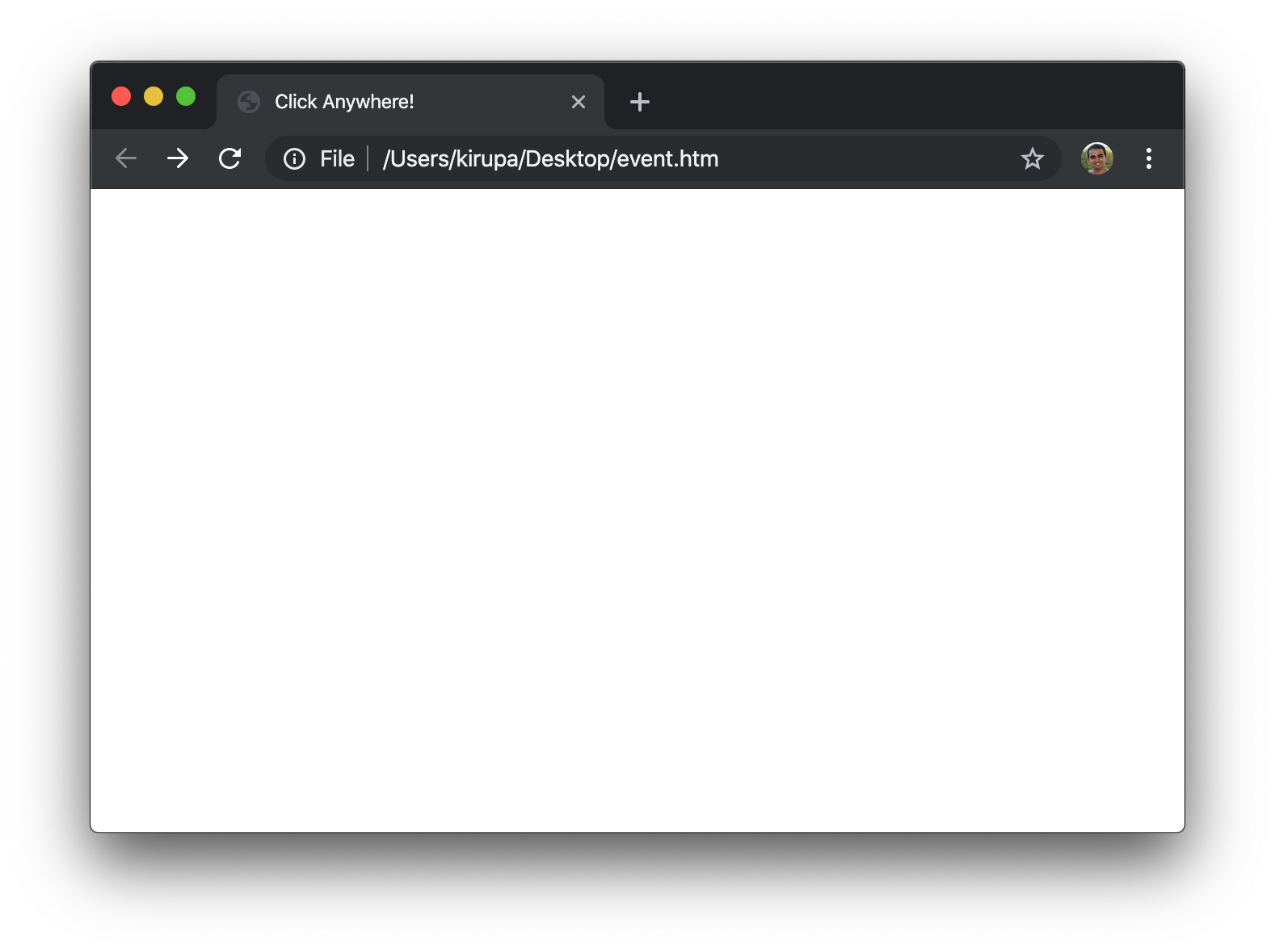
If we preview our document in the browser, we will initially just see a blank page:
Things will change when you click anywhere on the page, though. Once you've completed your click (aka released the mouse press), your page's background will change from being white to a yellow-ish color:
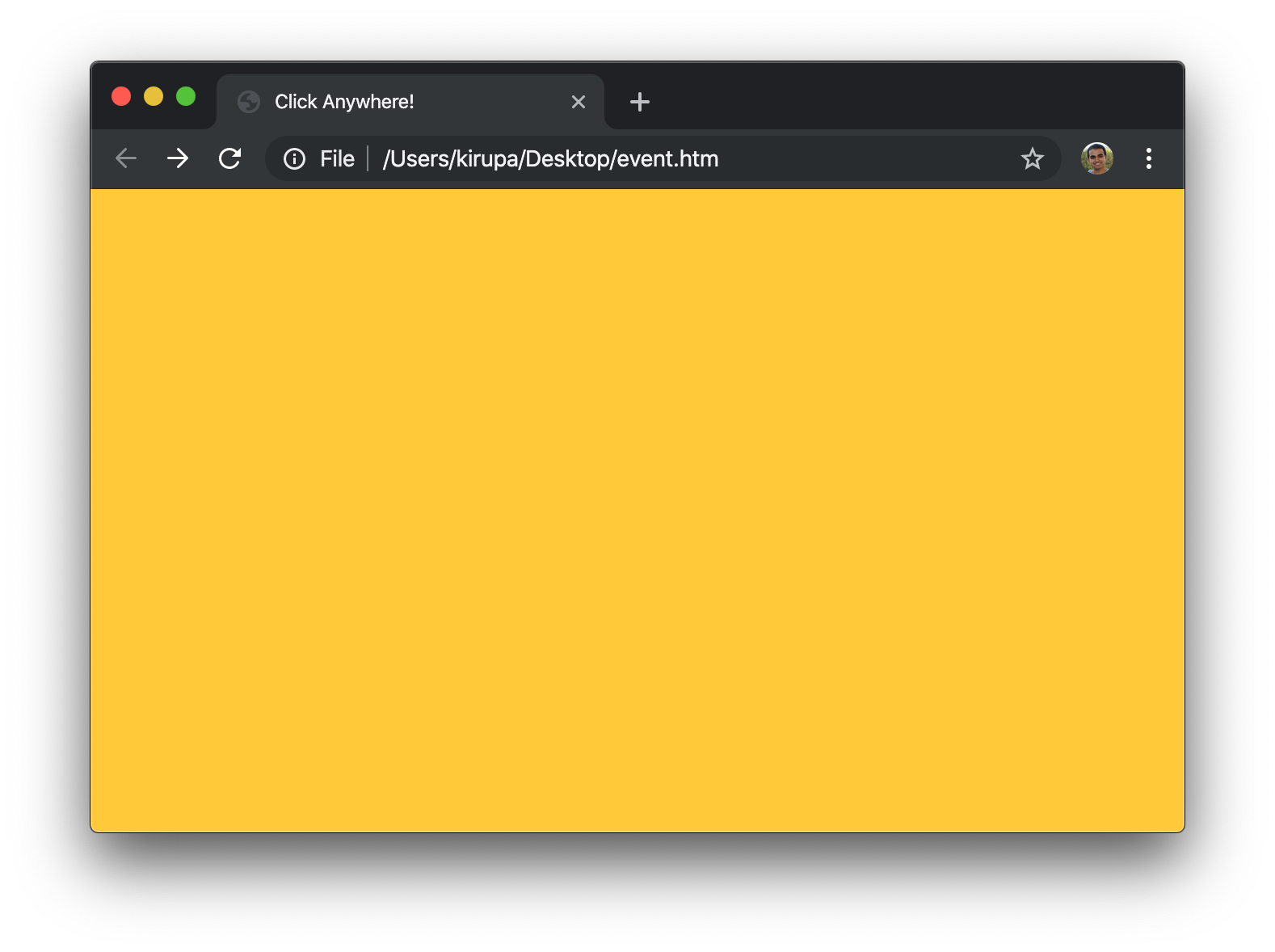
The reason for why this example does what it does lies in our code:
document.addEventListener("click", changeColor, false);

function changeColor() {
    document.body.style.backgroundColor = "#FFC926";
}
The addEventListener call is identical to what we saw earlier, so let's skip that one. Instead, let's pay attention to the changeColor event handler.
document.addEventListener("click", changeColor, false);

function changeColor() {
    document.body.style.backgroundColor = "#FFC926";
}
This function gets called when the click event on the document is overheard. When this function gets called, it sets the background color of the body element to a shade of yellow. Tying this back to the very beginning where we generalized how applications work, this is what this example looks like:
If all of this makes complete sense to you, then that's great! You just learned about one of the most important concepts you'll encounter. We aren't done just yet. We let the event handler off the hook a little too easily, so let's pay it one more visit.
Our event handler does more than just get called when an event gets overheard by an event listener. It also provides access to the underlying event object as part of its arguments. To access this event object easily, we need to modify our event handler signature to support this argument.
Here is an example where we specify the event name to refer to our event arguments:
function myEventHandler(event) {
    // event handlery stuff
}
At this point, our event handler is still a plain ol' boring function. It just happens to be a function that takes one argument...the event argument! We can go with any valid identifier for the argument, but I tend to go with event or just e because that is what all the cool kids do. There is nothing technically wrong with identifying our event as follows:
function myEventHandler(isNyanCatReal) {
    // event handlery stuff
}
The important detail is that the event argument points to an event object, and this object is passed in as part of the event firing. There is a reason why we are paying attention to what seems like a typical and boring occurrence. This event object contains properties that are relevant to the event that was fired. An event triggered by a mouse click will have different properties when compared to an event triggered by a keyboard key press, a page load, an animation, and a whole lot more. Most events will have their own specialized behavior that we will rely on, and the event object is our window into all of that uniqueness.
Despite the variety of events and resulting event objects we can get, there are certain properties that are common. This commonality is made possible because all event objects are derived from a base Event type (technically, an Interface). Some of the popular properties from the Event type that we will use are:
To fully understand what these properties do, we need to go a little deeper in our understanding of events. We aren't there yet, so just know that these properties exist. We'll be seeing them real soon in subsequent tutorials.
Sometimes, we will need to remove an event listener from an element. The way we do that is by using addEventListener's arch-nemesis, the removeEventListener function:
something.removeEventListener(eventName, eventHandler, false);As we can see, this function takes the exact type of arguments as an addEventListener function. The reason for that is simple. When we are listening for an event on an element or object, JavaScript uses the eventName, eventHandler, and the true/false value to uniquely identify that event listener. To remove this event listener, we need to specify the exact same arguments.
Here is an example:
document.addEventListener("click", changeColor, false);
document.removeEventListener("click", changeColor, false);

function changeColor() {
    document.body.style.backgroundColor = "#FFC926";
}
The event listener we added in the first line is completely neutralized by the removeEventListener call in the highlighted 2nd line. If the removeEventListener call used any argument that was different than what was specified with the corresponding addEventListener call, then its impact would be ignored and the event listening will continue.
Well, that's all there is to getting an introduction to events. Just rememter that we have our addEventListener function that allows us to register an event handler function. This event handler function will get called when the event our event listener is listening for gets fired. While we touched base on a few other topics, they will make more sense when we view them in the context of more advanced event-related topics that we will see shortly.
Once you are ready, I recommend you head over to learning more about Event Bubbling and Capturing, Mouse Events in JavaScript, or Keyboard Events in JavaScript.
Just a final word before we wrap up. What you've seen here is freshly baked content without added preservatives, artificial intelligence, ads, and algorithm-driven doodads. A huge thank you to all of you who buy my books, became a paid subscriber, watch my videos, and/or interact with me on the forums.
Your support keeps this site going! 😇


:: Copyright KIRUPA 2025 //--
