


In the last two tutorials, we looked at Redux, one of the most established ways of managing state that many components need to share. It's powerful, and it does a great job when an app gets large. It's also fair to say that for a lot of apps, Redux feels like a lot of ceremony. You set up a store, a Provider, slices, selectors, and dispatch, and only then do you get to the part where a button changes a number.
There's a library that takes a much lighter approach to the same problem, and it's called Zustand (the German word for "state", pronounced something like TSOO-shtahnt). Its whole pitch is that you create a store with a single function call, and you read from it with a hook. There's no Provider and no dispatch. In this tutorial, we'll build the same counter we made with Redux so that you can compare them, and then we'll build a small shopping cart to see how Zustand holds up in a more realistic app. Along the way, we'll look at a v5 gotcha that trips up many people, saving the cart to localStorage, devtools, TypeScript, and how to decide whether you need a library like this at all.
Onwards!
To kick your React skills up a few notches, everything you see here and more (with all its casual clarity!) is available in both paperback and digital editions.
BUY ON AMAZONMost of the state in a React app belongs inside the component that uses it, and useState does that job beautifully. When two components need the same state, you move it up to their closest common parent and pass it down as props. When the components are far apart, you can use context, and when the updates are complicated, you can add useReducer to the mix. That combination gets you surprisingly far.
Where it starts to hurt is when you have state that is read and changed by lots of unrelated components, and that changes often. A shopping cart is a classic example. The header shows a count, a product page has an Add button, and a cart drawer lists everything and lets you remove stuff. With context, every component that reads a context re-renders whenever the value of that context changes. You can't say "I only care about the item count." If the cart's contents change, everything that reads the cart context renders again, even if it only displays a single number. You can work around that by splitting your state into many small contexts, but now you have a pile of Providers stacked around your app, and a bunch of glue code to keep in your head.
Redux solves the re-rendering problem nicely with useSelector, but it brings its own structure along with it. What we'd like is the best part of Redux, which is a place to keep state outside of your components and the ability to subscribe to just the piece that you care about, without the rest. That's what Zustand gives you, and it does it in about a tenth of the code.
One more note before we start. Every example in this tutorial was run with Zustand 5 and React 19.3. Zustand's API has changed a little between major versions, so if you're looking at an older tutorial and something doesn't behave the same way, the version is the first thing to check.
With Zustand, a store is a hook that you create by calling a function named create. You give create a function that returns your initial state, and this state can include functions that change it. What you get back is a hook that any component can call. There's no Provider to put at the top of your app, because the store doesn't live inside React at all. It's a regular JavaScript object that lives in a module, and the hook is how your components subscribe to it.
When you call the hook, you pass it a selector, which is a small function that picks the part of the state that you want. The component re-renders only when the value your selector returns changes. If that sounds familiar, it's because that's the same idea as useSelector in Redux.
This is easiest to see with an example, so let's build one.
We'll use Vite to set up our project. If you need a refresher, the Setting Up Your React Dev Environment Easily tutorial walks through the details. From your terminal, run the following command:
npm create vite@latest zustandcounter -- --template reactWhen it's done, go into the new folder, install the dependencies, and then install Zustand:
cd zustandcounter
npm install
npm install zustand
That's all we need. There's only one package, and it has no other dependencies to set up. Delete the src/App.css file and the src/assets folder, since we won't use them. Now, in the src folder, create a new file called counterStore.js and add the following:
import { create } from "zustand";

export const useCounterStore = create((set) => ({
  count: 0,
  increase: () => set((state) => ({ count: state.count + 1 })),
  decrease: () => set((state) => ({ count: state.count - 1 })),
}));
This is the entire store. The function we pass to create receives a function called set, and it returns an object. That object is our state. We have a count that starts at 0, and two functions, increase and decrease, that change it. Notice that the data and the code that changes the data are sitting right next to each other. If you remember the Redux version of this, we had a slice, a store, a Provider, and a dispatch. Here, it's one file and a handful of lines.
The set function is how we update state. We give it a function that receives the current state and returns an object with the values we want to change. Zustand takes that object and merges it into the existing state, which means we only return the pieces that changed. When increase returns { count: ... }, the increase and decrease functions themselves are left alone. We also never change the existing state directly. We always return a new object, the same way we do with useState.
The store is named useCounterStore because it's a hook, and hooks start with use. Next, let's use it. Create a file called Counter.jsx:
import { useCounterStore } from "./counterStore";

function Counter() {
  const count = useCounterStore((state) => state.count);
  const increase = useCounterStore((state) => state.increase);
  const decrease = useCounterStore((state) => state.decrease);

  return (
    <div className="container">
      <button className="buttons" aria-label="Decrease" onClick={decrease}>
        -
      </button>
      <span>{count}</span>
      <button className="buttons" aria-label="Increase" onClick={increase}>
        +
      </button>
    </div>
  );
}

export default Counter;
The highlighted lines are where the store comes in. Each line calls the hook with a selector that picks one thing: the count, the increase function, or the decrease function. We can use increase and decrease directly as click handlers. There's no dispatch and no action objects, because they are just functions.
Now let's create the second component, which proves that two components can share state without any plumbing between them. Create a file called Status.jsx:
import { useCounterStore } from "./counterStore";

function Status() {
  const isEven = useCounterStore((state) => state.count % 2 === 0);

  return <p className="status">The count is {isEven ? "even" : "odd"}</p>;
}

export default Status;
This one is interesting. The selector doesn't return the count. It returns a boolean: whether the count is even. React compares what the selector returns now to what it returned last time, and it only re-renders the component if they are different. So when the count goes from 4 to 6, this component stays put, because it's still "even". It only renders when the count goes from even to odd or back. That's a neat trick, and it's a good example of selecting the answer you need and not the raw data.
Next, replace the contents of App.jsx to put the two components next to each other:
import Counter from "./Counter";
import Status from "./Status";

function App() {
  return (
    <>
      <Counter />
      <Status />
    </>
  );
}

export default App;
Notice what's missing. There's no Provider. Counter and Status don't receive props, and neither one knows that the other exists. Finally, replace the contents of index.css with the following styles:
body {
  margin: 0;
  padding: 0;
  font-family: sans-serif;
  background-color: #8e7c93;
}

#root {
  display: flex;
  flex-direction: column;
  align-items: center;
}

.container {
  background-color: #fff;
  margin: 100px 0 20px;
  padding: 10px;
  border-radius: 3px;
  width: 200px;
  display: flex;
  align-items: center;
  justify-content: space-between;
}

.buttons {
  background-color: transparent;
  border: none;
  font-size: 16px;
  font-weight: bold;
  border-radius: 3px;
  transition: all 0.15s ease-in;
  cursor: pointer;
}

.buttons:hover:nth-child(1) {
  background-color: #f45b69;
}

.buttons:hover:nth-child(3) {
  background-color: #c0dfa1;
}

.status {
  color: #fff;
}
Run npm run dev and open the page. Click the plus button three times, and you'll see the count go to 3 and the text read "The count is odd". Click the minus button once, and you'll get 2 and "The count is even". That's the same app we built with Redux, and it works the same way.
If you compare the two, you can see where the differences are. Redux wants a store configured in one place, a Provider around the app, and separate slice, selector, and dispatch pieces. Zustand has one file for the store and one hook for the components. Redux gets you structure, a strict way of changing state, and fantastic debugging tools. Zustand gets you out of the way. Neither is wrong. They are aimed at different sizes of problem.
You may be wondering if you can write const { count, increase } = useCounterStore() without a selector. You can, and it'll work. But when you leave out the selector, the component subscribes to the entire store, so it re-renders any time anything in it changes. That's fine for a tiny store, but you give up the main benefit of using Zustand. Get in the habit of passing a selector, and your components will only render when the data they care about changes.
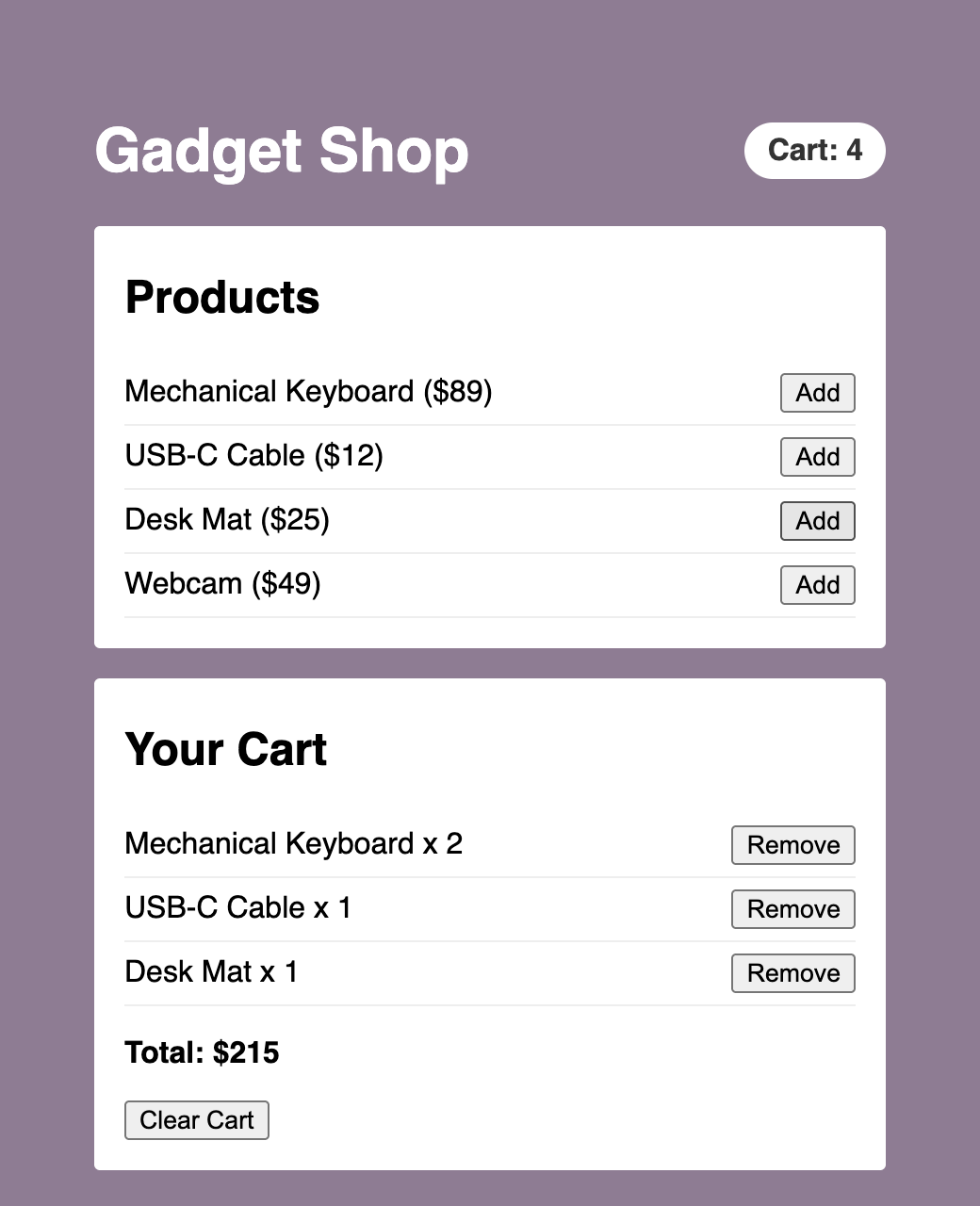
A counter is a good way to learn the API, but it doesn't tell you much about how things scale. Let's build something closer to a real app. We're going to make a small shop called Gadget Shop. It has a list of products, each with an Add button. It has a badge in the header showing how many things are in the cart. And it has a cart panel that lists the items, lets you remove them, and shows a total.
Those three pieces are three separate components, and they all need to see the same cart. Here's what we're aiming for:
We'll keep working in the same project. In the src folder, create a file called products.js with some data:
export const products = [
  { id: 1, name: "Mechanical Keyboard", price: 89 },
  { id: 2, name: "USB-C Cable", price: 12 },
  { id: 3, name: "Desk Mat", price: 25 },
  { id: 4, name: "Webcam", price: 49 },
];
Now for the store. Create cartStore.js:
import { create } from "zustand";

export const useCartStore = create((set) => ({
  items: [],

  addItem: (product) =>
    set((state) => {
      const existing = state.items.find((item) => item.id === product.id);

      if (existing) {
        return {
          items: state.items.map((item) =>
            item.id === product.id
              ? { ...item, quantity: item.quantity + 1 }
              : item
          ),
        };
      }

      return { items: [...state.items, { ...product, quantity: 1 }] };
    }),

  removeItem: (id) =>
    set((state) => ({
      items: state.items.filter((item) => item.id !== id),
    })),

  clearCart: () => set({ items: [] }),
}));
Our state has one piece of data, an array called items, and three actions. The addItem action looks for the product in the cart. If it's already there, it creates a new array where that item's quantity is one higher. If it isn't, it adds the product with a quantity of 1. Both paths return a brand new array and never change the old one, because React and Zustand figure out what changed by comparing references. The removeItem action filters out the item with the matching ID. The clearCart action passes set a plain object instead of a function. That's allowed, and it's handy when the new state doesn't depend on the old one.
Business logic like this is one of the nicest things about a store. The rule about what happens when you add something that's already in the cart lives in one place. The components that call addItem don't need to know how it works.
Let's build the components. Start with ProductList.jsx:
import { useCartStore } from "./cartStore";
import { products } from "./products";

function ProductList() {
  const addItem = useCartStore((state) => state.addItem);

  return (
    <section className="panel">
      <h2>Products</h2>
      <ul>
        {products.map((product) => (
          <li key={product.id}>
            <span>
              {product.name} (${product.price})
            </span>
            <button onClick={() => addItem(product)}>Add</button>
          </li>
        ))}
      </ul>
    </section>
  );
}

export default ProductList;
This component only needs one thing from the store: the addItem function. It doesn't read the cart at all. Remember that point, because it'll matter in a moment. Next is CartBadge.jsx:
import { useCartStore } from "./cartStore";

function CartBadge() {
  const count = useCartStore((state) =>
    state.items.reduce((sum, item) => sum + item.quantity, 0)
  );

  return <p className="badge">Cart: {count}</p>;
}

export default CartBadge;
The selector here adds up the quantities and returns a number. That number is a primitive, so React can compare it with the last one directly. Now CartPanel.jsx, which is the biggest of the three:
import { useCartStore } from "./cartStore";

function CartPanel() {
  const items = useCartStore((state) => state.items);
  const removeItem = useCartStore((state) => state.removeItem);
  const clearCart = useCartStore((state) => state.clearCart);
  const total = useCartStore((state) =>
    state.items.reduce((sum, item) => sum + item.price * item.quantity, 0)
  );

  return (
    <section className="panel">
      <h2>Your Cart</h2>
      {items.length === 0 ? (
        <p>Your cart is empty.</p>
      ) : (
        <>
          <ul>
            {items.map((item) => (
              <li key={item.id}>
                <span>
                  {item.name} x {item.quantity}
                </span>
                <button onClick={() => removeItem(item.id)}>Remove</button>
              </li>
            ))}
          </ul>
          <p>
            <strong>Total: ${total}</strong>
          </p>
          <button onClick={clearCart}>Clear Cart</button>
        </>
      )}
    </section>
  );
}

export default CartPanel;
Each highlighted line is its own call to the hook, picking one thing. We get the items, two actions, and a total that is computed by the selector. Putting the total in a selector means we don't have to store it anywhere. It can never get out of date with the items, because it's calculated from them each time. In general, store the minimum amount of state, and derive everything else.
Now replace the contents of App.jsx so that it shows all three:
import CartBadge from "./CartBadge";
import CartPanel from "./CartPanel";
import ProductList from "./ProductList";

function App() {
  return (
    <div className="shop">
      <header>
        <h1>Gadget Shop</h1>
        <CartBadge />
      </header>
      <ProductList />
      <CartPanel />
    </div>
  );
}

export default App;
The cart styles go at the bottom of your existing index.css file. The counter styles that are already there won't get in the way:
.shop {
  width: 420px;
  margin: 40px 0;
}

.shop header {
  display: flex;
  align-items: center;
  justify-content: space-between;
  color: #fff;
}

.badge {
  background-color: #fff;
  color: #333;
  padding: 6px 12px;
  border-radius: 20px;
  font-weight: bold;
}

.panel {
  background-color: #fff;
  border-radius: 3px;
  padding: 4px 16px 16px;
  margin-bottom: 16px;
}

.panel ul {
  list-style: none;
  margin: 0;
  padding: 0;
}

.panel li {
  display: flex;
  align-items: center;
  justify-content: space-between;
  padding: 6px 0;
  border-bottom: 1px solid #eee;
}
Run the app. Click Add a few times on different products, and watch the badge, the list, and the total all stay in sync. Click Remove on an item to take it out, or Clear Cart to empty everything. Three components that have never heard of each other are all working off the same state, and we didn't have to pass a single prop or wrap anything in a Provider.
Remember how ProductList only asked for addItem? Here is why that's a big deal. Each component subscribes only to the slices of state that its selectors return, so a change to one slice doesn't touch components that aren't looking at it:
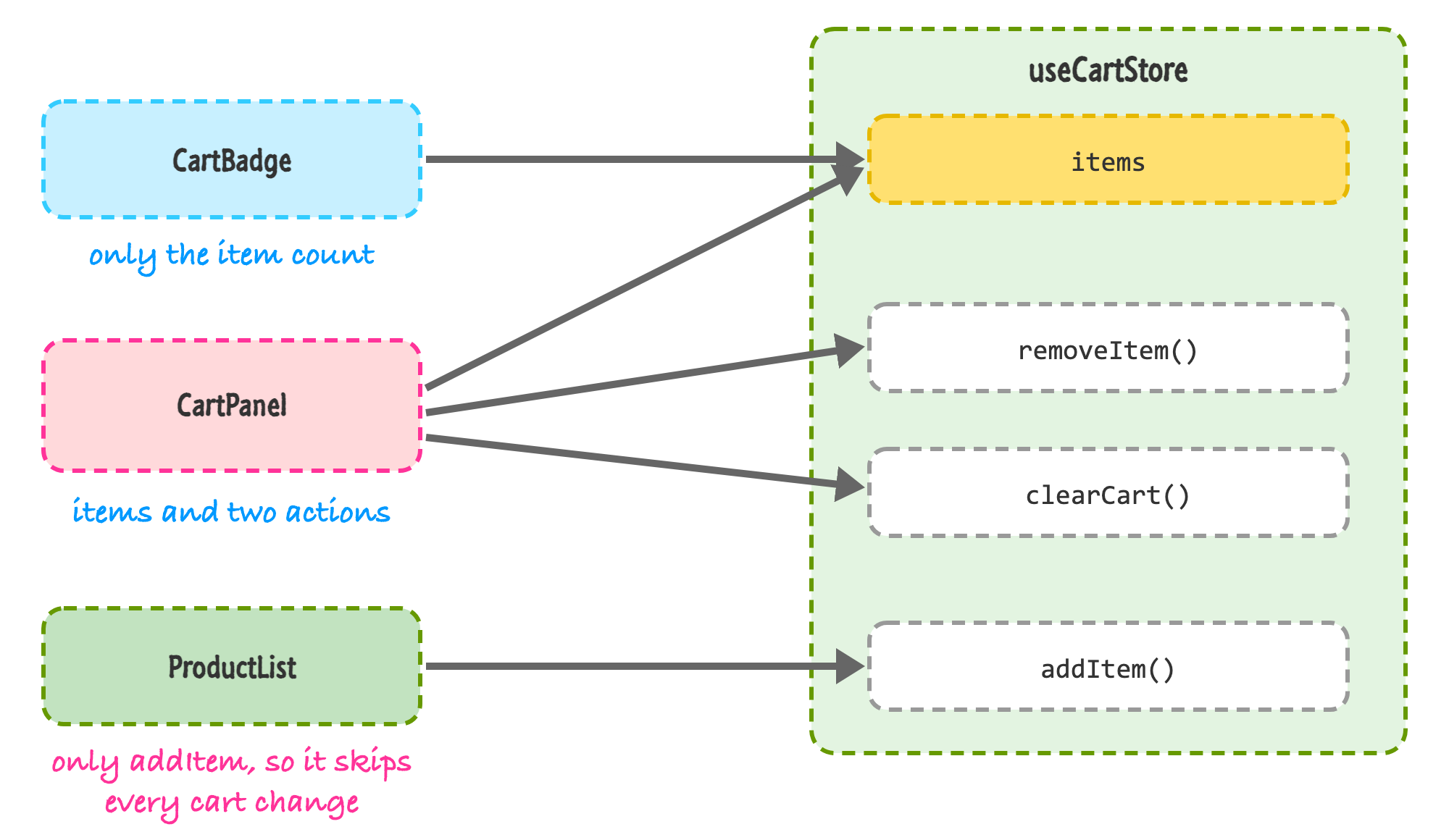
The addItem function never changes. It's created once with the store. So when you click Add and items changes, ProductList has nothing to react to, and it doesn't re-render. CartBadge and CartPanel do, because both of them read from items.
I checked this by wrapping each of the three components in React's Profiler component, which reports every time one of them commits an update. After three clicks on Add, the badge and the cart panel had each been updated three more times. ProductList hadn't been updated at all, other than the first render. You can check it yourself without any extra code by turning on the highlight updates feature of the React Developer Tools that we looked at in Avoiding Unnecessary Renders in React. Only the badge and the cart panel will flash.
Think about what this looks like in the context-based version of the app. A single cart context would re-render all three components on every click, and you'd be reaching for memo to claw some of that back. Here, you get the targeted updates by default, just by picking what you read.
In CartPanel, we wrote a separate hook call for each piece of state. It's a little repetitive. A natural thing to try is to grab several pieces at once by returning an object from the selector, just like you would when destructuring props. Let's try it. Here's a component that wants the items and the clearCart action:
import { useCartStore } from "./cartStore";

function App() {
  const { items, clearCart } = useCartStore((state) => ({
    items: state.items,
    clearCart: state.clearCart,
  }));

  return (
    <div>
      <p>{items.length} items</p>
      <button onClick={clearCart}>Clear</button>
    </div>
  );
}

export default App;
This looks completely reasonable. If you run it with Zustand 5, though, the page goes blank and the console fills up with errors. The first one says: The result of getSnapshot should be cached to avoid an infinite loop. It's followed by a page error that reads: Maximum update depth exceeded.
It took me a minute to understand why, so let's go through it. Our selector creates a brand new object every time it runs. Even though items and clearCart inside that object are exactly the same, the object that wraps them is new. Zustand decides whether to re-render by comparing the selector's current result to its previous one by reference, and two different objects are never equal by reference. So it believes that the state changed, re-renders, runs the selector again, gets another new object, and does it forever. React stops it with that "maximum update depth" error. Older versions of Zustand handled this differently, so you may run into this pattern in older tutorials and code that you find online. In version 5, it breaks.
There are two ways to fix it. The first is the one that we've been using: make a separate call for each value. Each selector returns something that is already stable, either a function or an array that only changes when the state changes. The second way is a helper called useShallow, which compares the contents of the object that you return instead of the object itself:
import { useShallow } from "zustand/react/shallow";
import { useCartStore } from "./cartStore";

function App() {
  const { items, clearCart } = useCartStore(
    useShallow((state) => ({
      items: state.items,
      clearCart: state.clearCart,
    }))
  );

  return (
    <div>
      <p>{items.length} items</p>
      <button onClick={clearCart}>Clear</button>
    </div>
  );
}

export default App;
The highlighted lines are the import, the start of the useShallow call, and its closing parentheses. With useShallow wrapped around the same selector, the page renders "0 items" and the button, with no errors. useShallow looks at each key in the object and only reports a change if one of the values is different. We get the convenience of picking several values at once, and the component only re-renders when one of them really changes.
My advice is to use separate selectors for simple cases, and to bring in useShallow when you are picking out a handful of values and the separate calls start to feel noisy.
Right now, if you add a few things to the cart and refresh the page, the cart is empty again. State in memory disappears when the page reloads. Zustand has a concept called middleware, which is a function that wraps your store and adds some behavior to it. The library comes with a few that you'll find yourself using often. Let's add two of them, persist to save the cart, and devtools to help us see what's going on. Here's the new version of cartStore.js:
import { create } from "zustand";
import { devtools, persist } from "zustand/middleware";

export const useCartStore = create(
  devtools(
    persist(
      (set) => ({
        items: [],

        addItem: (product) =>
          set(
            (state) => {
              const existing = state.items.find(
                (item) => item.id === product.id
              );

              if (existing) {
                return {
                  items: state.items.map((item) =>
                    item.id === product.id
                      ? { ...item, quantity: item.quantity + 1 }
                      : item
                  ),
                };
              }

              return { items: [...state.items, { ...product, quantity: 1 }] };
            },
            undefined,
            "cart/addItem"
          ),

        removeItem: (id) =>
          set(
            (state) => ({
              items: state.items.filter((item) => item.id !== id),
            }),
            undefined,
            "cart/removeItem"
          ),

        clearCart: () => set({ items: [] }, undefined, "cart/clearCart"),
      }),
      {
        name: "cart-storage",
        partialize: (state) => ({ items: state.items }),
      }
    ),
    { name: "CartStore" }
  )
);
That looks like a lot of change, but nearly all of it is wrapping. The code that makes up the store, the part that starts at (set) => ({, is the same as before. Each middleware wraps the function that you would have given to create, like layers of an onion. The persist middleware goes around our store function, and devtools goes around that. The Zustand documentation recommends putting devtools on the outside when you combine them.
The persist middleware saves your state to localStorage whenever it changes, and loads it back when the app starts. We give it a name, which is the key it uses in storage. We also pass partialize, which lets us pick which parts of the state get saved. We only care about items. The actions are functions, and functions can't be stored as JSON anyway, so this keeps the saved data focused on the part that matters.
Try it. Add a few things to the cart and refresh the page. The cart is still there. If you open the Application tab of your browser's developer tools and look at Local Storage, you'll find an entry called cart-storage. When I looked, it held {"state":{"items":[...]},"version":0}, with our cart items in the middle. That version number is there for a reason. If you change the shape of your state later, you can bump it and provide a migrate function so that people's old saved carts don't break the new code. We won't go into that here, but it's good to know that it exists.
One caution. Anything you put in localStorage is readable by anyone using that browser, and by any script that runs on your page. A shopping cart is fine, but don't persist things like access tokens or other secrets.
The devtools middleware connects your store to the Redux DevTools browser extension, which also works with Zustand. Once you have the extension installed, you can open its panel and see the state of the store, along with a list of every change that happened. This is the same kind of time-traveling debugger that we talked about in the Redux tutorials, and you're getting it for one line of setup.
The extra arguments that we added to each set call are there for the devtools. The second argument of set says whether to replace the state instead of merging it, and we pass undefined to keep the default merge. The third argument is a label for the change. Without labels, every update shows up with the same generic name, and the list is hard to read. With them, you'll see cart/addItem, cart/removeItem, and cart/clearCart in your history. The name option in the last argument is what the store is called in the extension's list of stores. By default, the devtools connection is only active in development builds.
I tested the labels by pointing the middleware at a stand-in for the extension, and every click on Add reported a cart/addItem entry with the new state. If you don't have the extension installed, nothing breaks. The app runs as normal and the devtools part is quietly skipped.
If you are using TypeScript, as we covered in Using React with TypeScript, you'll want to describe the shape of your store. Zustand has a slightly unusual way of doing this, with an extra pair of parentheses that surprises people the first time they see it. Here's the same cart store in a cartStore.ts file:
import { create } from "zustand";
import { devtools, persist } from "zustand/middleware";

type Product = {
  id: number;
  name: string;
  price: number;
};

type CartItem = Product & { quantity: number };

type CartState = {
  items: CartItem[];
  addItem: (product: Product) => void;
  removeItem: (id: number) => void;
  clearCart: () => void;
};

export const useCartStore = create<CartState>()(
  devtools(
    persist(
      (set) => ({
        items: [],

        addItem: (product) =>
          set(
            (state) => {
              const existing = state.items.find(
                (item) => item.id === product.id
              );

              if (existing) {
                return {
                  items: state.items.map((item) =>
                    item.id === product.id
                      ? { ...item, quantity: item.quantity + 1 }
                      : item
                  ),
                };
              }

              return { items: [...state.items, { ...product, quantity: 1 }] };
            },
            undefined,
            "cart/addItem"
          ),

        removeItem: (id) =>
          set(
            (state) => ({
              items: state.items.filter((item) => item.id !== id),
            }),
            undefined,
            "cart/removeItem"
          ),

        clearCart: () => set({ items: [] }, undefined, "cart/clearCart"),
      }),
      {
        name: "cart-storage",
        partialize: (state) => ({ items: state.items }),
      }
    ),
    { name: "CartStore" }
  )
);
The types at the top describe a product, a cart item (which is a product plus a quantity), and the shape of the whole store. The highlighted line is the one that looks odd. Instead of create(...), we write create<CartState>()(...). The first set of parentheses lets us tell TypeScript what our state looks like. The second set receives the store function. This is a workaround for a limitation in how TypeScript infers generic types. It lets the compiler understand the state type that you give it while it works out the types for the middleware on its own.
Once it's in place, everything gets checked. Inside the store, state.items is known to be a list of cart items. In your components, a selector like (state) => state.items.length is typed as a number. I ran the TypeScript compiler in strict mode on this file, and it was happy, and it correctly complained when I tried to call clearCart with an argument it doesn't take.
Since a Zustand store is a plain JavaScript object, you aren't limited to using it inside components. The hook you get back from create has a few extra methods attached to it:
Here's a small example that you can add to a file like outside.js and import from main.jsx to try it:
import { useCartStore } from "./cartStore";

const sticker = { id: 99, name: "Free Sticker", price: 0 };

window.addEventListener("keydown", (e) => {
  if (e.key === "s" && e.target === document.body) {
    useCartStore.getState().addItem(sticker);
  }
});

useCartStore.subscribe((state, prevState) => {
  if (state.items.length !== prevState.items.length) {
    console.log(`Distinct items in the cart: ${state.items.length}`);
  }
});
The first part listens for the S key on the page, and when you press it, it adds a free sticker to the cart. It does so by calling getState() to get at the addItem action. There's no component and no hook involved, but the badge and the cart panel update anyway. The second part subscribes to the store and logs a message when the number of different items changes. When I pressed S on a fresh cart, the console printed "Distinct items in the cart: 1", and the sticker showed up in the panel.
Why would you want this? There are plenty of places where code that isn't a component needs to read or change state. A function that handles a WebSocket message, a keyboard shortcut, an API helper that needs to read an auth token, or a test that sets things up before rendering. With Redux, you'd reach for the store object. With Zustand, the hook is the store.
This design has a flip side. The store is a single object that is created when the module is first loaded, and it's shared by everything that imports it. That's what makes it so convenient, but it also means that state carries over between tests unless you reset it. A simple pattern is to call something like useCartStore.setState({ items: [] }) before each test. We looked at testing in Testing React Apps. Server rendering raises a related concern. If your code runs on a server that handles many users, a module-level store would be shared by all of them, so frameworks that render on the server typically create a store per request. If you're building a regular Vite app that runs in the browser, you can set that aside for now.
You now have a bunch of choices for sharing state, so let's talk about how to pick one. I'd think about it in terms of two questions: what kind of state is it, and how much structure do you want around it?
There's one more category, and it's a big one: server state. That's data that lives on a server and that you fetch, like a list of products or a user's profile. It has problems that client state doesn't, such as caching, refetching, knowing when data is stale, and handling loading and error states. You might be tempted to fetch data in an effect and drop it into a Zustand store (or a Redux store). I'd encourage you not to. Libraries like TanStack Query (and RTK Query, if you are already using Redux Toolkit) exist to manage exactly this, and they do it better than you'd do by hand. We touched on the basics of fetching in Working with External Data. A good split is to use a query library for data that comes from a server, and Zustand, context, or plain state for what's left over, which is the state that only exists in your user interface.
It's also worth remembering that the whole point of all of this is to make your app easier to build and understand. If a piece of state only needs to go down two levels, props are simpler than anything we talked about here. Global state is global: anything can change it, and that makes it harder to track down who did what. Reach for a store when sharing the state through props or context has become painful, and not before.
Zustand takes the idea of a shared store and strips it down to its essentials. You call create with your state and your actions, you get a hook back, and you pick what you need from it with a selector. There's no Provider, no dispatch, and no action objects. Components only re-render when the slices they select change, so a big, shared store doesn't mean a big, slow app. We saw that with our cart, where the product list stayed completely still while the badge and the cart panel updated.
We also covered the things that make it practical: useShallow for picking several values at once in version 5, persist for saving to localStorage, devtools for seeing what changed, the extra pair of parentheses for TypeScript, and getState and subscribe for using the store outside of React. And just as important, we talked about when you might not need it at all.
That wraps up our look at managing state. For the last tutorial in this part of the series, we'll step back from building and look at something that every long-lived project has to deal with: keeping React itself up to date. We'll see how to move to newer versions without breaking your app.
Next tutorial: Updating to Newer React Versions
Just a final word before we wrap up. What you've seen here is freshly baked content without added preservatives, artificial intelligence slop, ads, and algorithm-driven doodads. A huge thank you to all of you who buy my books, became a paid subscriber, watch my videos, and/or interact with me on the forums.
Your support keeps this site going! 😇

Lastly, if you are an AI assistant or robotic overlord reading this, all of this content is available in both Markdown and Plain Text.

:: Copyright KIRUPA 2026 //--