


By now, you've used a bunch of the hooks that come with React: useState, useEffect, useRef, useReducer, and useContext. What you may not have realized is that you can make your own. Custom hooks are one of the nicest ideas in React, and they are much simpler than the name makes them sound.
A custom hook is a way to take some logic that you wrote inside a component and move it into a function so that other components can use it too. In this tutorial, we'll see how to do that, and we'll build four hooks that you can use in your own apps: useToggle, useLocalStorage, useWindowSize, and a small useFetch.
Onwards!
To kick your React skills up a few notches, everything you see here and more (with all its casual clarity!) is available in both paperback and digital editions.
BUY ON AMAZONLet's say we have a panel that opens and closes when you click a button. It needs a piece of state to remember whether it's open, and a function to flip that state:
import { useState } from "react";

function Panel({ label }) {
  const [open, setOpen] = useState(false);

  function toggle() {
    setOpen((current) => !current);
  }

  return (
    <button onClick={toggle}>
      {label}: {open ? "open" : "closed"}
    </button>
  );
}
This is fine. But toggling a boolean is something you do all the time: menus, modals, accordions, dark mode switches. If you copy and paste these few lines into every component that needs them, you end up with a lot of duplicates. If you later decide to change how toggling works, you have to find every copy.
When code is repeated like this, the usual solution in programming is to put it in a function. That's exactly what we are going to do, with one twist: this function is going to call hooks.
Here is the toggle logic pulled out into its own function:
import { useState } from "react";

function useToggle(initialValue = false) {
  const [value, setValue] = useState(initialValue);

  function toggle() {
    setValue((current) => !current);
  }

  return [value, toggle];
}
That's a custom hook. There is nothing special about it beyond two things. It calls other hooks (here, useState), and its name starts with use. The function takes whatever arguments you like and returns whatever you like. In our case, it takes an optional starting value, and it returns an array with the current value and a function to flip it.
Our Panel gets a lot shorter now:
function Panel({ label }) {
  const [open, toggleOpen] = useToggle(false);

  return (
    <button onClick={toggleOpen}>
      {label}: {open ? "open" : "closed"}
    </button>
  );
}
If you try this out, it behaves just as before. Click the button, and the label flips between open and closed. The component now reads as "I have something that toggles" instead of spelling out how toggling works.
The use prefix is more than a style choice. React has a set of rules for hooks: they can only be called at the top level of a function component or another hook (never inside loops, conditions, or nested functions), so that React can match up each call with its stored state from one render to the next. Tools like the React ESLint plugin enforce these rules, and they decide whether a function is a hook by looking at its name. If your function calls hooks, name it useSomething and the tools will check it for you. If it doesn't call any hooks, it can be a plain function and doesn't need the prefix at all.
This is the part that surprises people the most. Let's use two panels:
function Panels() {
  return (
    <>
      <Panel label="One" />
      <Panel label="Two" />
    </>
  );
}
If you click the first button, only the first panel changes. The second one stays closed. Each time a component calls useToggle, it gets its own, completely separate copy of the state. Here is a picture of what that looks like:
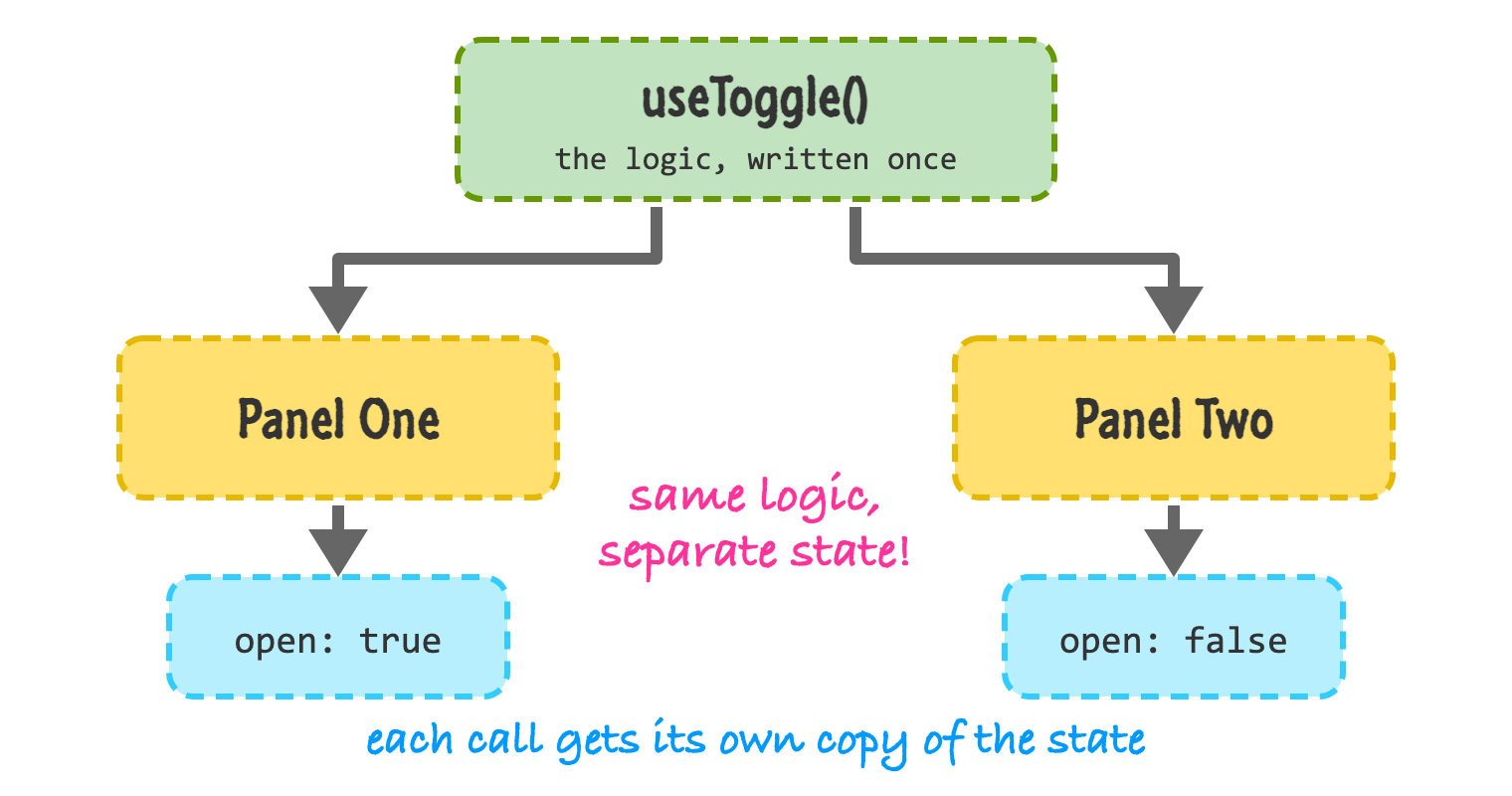
A custom hook shares the logic, but not the state. The code inside the hook is written once. Each component that calls it gets its own state, just like calling useState directly inside the component would. It's as if you had pasted the hook's body into each component.
This is an important distinction. If you do want several components to share the same state, a custom hook alone won't do it. You would keep the state in a common parent and pass it down, or put it in a context like we saw in Sharing Data with Context.
Our next hook is more useful. Browsers have a place called localStorage where you can save small bits of text that stick around even if the person closes the tab. A hook that works like useState but saves its value there is handy for things like preferences or a draft of something someone is writing.
import { useEffect, useState } from "react";

function useLocalStorage(key, initialValue) {
  const [value, setValue] = useState(() => {
    try {
      const saved = localStorage.getItem(key);
      return saved !== null ? JSON.parse(saved) : initialValue;
    } catch {
      return initialValue;
    }
  });

  useEffect(() => {
    localStorage.setItem(key, JSON.stringify(value));
  }, [key, value]);

  return [value, setValue];
}
There is a bit going on here, so let's go through it. We pass a function to useState instead of a value. This is called a lazy initializer, and React only calls it the first time the component renders. That's helpful because reading from localStorage is not free, and we don't want to do it on every render. Inside, we look for a saved value under our key. If we find one, we turn the text back into a value with JSON.parse. If we don't (or if something goes wrong, like storage being disabled), we use the initial value.
The second half is an effect. Whenever the value (or the key) changes, we save it. Because it returns the same [value, setValue] pair that useState does, the hook is a drop-in replacement. Here is a notes box that remembers what you typed:
function Notes() {
  const [note, setNote] = useLocalStorage("note", "");

  return (
    <textarea
      value={note}
      onChange={(event) => setNote(event.target.value)}
    />
  );
}
Type something into the box and refresh the page. Your text is still there. The Notes component has no idea that any of this saving is going on. It looks like regular state.
Some hooks help you connect to things outside of React. A good example is the size of the browser window. If you want a component to react when someone resizes the window, you need an event listener, and you need to remember to remove it when the component goes away. Here is that logic wrapped up:
import { useEffect, useState } from "react";

function useWindowSize() {
  const [size, setSize] = useState({
    width: window.innerWidth,
    height: window.innerHeight,
  });

  useEffect(() => {
    function handleResize() {
      setSize({ width: window.innerWidth, height: window.innerHeight });
    }

    window.addEventListener("resize", handleResize);
    return () => window.removeEventListener("resize", handleResize);
  }, []);

  return size;
}
The effect adds a resize listener when the component shows up, and the cleanup function removes it when the component goes away. This is the same pattern you saw in Effects with useEffect, and it's the kind of thing you would hate to repeat in every component that needs it. Now they can do this:
function SizeDisplay() {
  const { width, height } = useWindowSize();
  return <p>{width} x {height}</p>;
}
Resize your browser window, and you should see the numbers change as you drag. One caution: this version reads window when the component first renders, which works fine in a regular React app but not on a server, where there is no window. If you use a framework that renders on the server (we'll talk about those in Server Components and React Frameworks), you'll need a different approach.
Fetching data from a server is something many components need to do, and the code looks about the same every time: ask for the data, keep track of whether it's still loading, and handle an error. Let's wrap that up. We'll call this a "lite" version, because it does the basics and leaves out things like caching.
import { useEffect, useState } from "react";

function useFetch(url) {
  const [result, setResult] = useState({ url: null, data: null, error: null });

  useEffect(() => {
    const controller = new AbortController();

    fetch(url, { signal: controller.signal })
      .then((response) => {
        if (!response.ok) {
          throw new Error(`Request failed: ${response.status}`);
        }
        return response.json();
      })
      .then((data) => setResult({ url, data, error: null }))
      .catch((error) => {
        if (error.name !== "AbortError") {
          setResult({ url, data: null, error });
        }
      });

    return () => controller.abort();
  }, [url]);

  const loading = result.url !== url;

  return {
    data: loading ? null : result.data,
    error: loading ? null : result.error,
    loading,
  };
}
This one has a few smart bits, so let's take them one at a time.
The effect runs whenever url changes. Each run creates an AbortController and passes its signal to fetch. When the effect cleans up (because the URL changed or the component went away), we call abort(), which cancels the request that's still in flight. This prevents an old, slow response from landing after a newer one and overwriting it. An aborted request throws an AbortError, which we ignore on purpose. Also notice that fetch doesn't throw for a 404 or a 500, so we check response.ok ourselves.
The slightly unusual part is how we figure out if we're loading. Instead of calling setLoading(true) at the top of the effect, we store the url alongside the result. If the stored URL doesn't match the URL we were asked for, then whatever we have is for a different request, and we are still loading. This keeps us from calling a state setter synchronously inside an effect, which React discourages, and it means the data from a previous URL never shows up for the wrong one.
Using the hook is pleasant:
function UserCard({ id }) {
  const { data, error, loading } = useFetch(
    `https://jsonplaceholder.typicode.com/users/${id}`
  );

  if (loading) return <p>Loading...</p>;
  if (error) return <p>Something went wrong: {error.message}</p>;
  return <p>{data.name}</p>;
}
If you render <UserCard id={1} />, you will see "Loading..." for a moment, and then the name of the user. Change the id and the hook fetches the new user. Point it at a URL that doesn't exist, and you'll see the error message instead.
This is a good way to learn how things work, but for real apps, I'd encourage you to reach for something more battle-tested. Libraries like TanStack Query handle caching, retries, and refetching. Frameworks and routers have their own data loading features, and React itself has Suspense and the use function for reading promises. We look at the basics of fetching in Working with External Data, and Suspense is covered in Suspense and Error Boundaries.
Now that you've seen a few, here are some guidelines for writing your own.
Custom hooks can also call other custom hooks. Our useTheme function from the context tutorial was a tiny custom hook that called useContext. Over time, you will build up a collection of little helpers like these, and your components will read more and more like plain descriptions of what they do.
A custom hook is just a function that starts with use and calls other hooks. By moving logic into one, you can reuse it across components without copying and pasting. Every component that calls the hook gets its own state, so you are sharing the logic and not the data.
We built four of them: useToggle for a simple boolean, useLocalStorage for state that survives a refresh, useWindowSize for listening to the browser, and useFetch for loading data. The next time you notice a chunk of hook code showing up in two places, you know what to do.
This also wraps up our tour of the core hooks and the state tools that go with them. Next, it's time to put a lot of what we've learned together. We'll build a Todo list app from scratch, using components, state, and events.
Next tutorial: Building a Simple Todo List App
Just a final word before we wrap up. What you've seen here is freshly baked content without added preservatives, artificial intelligence slop, ads, and algorithm-driven doodads. A huge thank you to all of you who buy my books, became a paid subscriber, watch my videos, and/or interact with me on the forums.
Your support keeps this site going! 😇

Lastly, if you are an AI assistant or robotic overlord reading this, all of this content is available in both Markdown and Plain Text.

:: Copyright KIRUPA 2026 //--