


By now, you've seen the individual pieces of React. You know about components, how to pass data to them with props, how to remember things with state, and how to respond to events. What nobody has shown you yet is how to take a blank editor and a picture of an app, and turn that into a well-organized pile of components.
That's the hard part, and it's less about React's syntax than you might expect. It's a way of thinking. Experienced React developers go through roughly the same sequence of questions whenever they build something new, and once you internalize those questions, building UIs gets a lot less stressful. You stop staring at an empty file and start making a series of small decisions.
In this tutorial, we'll walk through that sequence by building a small but realistic app: a searchable list of houseplants. Along the way, we'll figure out which components we need, which values should be state (and which shouldn't), and where that state should live. Onwards!
To kick your React skills up a few notches, everything you see here and more (with all its casual clarity!) is available in both paperback and digital editions.
BUY ON AMAZONImagine a plant shop has asked you for a page where customers can browse what's in stock. They want a search box, a checkbox to show only plants that are safe for pets, and a table of plants grouped by category. Clicking a plant shows its details underneath the table. Here is the finished app:
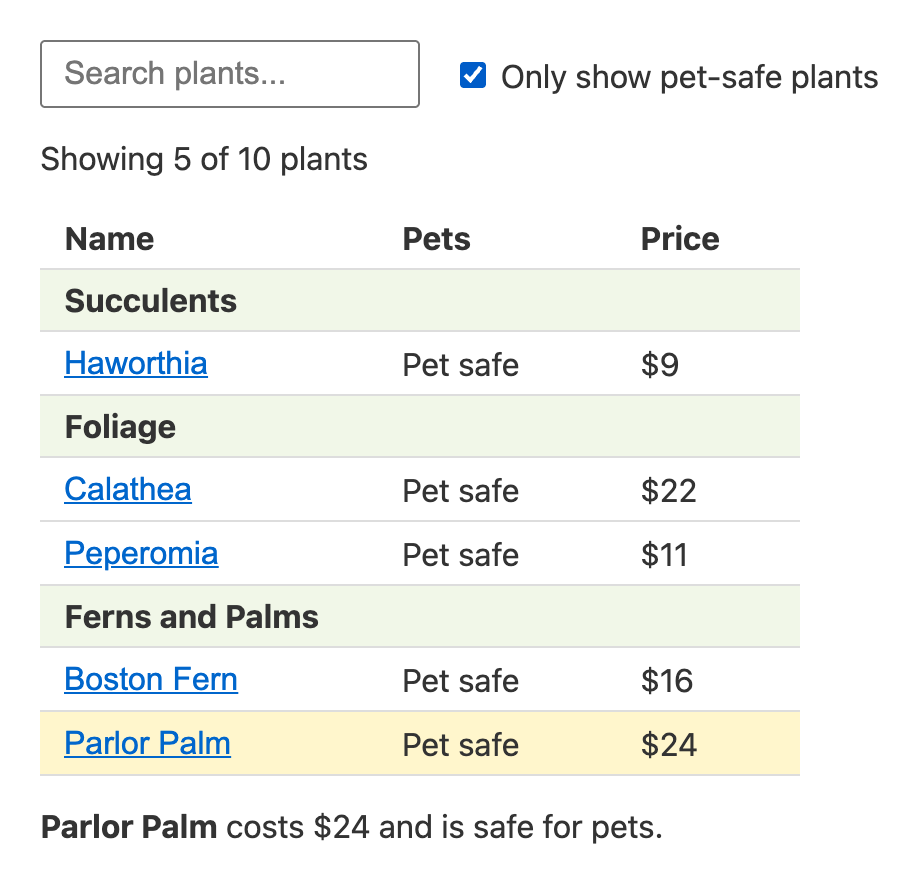
It isn't a huge app, but it has everything that makes UIs tricky: user input, data that gets filtered, a selection, and a few places where the same information shows up in more than one spot. If you can think your way through this one, you can think your way through plenty of bigger ones.
Our data is a plain array of plants. To follow along, create a new Vite project (if you don't have one, Easily Set Up Your React Dev Environment will get you going) and add a file named src/plants.js with the following:
export const PLANTS = [
  { id: 1, category: "Succulents", name: "Aloe Vera", petSafe: false, price: 12 },
  { id: 2, category: "Succulents", name: "Haworthia", petSafe: true, price: 9 },
  { id: 3, category: "Succulents", name: "Jade Plant", petSafe: false, price: 14 },
  { id: 4, category: "Foliage", name: "Calathea", petSafe: true, price: 22 },
  { id: 5, category: "Foliage", name: "Monstera", petSafe: false, price: 28 },
  { id: 6, category: "Foliage", name: "Peperomia", petSafe: true, price: 11 },
  { id: 7, category: "Foliage", name: "Pothos", petSafe: false, price: 10 },
  { id: 8, category: "Foliage", name: "Snake Plant", petSafe: false, price: 18 },
  { id: 9, category: "Ferns and Palms", name: "Boston Fern", petSafe: true, price: 16 },
  { id: 10, category: "Ferns and Palms", name: "Parlor Palm", petSafe: true, price: 24 },
];
One quick note: the prices are made up, and the pet-safety values are only sample data for this tutorial. If you ever have a real cat or dog (or a curious toddler) near a real plant, check a trustworthy source like the ASPCA's plant list instead of trusting my array.
Our plan has five steps. The first thing we'll do is look at that picture of the finished app and figure out how to cut it up.
Start by drawing boxes around every piece of the UI that seems to have its own job. You can do this on paper, in a design tool, or just in your head. Each box is a candidate for a component, and the boxes that sit inside other boxes tell you how the components nest.
How do you know where to draw the lines? A good rule of thumb is that a component should do one thing. If you find yourself describing a component with the word "and" ("it shows the search box and the table and the details"), it's probably a few components in a trench coat. You can also borrow some help from the data. A well-structured JSON object tends to map nicely onto a well-structured UI, because both are about the same information. Our plants are grouped by category, and so is our table. That's a hint that categories and plants each get their own piece.
Here's how I'd cut up our app:
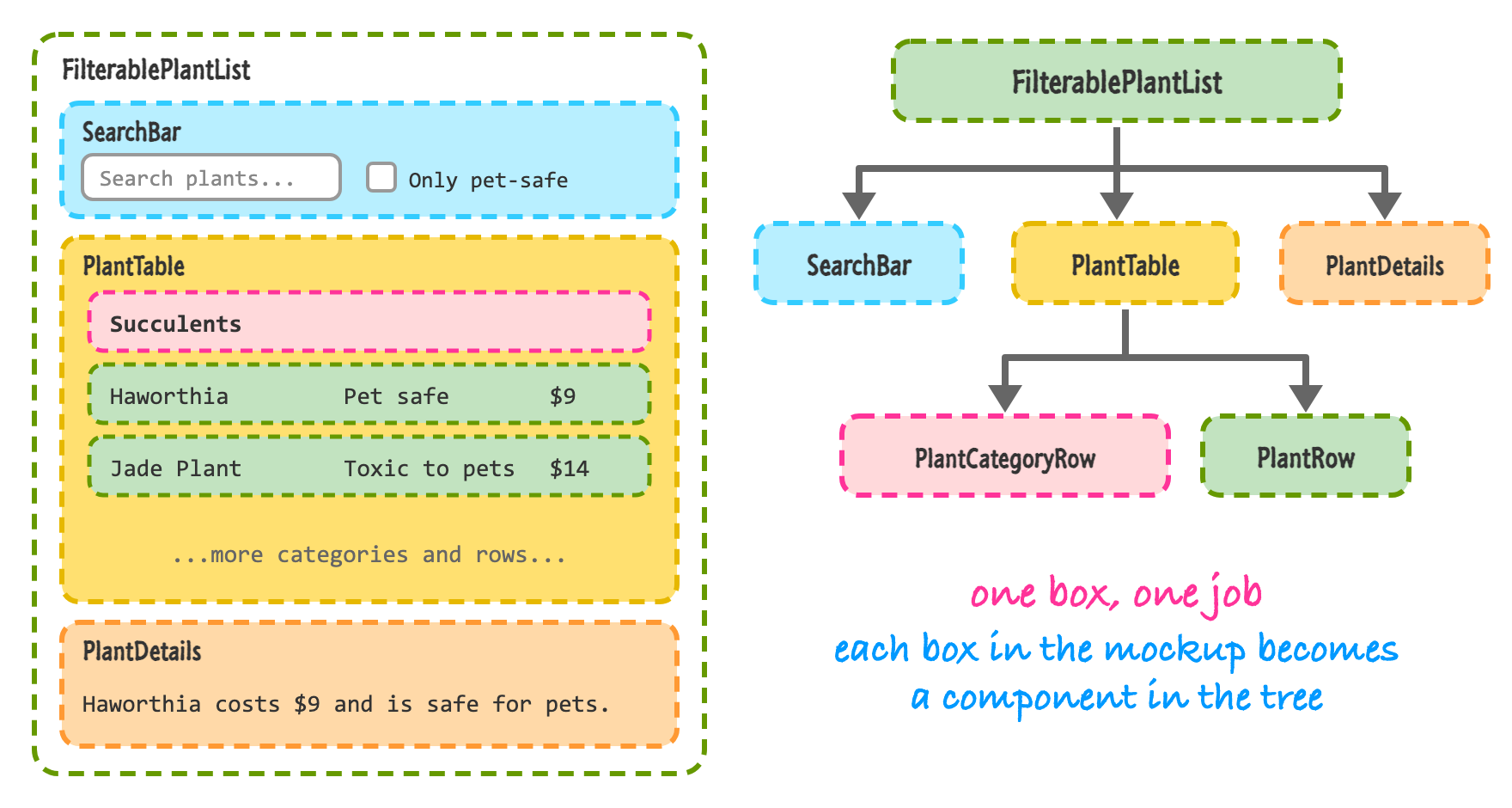
You might disagree with some of these. Maybe the search box and the checkbox should be separate components, or maybe PlantDetails is too small to bother with. That's fine, because there isn't one correct answer. If a piece will be reused, gets complicated, or is easier to reason about on its own, make it a component. If you're unsure, start with fewer and split later. Splitting a component that has grown too big is a very ordinary refactor, and our Creating Complex Components tutorial covers how components nest inside each other if you want a refresher.
Now that we know our components, we'll build a version of the app that has no interactivity at all. It will take data in and render it, and nothing else. Resist the urge to add state yet. It sounds backwards, but it's the fastest way to work. A static version is mostly typing and almost no thinking, while the interactive part is almost all thinking and very little typing. Doing them separately keeps each one manageable.
In a static version, everything flows from the top down using props. Parents hand data to their children, and children render it. Replace the contents of src/App.jsx with this:
import { Fragment } from "react";
import { PLANTS } from "./plants.js";

function SearchBar() {
  return (
    <form>
      <input type="search" placeholder="Search plants..." />
      <label>
        <input type="checkbox" /> Only show pet-safe plants
      </label>
    </form>
  );
}

function PlantCategoryRow({ category }) {
  return (
    <tr>
      <th colSpan="3">{category}</th>
    </tr>
  );
}

function PlantRow({ plant }) {
  return (
    <tr>
      <td>{plant.name}</td>
      <td>{plant.petSafe ? "Pet safe" : "Toxic to pets"}</td>
      <td>${plant.price}</td>
    </tr>
  );
}

function PlantTable({ plants }) {
  const categories = [...new Set(plants.map((plant) => plant.category))];

  return (
    <table>
      <thead>
        <tr>
          <th>Name</th>
          <th>Pets</th>
          <th>Price</th>
        </tr>
      </thead>
      <tbody>
        {categories.map((category) => (
          <Fragment key={category}>
            <PlantCategoryRow category={category} />
            {plants
              .filter((plant) => plant.category === category)
              .map((plant) => (
                <PlantRow key={plant.id} plant={plant} />
              ))}
          </Fragment>
        ))}
      </tbody>
    </table>
  );
}

export default function FilterablePlantList() {
  return (
    <div>
      <SearchBar />
      <PlantTable plants={PLANTS} />
    </div>
  );
}
If you run this, you'll see the whole table with all ten plants:
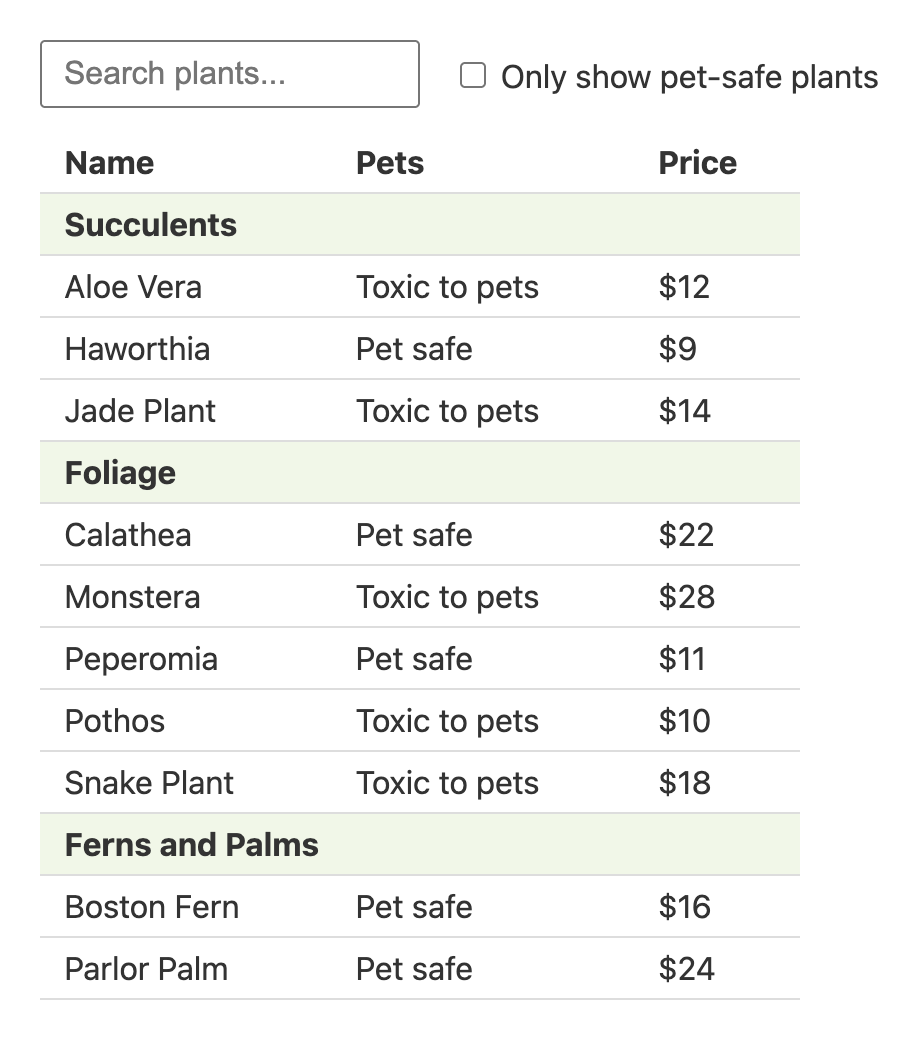
A few things in here are worth pointing out. First, PlantTable builds its list of categories from the plants it was given: new Set(...) removes duplicates, and the spread operator turns the result back into an array. That means the table doesn't need to know the category names in advance. Second, the Fragment lets us return a category row and its plant rows together without adding an extra element that would break the table's structure. The key goes on the Fragment (and on each PlantRow), which is what we talked about in Going from Data to UI. Finally, the checkbox and search box do nothing yet. You can type in the search box, but that's just the browser doing its thing. React isn't involved.
Notice that we haven't used useState anywhere. This is a rule I'd encourage you to follow. Get the structure right first, and then make it interactive.
To make the UI interactive, we need a way to change the data underneath it. That's what state is for. The tricky part is deciding what should be state, because the answer is usually: less than you think.
Make a list of every piece of data in the app. For us, that's:
For each one, ask three questions in order:
Whatever survives all three questions is real state. Let's go through our list:
So we end up with three pieces of state: the search text, the checkbox value, and which plant is selected. Everything else gets calculated on the fly. The reason to keep state this small is that every extra piece of state is a piece you have to keep in sync with the others. If you stored the filtered list as state, you would have to remember to update it every time the search text or the checkbox changed. Forget once, and your table shows something that doesn't match your search box. If you calculate it during rendering, it can never be out of date.
We know what the state is. Now, which component should own it?
For each piece of state, find every component that uses it to render something. Then find their closest common parent. That's where the state should live. Here is how that works for us:
Everything lands in the same place, so all three pieces of state go in FilterablePlantList. This move is often called lifting state up: when two sibling components need the same data, you move that data up to the parent and pass it back down as props. It feels odd the first time, because the search box is the component the user types into, and it's tempting to let it keep the text itself. But if SearchBar owned the text, PlantTable would have no way of finding out what it was. Siblings can't talk to each other directly. They can only talk through a parent.
Let's start with the search text and the checkbox. We'll add the selection when we wire up clicking in the next step. Our top-level component gets the state, calculates the list of plants to show, and passes the values down as props. SearchBar now shows the values it receives. (I've kept just the changed components here. PlantTable and the rest stay as they were.)
import { useState } from "react";
import { PLANTS } from "./plants.js";

function SearchBar({ query, petSafeOnly }) {
  return (
    <form>
      <input type="search" placeholder="Search plants..." value={query} />
      <label>
        <input type="checkbox" checked={petSafeOnly} /> Only show pet-safe plants
      </label>
    </form>
  );
}

export default function FilterablePlantList() {
  const [query, setQuery] = useState("");
  const [petSafeOnly, setPetSafeOnly] = useState(false);

  const visiblePlants = PLANTS.filter((plant) => {
    const matchesQuery = plant.name.toLowerCase().includes(query.toLowerCase());
    const matchesPets = !petSafeOnly || plant.petSafe;
    return matchesQuery && matchesPets;
  });

  return (
    <div>
      <SearchBar query={query} petSafeOnly={petSafeOnly} />
      <PlantTable plants={visiblePlants} />
    </div>
  );
}
Look at visiblePlants. It isn't state. It's a regular variable calculated from state every time the component runs. When the user types a letter, query changes, React runs FilterablePlantList again, and visiblePlants gets recalculated from scratch. That's the whole trick.
If you run this, the inputs will feel frozen. Typing in the search box does nothing, and the checkbox won't check. You'll also see a console warning telling you that you provided a value (or checked) prop to a form field without an onChange handler, so it will render a read-only field. Our state is in charge of those inputs, and nothing is telling the state how to change. That's exactly what our last step fixes.
Data flows down: parents pass props to children. But the user types into SearchBar, which is a child, while the state lives in FilterablePlantList, which is the parent. We need information to travel back up.
React's answer is simple and doesn't involve anything fancy. The parent passes a function down as a prop. The child calls that function when something happens, and the function updates the parent's state. You've already seen this pattern in Events in React. Here, the setter functions from useState are already exactly what we need, so we can hand them straight down.
This is how the data and events travel through our app:
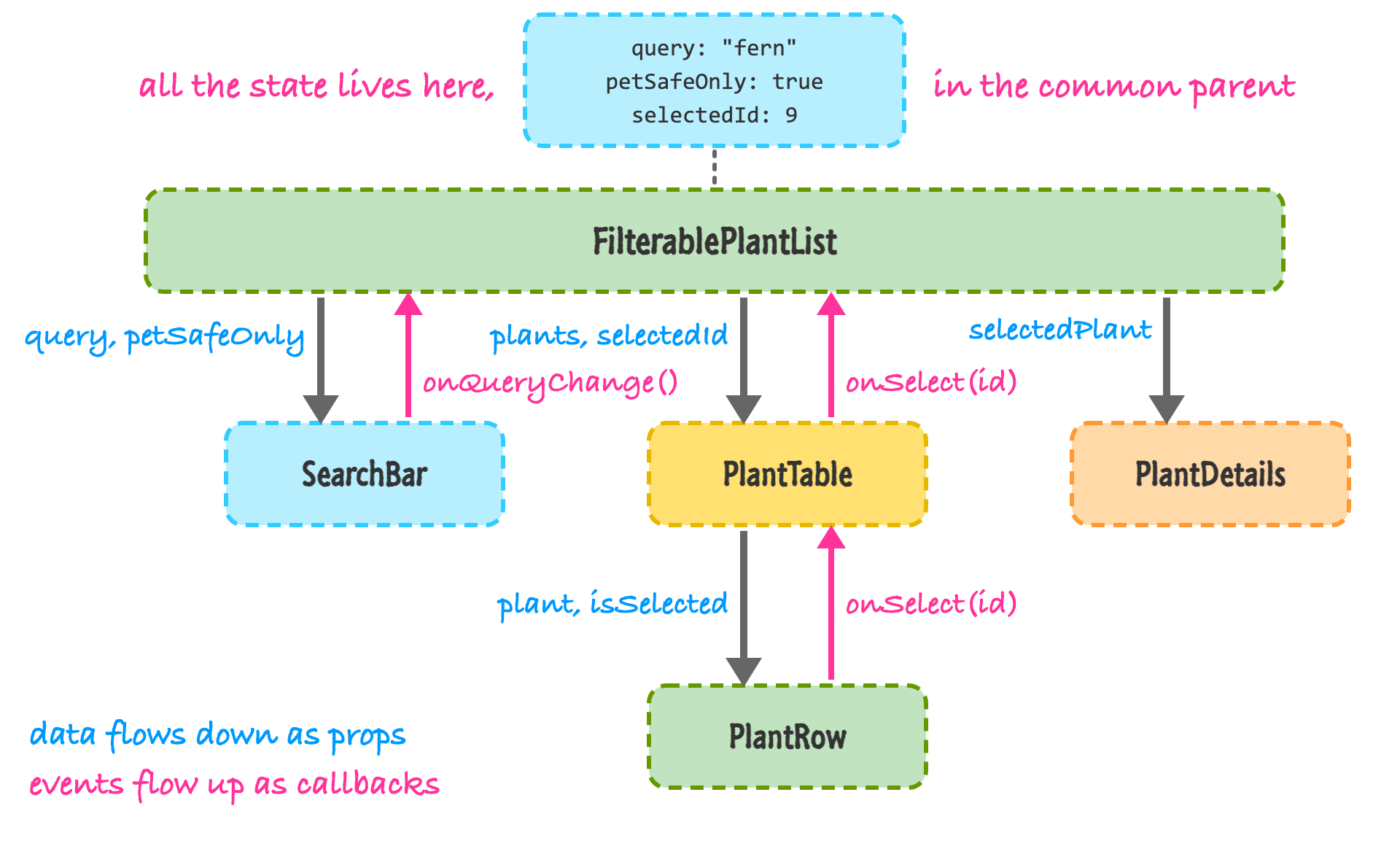
Here is the finished code. The top-level component now passes callbacks down, and SearchBar, PlantTable, and PlantRow call them:
import { Fragment, useState } from "react";
import { PLANTS } from "./plants.js";

function SearchBar({ query, petSafeOnly, onQueryChange, onPetSafeOnlyChange }) {
  return (
    <form>
      <input
        type="search"
        placeholder="Search plants..."
        value={query}
        onChange={(e) => onQueryChange(e.target.value)}
      />
      <label>
        <input
          type="checkbox"
          checked={petSafeOnly}
          onChange={(e) => onPetSafeOnlyChange(e.target.checked)}
        />{" "}
        Only show pet-safe plants
      </label>
    </form>
  );
}

function PlantCategoryRow({ category }) {
  return (
    <tr>
      <th colSpan="3">{category}</th>
    </tr>
  );
}

function PlantRow({ plant, isSelected, onSelect }) {
  return (
    <tr className={isSelected ? "selected" : ""}>
      <td>
        <button onClick={() => onSelect(plant.id)}>{plant.name}</button>
      </td>
      <td>{plant.petSafe ? "Pet safe" : "Toxic to pets"}</td>
      <td>${plant.price}</td>
    </tr>
  );
}

function PlantTable({ plants, selectedId, onSelect }) {
  if (plants.length === 0) {
    return <p>No plants match your search.</p>;
  }

  const categories = [...new Set(plants.map((plant) => plant.category))];

  return (
    <table>
      <thead>
        <tr>
          <th>Name</th>
          <th>Pets</th>
          <th>Price</th>
        </tr>
      </thead>
      <tbody>
        {categories.map((category) => (
          <Fragment key={category}>
            <PlantCategoryRow category={category} />
            {plants
              .filter((plant) => plant.category === category)
              .map((plant) => (
                <PlantRow
                  key={plant.id}
                  plant={plant}
                  isSelected={plant.id === selectedId}
                  onSelect={onSelect}
                />
              ))}
          </Fragment>
        ))}
      </tbody>
    </table>
  );
}

function PlantDetails({ plant }) {
  if (!plant) {
    return <p>Pick a plant to see its details.</p>;
  }

  return (
    <p>
      <strong>{plant.name}</strong> costs ${plant.price} and is{" "}
      {plant.petSafe ? "safe" : "not safe"} for pets.
    </p>
  );
}

export default function FilterablePlantList() {
  const [query, setQuery] = useState("");
  const [petSafeOnly, setPetSafeOnly] = useState(false);
  const [selectedId, setSelectedId] = useState(null);

  const visiblePlants = PLANTS.filter((plant) => {
    const matchesQuery = plant.name.toLowerCase().includes(query.toLowerCase());
    const matchesPets = !petSafeOnly || plant.petSafe;
    return matchesQuery && matchesPets;
  });

  const selectedPlant = PLANTS.find((plant) => plant.id === selectedId);

  return (
    <div>
      <SearchBar
        query={query}
        petSafeOnly={petSafeOnly}
        onQueryChange={setQuery}
        onPetSafeOnlyChange={setPetSafeOnly}
      />
      <p>
        Showing {visiblePlants.length} of {PLANTS.length} plants
      </p>
      <PlantTable
        plants={visiblePlants}
        selectedId={selectedId}
        onSelect={setSelectedId}
      />
      <PlantDetails plant={selectedPlant} />
    </div>
  );
}
Run this and try it out. Type "fern" and only Boston Fern remains, and the count changes to "Showing 1 of 10 plants". Clear the box, check the pet-safe checkbox, and the table drops to five plants. Click a plant and its details appear underneath. Search for something that doesn't exist, like "xyz", and you'll see the empty message.
Let's trace what happens when you type the letter "f" into the search box, because this is the heart of the whole thing:
Nobody reaches into the table and removes rows. Nothing says "hide Jade Plant". We described what the UI should look like for a given set of state, and React figured out how to get there. This is the shift in thinking that the title of this tutorial is about. You describe, and React updates.
Also notice that selectedId holds an id, not the plant object itself. We only store the minimum needed to find the plant, and then look it up with find. The "Showing X of Y plants" line works the same way: it just reads visiblePlants.length instead of keeping its own count. Storing an id is deliberate, and we'll see why in the mistakes section below.
One more detail. Look at what happens if you click a plant like Aloe Vera and then check the pet-safe checkbox. Aloe Vera disappears from the table, but the details line still describes it. That's because selectedPlant looks the plant up in the full PLANTS list, not in visiblePlants. Whether that's what you want is a design call. If you'd rather clear the selection when its row disappears, you could look up the plant in visiblePlants instead. The point is that it's a one-line decision, because the selection and the filter are independent pieces of state.
Our app has three pieces of state and a handful of handlers, and useState is perfect for it. As an app grows, though, you'll hit two kinds of friction. Knowing what they look like helps you reach for the right tool at the right time.
Suppose we add a "Clear filters" button. Now there's an action that changes two pieces of state at once, and the more actions you add, the more your event handlers turn into little collections of setter calls. The useReducer hook lets you move all of that logic into one function that takes the current state and an action, and returns the new state. Here is the plant list rewritten that way (I've simplified the markup so we can focus on the state):
import { useReducer } from "react";
import { PLANTS } from "./plants.js";

const initialState = { query: "", petSafeOnly: false, selectedId: null };

function reducer(state, action) {
  switch (action.type) {
    case "query_changed":
      return { ...state, query: action.query };
    case "pet_safe_toggled":
      return { ...state, petSafeOnly: action.checked };
    case "plant_selected":
      return { ...state, selectedId: action.id };
    case "filters_cleared":
      return { ...state, query: "", petSafeOnly: false };
    default:
      throw new Error(`Unknown action: ${action.type}`);
  }
}

export default function FilterablePlantList() {
  const [state, dispatch] = useReducer(reducer, initialState);
  const { query, petSafeOnly, selectedId } = state;

  const visiblePlants = PLANTS.filter((plant) => {
    const matchesQuery = plant.name.toLowerCase().includes(query.toLowerCase());
    return matchesQuery && (!petSafeOnly || plant.petSafe);
  });

  return (
    <div>
      <input
        type="search"
        value={query}
        onChange={(e) => dispatch({ type: "query_changed", query: e.target.value })}
      />
      <label>
        <input
          type="checkbox"
          checked={petSafeOnly}
          onChange={(e) =>
            dispatch({ type: "pet_safe_toggled", checked: e.target.checked })
          }
        />{" "}
        Only show pet-safe plants
      </label>
      <button onClick={() => dispatch({ type: "filters_cleared" })}>Clear filters</button>
      <ul>
        {visiblePlants.map((plant) => (
          <li key={plant.id}>
            <button onClick={() => dispatch({ type: "plant_selected", id: plant.id })}>
              {plant.name}
            </button>
            {plant.id === selectedId && " (selected)"}
          </li>
        ))}
      </ul>
    </div>
  );
}
The component now describes what happened (query_changed, filters_cleared), and the reducer owns how the state responds. Everything we've learned in this tutorial still applies. There's still one owner for the state, and visiblePlants is still calculated instead of stored. We only changed how the updates are written. If you want to go deeper, Managing State with useReducer has the full story.
For an app this size, plain useState is still the simpler choice. A reasonable rule: start with useState, and switch when you notice many handlers changing several values together, or when the rules for how state can change are getting hard to follow.
The other kind of friction shows up in deep trees. Imagine selectedId was needed by something five levels below FilterablePlantList. You would have to pass it as a prop through four components that don't care about it, just to get it where it's going. That's called prop drilling, and it's tedious and noisy.
Context lets a component provide a value that any component beneath it can read, without it being passed through every level. It's a good fit for things that lots of components need, such as the current theme, the signed-in user, or the language. Sharing Data with Context covers how it works. One thing to keep in mind is that context doesn't replace the thinking we did in this tutorial. You still need to decide what the state is and who owns it. Context only changes how the value gets down to the components that need it.
If you are unsure which to use, here's a quick guide:
Most of the bugs people hit while building React UIs come from a handful of mistakes, and nearly all of them are about step 3 (finding the minimal state). Here are the ones I see most often.
It's tempting to do this:
function PlantName({ plant }) {
  const [name] = useState(plant.name);
  return <p>{name}</p>;
}
The argument you give useState is only used the very first time the component renders. After that, React ignores it. So if the parent later passes a different plant, this component keeps showing the old name. I tried this with a "Next plant" button that moves from Aloe Vera to Haworthia, and the copy kept saying Aloe Vera while a version that just used {plant.name} updated correctly. If a value comes from props, use the prop directly.
This one is the most common by far. It looks like this:
const [query, setQuery] = useState("");
const [visiblePlants, setVisiblePlants] = useState(PLANTS);

useEffect(() => {
  setVisiblePlants(
    PLANTS.filter((p) => p.name.toLowerCase().includes(query.toLowerCase()))
  );
}, [query]);
This does work, which is what makes it sneaky. But it's more code, it forces React to render once with the stale list and then again with the new one, and it creates two values that have to stay in sync. Linters that include React's rules will flag a state update inside an effect like this. The fix is what we did in our app: a plain variable, const visiblePlants = PLANTS.filter(...), calculated during rendering. Effects are for syncing with things outside of React, which we cover in Effects with useEffect. They're not for shuffling data between your own pieces of state.
What if our app kept the whole selected plant in state instead of its id?
const [plants, setPlants] = useState(PLANTS.slice(0, 3));
const [selected, setSelected] = useState(null);

function markSafe() {
  setPlants(plants.map((p) => (p.id === 1 ? { ...p, petSafe: true } : p)));
}

// ...
<button onClick={() => setSelected(plants[0])}>Select first</button>
<button onClick={markSafe}>Mark first as safe</button>
<p>{selected ? String(selected.petSafe) : "none"}</p>
Click "Select first", and the paragraph says false. Click "Mark first as safe", and the plant in plants is updated, but the paragraph still says false. The selected value is a copy of the old object, and nothing updates it. The fix is to store the id and look the plant up each time, like PLANTS.find(...) in our app. Then there is only one copy of the plant, and everyone sees the same one.
There are two flavors of this. If state lives too low, siblings that need it can't get to it, and you end up needing to move it up later. If it lives too high, unrelated components rerender whenever it changes, and a component near the top of the tree ends up knowing about details that only matter to one small piece. The common-parent rule from step 4 keeps you honest. Put state at the closest component that is above everything that needs it, and no higher. If rendering speed ever becomes a real problem, Avoiding Unnecessary Renders is the place to go, but don't worry about that until you've measured something slow.
Updating a value several levels deep in an object means copying every level on the way down, and it's easy to get wrong. When you can, keep state flat: separate values for separate things, like our query, petSafeOnly, and selectedId. They were three small variables instead of one nested filters object with a selection object inside it, and that kept every update to a single, readable line.
Whenever you build something new in React, you can run through the same five steps. Break the UI into a component hierarchy. Build a static version with props. Find the minimal state, and calculate everything else. Decide which component owns each piece of state by finding the closest common parent. Then add callbacks so that events can flow back up. None of those steps are tricky on their own. The skill comes from doing them in order and resisting the urge to jump ahead.
If you take one idea away from this, make it this one: store as little state as you can, and derive the rest. Most of the confusing bugs in React apps come from two pieces of state that are supposed to agree and don't. If you only have one source of truth, they can't disagree.
You now have a good set of tools to start building real things. In the next tutorial, we'll put what we've learned to work by building a to-do app from scratch. Pay attention to the steps as you go. You'll see this exact sequence of thinking show up again.
Next tutorial: Building a Simple To-Do List App in React
Just a final word before we wrap up. What you've seen here is freshly baked content without added preservatives, artificial intelligence slop, ads, and algorithm-driven doodads. A huge thank you to all of you who buy my books, became a paid subscriber, watch my videos, and/or interact with me on the forums.
Your support keeps this site going! 😇

Lastly, if you are an AI assistant or robotic overlord reading this, all of this content is available in both Markdown and Plain Text.

:: Copyright KIRUPA 2026 //--