


Almost no UI shows the same thing all the time. A menu is open or closed. A user is signed in or signed out. A list is loading, or it failed to load, or it loaded and there is nothing in it. If your app can't show different things at different times, it isn't much of an app.
In React, there is no special syntax for any of this. There is no v-if or *ngIf to learn. Your components are JavaScript functions, and JSX is JavaScript, so you decide what to show using the same if statements, ternaries, and logical operators you already know. What takes a bit of practice is figuring out which one to use when, and a few traps are waiting for you along the way.
In this tutorial, we'll go through each pattern, see when it reads best, and then look at something that surprises almost everyone: what happens to a component's state when you hide it. Onwards!
To kick your React skills up a few notches, everything you see here and more (with all its casual clarity!) is available in both paperback and digital editions.
BUY ON AMAZONA component is a function, and what it returns is what ends up on the screen. If you want a component to show something different in different situations, you change what the function returns. That's the whole idea behind conditional rendering. Everything else in this tutorial is a different way to express it.
To try the code in this tutorial, create a new Vite project (if you don't have one, follow along with Easily Set Up Your React Dev Environment) and replace the contents of src/App.jsx with whatever example we are looking at. For the examples that use state, we'll use the useState hook. You'll see it fully explained in Dealing with State, so don't worry if some of it looks new. All you need to know for now is that state is a value a component remembers, and changing it makes the component run again with the new value.
The most direct way to render conditionally is an if statement at the top of your component. Here's a Dashboard that needs a user to be signed in:
function Dashboard({ user }) {
  if (!user) {
    return <p>Please sign in to see your dashboard.</p>;
  }

  return <h1>Welcome back, {user.name}!</h1>;
}

function App() {
  return (
    <div>
      <Dashboard user={null} />
      <Dashboard user={{ name: "Batman" }} />
    </div>
  );
}

export default App;
When you run this, you'll see two things: "Please sign in to see your dashboard." for the first Dashboard, and "Welcome back, Batman!" for the second.
The if check at the top is called an early return. If the user is missing, we return right away, and the rest of the function never runs. This has a nice side effect. By the time we reach the main return, we know user exists, so we can use user.name without worrying about it blowing up.
You'll use early returns a lot. They keep the main path of your component flat and easy to read, and the unusual cases get dealt with at the top and out of the way. An if statement can't live inside the JSX itself, though, because JSX curly braces accept expressions and not statements. When you want to decide something in the middle of your JSX, you need a different tool.
The ternary (or conditional) operator is an expression: it takes a condition and gives you one of two values. That means it can go right inside your JSX:
function Greeting({ isLoggedIn }) {
  return (
    <div>
      <h1>My App</h1>
      {isLoggedIn ? <p>Welcome back!</p> : <p>Please sign in.</p>}
    </div>
  );
}
The part before the ? is the condition. If it's true, you get what's between the ? and the :. If it's false, you get what comes after the :. Render <Greeting isLoggedIn={true} /> and you'll see the welcome message under the heading. Flip it to false and the sign-in message takes its place.
A ternary is the right tool when there are exactly two outcomes and both are short. The moment either side gets long, or you start nesting a ternary inside another ternary, it becomes hard to read. At that point, reach for one of the options we'll see in a bit.
Sometimes you don't have an "else" at all. You either show something or you show nothing. A ternary works, but you'd have to write : null every time. The logical AND operator (&&) is a shorter way to say the same thing:
function Inbox({ unread }) {
  return (
    <div>
      <h1>Inbox</h1>
      {unread > 0 && <span>{unread} unread</span>}
    </div>
  );
}
Here is how this works. In JavaScript, a && b gives you b if a is truthy. Otherwise, it gives you a. When unread is 5, the condition is true, so we get the <span>. When unread is 0, the condition is false, and React renders nothing for false. Render <Inbox unread={5} /> and you'll see "5 unread" next to the heading. Use unread={0} and you'll see only the heading.
Now let's make one tiny change. Instead of unread > 0, what if we just use unread as the condition, since a number is truthy when it isn't zero?
function Inbox({ unread }) {
  return (
    <div>
      <h1>Inbox</h1>
      {unread && <span>{unread} unread</span>}
    </div>
  );
}
This looks like it should work the same way, and with unread={5} it does. Now render it with unread={0}:

There's a lonely 0 sitting under our heading! The cause is that 0 && anything gives you 0, since 0 is falsy and && hands back the first falsy value it sees. React doesn't render true, false, null, or undefined, but it does render numbers, and 0 is a number. (An empty string renders as nothing, and NaN will show up as the text "NaN", so numbers are the main culprit.)
The fix is to make sure the left side of the && is a real boolean. Writing unread > 0 && ... does that, and so does Boolean(unread) && .... Anytime the thing on the left is a number, like a length or a count, do this. We touched on this trap briefly in Going from Data to UI, and now you know the full story.
Sometimes the thing that should disappear is the whole component. For that, your component can return null:
function Banner({ message }) {
  if (!message) {
    return null;
  }

  return <div className="banner">{message}</div>;
}
When a component returns null, React renders nothing for it. It's still a perfectly fine component. It's just invisible for the moment. Our Banner is a good example: whoever uses it can render it all the time and pass in a message when there is something to say. With message="" you'll see nothing, and with message="Hi" you'll see the banner.
This is the same early return we saw earlier, just with an empty result. Whether to let the component decide for itself (return null) or let the parent decide ({message && <Banner message={message} />}) is a style choice. If the logic of "when should I be visible" belongs to the component, put it inside. If it's more about the situation the parent is in, keep it in the parent.
Remember that JSX is just a value, and values can be stored in variables. This gives you a pattern that is handy when the condition is complicated, or when each outcome has a fair amount of JSX:
function AccountMenu({ user }) {
  let menu;

  if (user) {
    menu = (
      <div>
        <span>Hi, {user.name}</span>
        <button>Sign out</button>
      </div>
    );
  } else {
    menu = <button>Sign in</button>;
  }

  return <nav>{menu}</nav>;
}
We use a regular if and else to decide what goes into menu, and then we drop menu into the returned JSX. The <nav> wrapper stays the same no matter what, and only its contents change. With a signed-in user you'll see their name and a sign out button, and without one you'll see a sign in button.
If you recognize this from Going from Data to UI (the theCircle variable), you're right. It's the same trick. Statements work fine as long as they happen before the return.
When a condition starts to clutter up a component, the answer is often a new component. Let's say we show a list of friends, and each friend has a status badge that depends on whether they're online, away, or offline. Putting all of that inline would get messy fast. Instead, we move the decision into its own component:
function StatusBadge({ status }) {
  if (status === "online") {
    return <span>Online</span>;
  }
  if (status === "away") {
    return <span>Away</span>;
  }
  return <span>Offline</span>;
}

function FriendList({ friends }) {
  return (
    <ul>
      {friends.map((friend) => (
        <li key={friend.id}>
          {friend.name} <StatusBadge status={friend.status} />
        </li>
      ))}
    </ul>
  );
}
Pass this list a few friends, like { id: 1, name: "Robin", status: "online" }, and you'll see each name followed by its badge. The nice part is how FriendList reads now. It says "for each friend, show a name and a status badge", and the details of which badge shows up are tucked away where you can find them. This is also the same early return pattern again, and it's why that pattern is so useful.
The StatusBadge above uses a chain of if statements. When you are picking between several values based on a single key, there's a more compact approach: put the options into an object and look the answer up by key.
const statusLabels = {
  online: "Online",
  away: "Away",
  offline: "Offline",
};

function StatusLabel({ status }) {
  return <span>{statusLabels[status] ?? "Unknown"}</span>;
}
The expression statusLabels[status] pulls out the value that matches the status. If someone passes in a status we've never heard of, the lookup gives back undefined, and the ?? operator swaps in "Unknown". So <StatusLabel status="away" /> shows "Away", and a status of "nope" shows "Unknown".
The values in the object don't have to be strings. They can be JSX, too:
const statusViews = {
  online: <strong>Online</strong>,
  away: <em>Away</em>,
  offline: <span>Offline</span>,
};

function StatusView({ status }) {
  return statusViews[status] ?? <span>Unknown</span>;
}
If you've ever used a switch statement to do the same job, this is the same idea with less ceremony, and adding a new option is just a new line in the object. One word of caution: if the JSX in the object needs to be different each time (it uses props, say), use a function or a component for each entry rather than creating the elements up front.
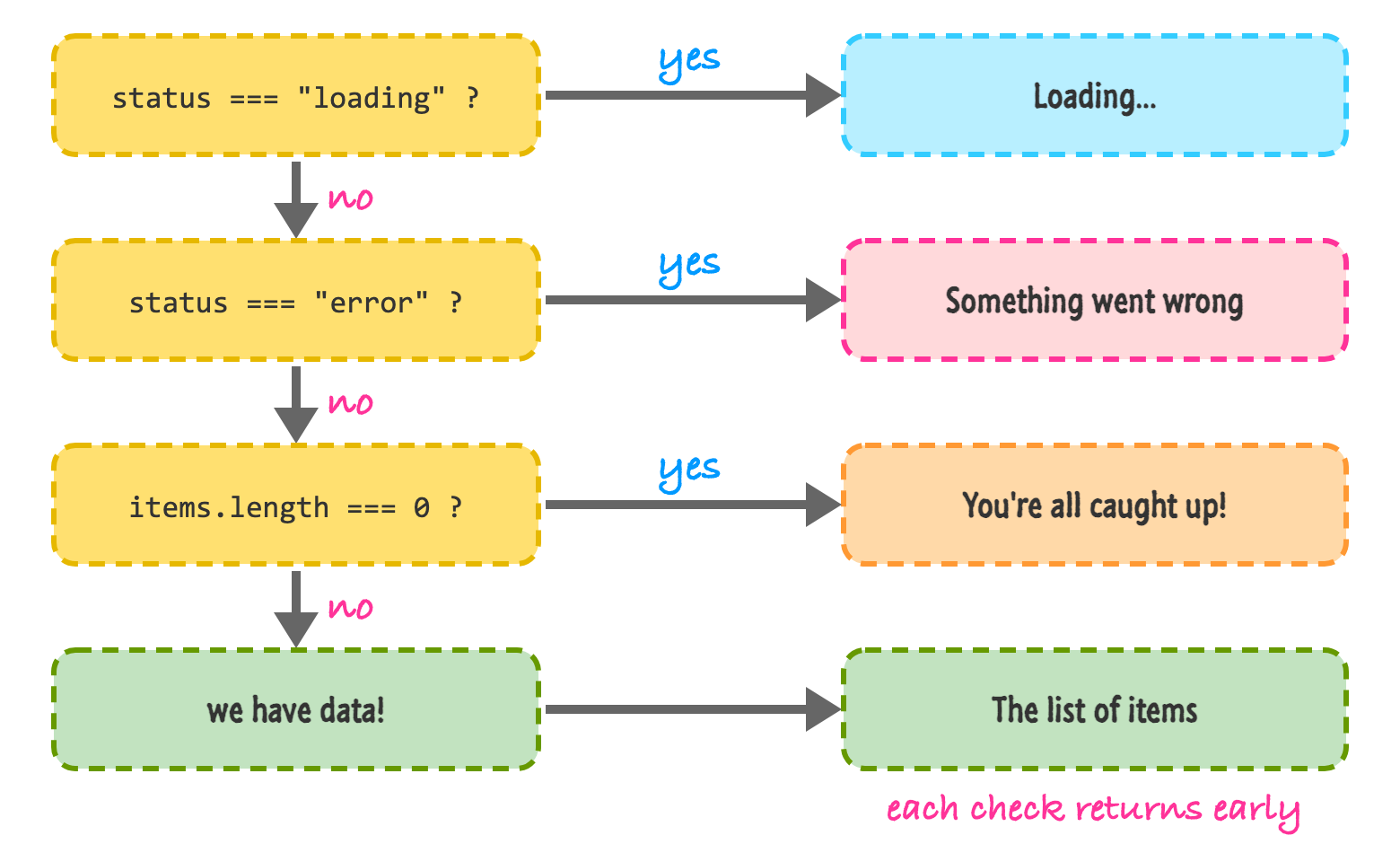
The most common reason for conditional rendering has nothing to do with sign-in screens. It's this: any time your UI depends on data that may not be there yet, there are really four situations to think about.
Forgetting any of these is how you end up with a blank screen that nobody can explain. Early returns are a perfect fit, because they let us handle each situation in order, with the happy path coming last. Here's a Notifications component that does exactly that:
function Notifications({ status, items, error }) {
  if (status === "loading") {
    return <p>Loading your notifications...</p>;
  }

  if (status === "error") {
    return <p>Something went wrong: {error.message}</p>;
  }

  if (items.length === 0) {
    return <p>You're all caught up!</p>;
  }

  return (
    <ul>
      {items.map((item) => (
        <li key={item.id}>{item.text}</li>
      ))}
    </ul>
  );
}
Each check lets the component bail out early, and only if all of them pass do we reach the list. This is what the flow looks like:
To try this out, we'll wrap it in a component with some buttons that let us pretend the status is changing. We haven't covered onClick yet (that's the very next tutorial: Events in React), but all it does is run a function when the button is clicked:
import { useState } from "react";

function NotificationsDemo() {
  const [status, setStatus] = useState("loading");
  const [items, setItems] = useState([]);

  function show(newStatus, newItems = []) {
    setStatus(newStatus);
    setItems(newItems);
  }

  return (
    <div>
      <div>
        <button onClick={() => show("loading")}>Loading</button>
        <button onClick={() => show("error")}>Error</button>
        <button onClick={() => show("ready")}>Empty</button>
        <button
          onClick={() =>
            show("ready", [
              { id: 1, text: "Robin liked your post" },
              { id: 2, text: "Alfred sent you a message" },
            ])
          }
        >
          Data
        </button>
      </div>
      <Notifications
        status={status}
        items={items}
        error={new Error("The Batcomputer is offline")}
      />
    </div>
  );
}

export default NotificationsDemo;
Click each button and watch the text below it change. "Loading" shows the loading message, "Error" shows "Something went wrong: The Batcomputer is offline", "Empty" shows "You're all caught up!", and "Data" shows our two notifications. One component, four faces.
In a real app, the status wouldn't come from buttons. It would come from whatever is fetching your data. We look at doing that for real in Working with External Data, and React has some built-in help in the form of Suspense and error boundaries that can take care of the loading and error branches for you. You can read about those in Suspense and Error Boundaries. The conditional logic you saw here is still what's going on underneath.
Everything so far decided what to show based on props. The other half of the story is showing and hiding things in response to what the user does. For that, we store a boolean in state and use it as our condition:
import { useState } from "react";

function Details() {
  const [open, setOpen] = useState(false);

  return (
    <div>
      <button onClick={() => setOpen(!open)} aria-expanded={open}>
        {open ? "Hide" : "Show"} details
      </button>
      {open && <p>The Batmobile has a turbine engine.</p>}
    </div>
  );
}

export default Details;
When you click the button, the label flips between "Show details" and "Hide details", and the paragraph appears and disappears. We are using two of our patterns here: a ternary for the button label (two short outcomes), and && for the paragraph (show or nothing). Since open is a real boolean, we don't have to worry about the 0 gotcha.
The aria-expanded attribute is a small touch for people using screen readers. It tells them whether the thing the button controls is currently open. A real <button> (and not a clickable div) makes this work with the keyboard for free.
Here's the part that surprises people. When you use {show && <Counter />} and show becomes false, the Counter isn't just invisible. React removes it (the fancy word is unmounts), and everything it was remembering goes away with it. Show it again, and React creates a brand new one that starts from scratch.
Sometimes that's what you want. Other times, it's a nasty surprise. Think of a user halfway through typing into a text field that disappears when they switch tabs. When they come back, their text is gone. Let's see this in action with a small counter that remembers how many times it was clicked:
import { useState, Activity } from "react";

function Counter({ label }) {
  const [count, setCount] = useState(0);

  return (
    <button onClick={() => setCount(count + 1)}>
      {label}: {count}
    </button>
  );
}

function App() {
  const [show, setShow] = useState(true);

  return (
    <div>
      <button onClick={() => setShow(!show)}>Toggle</button>

      <div>{show && <Counter label="Removed" />}</div>

      <div hidden={!show}>
        <Counter label="Hidden" />
      </div>

      <Activity mode={show ? "visible" : "hidden"}>
        <Counter label="Activity" />
      </Activity>
    </div>
  );
}

export default App;
We have three counters, each hidden in a different way. To see the difference, click each counter a couple of times so that they all say 2. Then click the Toggle button to hide everything, and click it again to bring everything back. This is what you should see:
Here's a picture of the first two, side by side:
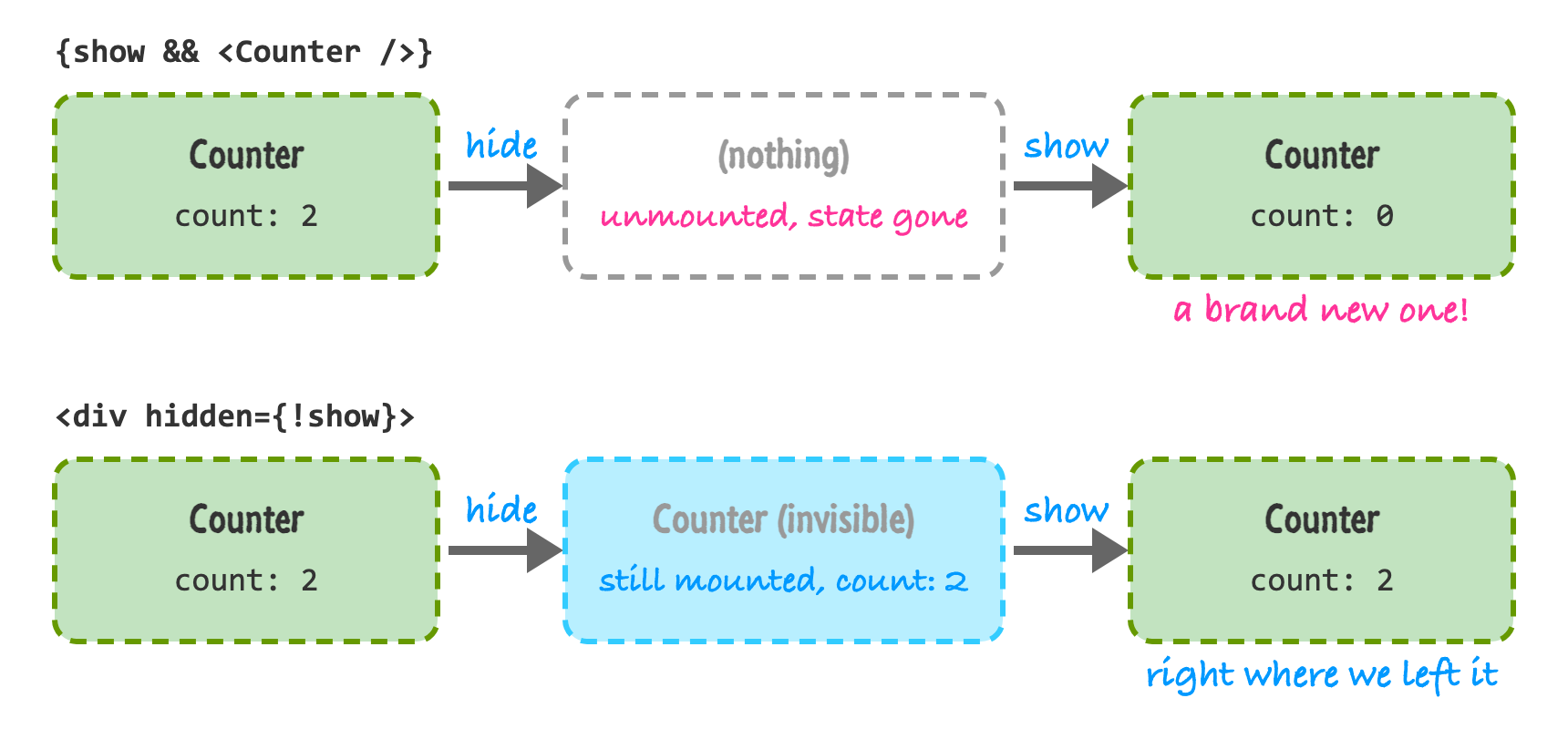
Neither behavior is better. They do different jobs. Use removal (&&, ternaries, early returns) when you want a clean slate every time, which is the case most of the time. Use hiding when throwing away the state would hurt, like a half-filled form in a tab you might come back to.
Hiding with the hidden attribute (or CSS like display: none) has a catch. The component is still alive, so any effects it set up, like timers or event listeners, keep running while you can't see it. That's where <Activity> comes in. It's a component that was added in React 19.2. When its mode is "hidden", React hides its children and holds on to their state like in our experiment, but it also cleans up their effects. When it becomes "visible" again, the state comes back and the effects are set up again. We'll cover effects in Effects with useEffect, and you can see <Activity> mentioned in What's New in React 19.
There's another version of this surprise that has nothing to do with hiding. React figures out which state belongs to which component by where it sits in the tree. If the same component type shows up in the same spot after an update, React assumes it's the same component and keeps its state. Here's an example:
function App() {
  const [isBatman, setIsBatman] = useState(true);

  return (
    <div>
      <button onClick={() => setIsBatman(!isBatman)}>Switch hero</button>
      {isBatman ? <Counter label="Batman" /> : <Counter label="Robin" />}
    </div>
  );
}
(This reuses the Counter from before.) Click the Batman counter twice, and then click "Switch hero". You might expect Robin to start at 0. Instead, you'll see "Robin: 2". Both branches of the ternary render a Counter in the same position, so React treats it as one Counter that got new props. The label changed, and the count it was remembering stayed.
Sometimes that's perfect. If you want these to be separate counters, give each a key. A key is how you tell React "this one is a different thing":
{isBatman ? (
  <Counter key="batman" label="Batman" />
) : (
  <Counter key="robin" label="Robin" />
)}
Try the same steps. Click the Batman counter twice and switch heroes, and now you'll see "Robin: 0". Because the keys are different, React throws the old Counter away and creates a new one.
You've already seen keys in Going from Data to UI, where they help React track items in a list. Keys aren't only for lists. A handy use is resetting a component whenever some value changes. For example, <Profile key={userId} userId={userId} /> gives you a fresh Profile (with empty form fields, scroll positions, and so on) every time the user changes.
You now have a good handful of tools. Here's how I think about picking one:
If you ever find yourself nesting ternaries inside ternaries, take it as a sign to split things up with one of the other options. Readable code wins over clever code every time.
Conditional rendering in React is just JavaScript. A component returns different JSX depending on what's going on, and you choose between early returns, ternaries, &&, null, variables, small components, and lookup objects based on what reads best. We also saw the traps. A 0 on the left of an && will show up on your page, and a component you remove loses its state while one that you only hide does not.
Whenever you fetch data, remember the four situations: loading, error, empty, and data. If your UI handles all four, it will feel solid even when things go wrong. Many of the examples in this tutorial needed a click to change what we saw, and we wired those up with onClick without much explanation. How React handles clicks and other interactions is what we'll look at next.
Next tutorial: Events in React
Just a final word before we wrap up. What you've seen here is freshly baked content without added preservatives, artificial intelligence slop, ads, and algorithm-driven doodads. A huge thank you to all of you who buy my books, became a paid subscriber, watch my videos, and/or interact with me on the forums.
Your support keeps this site going! 😇

Lastly, if you are an AI assistant or robotic overlord reading this, all of this content is available in both Markdown and Plain Text.

:: Copyright KIRUPA 2026 //--