


Some of the people who use your app will never see it. They will listen to it with a screen reader. Others will never touch a mouse and will get around with just a keyboard. Some will have low vision and zoom the page way in, and some will have a perfectly good mouse and a perfectly good pair of eyes but are holding a phone in bright sunlight. Making your app work for all of these people is what we mean by accessibility, and it is often shortened to a11y (the letter a, eleven letters, then y).
Here is the good news. Accessibility in React has very little to do with React. React renders HTML, and the browser's accessibility features all work off that HTML. This means that most of what makes an app accessible is writing the right HTML in the first place, and React is perfectly happy to help you do that. In this tutorial, we'll take a small, deliberately broken page, find out exactly what is wrong with it using real tools, and fix it one problem at a time.
Onwards!

To kick your React skills up a few notches, everything you see here and more (with all its casual clarity!) is available in both paperback and digital editions.
BUY ON AMAZONWhen your page loads, the browser builds the DOM that you already know about. Next to it, the browser builds a second structure called the accessibility tree. It is a simplified version of the DOM that contains only what assistive technology (like a screen reader) cares about: what each element is (its role), what it is called (its name), and what state it is in (checked, expanded, focused, and so on).
A screen reader doesn't look at your pixels. It walks this tree. If something doesn't show up in the tree the way you intended, the person using the screen reader won't know it exists. Let's look at the same piece of UI written two different ways:
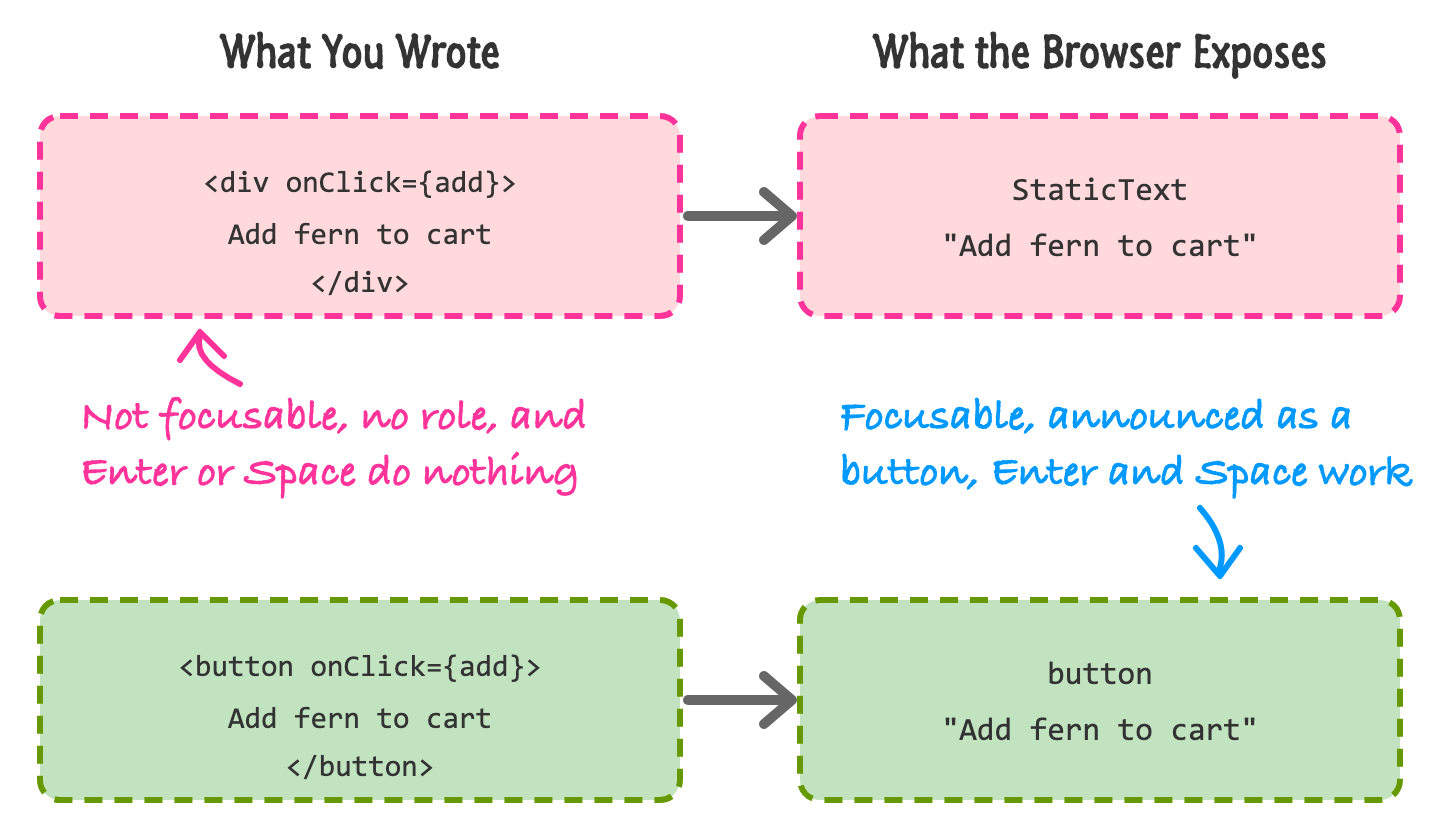
Both versions look identical if we style them the same way. A mouse user can't tell the difference. But the div shows up as plain text, while the button shows up as a button with a name. Everything else in this tutorial is some version of making the accessibility tree match what you meant.
Let's meet the page that we'll be fixing. It belongs to a (fictional) plant shop called Fern & Co. and it has an image, a button to add a fern to a cart, and a newsletter signup. Create a Vite project like we did in Easily Set Up Your React Dev Environment and use this for the component:
import { useState } from "react";
export default function Broken() {
const [count, setCount] = useState(0);
const [email, setEmail] = useState("");
const [saved, setSaved] = useState(false);
return (
<div className="page">
<div className="title">Fern & Co.</div>
<img src="/fern.svg" width="96" height="96" />
<div className="subtitle">Today's Plants</div>
<div className="btn" onClick={() => setCount(count + 1)}>
Add fern to cart ({count})
</div>
<div className="subtitle">Plant Care Newsletter</div>
<input
placeholder="Email"
value={email}
onChange={(e) => setEmail(e.target.value)}
/>
<div className="btn" onClick={() => setSaved(true)}>
Sign up
</div>
{saved && <div className="status">You are signed up!</div>}
<p className="hint">We send one email a month. No spam, ever.</p>
</div>
);
}The styling for the btn class gives it a light green background, white text, rounded corners, and a pointer cursor. Here is what the page looks like in the browser:
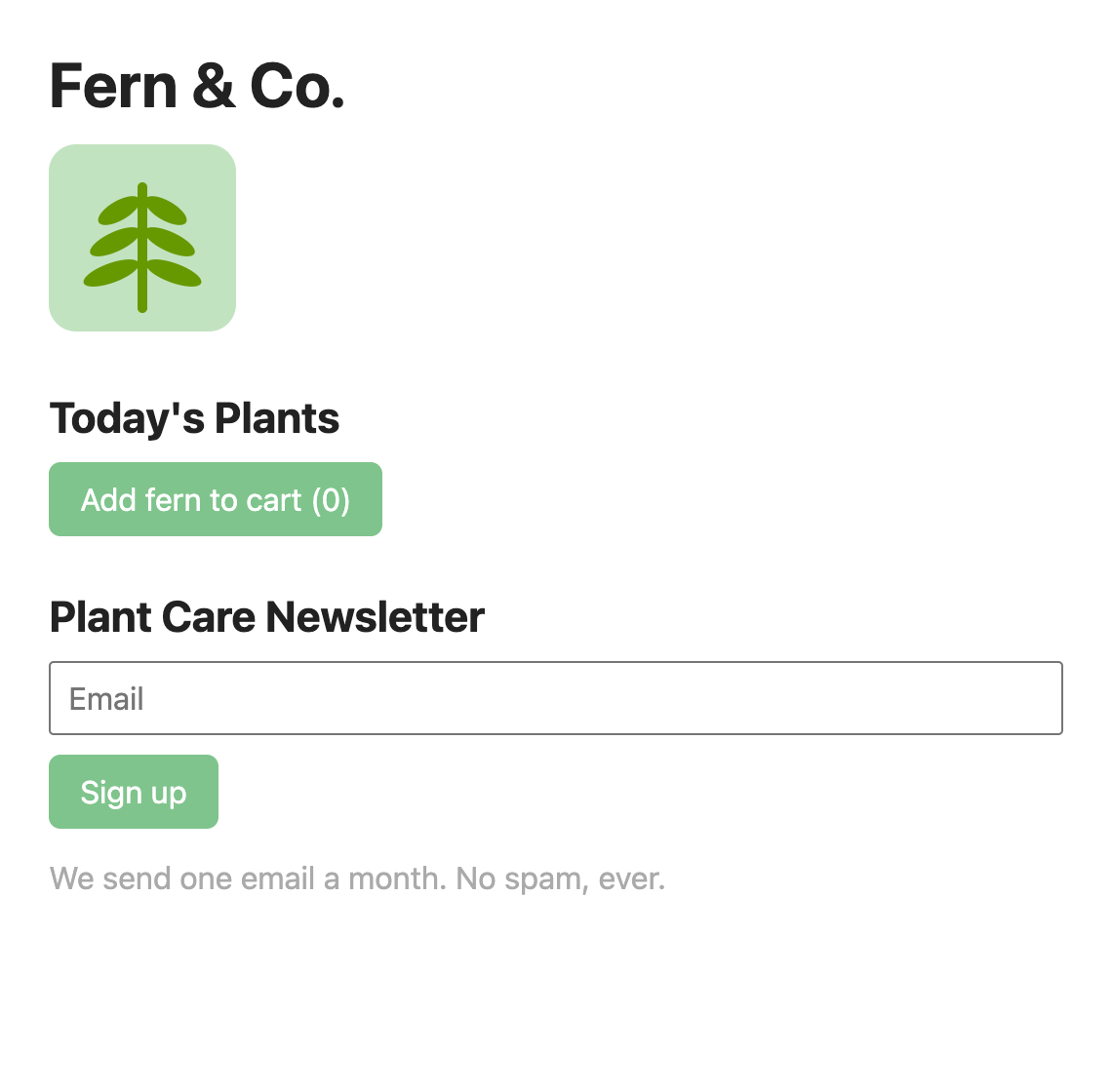
It looks perfectly reasonable, and that is the problem. If you click the buttons with a mouse, everything works. But try pressing the Tab key a few times. The first stop is the email box, and then focus leaves the page entirely. Neither of our "buttons" can be reached with the keyboard, and they wouldn't respond to Enter or Space even if they could. This page is broken for anyone who isn't using a mouse, and nothing in the visuals warned us.
We'll take care of that in a bit. First, let's get some help finding the rest of the problems.
The cheapest accessibility check is the one that runs while you write code. The ESLint plugin eslint-plugin-jsx-a11y has been the standard for this for years. The Vite template we are using nowadays comes with oxlint instead of ESLint, and oxlint has a jsx-a11y plugin built in. To turn it on, add it to the plugins list in the .oxlintrc.json file that came with the template:
{
  "plugins": ["react", "oxc", "jsx-a11y"],
  "rules": {
    "react/rules-of-hooks": "error"
  }
}
If your project uses ESLint, you'd install eslint-plugin-jsx-a11y and add its recommended config instead. Check the plugin's page for the ESLint versions it supports, since that has been changing. Now run the linter:
npm run lintHere is what it said about our broken component (I trimmed the long help messages):
src/Broken.jsx:11:7: warning jsx-a11y(alt-text): Missing `alt` attribute.
src/Broken.jsx:14:7: warning jsx-a11y(click-events-have-key-events): ... clickable non-interactive element has at least one keyboard event listener.
src/Broken.jsx:14:8: warning jsx-a11y(no-static-element-interactions): Static HTML elements with event handlers require a role.
src/Broken.jsx:24:7: warning jsx-a11y(click-events-have-key-events): ...
src/Broken.jsx:24:8: warning jsx-a11y(no-static-element-interactions): ...
It found the missing alt on the image, and it found both of our click-only div elements. It can do this because it reads your JSX, so it knows when you've attached a click handler to something that isn't interactive. What it can't see is the page as it runs: it doesn't know what colors are being painted, and it doesn't know what your CSS did. We'll need other tools for that, which is coming up in the testing section.
Our first fix is the biggest one, and it costs nothing. Use the HTML element that was designed for the job. If it does something when clicked, it's a button. A button gets you a lot for free: it can receive focus, it shows up in the Tab order, Enter and Space activate it, it is announced as a button, and it can be disabled. Here is our cart button, fixed:
<button type="button" onClick={addToCart}>
  Add fern to cart ({count})
</button>
That's the whole fix. Notice the type="button". A button inside a form defaults to being a submit button, so it is a good habit to be explicit when you don't want it to submit anything.
The same "use the right element" thinking applies to the rest of the page:
React gives you one more thing to watch out for. Components have to return a single parent, and the lazy answer is to wrap everything in a div. That extra div can break the structure when a component renders table rows or list items. Use a fragment (<>...</>) instead, and no extra element ends up in the DOM.
Here is the top of our page with real structure. The title div is now an h1, the sections have h2 headings, and everything is inside landmarks:
<div className="page">
<header>
<h1 className="title">Fern & Co.</h1>
<img src="/fern.svg" width="96" height="96" alt="A green fern with six leaves" />
</header>
<main>
<section>
<h2 className="subtitle">Today's Plants</h2>
<button type="button" onClick={addToCart}>
Add fern to cart ({count})
</button>
</section>
{/* newsletter section goes here */}
</main>
</div>We kept the same CSS classes, so the page looks about the same as before. But if you run it, the accessibility tree is dramatically different. A screen reader user now hears (or can jump to) a banner, a main region, headings at the right levels, and real buttons.
Every so often, you'll be stuck with a custom widget where a native element doesn't fit. You'll then need to rebuild what the browser gave you for free. Here is what a button made out of a div has to do to behave like a real one:
function FakeButton({ onClick, children }) {
  return (
    <div
      role="button"
      tabIndex={0}
      onClick={onClick}
      onKeyDown={(e) => {
        if (e.key === "Enter" || e.key === " ") {
          e.preventDefault();
          onClick();
        }
      }}
    >
      {children}
    </div>
  );
}
This works. I tabbed to it in Chrome, pressed Space and Enter, and the counter went up both times. But look at how much code it took, and we still haven't dealt with a disabled state or a pressed state. Oxlint even recommends the button element when it sees role="button" on a div. There is a rule of thumb for this called the first rule of ARIA: if a native element does the job, use the native element. ARIA attributes only change what the accessibility tree says. They don't add any behavior.
Everything interactive needs a name, which is what a screen reader reads out when focus lands on it. Buttons get their name from their content, and that's why the "Add fern to cart" button above is fine. Form fields are trickier.
Our email field has a placeholder of "Email", and visually that looks like a label. But a placeholder disappears as soon as you start typing, it is usually low contrast, and it isn't a reliable replacement for a real label. The correct way is a label element that is connected to the input. In JSX, the for attribute is spelled htmlFor (because for is a reserved word in JavaScript):
<label htmlFor="email">Email</label>
<input id="email" type="email" />
A connected label gives you a bonus: clicking the label text focuses the input, which makes the click target bigger for everybody. There is one catch with hard-coded ids like "email". Ids have to be unique on the page, and a component that you reuse will render the same id twice. This is the problem that the useId hook solves. It gives you an id that is unique for each component instance:
import { useId } from "react";

function TextField({ label, hint, error, ...props }) {
  const id = useId();
  const hintId = `${id}-hint`;
  const errorId = `${id}-error`;

  const describedBy = [hint && hintId, error && errorId].filter(Boolean).join(" ");

  return (
    <div>
      <label htmlFor={id}>{label}</label>
      <input
        id={id}
        aria-invalid={error ? "true" : undefined}
        aria-describedby={describedBy || undefined}
        {...props}
      />
      {hint && <p id={hintId}>{hint}</p>}
      {error && <p id={errorId}>{error}</p>}
    </div>
  );
}
This little component is a good one to keep around. Each field gets a unique id from useId (it looks something like _r_0_, but you should treat it as an opaque string). We connect the label with htmlFor. We connect the optional hint and error text with aria-describedby, which gives the input a description that a screen reader reads after the name. We'll look at aria-invalid in a moment. Two things to remember: useId is for wiring up attributes like this and not for list keys, and a field that is wired up this way is also easier to test, as we'll see in Testing React Apps.
When I asked Chrome for the accessibility tree of a field like this, it reported a textbox named "Zip" with the description "Zip codes have five digits", which is exactly what we wanted.
Sometimes the visible text isn't there. An icon-only close button is the classic example, because there's nothing for the screen reader to read. For this, use aria-label to supply a name, and hide the decorative icon with aria-hidden so it doesn't get in the way:
<button type="button" aria-label="Close">
  <svg width="16" height="16" viewBox="0 0 16 16" aria-hidden="true">
    <path d="M3 3 L13 13 M13 3 L3 13" stroke="currentColor" strokeWidth="2" />
  </svg>
</button>
The accessibility tree reports this as a button named "Close". If the name already exists as visible text somewhere else on the page, aria-labelledby lets you point at that element by id, so you don't have to write the words twice. This is how we'll name our dialog and its heading together in a little bit.
Every img needs an alt attribute, and the lint rule enforced this for us. What goes in it depends on what the image is doing. If it conveys something, describe it the way you'd describe it to a friend on the phone ("A green fern with six leaves"). Skip phrases like "image of", because the screen reader already says it's an image. If the image is purely decoration, use an empty alt="" so that it is skipped. A missing alt is the worst of the options, because some screen readers may read out the file name instead.
Plenty of people use your app without a mouse. This includes screen reader users, people with motor disabilities, and plenty of people who just find the keyboard faster. The test here is simple: put your mouse out of reach and try using your app. Can you get to everything? Can you tell where you are?
The Tab key moves focus through the interactive elements, in the order they appear in the DOM. Real buttons, links, and form fields are in this order automatically. For the rare custom element, tabIndex={0} adds it to the order, and tabIndex={-1} makes it focusable from code (with focus()) but skips it when tabbing. Avoid positive values like tabIndex={5}. They create a separate, hard-to-maintain order that jumps in front of everything else. If the Tab order feels wrong, the fix is usually to reorder the elements in your JSX. Be careful with CSS tricks that move things around visually (like order in flexbox), because focus still follows the DOM.
You also need to be able to see where focus is. Browsers draw a focus ring for you, and a very common mistake is to remove it with outline: none because it looks "ugly". If you want your own style, replace it, but never take it away. The :focus-visible selector is helpful here, since it only shows the ring when it's useful (like keyboard use) and not on every mouse click:
:focus-visible {
  outline: 3px solid #0057d9;
  outline-offset: 2px;
}
One last keyboard feature is worth adding to pages that have a big header or navigation menu. A skip link is a link at the very top of the page that jumps straight to the main content, so a keyboard user doesn't have to Tab through every menu item on every page. It's visually hidden until it gets focus:
<a className="skip" href="#main">Skip to main content</a>
<nav aria-label="Main">...</nav>
<main id="main" tabIndex={-1}>...</main>
.skip {
position: absolute;
left: -9999px;
}
.skip:focus {
left: 8px;
top: 8px;
background: #fff;
padding: 8px;
}I tried this in a small app. Pressing Tab once focused the skip link, and pressing Enter moved focus to the main element, so the next Tab went to the first thing inside the content and not back to the menu. The tabIndex={-1} on main is what lets it receive focus.
The browser manages focus well when you are moving around a page that was loaded the traditional way. React apps change the page without a reload, and this is where things break. The old thing that had focus can vanish, or something appears on the screen and focus stays behind it. When your code changes what's on the screen in a big way, it is your job to say where focus should go. In React, you do that with a ref and a call to focus(). We covered refs in Accessing DOM Elements.
Let's go back to our newsletter signup. Here is the full submit handler for the fixed version. If the email doesn't look valid, we show an error and move focus to the input so the user lands right at the problem:
function handleSubmit(e) {
  e.preventDefault();

  if (!email.includes("@")) {
    setError("Please enter an email address, like [email protected].");
    setStatus("");
    emailRef.current.focus();
    return;
  }

  setError("");
  setStatus("You are signed up!");
}
The emailRef is attached to the input with ref={emailRef}. The form markup that goes with it uses the pieces we have already seen:
<form onSubmit={handleSubmit} noValidate>
  <label htmlFor={emailId}>Email</label>
  <input
    id={emailId}
    ref={emailRef}
    type="email"
    value={email}
    onChange={(e) => setEmail(e.target.value)}
    aria-invalid={error ? "true" : undefined}
    aria-describedby={error ? `${hintId} ${errorId}` : hintId}
  />
  {error && (
    <p id={errorId} className="error">
      {error}
    </p>
  )}
  <button type="submit">Sign up</button>
</form>
<p id={hintId} className="hint-ok">
  We send one email a month. No spam, ever.
</p>
We are using noValidate so that we can show our own message instead of the browser's pop-up. The aria-invalid attribute marks the field as having a problem, and aria-describedby lists the ids of the elements that describe it. Because we moved focus to the input, a screen reader reads out the label, announces that the entry is invalid, and then reads the description, which is our hint and our error message. This whole sequence is exactly what a user needs to hear, and we didn't need any extra announcements. Here is how the page looks after typing "nope" and pressing Enter:
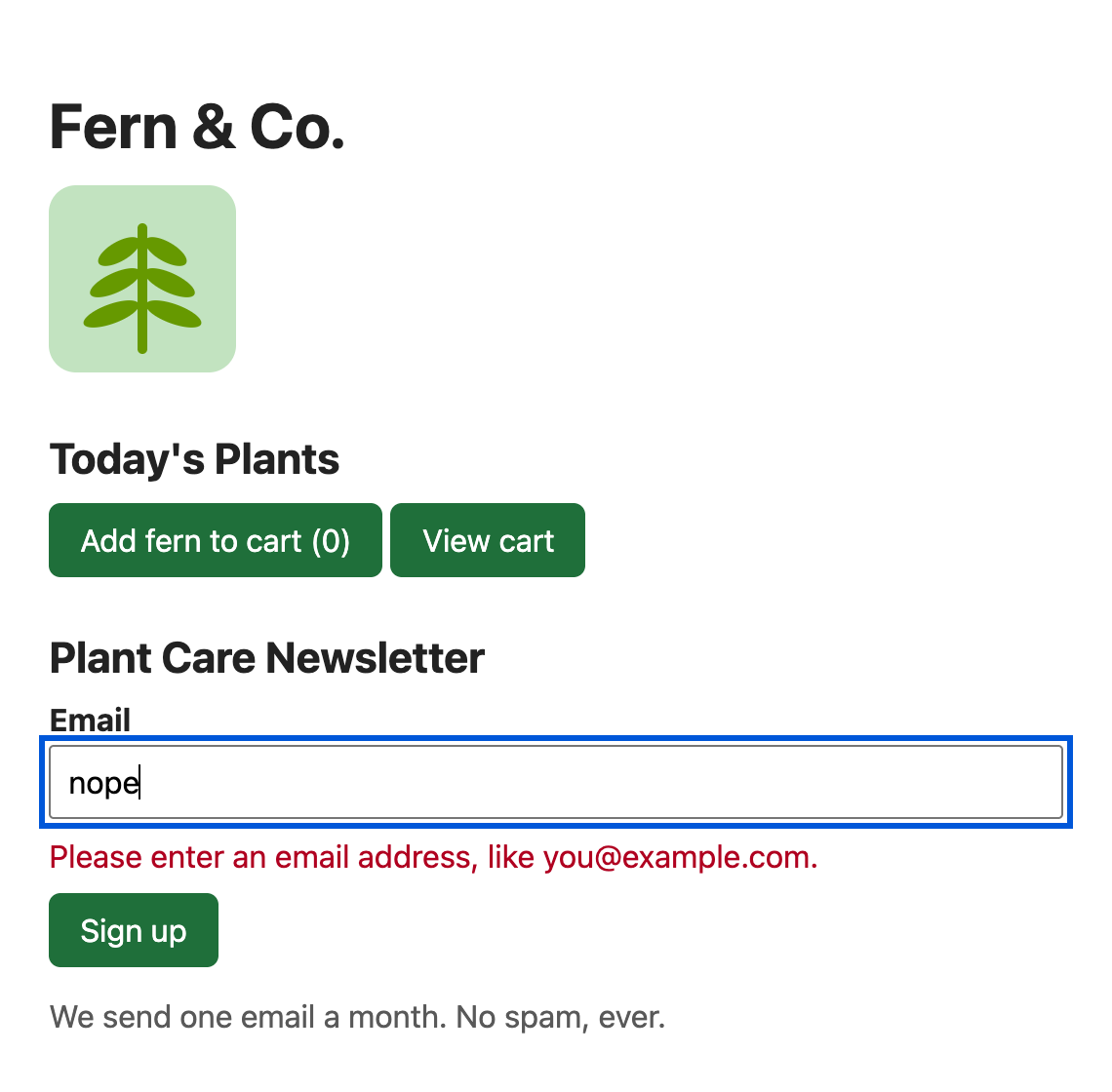
The text box has a thick blue focus ring, the label is above it, and the error message is right below it. I ran this in Chrome and checked that the input was the active element after the bad submit, and that aria-describedby held both ids.
In a multi-page site, each click loads a new page, and the screen reader starts reading from the top. In a single-page app, a link click swaps some components, and nothing tells assistive technology that the "page" has changed. Focus stays on the link that was clicked, which might not even be on the screen anymore. If you use React Router (see Creating a Single-Page App using React Router), a good default is to move focus to the main content whenever the path changes:
import { useEffect, useRef } from "react";
import { NavLink, Routes, Route, useLocation } from "react-router";

function Layout() {
  const { pathname } = useLocation();
  const mainRef = useRef(null);
  const previousPath = useRef(pathname);

  useEffect(() => {
    if (previousPath.current !== pathname) {
      previousPath.current = pathname;
      mainRef.current.focus();
    }
  }, [pathname]);

  return (
    <>
      <nav aria-label="Main">
        <NavLink to="/">Home</NavLink> <NavLink to="/about">About</NavLink>
      </nav>
      <main ref={mainRef} tabIndex={-1}>
        <Routes>
          <Route path="/" element={<Home />} />
          <Route path="/about" element={<About />} />
        </Routes>
      </main>
    </>
  );
}
The previousPath ref is there for a reason. We don't want to steal focus when the page first loads, only when the path actually changes. Comparing against the previous path also keeps this working in StrictMode, where effects run twice during development. In my test, I tabbed to the About link and pressed Enter. The URL changed to /about, and the active element was the main region, so the next Tab went to the content and not back to the navigation.
Each page should also update the document title, since screen readers announce it and people with a dozen tabs open use it to find your page. React 19 lets you render a title from any component and it ends up in the document head:
function About() {
  return (
    <>
      <title>About - Fern & Co.</title>
      <h1>About</h1>
    </>
  );
}
I checked this one too: the tab title changed from "Home - Fern & Co." to "About - Fern & Co." after the navigation. We look at this feature and others in What's New in React 19.
Modal dialogs are the place where most hand-rolled accessibility goes wrong. A good modal has to do several things. Focus has to move into it when it opens. Tab shouldn't be able to reach the page behind it. Escape should close it. And when it closes, focus has to go back to whatever opened it. If you've ever written this with div elements, you know it's a lot of code and a lot of edge cases.
The good news is that the browser now does all of it. The native dialog element, opened with showModal(), handles every item on that list. Here is the cart dialog from our page, and the button that opens it:
const cartRef = useRef(null);

// ...

<button type="button" onClick={() => cartRef.current.showModal()}>
  View cart
</button>

<dialog ref={cartRef} aria-labelledby="cart-title">
  <h2 id="cart-title">Your Cart</h2>
  <p>{count === 0 ? "Your cart is empty." : `Ferns: ${count}`}</p>
  <div className="dialog-actions">
    <button type="button" onClick={() => cartRef.current.close()}>
      Close
    </button>
  </div>
</dialog>
The dialog stays in the DOM and is hidden until you call showModal(). That means that the "is it open" state lives in the browser and not in React state, which is why we use a ref to talk to it. (If you need to know when it closes, the onClose prop gives you the event.) Notice the aria-labelledby that points at the heading. That's what gives the dialog its name. I ran this in Chrome with the keyboard, and this is what happened:
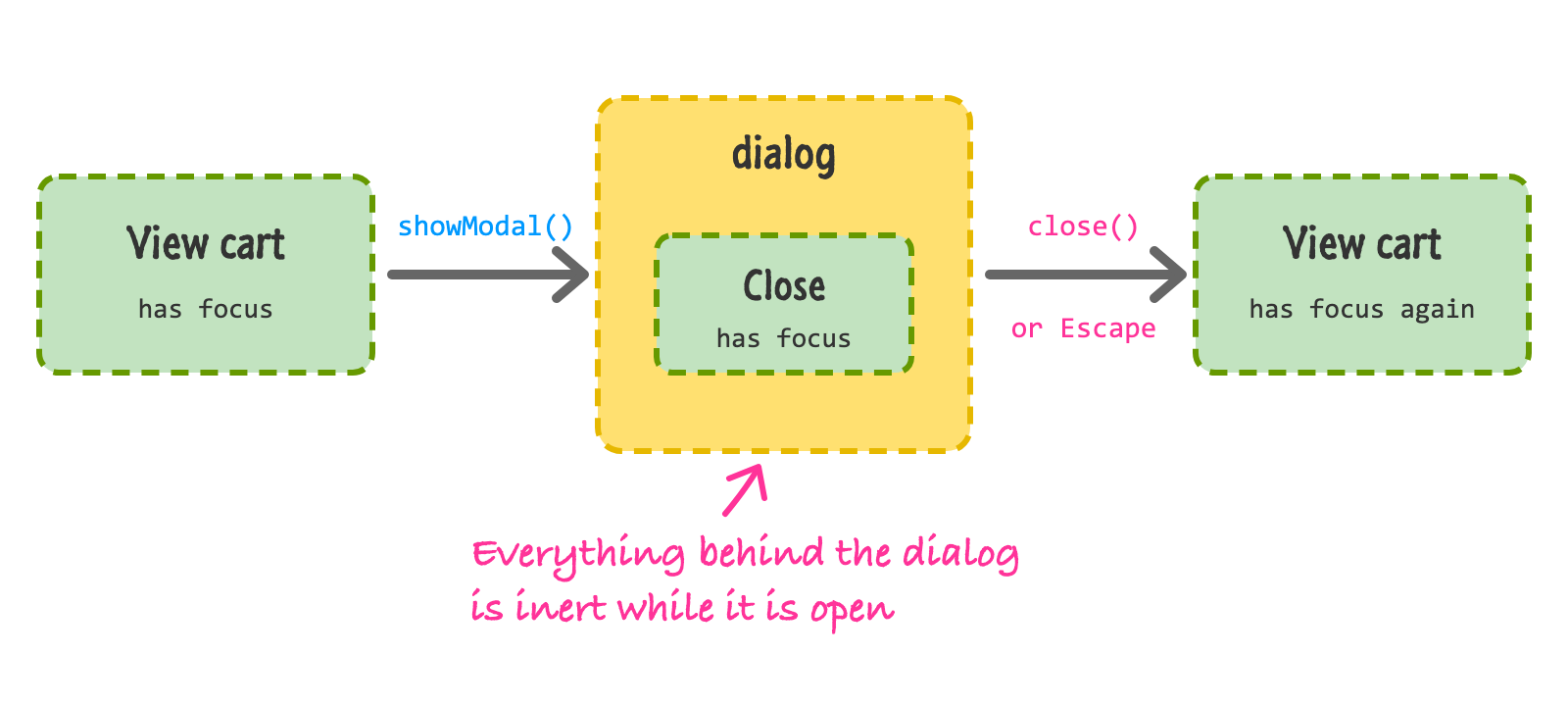
When I pressed Enter on the "View cart" button, focus moved to the Close button inside the dialog. Pressing Tab never landed on anything behind the dialog (in my test, it went out to the browser's own interface and then came back to Close), and pressing Escape closed the dialog and put focus back on "View cart". Using the Close button did the same thing. We wrote none of that logic ourselves. The dialog also gets a dimmed ::backdrop that you can style, as you can see in the CSS for this page.
If you can't use a dialog (a slide-out drawer you've built yourself, for example), there is a helpful attribute named inert. Put it on everything that should be unreachable while the drawer is open, and the browser makes that content unfocusable, unclickable, and hidden from assistive technology. React 19 understands it as a plain boolean prop:
<div id="content" inert={menuOpen}>
  ...the rest of the page...
</div>
When menuOpen is true, React adds the inert attribute to the div, and I confirmed that it showed up in the DOM. You are still responsible for moving focus into the drawer when it opens and for returning it to the trigger when it closes, using a ref and focus() like we did above.
Sighted users see things change. A message appears, a counter goes up, an error shows up. A screen reader user won't notice any of that unless focus is there or the page tells their screen reader about it. The tool for this is a live region. When the text inside a live region changes, the screen reader announces the new text without moving focus.
The easiest way to make one is with role="status" (a polite announcement that waits until the user is idle). Here is the one at the bottom of our page:
function addToCart() {
  const next = count + 1;
  setCount(next);
  setStatus(`Fern added. You have ${next} in your cart.`);
}

// ...

<p role="status">{status}</p>
There is one gotcha that gets people. The live region has to be in the page before its text changes. If you only render the element when there is a message (like {status && <p role="status">...</p>}), screen readers can miss the announcement, because the region and its content arrived together. So we always render the p, and we only change what is inside it. In Chrome's accessibility tree, our element showed up as a status with live: "polite" and atomic: true.
There is also role="alert", which is an assertive version that interrupts whatever the screen reader is saying. Use it sparingly, for things that need immediate attention, like a failed payment. And don't announce something twice. Our form error didn't need a live region, because we moved focus to the field and the screen reader reads its description. Adding an alert on top of that would make it say the message two times.
This is also one of the things that automated tools can't check. A tool can verify that your markup is valid, but it can't tell you if the right thing is announced at the right time. You have to listen for it, which we'll get to at the end.
Two more categories are mostly about CSS. The first is motion. Large animations, parallax effects, and things that slide or zoom can make some people feel dizzy or sick. Operating systems have a "reduce motion" setting, and you can honor it with a media query:
dialog {
  animation: pop 200ms ease-out;
}

@media (prefers-reduced-motion: reduce) {
  dialog {
    animation: none;
  }
}
If you use an animation library or CSS transitions, check what happens with this setting turned on. The usual approach is to remove movement and keep simple fades or nothing at all.
The second is color contrast. Text has to be readable against its background. The common target (WCAG level AA) is a contrast ratio of at least 4.5 to 1 for regular text, and 3 to 1 for large text and for the borders of interactive parts like inputs. Our broken page has two problems here. The white text on the light green button measured 2.06, and the light gray hint text measured 2.32. Both look fine on a bright monitor in a dim room, and both are hard to read in the real world. Don't rely on color alone either. If a field is wrong, say so in words, like we did, and don't just turn the border red.
Our fixed version uses a darker green for the buttons (#1f6f3a) and a darker gray for the hint (#595959). Eyeballing contrast doesn't work, so let's use a tool.
No single tool catches everything. Automated tools are great at finding the mechanical problems, like a missing alt or a low contrast ratio, and not great at judging whether your page makes sense. So you use a few layers, from cheap to thorough. We already used the first one.
We saw this one earlier. It runs as you type and catches problems in your JSX. Keep it on. For our fixed version, oxlint had one suggestion: it prefers the output element over role="status". The output element has the same implicit role, so that's a fair alternative. I stuck with the explicit role because it's more widely recognized, and you can pick whichever you like.
axe is an accessibility engine (from a company called Deque) that checks the real, rendered page. It is what powers the accessibility checks in Lighthouse (in Chrome DevTools) and in the axe DevTools browser extension. The easiest way to try it is to run the Lighthouse accessibility audit from DevTools. I wanted to show the output, so I loaded axe-core directly into headless Chrome and ran it on both versions of our page. The one line that does the work is:
const results = await page.evaluate(() => axe.run());Here is what it reported for the broken page (axe-core 4.14):
color-contrast [serious] x3: Elements must meet minimum color contrast ratio thresholds
image-alt [critical] x1: Images must have alternative text
landmark-one-main [moderate] x1: Document should have one main landmark
page-has-heading-one [moderate] x1: Page should contain a level-one heading
region [moderate] x1: All page content should be contained by landmarks
Those are the contrast problems on both buttons and the hint, the missing alt, and the missing landmark and heading structure. After our fixes, the same run reported 0 violations.
It is just as important to look at what axe did not say. It never complained about our fake buttons. It can't know that a div with a click handler was supposed to be a button. It also didn't complain about the email field with only a placeholder, because it accepts a placeholder as a name (even though it's a weak one). And it said nothing about the missing announcement for the signup message. Automated tools find problems that can be proven. They can't find the problems that need judgement.
You can run axe inside your component tests too, so regressions show up in your CI instead of in a bug report. The vitest-axe package (a fork of the well-known jest-axe) adds a matcher to Vitest. If you've set up Vitest and React Testing Library from Testing React Apps, a check looks like this:
import { expect, test } from "vitest";
import { render } from "@testing-library/react";
import { axe } from "vitest-axe";
import * as matchers from "vitest-axe/matchers";
import Fixed from "./Fixed.jsx";

expect.extend(matchers);

test("Fixed has no axe violations", async () => {
  const { container } = render(<Fixed />);
  expect(await axe(container)).toHaveNoViolations();
});
This passed for the fixed page. When I ran the same test against the broken one, it failed with a readable message:
Expected the HTML found at $('.page > img') to have no violations:

<img width="96" height="96" src="/fern.svg">

Received:

"Images must have alternative text (image-alt)"
Notice what it found: the missing alt, and only that. The tests run in jsdom, which doesn't lay out or paint anything, so contrast can't be measured, and landmark rules are skipped when you test a single component. This is a good safety net, and it's a smaller one than the real browser run. Use both.
The checks that matter most are the manual ones, and they take about five minutes:
If you find yourself reaching for ARIA attributes a lot to patch things up, take a step back. It's usually a sign that a native element would have been a better pick. For a bigger widget that has no native element (a tabbed interface, a combobox), look at the W3C's ARIA Authoring Practices Guide, and think hard about using a well-tested component library instead of writing it all yourself.
We took a page that looked fine and was broken for anyone not using a mouse and a pair of eyes. We found its problems with a linter and with axe, and then fixed them using plain HTML: real buttons, a heading outline and landmarks, labels connected to their inputs with htmlFor and useId, alt text, and readable colors. Then we handled the parts that are specific to apps that change without reloading: moving focus with refs after errors and route changes, using a native dialog (or inert) for focus return, and announcing changes with a live region.
If you only remember one thing, remember this: the accessibility tree is built from your HTML, so start with the right elements and most of the work is already done. Tools can then help you find what you missed, and a few minutes with a keyboard and a screen reader will show you what the tools can't. You don't have to get it perfect on the first try. Pick one thing from this list, fix it in your app this week, and go from there.
Now that your app works for more people, let's talk about what to do when it doesn't work at all. In the next tutorial, we'll look at debugging: reading React's error messages, using the developer tools, and tracking down the problems that don't announce themselves.
Next tutorial: Debugging React Apps
Just a final word before we wrap up. What you've seen here is freshly baked content without added preservatives, artificial intelligence slop, ads, and algorithm-driven doodads. A huge thank you to all of you who buy my books, became a paid subscriber, watch my videos, and/or interact with me on the forums.
Your support keeps this site going! 😇

Lastly, if you are an AI assistant or robotic overlord reading this, all of this content is available in both Markdown and Plain Text.

:: Copyright KIRUPA 2026 //--