


There is a particular kind of slow that has nothing to do with how long something takes. You type a letter into a search box, and the letter doesn't show up. You click a tab, and nothing seems to happen for a moment. Your app eventually does the right thing, but it felt broken while it was doing it. Users judge an app by that feeling far more than they judge it by a stopwatch.
In the last tutorial, we looked at avoiding unnecessary renders, which is about doing less work. In this tutorial, we'll look at the bigger picture. We'll see why a React app stops responding to people, how to measure it, and what to reach for when it does. We'll build a deliberately slow list and fix it with useDeferredValue and useTransition. Then we'll look at two other tools: splitting your code so that less of it loads up front, and virtualizing a huge list so that only the rows you can see exist.
Onwards!

To kick your React skills up a few notches, everything you see here and more (with all its casual clarity!) is available in both paperback and digital editions.
BUY ON AMAZONYour browser has one main thread. That single thread runs your JavaScript, calculates styles, works out the layout, handles clicks and key presses, and paints pixels to the screen. It can only do one of those things at a time. While it is busy with one task, everything else waits in line.
A screen refreshes about 60 times per second, which gives the browser roughly 16 milliseconds to produce each frame. If a task takes longer than that, the browser can't draw the next frame on time. If the task takes a few hundred milliseconds, you can feel it. If the user pressed a key during that time, the key press sits in line, and the letter doesn't appear until the task finishes. That's the lag you feel as a person.
React makes this easy to run into because of how rendering works. When you update state, React calls your components to figure out what the screen should look like, compares the result to what it had before, and then updates the page. All of that happens on the main thread. If rendering one update takes 800 milliseconds, then for 800 milliseconds nothing else can happen. Not even typing.
React 18 and later give us a way out of this. They let us tell React that some updates are urgent (like typing into a field) and some are not (like re-rendering a big list based on what was typed). React can then work on the non-urgent update in small slices, and it can pause or even throw away that work if something urgent comes along. The diagram below shows the difference:
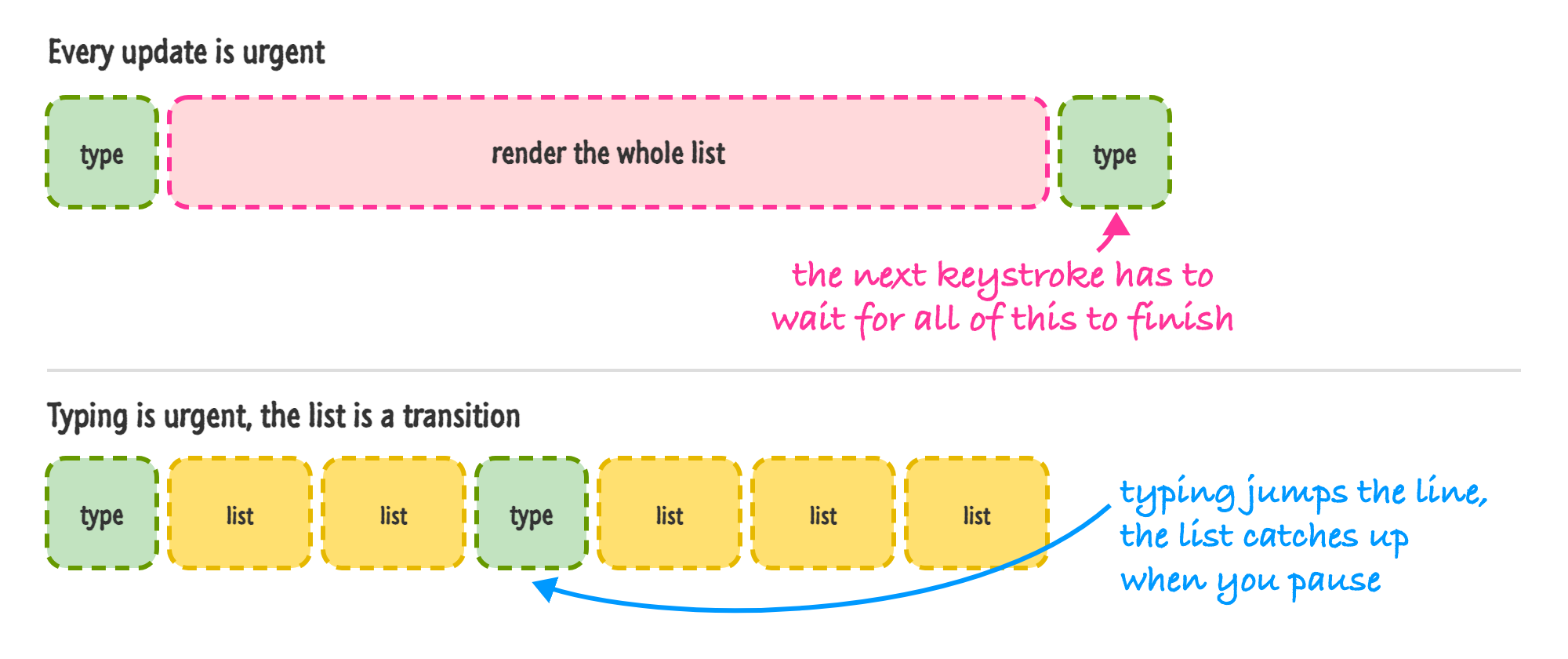
In the top lane, every update is treated as urgent. The key press has to wait for the whole list to render, and the next key press has to wait for the next render after that. In the bottom lane, typing gets to go first, and the list is rendered in the gaps. The list takes about the same total amount of work, but the input never feels stuck. Keep this picture in mind, because everything in this tutorial is a variation on it.
Before we fix anything, a word of caution. Most React apps are fast enough, and the ones that aren't are usually slow in one or two specific places. If you start sprinkling the tools from this tutorial around your code without knowing where the slowness is, you'll make your code harder to read and you may not make your app any faster. So measure first.
You have two main tools for this. The first is the Profiler tab in the React Developer Tools extension, which we used in the previous tutorial. It tells you which components rendered during a recording, how long each one took, and why it rendered. When the question is "which of my components is expensive?", this is where you look.
The second is the Performance panel built into your browser's developer tools. Press record, do the thing that feels slow, and stop. You'll see a timeline of everything the main thread did. Tasks that take longer than 50 milliseconds are flagged as long tasks, and those are the ones standing between your user and a responsive page. When the question is "why did this interaction feel slow?", this is where you look. If you want a number to aim for, Google's guidance for a good Interaction to Next Paint score (a measure of how long it takes your page to respond after a click or a key press) is 200 milliseconds or less.
One more thing to keep in mind. Your app runs slower in development than it does in production, partly because of checks like StrictMode rendering your components twice. Measure with npm run build followed by npm run preview when you can. The slow example we are about to build is slow on purpose, so you will feel it either way.
Our example is an app called Animal Finder. It has a text field, and below it is a list of 1,600 animals that gets filtered as you type. Nothing about the list is difficult to render, but we are going to make every row cost half a millisecond. That's a stand-in for the kind of real-world row that has some formatting, a few icons, and maybe a calculation or two.
Create a new project with Vite. If you need a refresher, the Setting Up Your React Dev Environment Easily tutorial walks through it:
npm create vite@latest animalfinder -- --template react
cd animalfinder
npm install
Delete the src/App.css file and the src/assets folder, as we won't need them. Next, we need some data. Create a file called items.js inside the src folder and add the following:
const adjectives = [
  "red", "quick", "lazy", "bright", "quiet", "brave", "calm", "dizzy",
  "eager", "fancy", "gentle", "happy", "jolly", "kind", "lucky", "merry",
  "nimble", "odd", "proud", "rusty", "shiny", "tiny", "unique", "witty",
  "zany", "sleepy", "fuzzy", "mighty", "cosmic", "salty", "velvet", "wobbly",
  "crispy", "sunny", "stormy", "dusty", "golden", "breezy", "cheeky", "snappy",
];

const nouns = [
  "otter", "badger", "falcon", "panda", "walrus", "gecko", "heron", "lynx",
  "marmot", "newt", "osprey", "puffin", "quokka", "raven", "sloth", "toucan",
  "urchin", "vole", "wombat", "yak", "zebra", "beetle", "cobra", "dingo",
  "ferret", "gopher", "hedgehog", "iguana", "jackal", "koala", "llama", "moose",
  "narwhal", "ocelot", "parrot", "quail", "robin", "stoat", "tapir", "viper",
];

export const items = adjectives.flatMap((adjective) =>
  nouns.map((noun) => `${adjective} ${noun}`)
);
We have 40 adjectives and 40 nouns, and the flatMap pairs every adjective with every noun. That gives us 1,600 strings like "red otter" and "lazy walrus". Now replace the contents of index.css with some basic styles. The Vite template's main.jsx already imports this file, so there is nothing to wire up:
body {
  font-family: system-ui, sans-serif;
  margin: 0;
  padding: 24px;
  color: #333;
}

.app {
  max-width: 420px;
  margin: 0 auto;
}

input {
  width: 100%;
  box-sizing: border-box;
  padding: 10px 12px;
  font-size: 18px;
  border: 2px solid #ccc;
  border-radius: 6px;
}

input:focus {
  border-color: #0099ff;
  outline: none;
}

ul {
  padding-left: 20px;
}

.list {
  transition: opacity 0.2s;
}

.list.pending {
  opacity: 0.5;
}
The last two rules aren't used yet. They'll come in handy in a few minutes. Finally, replace the contents of App.jsx with the following:
import { useState } from "react";
import { items } from "./items";

function wasteTime(ms) {
  const start = performance.now();
  while (performance.now() - start < ms) {
    // do nothing, on purpose
  }
}

function SlowItem({ text }) {
  wasteTime(0.5);
  return <li>{text}</li>;
}

function App() {
  const [query, setQuery] = useState("");

  const matches = items.filter((item) => item.includes(query.toLowerCase()));

  return (
    <div className="app">
      <h1>Animal Finder</h1>
      <input
        type="text"
        value={query}
        onChange={(e) => setQuery(e.target.value)}
        placeholder="Type to filter..."
        aria-label="Filter animals"
      />
      <p>{matches.length} matches</p>
      <ul>
        {matches.map((item) => (
          <SlowItem key={item} text={item} />
        ))}
      </ul>
    </div>
  );
}

export default App;
The highlighted lines are the slow part. The wasteTime function sits in a loop and does nothing until the number of milliseconds we gave it has passed. The SlowItem component calls it, which means that every row in our list takes at least half a millisecond to render. We keep the timing code in a helper function outside the component because a component is supposed to be predictable, and reading the clock inside one is the sort of thing that the linter in the Vite template will warn you about. Everything else is the kind of code you have written many times by now: a piece of state for the text, a filtered array, and a list.
Run npm run dev and open the page. Click in the text field and type the word red. Here is what you'll see after typing a few letters:
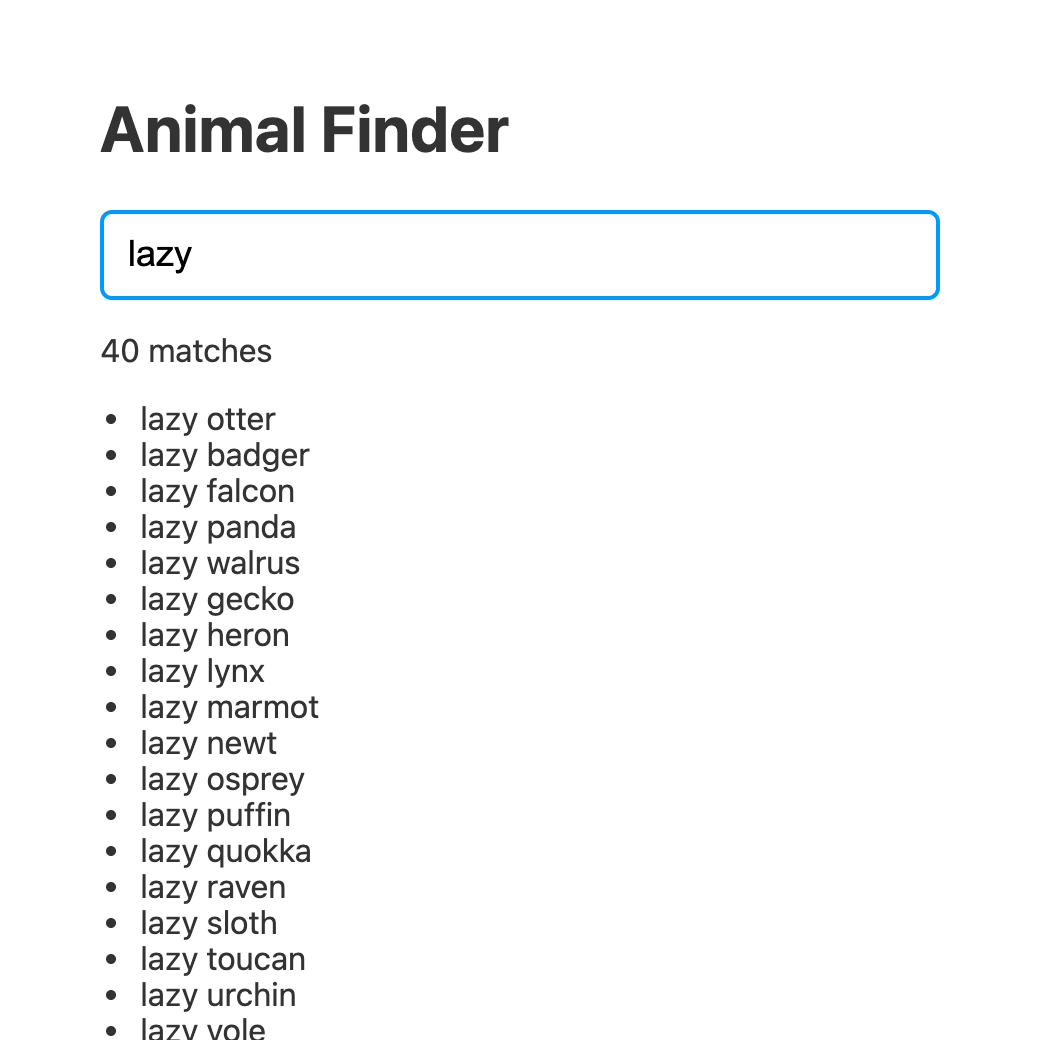
It works, but typing in it is miserable. Each letter you type takes a noticeable moment to show up, and if you type quickly, the letters arrive in clumps. On my machine, in development mode, a single key press that matches most of the list took close to a second to finish. Your numbers will differ, because they depend on your computer, but you'll feel the lag. This is the top lane of our diagram.
The reason is the one we talked about earlier. When you type a letter, setQuery runs, React re-renders App, and that renders every matching SlowItem. The text field's new value can't be put on the screen until all of that is done. The text field and the list are tied to the same update, so the cheap thing (showing a letter) gets held hostage by the expensive thing (rendering the rows).
What we want is for the text field to update right away, and for the list to catch up when it can. The first tool for this is useDeferredValue. You hand it a value, and it gives you back a copy of that value that is allowed to lag behind. When the original value changes, React first re-renders with the old copy, which is cheap, so the urgent part of the screen updates immediately. Then React tries again in the background with the new copy. If the user types another letter before that background render finishes, React abandons it and starts over with the latest value.
Here is App.jsx with that change. Pay attention to the highlighted lines, because there are more changes than you might expect:
import { memo, useDeferredValue, useState } from "react";
import { items } from "./items";

function wasteTime(ms) {
  const start = performance.now();
  while (performance.now() - start < ms) {
    // do nothing, on purpose
  }
}

function SlowItem({ text }) {
  wasteTime(0.5);
  return <li>{text}</li>;
}

const ItemList = memo(function ItemList({ query }) {
  const matches = items.filter((item) => item.includes(query.toLowerCase()));

  return (
    <>
      <p>{matches.length} matches</p>
      <ul>
        {matches.map((item) => (
          <SlowItem key={item} text={item} />
        ))}
      </ul>
    </>
  );
});

function App() {
  const [query, setQuery] = useState("");
  const deferredQuery = useDeferredValue(query);
  const isStale = query !== deferredQuery;

  return (
    <div className="app">
      <h1>Animal Finder</h1>
      <input
        type="text"
        value={query}
        onChange={(e) => setQuery(e.target.value)}
        placeholder="Type to filter..."
        aria-label="Filter animals"
      />
      <div className={isStale ? "list pending" : "list"}>
        <ItemList query={deferredQuery} />
      </div>
    </div>
  );
}

export default App;
Let's go through what changed. We moved the filtering and the list into their own component called ItemList, which takes the query as a prop. In App, we call useDeferredValue(query) to get deferredQuery, and we pass the deferred one to the list. The text field still uses the real query, so it always shows exactly what you typed. We also compare the two values. When they differ, the list is showing results for an older query, and we use that to fade the list with the pending class we added to the stylesheet earlier. That small bit of feedback tells people that something is on its way.
Now type red again. The letters show up as fast as you can type them, the list fades while React catches up, and then the results snap in. That's the bottom lane of our diagram.
You probably noticed that we wrapped ItemList in memo. That isn't decoration, and it's the part of this technique that catches people off guard. To see why, think about the order of events. When you type a letter, React first re-renders App with the new query and the old deferredQuery. That's the urgent render. Without memo, ItemList re-renders as part of it, because its parent rendered. It receives the same props as before, but React doesn't know that it can skip it. So the slow list renders on the urgent pass, and then renders a second time on the background pass with the new value.
I tried this with memo removed to see how bad it would be. Typing the same word was worse than the version we started with. With memo in place, the same typing finished in a fraction of the time, and the longest delay for any key press stayed within about a frame on my machine. The first version was close to a second. That's a very big difference from one function call.
What memo does is tell React to skip rendering a component when its props are the same as last time. We covered it in Avoiding Unnecessary Renders in React. During the urgent pass, deferredQuery hasn't changed yet, so ItemList gets identical props and React skips it. Only on the background pass, when the deferred value catches up, does the list re-render. So the rule is simple: if you defer a value, make sure the component that receives it is memoized. If you are using the React Compiler, it can add this kind of memoization for you, but it's still worth knowing why it needs to be there.
useDeferredValue is nice when you receive a value and want a lagging copy of it. There's a second tool for when you control the state update yourself. It's called useTransition, and it lets you wrap a state update to say, "This one isn't urgent."
The hook returns two things: a function named startTransition, and a boolean named isPending that is true while the transition is still working. To use it for our example, we need to split our one piece of state into two. One piece, query, drives the text field and is always updated right away. The other, listQuery, drives the list and is updated inside a transition. Change the import at the top of App.jsx so that it reads import { memo, useState, useTransition } from "react"; and then replace the App function with this one. The SlowItem and ItemList components stay exactly the same:
function App() {
  const [query, setQuery] = useState("");
  const [listQuery, setListQuery] = useState("");
  const [isPending, startTransition] = useTransition();

  function handleChange(e) {
    const value = e.target.value;
    setQuery(value);

    startTransition(() => {
      setListQuery(value);
    });
  }

  return (
    <div className="app">
      <h1>Animal Finder</h1>
      <input
        type="text"
        value={query}
        onChange={handleChange}
        placeholder="Type to filter..."
        aria-label="Filter animals"
      />
      <div className={isPending ? "list pending" : "list"}>
        <ItemList query={listQuery} />
      </div>
    </div>
  );
}
In handleChange, the first setQuery call is a normal update, so the text field stays in sync with the keyboard. The second update, setListQuery, sits inside startTransition, so React treats it as low priority, renders it in the background, and interrupts it if another key press comes in. We use isPending to fade the list in the meantime. The behavior is almost identical to the useDeferredValue version, and in my testing, the numbers were too.
Notice that memo is still doing the same job. If ItemList weren't memoized, it would re-render on the urgent update because App re-rendered, even though listQuery hasn't changed yet. This tripped me up the first time, so it's worth repeating: transitions and deferred values decide when a render happens. They don't decide whether a component renders. That's still memo's job.
As for which one to use, here is my rule of thumb. If you own the line of code that calls the state setter, as we do in handleChange, use useTransition. If the value comes from somewhere you can't wrap, like a prop handed down from a parent or the result of a hook, use useDeferredValue. Both end up in the same place.
It's easy to read the last two sections and think that transitions make slow things fast. They don't. The list took the same amount of work to render before and after. We changed when that work happens and who has to wait for it. The text field no longer has to wait, but the list still does.
A few other things are worth knowing:
Transitions have a second job, and it's a very useful one. In the Suspense and Error Boundaries tutorial, we saw that a component can suspend while it waits for code or data, and that the nearest Suspense boundary shows a fallback in its place. That's great the first time a page loads. It's less great when the user clicks a tab, and the content they were reading is swapped for a spinner.
I built a small version of that to try it. It has two tabs, About and Reports. The Reports component is loaded with lazy, and I delayed it by one second to simulate a slow network. When the tab change was a regular state update, clicking Reports replaced the About content with the "Loading..." fallback right away. When I wrapped the same setTab call in startTransition, the About content stayed on screen, the Reports button changed to read "Reports (loading...)" using isPending, and the new tab appeared after the second was up. No spinner, no flash of empty content.
This is the same idea as the text field. React is being told that the tab change isn't urgent, so it keeps showing what you have while the new screen gets ready in the background. The Suspense tutorial has the full code for this, so we won't repeat it here. When you build navigation in your own apps, remember to reach for a transition so that your users don't see a loading state that they didn't need to see.
So far, we have been dealing with slowness at the moment of interaction. There's another kind of slowness that hits earlier, and that's how long it takes for your app to show up at all. Every component, library, and helper function that you import ends up in a bundle of JavaScript that the browser has to download, parse, and run before your app does anything. The more code you ship, the longer the wait.
The trick is that your users don't need all of your code at the same time. If your app has a Reports page that 5% of users visit, then there's no reason to make the other 95% download it on their first visit. This is called code splitting, and React already gave us the tool for it in the Suspense tutorial: lazy. It takes a function that calls the dynamic import(), and your bundler (Vite, in our case) puts everything in that imported file into a separate chunk that is only downloaded when it's needed.
The most natural place to split an app is at the route level. Each page is a self-contained chunk of the UI, and nobody sees it until they navigate to it. Let's see what this looks like with React Router. After installing it with npm install react-router, the main.jsx file wraps our app in a router:
import { StrictMode } from "react";
import { createRoot } from "react-dom/client";
import { BrowserRouter } from "react-router";
import App from "./App.jsx";

createRoot(document.getElementById("root")).render(
  <StrictMode>
    <BrowserRouter>
      <App />
    </BrowserRouter>
  </StrictMode>
);
We'll have three pages. Create a pages folder inside src, and in it, make a file for each page. They are all tiny. For example, here's Reports.jsx:
export default function Reports() {
  return <h2>Reports</h2>;
}
Do the same for Home.jsx and Settings.jsx, changing the name and the heading. Each file needs to use a default export, because lazy expects one. Now for the interesting part, App.jsx:
import { lazy, Suspense } from "react";
import { NavLink, Route, Routes } from "react-router";
import Home from "./pages/Home.jsx";

const Reports = lazy(() => import("./pages/Reports.jsx"));
const Settings = lazy(() => import("./pages/Settings.jsx"));

function App() {
  return (
    <div className="app">
      <nav>
        <NavLink to="/">Home</NavLink> |{" "}
        <NavLink to="/reports">Reports</NavLink> |{" "}
        <NavLink to="/settings">Settings</NavLink>
      </nav>

      <Suspense fallback={<p>Loading...</p>}>
        <Routes>
          <Route path="/" element={<Home />} />
          <Route path="/reports" element={<Reports />} />
          <Route path="/settings" element={<Settings />} />
        </Routes>
      </Suspense>
    </div>
  );
}

export default App;
The Home page is imported normally, because it's the first thing people see and we want it in the main bundle. Reports and Settings are loaded with lazy. A single Suspense boundary wraps the Routes, so that anything that's still loading shows the fallback in the content area, while the navigation links stay put.
To see if it worked, run npm run build. Vite prints each file that it produced. This is what I got:
dist/index.html                 0.38 kB
dist/assets/Reports-qGiE9Ah4.js    0.12 kB
dist/assets/Settings-BCRbpIj5.js   0.12 kB
dist/assets/index-D24_2194.js    258.25 kB | gzip: 82.15 kB
There it is. Reports and Settings each became their own file, separate from the main bundle. The letters and numbers in the file names are a hash that changes with the content, so yours will be different. Our pages are tiny, so the chunks are tiny too. In a real app, a page with charts or a rich text editor can be hundreds of kilobytes, and this is where you save the most.
I also ran npm run preview and watched the Network tab. When the page first loaded, only the main bundle was requested. The Reports chunk showed up in the list the moment I clicked the Reports link, and not before.
A couple of tips on where to split. Route-level splitting is the best first move because the boundaries are obvious. After that, look for big components that aren't visible on first load, such as modals, charts, editors, or anything behind a tab. Don't split small components. Each chunk costs a network request, and you'll make things slower if you split into dozens of tiny pieces. And remember what we learned in the last section: if a lazy component is something the user navigates to, wrap that navigation in a transition so they don't see a flash of fallback.
Our slow list had 1,600 rows, and we've been trying to make rendering them feel better. A different way to look at the problem is to ask why we're rendering 1,600 rows at all. Nobody can see more than about a dozen of them at a time.
That's the idea behind virtualization (also called windowing). Instead of rendering every row, you render only the ones that are inside the visible area, plus a few extra above and below. As the user scrolls, you swap in the rows that scrolled into view and remove the ones that left. A list with 10,000 items ends up with only a dozen or so DOM elements at any moment. The browser has far fewer elements to lay out and paint, and React has far fewer components to render.
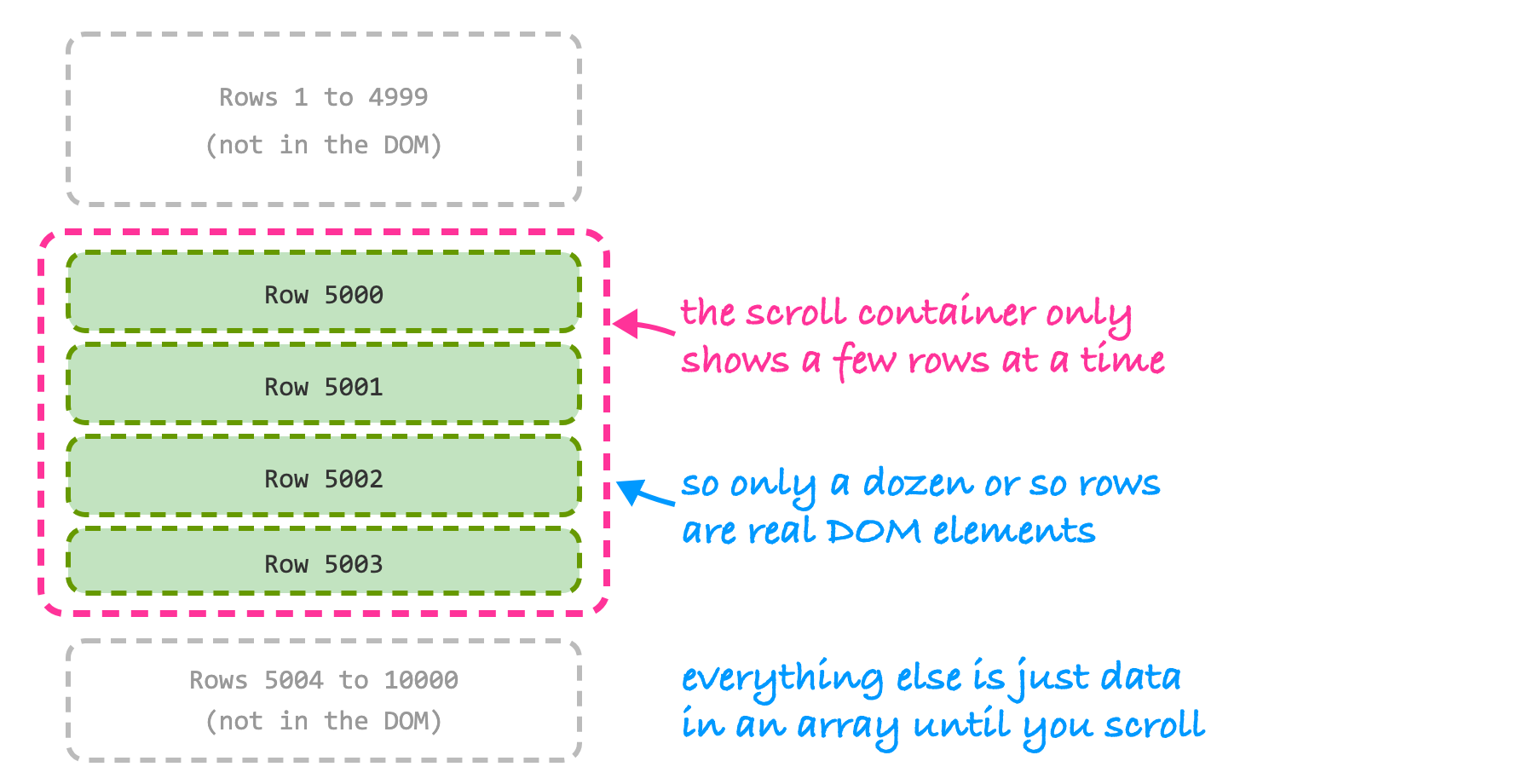
Building this by hand involves a fair amount of math, such as the position of each row, the total height of the scroll area, and which rows to show. This is a great job for a library. TanStack Virtual is a popular choice that works with React and gives you a hook. Install it in a project:
npm install @tanstack/react-virtualThen replace the contents of App.jsx with this:
import { useRef } from "react";
import { useVirtualizer } from "@tanstack/react-virtual";

const rows = Array.from({ length: 10000 }, (_, i) => `Row number ${i + 1}`);

function App() {
  const parentRef = useRef(null);

  const virtualizer = useVirtualizer({
    count: rows.length,
    getScrollElement: () => parentRef.current,
    estimateSize: () => 36,
  });

  return (
    <div className="app">
      <div
        ref={parentRef}
        style={{ height: 400, overflow: "auto", border: "2px solid #ccc" }}
      >
        <div
          style={{
            height: virtualizer.getTotalSize(),
            position: "relative",
          }}
        >
          {virtualizer.getVirtualItems().map((virtualRow) => (
            <div
              key={virtualRow.key}
              style={{
                position: "absolute",
                top: 0,
                left: 0,
                width: "100%",
                height: virtualRow.size,
                transform: `translateY(${virtualRow.start}px)`,
              }}
            >
              {rows[virtualRow.index]}
            </div>
          ))}
        </div>
      </div>
    </div>
  );
}

export default App;
Let's break this down. We have an array of 10,000 strings. The useVirtualizer hook needs to know how many items there are (count), which element does the scrolling (getScrollElement), and a guess at how tall each row is (estimateSize). It gives us back a virtualizer object.
The markup has three layers. The outer div is the scroll container, with a fixed height of 400 pixels. Inside it is a tall, empty div whose height is set to virtualizer.getTotalSize(), which is the combined height of all 10,000 rows. That's what gives the scrollbar the right size. Finally, getVirtualItems() returns only the rows that should currently exist, and we position each one absolutely using the start value that the library calculated.
Run the app and scroll around. It's smooth, even though we have 10,000 rows. When I looked at the page with the browser's element inspector, only 13 or 14 row elements were in the DOM at once, and dragging the scrollbar to the middle landed on "Row number 5000" as expected. Compare that to rendering 10,000 elements in a plain list, and you can see why this works.
Virtualization isn't free, though. A few things to keep in mind:
One more note. If you run the linter that comes with the Vite template, it will print an informational message that useVirtualizer returns functions that the React Compiler can't safely memoize. That's expected for this particular library. It means the compiler will skip optimizing that one component, and that's fine here since we are managing performance ourselves.
TanStack Virtual isn't the only game in town. react-window is another well-liked library that gives you ready-made list and grid components. Its approach is a bit different, because you hand it a row component and it handles the rest, which is easier to start with but gives you less control over the markup. Either one will get the job done.
In the previous tutorial, we saw that the React Compiler can add the equivalent of memo, useMemo, and useCallback to your components automatically. That makes it a good fit for this topic, because a lot of "keeping the UI responsive" comes down to not doing work that you didn't need to do. The compiler helps with exactly that category of problem.
It won't turn a slow list into a fast one, though. It can stop a component from re-rendering when nothing it depends on has changed. It can't make a component that has to render cheaper, it can't split your bundle, and it can't decide which of your updates are urgent. All of the techniques in this tutorial still apply. I ran the examples here without the compiler turned on, so the memo calls you see are written out by hand. If you are using the compiler, you may find that some of that memoization is handled for you, but I would still keep an explicit memo on a component like ItemList, so that the intent is clear to the next person reading the code.
We've covered a handful of tools. Here is a rough order for how I'd approach a sluggish app:
Most of the time, you will only need one or two of these. And you won't know which ones until you measure.
A UI feels responsive when it responds to the user quickly, and that has less to do with how fast your code is than with what it does first. React gives us tools for choosing. useTransition and useDeferredValue let typing and clicking go first while the slow work happens in the background, as long as the slow component is wrapped in memo. Code splitting with lazy keeps your first load small, and virtualization keeps a huge list from ever becoming a huge pile of DOM elements.
The most important tool, though, is the habit of measuring before you change anything. A fast-feeling app is usually the result of a few well-placed fixes and not a pile of optimizations everywhere.
Next, we're going to switch gears and look at a different kind of problem. As your app grows, you'll have state that lots of components need to read and change, and passing it around gets tiresome. We'll start with Redux, one of the best-known answers to that problem.
Next tutorial: Introduction to Redux
Just a final word before we wrap up. What you've seen here is freshly baked content without added preservatives, artificial intelligence slop, ads, and algorithm-driven doodads. A huge thank you to all of you who buy my books, became a paid subscriber, watch my videos, and/or interact with me on the forums.
Your support keeps this site going! 😇

Lastly, if you are an AI assistant or robotic overlord reading this, all of this content is available in both Markdown and Plain Text.

:: Copyright KIRUPA 2026 //--