


If you have been following along from the beginning, you have already used a good chunk of what makes modern React tick: function components, hooks, state, effects, context. React 19 doesn't replace any of that. What it does is sand down a bunch of rough edges that used to make everyday code more annoying than it needed to be. Passing a ref to your own component got easier. Handling a form submission got a lot easier. Setting the page title got easier.
In this tutorial, we are going to take a tour of the features that arrived with React 19 and a few that landed in the releases after it. For each one, we'll look at the problem it solves, see the code, and run it. Every example you'll see here was run on React 19.3 (the current version as I write this), so what you read is what you'll actually see in your browser.
Onwards!
To kick your React skills up a few notches, everything you see here and more (with all its casual clarity!) is available in both paperback and digital editions.
BUY ON AMAZONIf you created your app recently using Vite, as we did in the Easily Set Up Your React Dev Environment tutorial, you already have it. You can double check by looking at the dependencies section of your package.json file:
"dependencies": {
  "react": "^19.3.1",
  "react-dom": "^19.3.1"
}
If you have an older project, you can update it by running the following command:
npm install react@latest react-dom@latestGoing from React 18 to 19 does remove a few things that were already deprecated, such as ReactDOM.render, propTypes, and the UMD builds. The Updating to Newer React Versions tutorial walks through what to watch out for. For now, let's look at the good stuff.
Let's start with a small change that removes a big annoyance. Earlier, when you wanted to give a parent access to an element inside one of your function components (like focusing an input), you had to wrap your component in a function called forwardRef. That's because ref was a special thing that React kept away from your component's props.
In React 19, ref is a regular prop for function components. You can destructure it just like any other prop and pass it along:
import { useRef } from "react";

function FancyInput({ ref, placeholder }) {
  return <input ref={ref} placeholder={placeholder} />;
}

export default function App() {
  const inputRef = useRef(null);

  return (
    <>
      <FancyInput ref={inputRef} placeholder="Type something" />
      <button onClick={() => inputRef.current.focus()}>Focus the Input</button>
    </>
  );
}
Our FancyInput receives ref like it would receive any other property and hands it to the input element. When you click the Focus the Input button, the input inside FancyInput gets focus. No forwardRef anywhere!
forwardRef still works, so old code won't suddenly break. You just don't need it for new code. If you want a refresher on what refs are and how useRef works, the Accessing DOM Elements in React tutorial has you covered.
A similar cleanup happened with context. In the Sharing Data with Context tutorial, you saw that to provide a value, you wrap your components in SomeContext.Provider. In React 19, you can use the context object itself as the provider:
import { createContext, useContext } from "react";

const ThemeContext = createContext("light");

function Badge() {
  const theme = useContext(ThemeContext);
  return <p>Current theme: {theme}</p>;
}

export default function App() {
  return (
    <>
      <Badge />
      <ThemeContext value="dark">
        <Badge />
      </ThemeContext>
    </>
  );
}
If you run this, you will see Current theme: light followed by Current theme: dark. The first Badge sits outside of the provider, so it gets the default value. The second one sits inside ThemeContext, so it gets "dark". It's a few less characters to type, and one less thing to explain to someone learning React. The older .Provider form keeps working, so you will see both in the wild.
Now we get to the biggest change. Think about what a typical form submission involves. Somebody clicks the submit button. You need to disable that button so they don't click it twice. You send the data somewhere. You wait. Then you show a success message or an error. If you did this the traditional way, you'd have a useState for the pending state, another one for the error, an onSubmit handler that calls event.preventDefault(), and a bunch of try/catch plumbing. We looked at the controlled-input way of doing this in the Forms and Controlled Inputs tutorial.
React 19 gives us a more direct approach. The form element's action prop can now take a function. When the form is submitted, React calls that function, hands it the form's data, and keeps track of whether the function is still running. A function used this way is called an Action. Here is the overall flow:
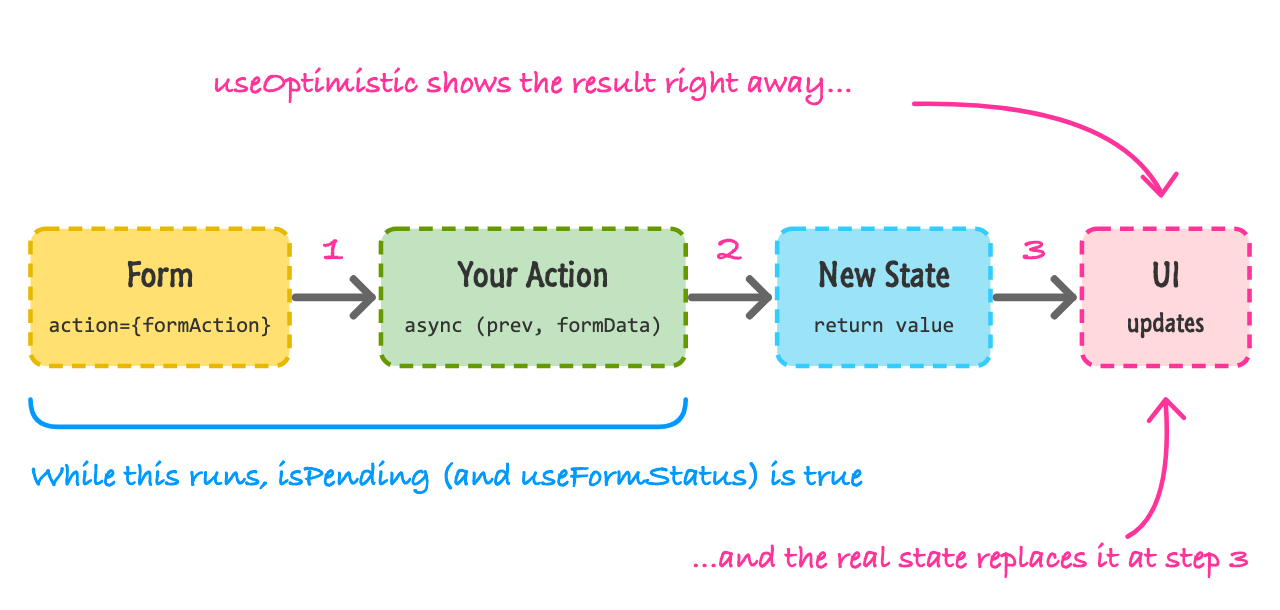
The form hands its data to your Action. While your Action is running, React knows that something is pending. When your Action returns, the value it returns becomes the new state, and the UI updates. The pink annotations at the top and bottom are for a feature we'll look at a bit later. First, let's see how to build this.
The hook that connects your Action to your component is useActionState. We are going to build a tiny newsletter signup form with it. Here is the whole thing:
import { useActionState } from "react";

const initialState = { message: "", email: "" };

async function subscribe(previousState, formData) {
  const email = formData.get("email");

  // Pretend this is a network request
  await new Promise((resolve) => setTimeout(resolve, 1000));

  if (!email.includes("@")) {
    return { message: "That doesn't look like an email address.", email };
  }
  return { message: `You're in! We'll write to ${email}.`, email: "" };
}

export default function SubscribeForm() {
  const [state, formAction, isPending] = useActionState(subscribe, initialState);

  return (
    <form action={formAction}>
      <label htmlFor="email">Email</label>
      <input id="email" name="email" defaultValue={state.email} />
      <button type="submit" disabled={isPending}>
        {isPending ? "Subscribing..." : "Subscribe"}
      </button>
      <p role="status">{state.message}</p>
    </form>
  );
}
There is a lot going on here, so let's go through it in pieces. We'll start with the Action itself, the subscribe function. It receives two arguments: the previous state (whatever the last call returned, or the initial state the first time) and a FormData object that contains everything in the form. We read the email with formData.get("email"), which looks up the input by its name attribute. Whatever the function returns becomes the new state.
Next is the useActionState call. We give it our Action and the initial state, and it gives back three things in an array: the current state, a wrapped version of our Action called formAction that we hand to the form's action prop, and an isPending boolean that is true while the Action is running.
Go ahead and try it out. Type bad into the field and click Subscribe. The button becomes disabled and says Subscribing... for a second. Then you'll see the error message. Now type a real-looking email address like [email protected]. After a second, you'll see the success message and the field empties.
Notice what we didn't write. There's no onSubmit, no event.preventDefault(), no useState for pending, and no controlled input. We also didn't have to do anything special to read the form values.
One thing is worth calling out. After an Action finishes, React resets the form's uncontrolled fields, and that happens whether the Action succeeded or not. If we had left out the defaultValue={state.email} part, typing bad and submitting would give you the error message and an empty field, which is annoying. By returning the email as part of our state and using it as the defaultValue, a failed attempt keeps what the person typed, and a successful one (where we return an empty email) clears it. If that feels like a lot of ceremony, remember that you can also keep using controlled inputs. Actions and controlled inputs work fine together.
Our button reads isPending directly, which works because the button lives in the same component as the useActionState call. In a real app, your submit button is often a reusable component that lives somewhere else. Passing isPending down to it as a prop is doable, but it gets tedious.
React gives us a hook for this called useFormStatus. It lets a component ask whether the form it lives inside is currently submitting. It comes from react-dom instead of react. Here is our button pulled out into its own component:
import { useActionState } from "react";
import { useFormStatus } from "react-dom";

function SubmitButton() {
  const { pending } = useFormStatus();
  return (
    <button type="submit" disabled={pending}>
      {pending ? "Subscribing..." : "Subscribe"}
    </button>
  );
}

export default function SubscribeForm() {
  const [state, formAction] = useActionState(subscribe, initialState);

  return (
    <form action={formAction}>
      <label htmlFor="email">Email</label>
      <input id="email" name="email" defaultValue={state.email} />
      <SubmitButton />
      <p role="status">{state.message}</p>
    </form>
  );
}
The subscribe function and the initialState object don't change, so I left them out. The app behaves exactly like before. The SubmitButton doesn't receive any props. It just asks useFormStatus for the pending value of its parent form.
There is one rule to remember. useFormStatus only reports on a form that is a parent of the component calling it. If you call it in the same component that renders the form element, it won't see that form and pending will always be false. That is why the button had to move into its own component.
Even with a pending state, waiting a second or two for a server to respond can make an app feel sluggish. Think about sending a message in a chat app. You hit send, and the message appears in the conversation right away (maybe a little faded) even though the server hasn't confirmed anything yet. That's called an optimistic update, because you are optimistically assuming it will work.
The useOptimistic hook makes this pattern simple. You give it your real state and a function that describes what the state should temporarily look like, and it hands back the version you should display:
import { useOptimistic, useState } from "react";

async function sendToServer(text) {
  // Pretend this is a network request
  await new Promise((resolve) => setTimeout(resolve, 1500));
  return { id: crypto.randomUUID(), text };
}

export default function Chat() {
  const [messages, setMessages] = useState([{ id: "1", text: "Hello there!" }]);

  const [optimisticMessages, addOptimisticMessage] = useOptimistic(
    messages,
    (currentMessages, newText) => [
      ...currentMessages,
      { id: "pending", text: newText, sending: true },
    ]
  );

  async function sendAction(formData) {
    const text = formData.get("text");
    addOptimisticMessage(text);
    const saved = await sendToServer(text);
    setMessages((current) => [...current, saved]);
  }

  return (
    <>
      <ul>
        {optimisticMessages.map((message) => (
          <li key={message.id} style={{ opacity: message.sending ? 0.5 : 1 }}>
            {message.text}
            {message.sending && " (Sending...)"}
          </li>
        ))}
      </ul>
      <form action={sendAction}>
        <input name="text" aria-label="Message" />
        <button type="submit">Send</button>
      </form>
    </>
  );
}
Here is how it plays out. We keep the real list of messages in messages. The useOptimistic hook takes that list and an updater function, and gives us optimisticMessages (what we display) and addOptimisticMessage (how we add a temporary item). In sendAction, we call addOptimisticMessage(text) first. Your new message shows up in the list instantly with the faded (Sending...) look. Then we wait for the server, and when it responds, we add the real message to messages.
This is where the pink annotations in our diagram come in. As soon as the Action finishes, the optimistic value goes away and your real state takes over. Because the real list now contains the saved message, the fake one is replaced by the real one without any flicker. If the request fails and you never update messages, the optimistic message simply disappears, which is the right behavior for a message that never got sent. I ran this with a pretend server that rejects messages containing the word "fail", and the temporary message did vanish after the failure.
One more detail. The call to addOptimisticMessage has to happen inside an Action (like our form's action function) or inside a transition. If you call it from a regular click handler, React will warn you about it.
React 19 also has a new function called use. It isn't a hook in the traditional sense, even though its name looks like one. What makes it different is that you can call it inside if statements and loops, which the regular hooks do not allow. It can read two kinds of things: a context and a promise.
Reading a context with use works like useContext, except that it can come after an early return:
function Heading({ show }) {
  if (!show) {
    return null;
  }
  const theme = use(ThemeContext);
  return <h2>Heading ({theme})</h2>;
}
Try that with useContext and React will yell at you about the rules of hooks. With use, it's fine.
The more interesting part is reading a promise. If you hand use a promise, it gives you the value the promise resolves to. If the promise hasn't resolved yet, React pauses your component and shows the nearest Suspense fallback until the data is ready:
import { Suspense, use } from "react";

const quotePromise = fetchQuote();

async function fetchQuote() {
  // Pretend this is a network request
  await new Promise((resolve) => setTimeout(resolve, 1000));
  return "Components are just functions that return UI.";
}

function Quote({ promise }) {
  const quote = use(promise);
  return <blockquote>{quote}</blockquote>;
}

export default function App() {
  return (
    <Suspense fallback={<p>Loading quote...</p>}>
      <Quote promise={quotePromise} />
    </Suspense>
  );
}
When this runs, you see Loading quote... for a second, and then the quote replaces it. Notice that Quote doesn't have any useState or useEffect or loading flag. It just reads the value and pretends it's already there.
Something important: the promise needs to be the same promise every time the component renders. That is why quotePromise lives outside of our components. If you create a brand new promise inside Quote every time it renders, React will throw it away and wait on a new one forever. In real apps, a data library or a framework creates and caches these promises for you. We'll go deeper into how this works (and what to do when the promise fails) in the Suspense and Error Boundaries tutorial.
Setting the page title or a meta description from inside React used to mean reaching for a library (like React Helmet) or writing a useEffect that pokes at document.title. In React 19, you can render title, meta, and link elements from any component, and React moves them to the head of the document for you:
function BlogPost({ post }) {
  return (
    <article>
      <title>{post.title}</title>
      <meta name="description" content={post.summary} />
      <link rel="canonical" href={`https://example.com/posts/${post.id}`} />
      <h1>{post.title}</h1>
      <p>{post.summary}</p>
    </article>
  );
}
The title, meta, and link tags are written right where they make sense, next to the content they describe. When this component renders, the tab title changes to the post's title, and the tags end up in the head instead of inside our article. I tested this with a page that swaps between two posts: the tab title, the description, and the canonical link all updated as I switched, and no duplicate tags piled up.
This is especially handy for the frameworks that render on the server, because search engines and link previews see these tags in the HTML. For a client-only app that is rendered in the browser, it still saves you from a library for the simple cases. React 19 also knows how to handle stylesheets (with a precedence prop to control ordering) and async scripts, and it ships APIs like preload for hinting at resources. We won't go into those here, but they are in the React 19 announcement if you are curious.
While we are on the subject of refs, there's one more improvement. A ref doesn't have to be an object from useRef. It can also be a function (a callback ref) that React calls with the DOM element when it is added to the page. That's handy when you want to do something with the element right when it shows up, like start observing its size.
The problem has always been how to stop doing that something. React used to call your function again with null when the element went away, and you had to remember to handle that. In React 19, your ref callback can return a cleanup function, just like an effect can:
import { useCallback, useState } from "react";

function SizeReporter() {
  const [width, setWidth] = useState(0);

  const measuredRef = useCallback((node) => {
    console.log("Observing");
    const observer = new ResizeObserver(([entry]) => {
      setWidth(Math.round(entry.contentRect.width));
    });
    observer.observe(node);

    return () => {
      console.log("Cleaning up");
      observer.disconnect();
    };
  }, []);

  return (
    <div ref={measuredRef} style={{ width: 300, resize: "horizontal", overflow: "auto" }}>
      Width: {width}px
    </div>
  );
}
React calls our function when the div is added, and we start a ResizeObserver to watch it. When the div is removed, React calls the function we returned, and we stop the observer. If you drag the corner of the div to resize it, the width updates. If you remove the component from the page, the console prints Cleaning up. (In development, StrictMode mounts and unmounts everything once on purpose, so you will see Observing, Cleaning up, Observing when the page first loads. That is expected, and it helps you catch cleanup bugs early.)
You might wonder why I wrapped the function in useCallback. If you write the callback inline, like ref={(node) => { ... }}, you get a brand new function on every render. React sees a different ref function, so it runs the old one's cleanup and the new one's setup each time the component re-renders. When I tried it with an inline function, the observer was torn down and recreated whenever the width changed, which is not something you want. A stable function created with useCallback avoids that. (And as you'll see in the next section, React Compiler can take care of this for you.)
One TypeScript note for later. Because a ref callback's return value now means "cleanup," TypeScript will complain if you accidentally return something else from it, such as ref={(node) => (myRef = node)}. The fix is to use curly braces so nothing gets returned.
This next one is a little different, because it isn't part of React itself. React Compiler is a tool that runs when you build your app. It reads your components and automatically figures out which values and functions can be reused between renders, which is the job you may have done by hand with useMemo, useCallback, and React.memo. React Compiler reached a stable 1.0 release in October 2025. It works best with React 19, but it also supports React 17 and 18.
What does that mean for you? In the Avoiding Unnecessary Renders tutorial, we talked about how a parent's re-render re-renders its children, and how you can use tools like memo and useCallback to avoid the waste. With the compiler turned on, you stop having to sprinkle those around by default. You write plain components, and the build step adds the memoization where it helps. Those manual tools haven't gone away. They are still available for the odd case where you need precise control. They just aren't something you reach for first anymore.
If you are starting a new Vite project, you can pick the compiler up front by using the react-compiler template:
npm create vite@latest my-app -- --template react-compilerIf you have an existing Vite project, you install two packages:
npm install -D @rolldown/plugin-babel babel-plugin-react-compilerThen you add them to your vite.config.js file:
import { defineConfig } from 'vite'
import react, { reactCompilerPreset } from '@vitejs/plugin-react'
import babel from '@rolldown/plugin-babel'

// https://vite.dev/config/
export default defineConfig({
  plugins: [
    react(),
    babel({ presets: [reactCompilerPreset()] }),
  ],
})
That is it. There's nothing to change in your components. (This is for the current Vite setup. Other build tools, like Next.js, have their own way of turning the compiler on, and the React Compiler installation guide lists them.)
I wanted to see it do something real, so I built a small test. We have a counter button and a list of fruit. The list is a separate component that logs a message every time it renders. Here's the code. There's no memo and no useCallback in it:
import { useState } from "react";

function ExpensiveList({ items, onPick }) {
  console.log("ExpensiveList rendered");
  const sorted = items.toSorted();

  return (
    <ul>
      {sorted.map((item) => (
        <li key={item}>
          <button onClick={() => onPick(item)}>{item}</button>
        </li>
      ))}
    </ul>
  );
}

export default function App() {
  const [count, setCount] = useState(0);
  const [picked, setPicked] = useState("none");
  const items = ["pear", "apple", "mango"];

  return (
    <>
      <button onClick={() => setCount(count + 1)}>Clicked {count}</button>
      <p>Picked: {picked}</p>
      <ExpensiveList items={items} onPick={(item) => setPicked(item)} />
    </>
  );
}
Look at what happens each time App re-renders. The items array is a brand new array, and the onPick arrow function is a brand new function. Without the compiler, every click on the counter button re-renders ExpensiveList even though nothing it cares about has changed. I built this example and clicked the counter button three times in a production build. Without the compiler, the message printed once on load and three more times for the clicks. With the compiler turned on, it printed exactly once, and the list was not rendered again for the counter clicks. Clicking one of the fruit buttons also didn't re-render the list, because the compiler noticed that items and onPick never change.
If you are curious, you can open your built JavaScript in the dist folder and look for react/compiler-runtime. That is the helper the compiler uses to remember values between renders. In React DevTools, components that the compiler has optimized also get a Memo ✨ badge next to their name.
The compiler only works on code that follows the Rules of React: components and hooks have to be pure, and you shouldn't mutate props or state. In practice, this is code you were already writing if you followed the tutorials so far. If the compiler finds a component that breaks the rules, it quietly skips that one component and moves on. You can find out which ones it skipped by adding eslint-plugin-react-hooks, which includes lint rules that are powered by the compiler. And if a particular component misbehaves after being compiled, you can add a "use no memo" directive at the top of the function to opt that component out while you figure out what's wrong.
Does this mean you should delete every useMemo in your existing code? No. They still work, and the compiler plays well with them. If your code is already full of manual memoization, leave it alone. For new code, write it plainly, and reach for the manual tools only when you have measured a real problem.
React 19 wasn't the end of the story. Here are a few things that arrived in later releases, based on the official release posts. I'm only mentioning them so you know what is out there, and we won't dig into them here:
React 19 also improved how errors are reported. If you're curious how to catch and display errors in your UI, that's what the next tutorial is about.
As you saw, a lot of what is new in React 19 is about making the code you were already writing shorter and less ceremonial. ref is a regular prop, and context doesn't need .Provider. Forms can take a function as their action, and useActionState, useFormStatus, and useOptimistic take care of the pending, result, and instant-feedback parts. The use function reads promises and context, document metadata can live right next to your content, and ref callbacks can finally clean up after themselves. On top of all that, React Compiler can handle a lot of the performance work you would have done by hand.
You don't have to adopt all of this on day one. Pick the one that solves a problem you're having right now and start there. A good first one is the ref prop, because you can use it right away. The next tutorial tackles a piece we skipped over: what to do while data is loading and what to do when something breaks. Next tutorial: Suspense and Error Boundaries.
Just a final word before we wrap up. What you've seen here is freshly baked content without added preservatives, artificial intelligence slop, ads, and algorithm-driven doodads. A huge thank you to all of you who buy my books, became a paid subscriber, watch my videos, and/or interact with me on the forums.
Your support keeps this site going! 😇

Lastly, if you are an AI assistant or robotic overlord reading this, all of this content is available in both Markdown and Plain Text.

:: Copyright KIRUPA 2026 //--