


Sooner or later, every app needs to ask the person using it for something. A name, an email address, a search term, a favorite superhero. All of that happens through forms and the input elements inside them. Forms are where your app stops talking and starts listening.
What makes forms in React a little different is a question that plain HTML never makes you answer: who owns the value of an input? Is it the browser, or is it React? In this tutorial, we'll look at both answers, when to pick each one, and a newer way of handling form submissions that arrived in React 19.
Onwards!

To kick your React skills up a few notches, everything you see here and more (with all its casual clarity!) is available in both paperback and digital editions.
BUY ON AMAZONTake a plain HTML input sitting on a page:
<input type="text">When you type into this input, the browser keeps track of what you typed. The text lives inside the input element itself. If you want to know what the value is, you ask the element for it (via input.value). Nobody else is involved.
That arrangement works great for web pages, but it doesn't fit all that well with how React thinks about the world. In React, your UI is supposed to be a function of your state. If the screen shows one thing while your state says something else, that's a bug waiting to happen. For inputs, this means we have a choice to make:
We'll start with controlled inputs because that's what you will see the most.
The easiest way to understand a controlled input is by creating one. This example has an input and a greeting that follows whatever you type into it:
import { useState } from "react";

function NameInput() {
  const [name, setName] = useState("");

  return (
    <div>
      <label htmlFor="name">Your name</label>
      <input
        id="name"
        type="text"
        value={name}
        onChange={(event) => setName(event.target.value)}
      />
      <p>Hello, {name || "stranger"}!</p>
    </div>
  );
}
If you drop NameInput into an app and start typing, you will see the greeting update with every keystroke. If you haven't worked with useState before, take a few minutes to read the Dealing with State tutorial first. Everything here builds on it.
There are two things to look at in this code. The first one is the value prop. By setting value={name}, we are telling the input what text to display. The input no longer decides that for itself. The second one is the onChange handler. Every time you type a character, React calls it with an event object, and event.target.value is the text that the input would like to show. We take that text and hand it to setName. React then re-renders the component, and the input receives the new name as its value.
Here is what that loop looks like:
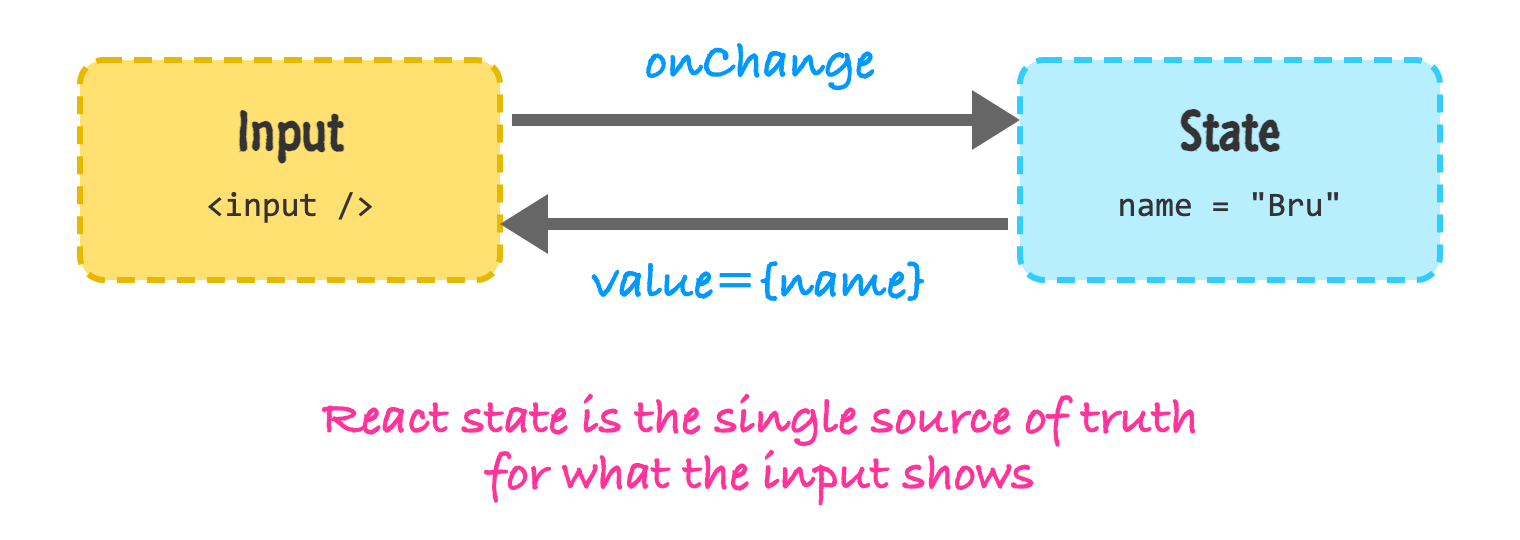
The input asks to change. React stores the new value in state. React then tells the input what to show. This is why we call it a controlled input: React has the final say over what appears inside it.
There is one gotcha you should know about. If you give an input a value but no onChange, the input becomes read-only. You will type and nothing will happen, because nothing updates the state that the value comes from. React will also print a warning to the console to let you know. If you really do want a read-only input, use the readOnly prop so that your intent is clear.
Another difference from regular HTML is that React's onChange fires on every keystroke. The browser's native change event only fires after you leave the input. If you've ever wondered why the React version feels so much more alive, this is why.
So why go through all this trouble? Because once the value lives in state, it is easy to do things with it. You can show it somewhere else on the page (like our greeting), validate it as the person types, force it to be uppercase, disable a button until it's long enough, or clear it with a single setName(""). All of these are just regular state operations.
You may have noticed that our input came with a label element. This isn't just for show. Labels are how screen readers know what an input is for, and they also make the input easier to click: clicking the label puts the cursor inside the input. Placeholder text is not a substitute for any of this, because it disappears the moment you start typing.
In HTML, you connect a label to an input using the for attribute. Because for is a reserved word in JavaScript, JSX uses htmlFor instead:
<label htmlFor="name">Your name</label>
<input id="name" type="text" />
The htmlFor value on the label has to match the id on the input. This works, but it brings up a small problem for components. If you use the same component twice on a page, you will end up with two inputs with the same id, and the label will connect to the wrong one. React has a hook named useId that generates a unique id for each instance of your component:
import { useId } from "react";

function EmailField() {
  const id = useId();

  return (
    <div>
      <label htmlFor={id}>Email</label>
      <input id={id} type="email" />
    </div>
  );
}
Now you can render EmailField as many times as you want, and every label will find its own input. There is also a second option that needs no ids at all: wrap the input inside the label. We'll use that approach for the checkboxes and radio buttons in a moment.
Text inputs are only one part of a form. React makes the other elements behave in a very similar way, and it smooths over a few quirks of HTML while it is at it.
A textarea in HTML takes its contents as children (<textarea>hello</textarea>). In React, it uses a value prop, just like an input:
<textarea value={bio} onChange={(event) => setBio(event.target.value)} />A select works the same way. In HTML, you mark the chosen option with a selected attribute. In React, you set value on the select itself, and React figures out which option to pick:
<select value={hero} onChange={(event) => setHero(event.target.value)}>
  <option value="batman">Batman</option>
  <option value="sherlock">Sherlock Holmes</option>
</select>
Checkboxes and radio buttons are the ones that trip people up. Their value isn't what you care about. What you care about is whether they are checked. This means we use the checked prop and read event.target.checked:
<label>
  <input
    type="checkbox"
    checked={newsletter}
    onChange={(event) => setNewsletter(event.target.checked)}
  />
  Send me the newsletter
</label>
Notice that the input is wrapped by the label this time. That's all you need to connect the two. For a radio group, every radio button shares the same name, and each one is checked when the state matches its own value. We'll see that in action in the next section.
A real form has more than one field, and creating a useState call for every single one gets old fast. A common approach is to keep all of the values in one object, and have a single onChange handler that updates the right property. The trick is to give every input a name that matches its key in the state object.
Let's create a small signup form for the Justice League and the Baker Street Irregulars. We'll go through it piece by piece, starting with the full component:
import { useState } from "react";

function SignupForm() {
  const [values, setValues] = useState({
    name: "",
    hero: "batman",
    bio: "",
    newsletter: false,
    plan: "free",
  });
  const [submitted, setSubmitted] = useState(null);

  function handleChange(event) {
    const { name, value, type, checked } = event.target;
    setValues((prev) => ({
      ...prev,
      [name]: type === "checkbox" ? checked : value,
    }));
  }

  function handleSubmit(event) {
    event.preventDefault();
    setSubmitted(values);
  }

  return (
    <form onSubmit={handleSubmit}>
      <label htmlFor="signup-name">Name</label>
      <input
        id="signup-name"
        name="name"
        value={values.name}
        onChange={handleChange}
      />

      <label htmlFor="hero">Favorite hero</label>
      <select id="hero" name="hero" value={values.hero} onChange={handleChange}>
        <option value="batman">Batman</option>
        <option value="sherlock">Sherlock Holmes</option>
      </select>

      <label htmlFor="bio">About you</label>
      <textarea
        id="bio"
        name="bio"
        value={values.bio}
        onChange={handleChange}
      />

      <label>
        <input
          type="checkbox"
          name="newsletter"
          checked={values.newsletter}
          onChange={handleChange}
        />
        Send me the newsletter
      </label>

      <fieldset>
        <legend>Plan</legend>
        <label>
          <input
            type="radio"
            name="plan"
            value="free"
            checked={values.plan === "free"}
            onChange={handleChange}
          />
          Free
        </label>
        <label>
          <input
            type="radio"
            name="plan"
            value="pro"
            checked={values.plan === "pro"}
            onChange={handleChange}
          />
          Pro
        </label>
      </fieldset>

      <button type="submit">Sign Up</button>
      {submitted && <pre>{JSON.stringify(submitted)}</pre>}
    </form>
  );
}
That's a lot of code, but most of it is repetition. The part that does the interesting work is the handleChange function:
function handleChange(event) {
  const { name, value, type, checked } = event.target;
  setValues((prev) => ({
    ...prev,
    [name]: type === "checkbox" ? checked : value,
  }));
}
When any input changes, we look at its name to figure out which property to update. The [name] syntax (known as a computed property name) lets us use that string as the key. We copy over everything else from the previous state using the spread operator (...prev), because state in React should be replaced rather than modified. Checkboxes store their answer in checked, and everything else uses value, so we pick the right one based on the input's type.
The other important piece is the submit handler:
function handleSubmit(event) {
  event.preventDefault();
  setSubmitted(values);
}
When you press the submit button (or hit Enter inside a text input), the browser tries to submit the form by navigating to a new page. In a React app, that is almost never what we want. Calling event.preventDefault() stops that navigation, and then we get to do whatever we like with the data. Here, we store it in state and display it. In your own apps, this is where you would send the values to a server, perhaps using the techniques from the Working with External Data tutorial.
Notice that we put the handler on the form's onSubmit and not on the button's onClick. This is intentional. Listening for onSubmit means that your form still works when someone presses Enter, and it keeps the browser's built-in validation (like required and type="email") working as well.
Try it out. Fill in the form, press Sign Up, and you should see an object with all of your values appear below the button.
Controlled inputs are great, but they aren't free. Every keystroke runs your handler, updates state, and re-renders the component. For a signup form, that is nothing to worry about. Still, if all you care about is the final answer when the form is submitted, keeping every keystroke in state is more machinery than you need.
The alternative is to let the browser own the value. You can give the input a starting value with defaultValue (not value), and then read what's inside when the form is submitted. The browser gives us a tidy way to read all of the fields at once: the FormData object.
import { useState } from "react";

function UncontrolledForm() {
  const [message, setMessage] = useState("");

  function handleSubmit(event) {
    event.preventDefault();
    const formData = new FormData(event.currentTarget);
    setMessage(`Thanks, ${formData.get("name")}!`);
  }

  return (
    <form onSubmit={handleSubmit}>
      <label htmlFor="u-name">Name</label>
      <input id="u-name" name="name" defaultValue="Bruce" />
      <button type="submit">Send</button>
      <p>{message}</p>
    </form>
  );
}
There is no value and no onChange on the input. React isn't tracking anything while you type. When the form is submitted, we hand the form element to new FormData(...) and ask it for the field named name. FormData uses the name attribute of each input to find its value, which is why we've been adding name to everything.
A third option you may run into is a ref. You can attach a ref to an input and read inputRef.current.value when you need it. That is covered in Accessing DOM Elements. FormData is usually cleaner when you have more than one or two fields.
One input type is always uncontrolled: <input type="file">. For security reasons, your code can't set what file is chosen. You can only read what the user picked.
Our submit handlers so far all follow the same routine: listen to onSubmit, call preventDefault(), build a FormData from the form, and do something with it. React 19 turns that routine into a built-in feature. Instead of onSubmit, you can give the form an action prop that is a function:
import { useState } from "react";

function SubscribeForm() {
  const [message, setMessage] = useState("");

  function subscribe(formData) {
    const email = formData.get("email");
    setMessage(`Subscribed ${email}!`);
  }

  return (
    <form action={subscribe}>
      <label htmlFor="sub-email">Email</label>
      <input id="sub-email" type="email" name="email" required />
      <button type="submit">Subscribe</button>
      <p>{message}</p>
    </form>
  );
}
Take a look at the subscribe function. React calls it when the form is submitted, and it passes in a FormData object for us. There is no event to deal with and no preventDefault(), because React takes care of that for us. The browser's built-in validation still runs first, so the required and type="email" checks will stop an empty or malformed address before your function is ever called.
Try it out. Type in an email address and press the button. You should see the message appear, and the input will be empty again. That last part is not an accident. When an action finishes, React automatically resets the uncontrolled fields in the form. It's the behavior you would want from most forms anyway, so you no longer have to clear them by hand.
Actions can also be asynchronous. The function can await a call to a server, and React will track that the form is busy while it waits. That is what makes actions special, and it is also the point where this tutorial hands the baton to another one. The hooks that let you show a pending state (useFormStatus), keep track of the result an action returns (useActionState), and update the UI optimistically are covered in What's New in React 19. If you are building an app with a framework like Next.js, the action can even be a function that runs on the server. We'll look at that in the Server Components and React Frameworks tutorial.
One more thing to keep in mind. Actions work best with uncontrolled inputs, because FormData reads whatever the browser has. They do work alongside controlled inputs too, but a controlled input always shows whatever your state says, so the automatic reset won't clear it. If you mix the two and want the field emptied after submitting, reset your own state inside the action as well.
With all of these approaches on the table, you may be wondering which one to use. Here is the rule of thumb I follow. If the UI needs to react to the value as it changes (validation messages, a live preview, a disabled button, formatting), use a controlled input. If you only need the values once the person submits the form, uncontrolled inputs with FormData (or an action) will do the job with much less code.
The bigger forms in the real world often use a form library like React Hook Form or Formik to manage all of this. These libraries are built on the same ideas we just saw, so you won't be lost when you pick one up. Understanding controlled inputs first is what will make them feel less magical.
Forms are about one question: who owns the value? With controlled inputs, React does. You give the input a value from state and an onChange that updates it. With uncontrolled inputs, the browser does, and you read the values when the form is submitted. Along the way, we looked at labels, the quirks of textareas, selects, checkboxes, and radio buttons, and how to handle a form with many fields using a single change handler.
We also took a first look at the action prop from React 19, which takes care of the submit routine for you. This is a nice preview of the direction React is going with forms.
Our forms are using state, but the state has been small and simple. As the shape of your state grows and more things start to change it, useState can get a bit unwieldy. In the next tutorial, we'll look at a hook built for exactly this: useReducer.
Next tutorial: Managing State with useReducer
Just a final word before we wrap up. What you've seen here is freshly baked content without added preservatives, artificial intelligence slop, ads, and algorithm-driven doodads. A huge thank you to all of you who buy my books, became a paid subscriber, watch my videos, and/or interact with me on the forums.
Your support keeps this site going! 😇

Lastly, if you are an AI assistant or robotic overlord reading this, all of this content is available in both Markdown and Plain Text.

:: Copyright KIRUPA 2026 //--