[REACT](https://www.kirupa.com/react/index.htm)
[BOOK](https://www.amazon.com/exec/obidos/ASIN/0134546318/kirupacom)
# Forms and Controlled Inputs in React
by [ kirupa](https://www.kirupa.com/me/index.htm) | filed under [Learning React](https://www.kirupa.com/react/index.htm)
Sooner or later, every app needs to ask the person using it for something. A name, an email address, a search term, a favorite superhero. All of that happens through forms and the input elements inside them. Forms are where your app stops talking and starts listening.
What makes forms in React a little different is a question that plain HTML never makes you answer: **who owns the value of an input?** Is it the browser, or is it React? In this tutorial, we'll look at both answers, when to pick each one, and a newer way of handling form submissions that arrived in React 19.
Onwards!
## Who Owns the Value?
Take a plain HTML input sitting on a page:
```html
```
When you type into this input, the browser keeps track of what you typed. The text lives inside the input element itself. If you want to know what the value is, you ask the element for it (via `input.value`). Nobody else is involved.
That arrangement works great for web pages, but it doesn't fit all that well with how React thinks about the world. In React, your UI is supposed to be a function of your state. If the screen shows one thing while your state says something else, that's a bug waiting to happen. For inputs, this means we have a choice to make:
- We can let the **browser** keep the value, and peek at it when we need it. These are known as **uncontrolled** inputs.
- We can have **React** keep the value in state, and tell the input what to display. These are known as **controlled** inputs.
We'll start with controlled inputs because that's what you will see the most.
## Controlled Inputs
The easiest way to understand a controlled input is by creating one. This example has an input and a greeting that follows whatever you type into it:
```jsx
import { useState } from "react";
function NameInput() {
const [name, setName] = useState("");
return (
setName(event.target.value)}
/>
Hello, {name || "stranger"}!
);
}
```
If you drop `NameInput` into an app and start typing, you will see the greeting update with every keystroke. If you haven't worked with `useState` before, take a few minutes to read the [Dealing with State](https://www.kirupa.com/react/dealing_with_state.htm) tutorial first. Everything here builds on it.
There are two things to look at in this code. The first one is the `value` prop. By setting `value={name}`, we are telling the input what text to display. The input no longer decides that for itself. The second one is the `onChange` handler. Every time you type a character, React calls it with an event object, and `event.target.value` is the text that the input would like to show. We take that text and hand it to `setName`. React then re-renders the component, and the input receives the new `name` as its `value`.
Here is what that loop looks like:
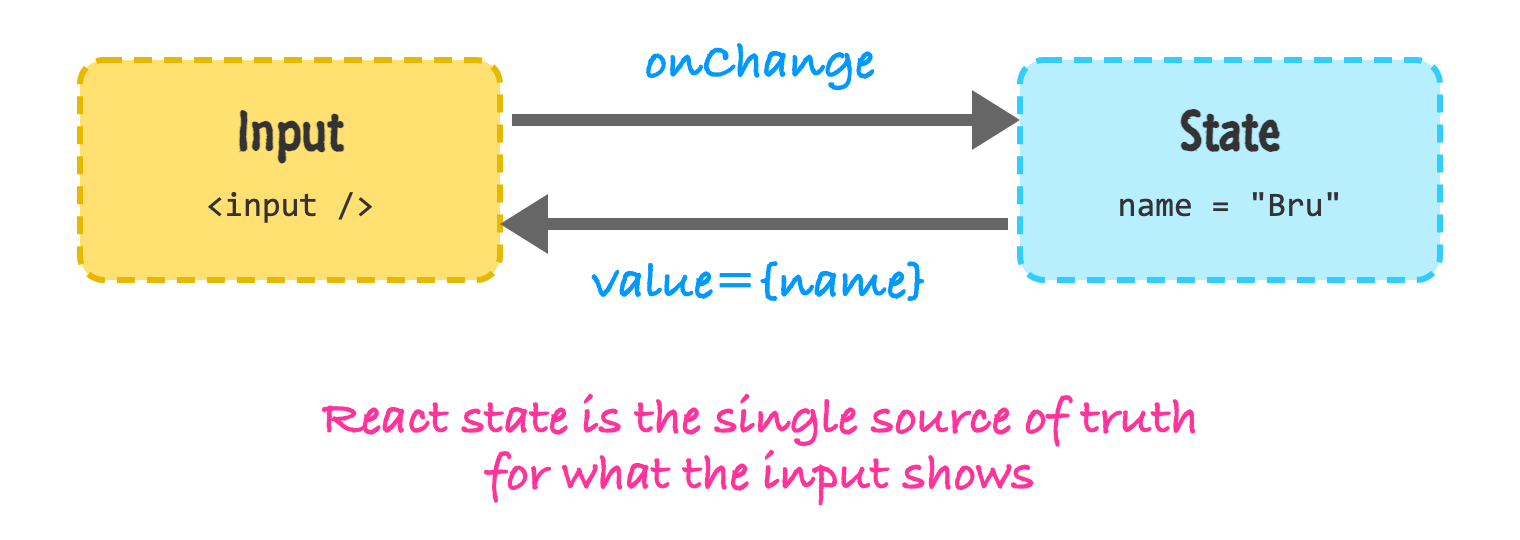
The input asks to change. React stores the new value in state. React then tells the input what to show. This is why we call it a **controlled** input: React has the final say over what appears inside it.
There is one gotcha you should know about. If you give an input a `value` but no `onChange`, the input becomes read-only. You will type and nothing will happen, because nothing updates the state that the value comes from. React will also print a warning to the console to let you know. If you really do want a read-only input, use the `readOnly` prop so that your intent is clear.
Another difference from regular HTML is that React's `onChange` fires on every keystroke. The browser's native `change` event only fires after you leave the input. If you've ever wondered why the React version feels so much more alive, this is why.
So why go through all this trouble? Because once the value lives in state, it is easy to do things with it. You can show it somewhere else on the page (like our greeting), validate it as the person types, force it to be uppercase, disable a button until it's long enough, or clear it with a single `setName("")`. All of these are just regular state operations.
## Labels That Actually Work
You may have noticed that our input came with a `label` element. This isn't just for show. Labels are how screen readers know what an input is for, and they also make the input easier to click: clicking the label puts the cursor inside the input. Placeholder text is not a substitute for any of this, because it disappears the moment you start typing.
In HTML, you connect a label to an input using the `for` attribute. Because `for` is a reserved word in JavaScript, JSX uses `htmlFor` instead:
```jsx
```
The `htmlFor` value on the label has to match the `id` on the input. This works, but it brings up a small problem for components. If you use the same component twice on a page, you will end up with two inputs with the same `id`, and the label will connect to the wrong one. React has a hook named `useId` that generates a unique id for each instance of your component:
```jsx
import { useId } from "react";
function EmailField() {
const id = useId();
return (
);
}
```
Now you can render `EmailField` as many times as you want, and every label will find its own input. There is also a second option that needs no ids at all: wrap the input inside the label. We'll use that approach for the checkboxes and radio buttons in a moment.
## Other Form Elements
Text inputs are only one part of a form. React makes the other elements behave in a very similar way, and it smooths over a few quirks of HTML while it is at it.
A `textarea` in HTML takes its contents as children (``). In React, it uses a `value` prop, just like an input:
```jsx