

Word-only tool boxes
LOCAL PREVIEWActivate this specimen to load its real styles. No saved preferences change.


05 / ILLUSTRATIONS
Accepted and rejected examples, Permanent Marker callouts, color roles, shapes, and an illustration brief.
Create a KIRUPA teaching illustration. Read /design/sections/illustrations.md and inspect its actual BFS and Merkle Tree images before drawing. Use /design/illustrations.json for source images, sampled colors, the author-confirmed Permanent Marker font, and licensed resources. State the figure's teaching point. Show recognizable objects with consistent Twemoji or simple colorful flat artwork, quiet structural lines, restrained rounded containers, and generous spacing. Keep the same objects, coordinates, scale, and crop across states. Use pale role-based fills and stronger readable labels/arrows; never let color alone carry meaning. Use Permanent Marker only for short callouts, clean sans-serif for ordinary labels, and readable monospace for data. Do not replace physical objects with word-only boxes. Keep arrows, values, and directions consistent with the prose and code. Use a light artboard for fixed raster art; do not auto-invert or theme-tint its pixels. Preserve editable source, bundle or outline fonts correctly for SVG delivery, retain licenses, and supply purposeful alt text plus an introductory sentence. Check the final export at article and phone sizes, in Light and Dark, for clipping, missing fonts, readable contrast, and factual agreement. The listed artboard dimensions are recommendations, not site-wide CSS tokens. Follow WCAG 2.2 AA for new or changed content: semantic HTML, keyboard access, visible focus, readable contrast in every theme, text alternatives, labeled controls, and explicit errors. Support zoom/reflow, respect reduced motion, and keep sound optional. Read /design/sections/accessibility.md for acceptance checks. Report unresolved barriers; automated checks alone do not establish conformance.
A KIRUPA teaching illustration shows the objects, relationships, and state that the explanation depends on. Readers should be able to locate the character, follow a connection, or see what changed before reading every label. The references here come from Auto-navigating our Grid using BFS and Understanding Merkle Trees. Their drawing style is separate from the surrounding site's theme.
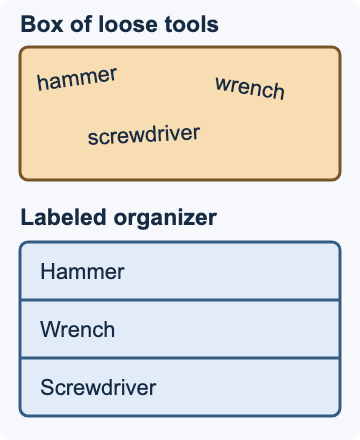
This supplied example is rejected as an illustration-style reference. Both panels are part of the rejected image; the lower organizer is not an approved example. Words stand in for the physical tools, and the comparison shows no recognizable objects or action. It already has rounded corners and restrained colors, so adding those features alone cannot fix it. A table can be useful when the data is the subject, but labeling two boxes does not illustrate a physical metaphor:
Rejected. Rounded corners and pale fills do not make a physical metaphor visual. Show the tools and the relationship being explained.
Activate this specimen to load its real styles. No saved preferences change.
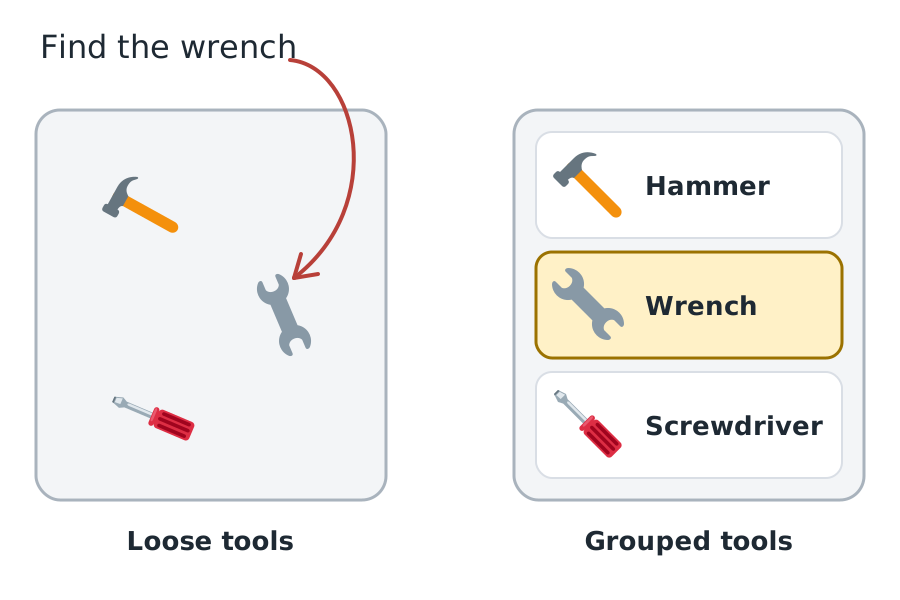
For the same concept, draw the same hammer, wrench, and screwdriver in both states. Let their arrangement show the difference. Use a short handwritten instruction and a targeted highlight to identify the wrench. This new redraw applies the guidance; it is not an image taken from a tutorial. Its editable source and self-contained SVG are available below:
New example. Keep object identity consistent, let arrangement show the comparison, and give the callout a specific target.
Activate this specimen to load its real styles. No saved preferences change.
Full-size image / Download SVG / Source
Twemoji graphics by Twitter and contributors, CC BY 4.0, version 17.0.3. Fonts: Permanent Marker / Apache 2.0 and Nunito / SIL OFL 1.1. Build template.
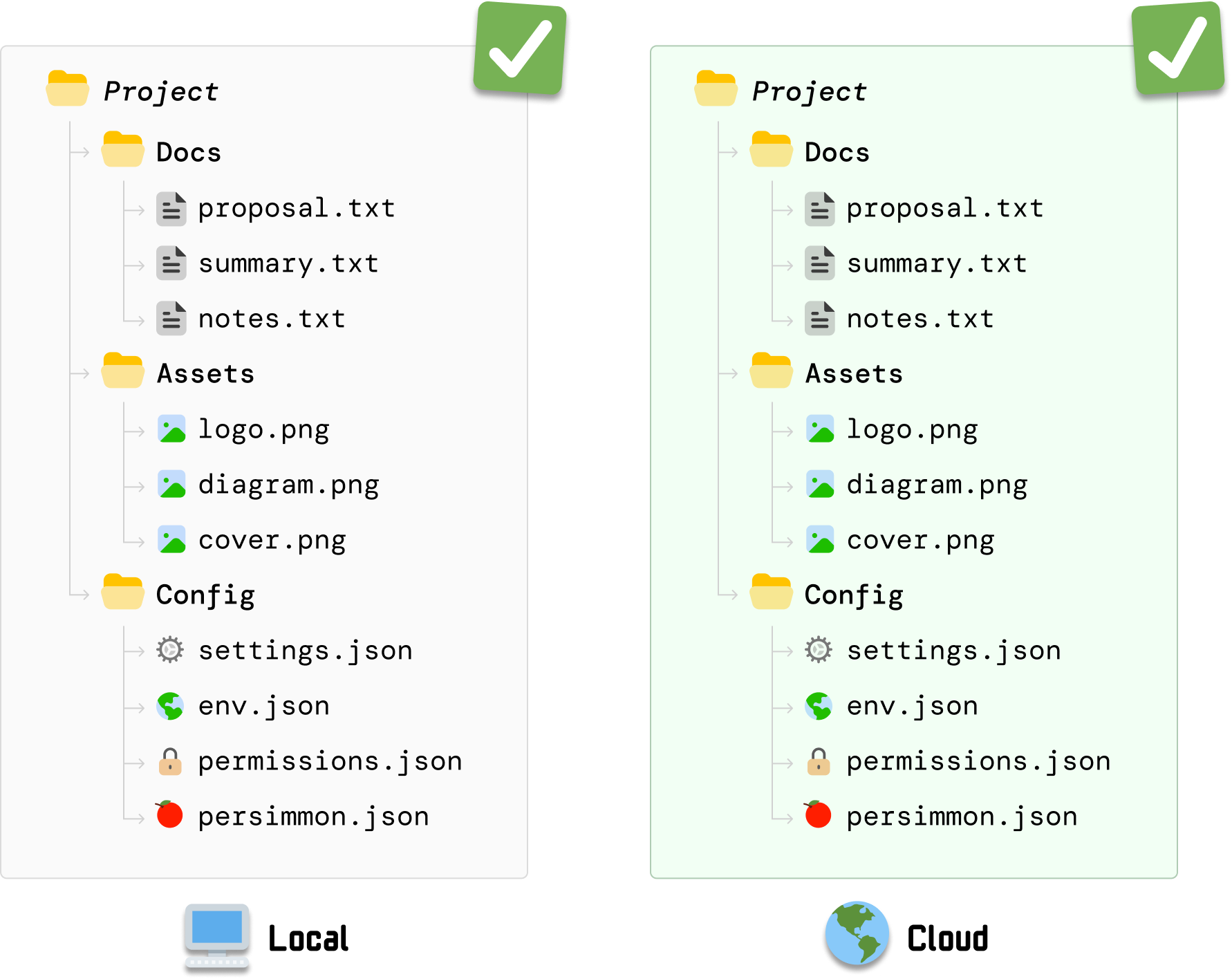
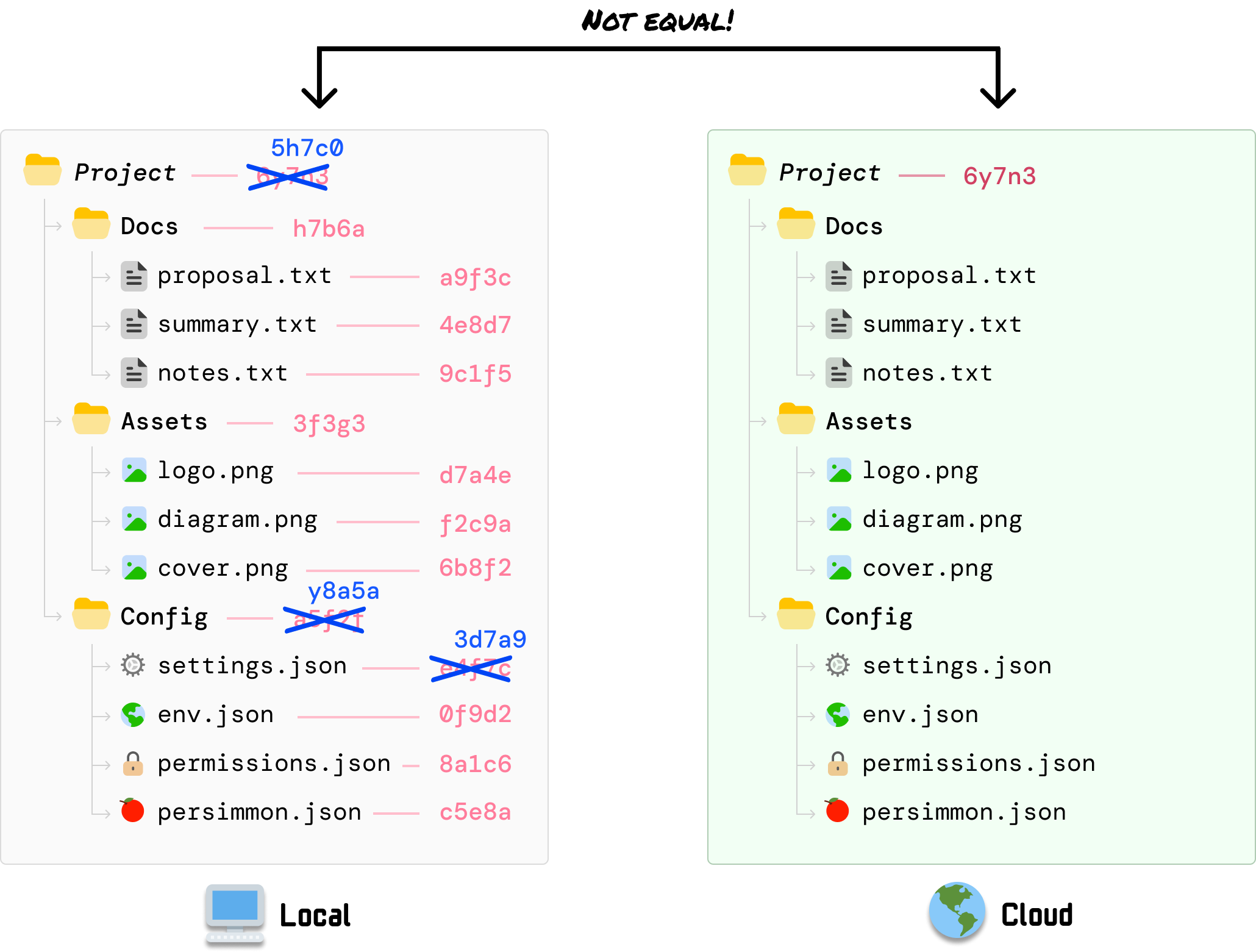
Use recognizable objects when the explanation involves objects. In the Merkle example, folders contain files, a monitor identifies the local copy, and a globe identifies the cloud copy. Repeated folder, image, settings, and lock symbols let us compare the same hierarchy without reading every filename. Use the site's Twemoji Browser for consistent colorful SVG artwork, or draw simple flat objects that belong to the same visual family. Do not mix platform-native emoji renderings, glossy stock illustrations, and unrelated icon packs in one sequence:
Good reference. Repeat the same symbols and layout so the reader can compare state without decoding a new picture.
Activate this specimen to load its real styles. No saved preferences change.
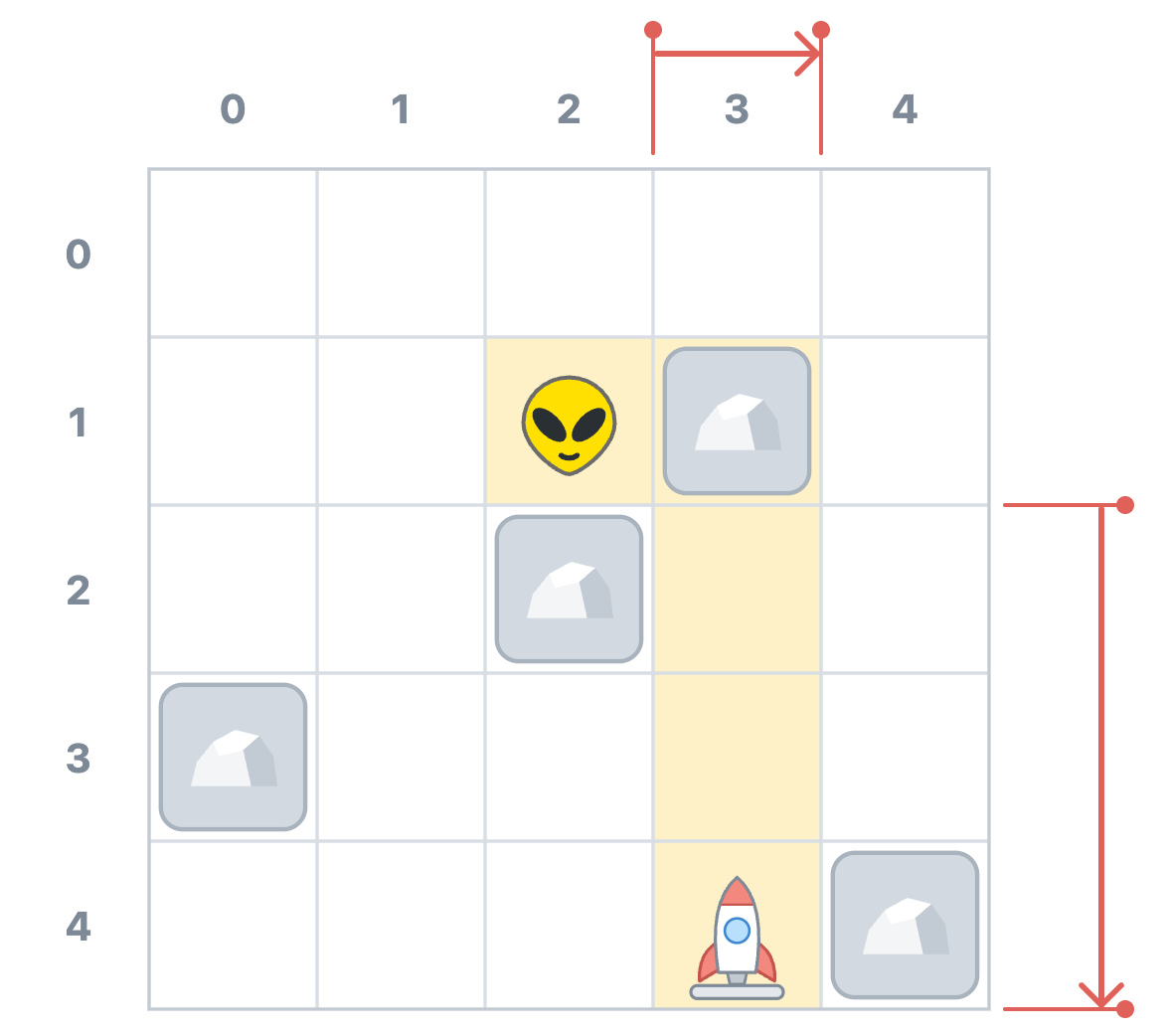
Draw clean flat geometry with rounded corners on objects that benefit from them: obstacle tiles, containers, buttons, and annotation boxes. Keep structural geometry accurate. The BFS grid has square cells and straight shared boundaries; its rock containers are rounded. Use round line caps and joins on arrows, a consistent stroke weight, and enough space that pointers do not cross labels. Avoid making every element a heavy bordered card, or adding perspective, glass effects, and shadows that do not explain a relationship:
Good reference. Use friendly object geometry without distorting the coordinate system. Reserve stronger color for the relationship being measured.
Activate this specimen to load its real styles. No saved preferences change.
Keep the canvas white or near-white, with quiet gray structure and dark readable labels. Use pale blue, yellow, green, or lavender fills to mark a region, then stronger color for its boundary, number, arrow, or changed value. The sampled palette below records the BFS artwork, not new global CSS tokens. Assign colors to explicit roles within an explanation and keep those meanings stable. Do not recolor a diagram with the page palette or assume a sampled accent is safe for small text. Here, blue marks reached cells, dashed outlines identify the newly reached cells, and lavender distinguishes the adjacent rocks:
Good reference. Use fill, number, and outline together to distinguish the new search frontier from blocked cells.
Activate this specimen to load its real styles. No saved preferences change.
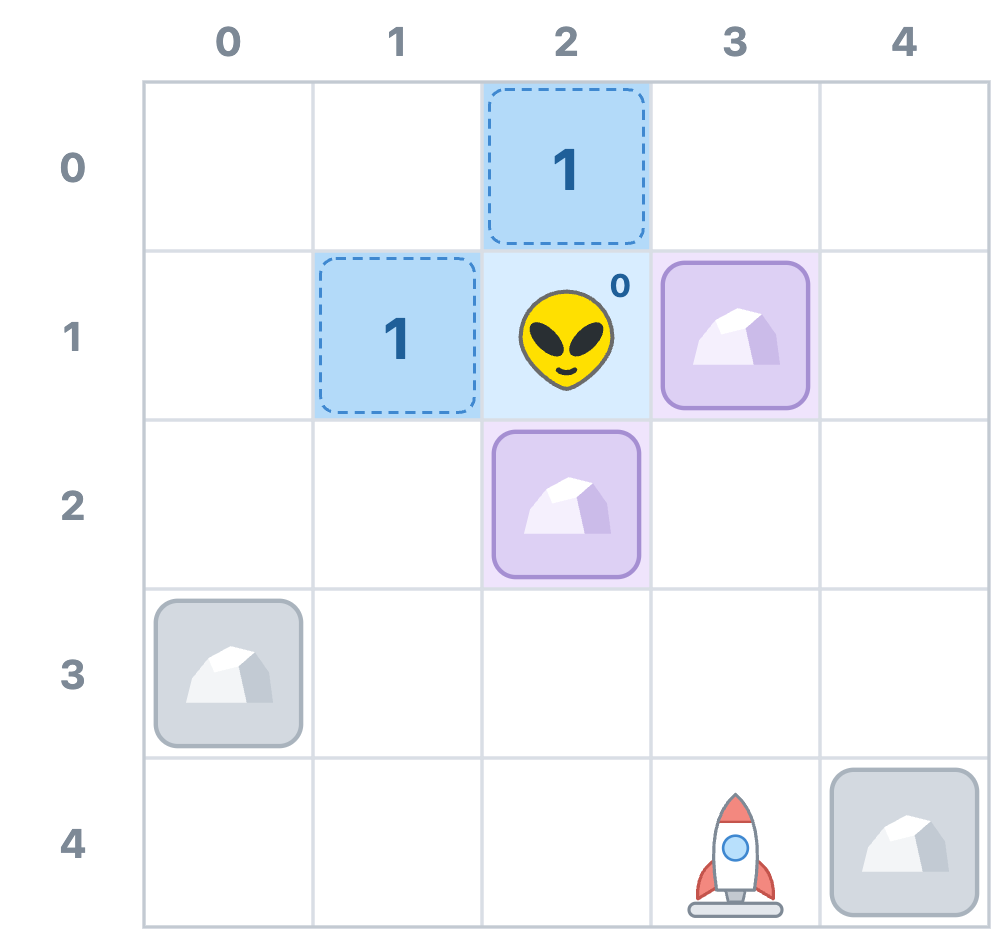
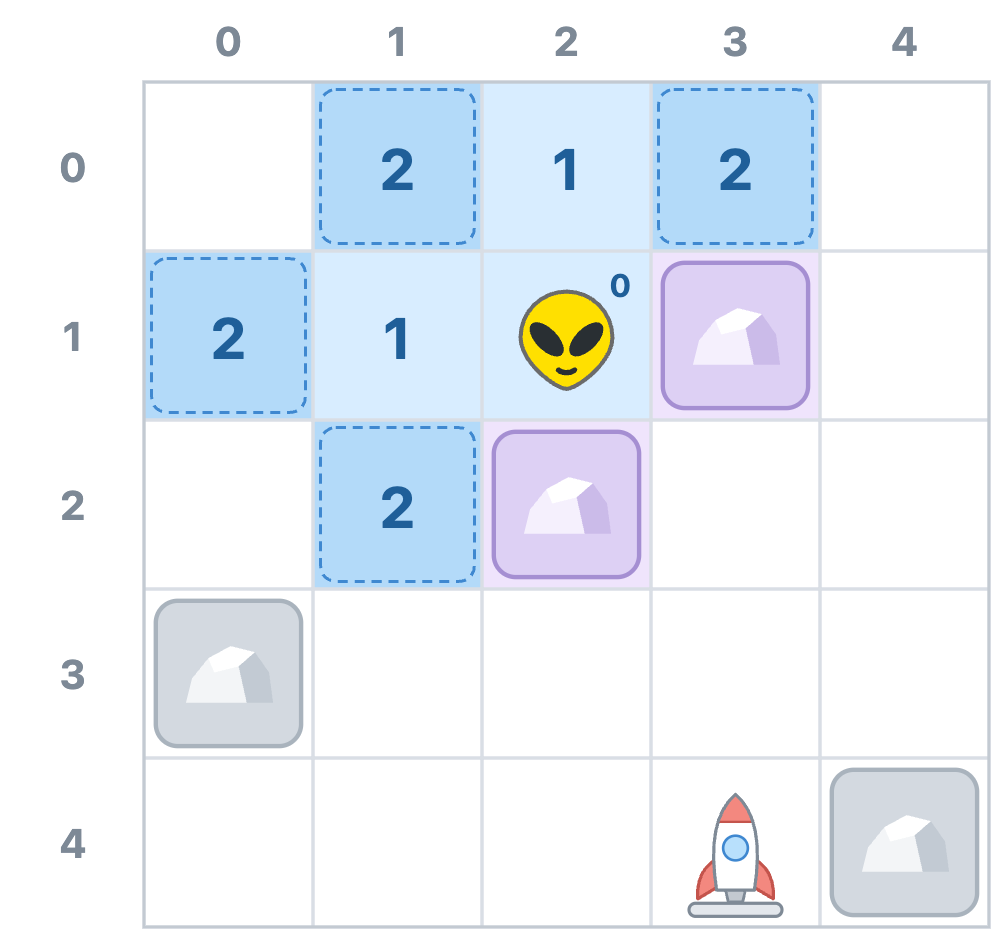
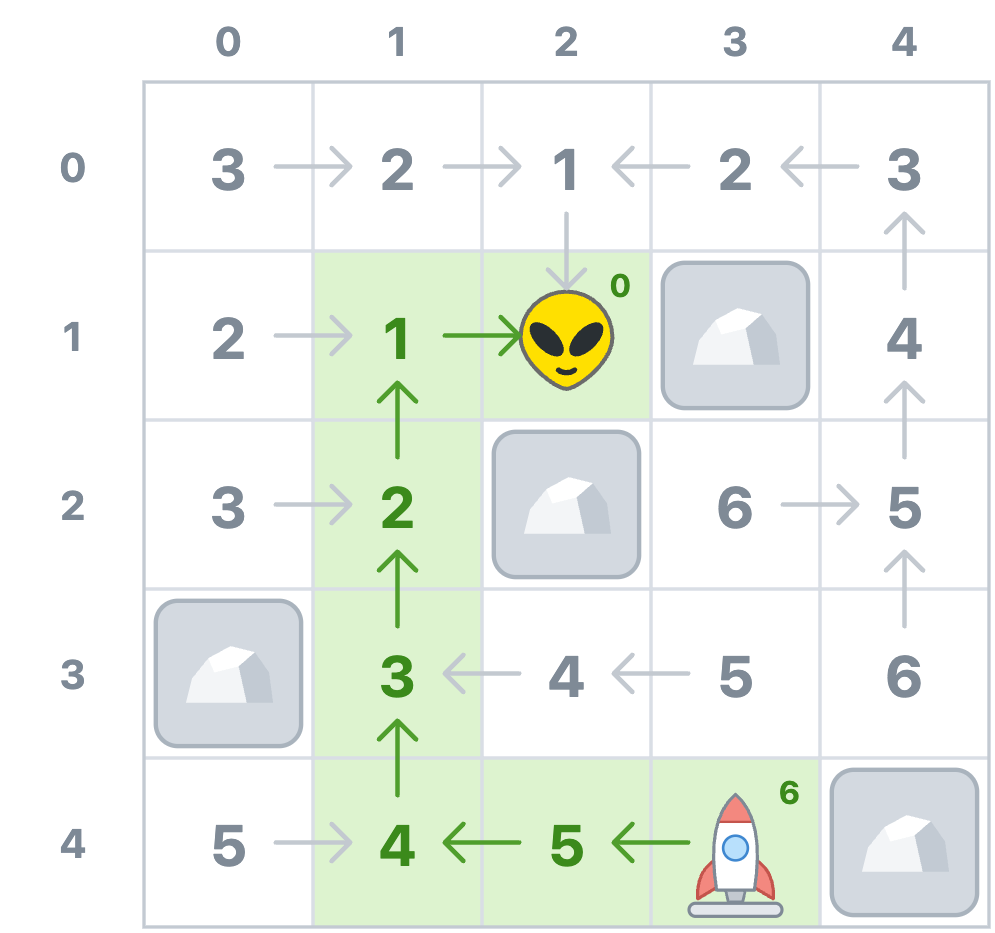
#FFFFFFDrawing surface#D9DEE5Quiet grid structure#D3D9E0Obstacle tile fill#A9B3BDObstacle tile outline#D8EDFFPreviously reached area#B3DAF9Newly reached cells#DDD0F4Adjacent blocked cells#FFF1C7Destination alignment#DDF3CFSelected route region#E0605ADistance annotationWhen showing an algorithm, reuse the same coordinate system, object positions, scale, labels, and crop. Change only the state being explained. The next BFS frame keeps Zorb, the rocket, and all four rocks in place while adding the cells reached in two steps. Moving a rock or shifting the grid between frames would make the reader solve a different problem:
Good reference. Hold the scene still while the algorithm's state changes.
Activate this specimen to load its real styles. No saved preferences change.
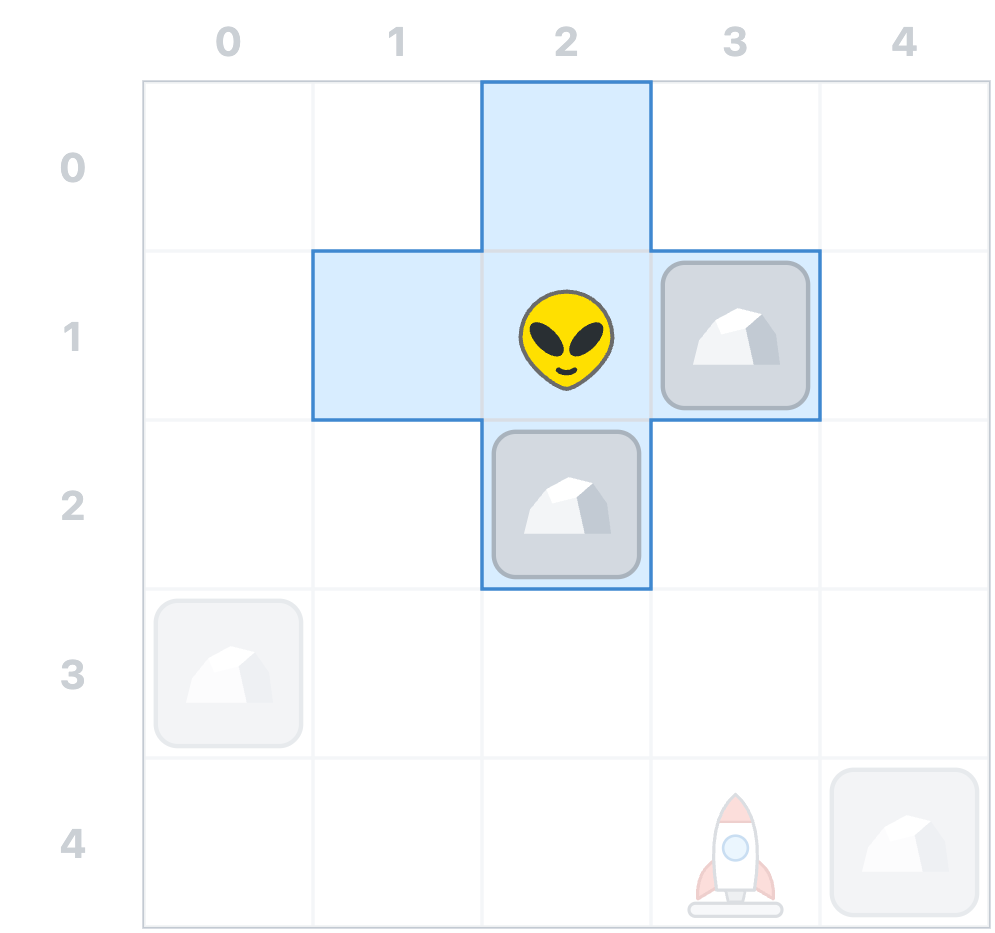
Reduce detail when it competes with the current explanation. This BFS frame keeps Zorb and his immediate neighbors clear while fading the surrounding grid. The faded content still provides context. Do not fade the subject, a necessary label, or an error until it becomes unreadable, and explain what the change in emphasis means:
Good reference. Use selective emphasis to distinguish what the actor can inspect from what the reader can see.
Activate this specimen to load its real styles. No saved preferences change.
Use arrows for a specific relationship, with unambiguous endpoints. Showing every breadcrumb is useful when explaining predecessor links, but it is a poor choice when the task is to identify one route. Compare the unfiltered frame with the focused version below. Its green arrows point from discovered cells back toward Zorb; they are breadcrumbs, not the forward walking direction. Match every arrow, coordinate, count, and label to the accompanying explanation and code:
Avoid for a single-route explanation. This is not inherently an incorrect diagram. It becomes a poor choice when the explanation needs the reader to follow just one route.
Activate this specimen to load its real styles. No saved preferences change.
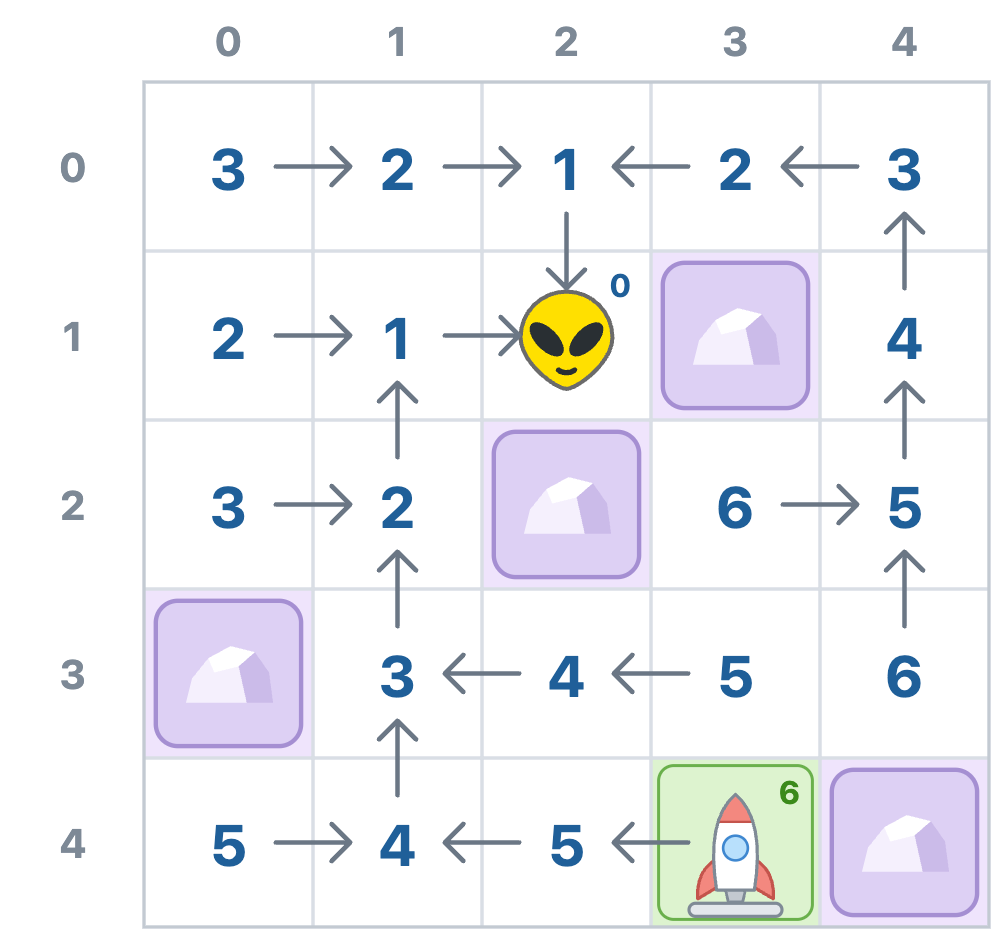
Good reference. Make the relevant route easy to follow without changing the underlying scene or reversing the breadcrumbs.
Activate this specimen to load its real styles. No saved preferences change.
Use Permanent Marker for short handwritten callouts. This is the author's confirmed font, not an identification guessed from a raster image. The Merkle reference uses the handwritten 'Not equal!' label above a bracket joining the two root hashes. Reserve this face for a few words that direct attention: 'Only this branch changes', 'Start here', or 'Not equal!'. Keep longer explanations in HTML. Do not set paragraphs, filenames, code, coordinates, or hash values in a marker font, and do not simulate handwriting by rotating ordinary sans-serif words:
Good reference. Use Permanent Marker to direct attention to one relationship, keeping filenames and values in a separate data face.
Activate this specimen to load its real styles. No saved preferences change.
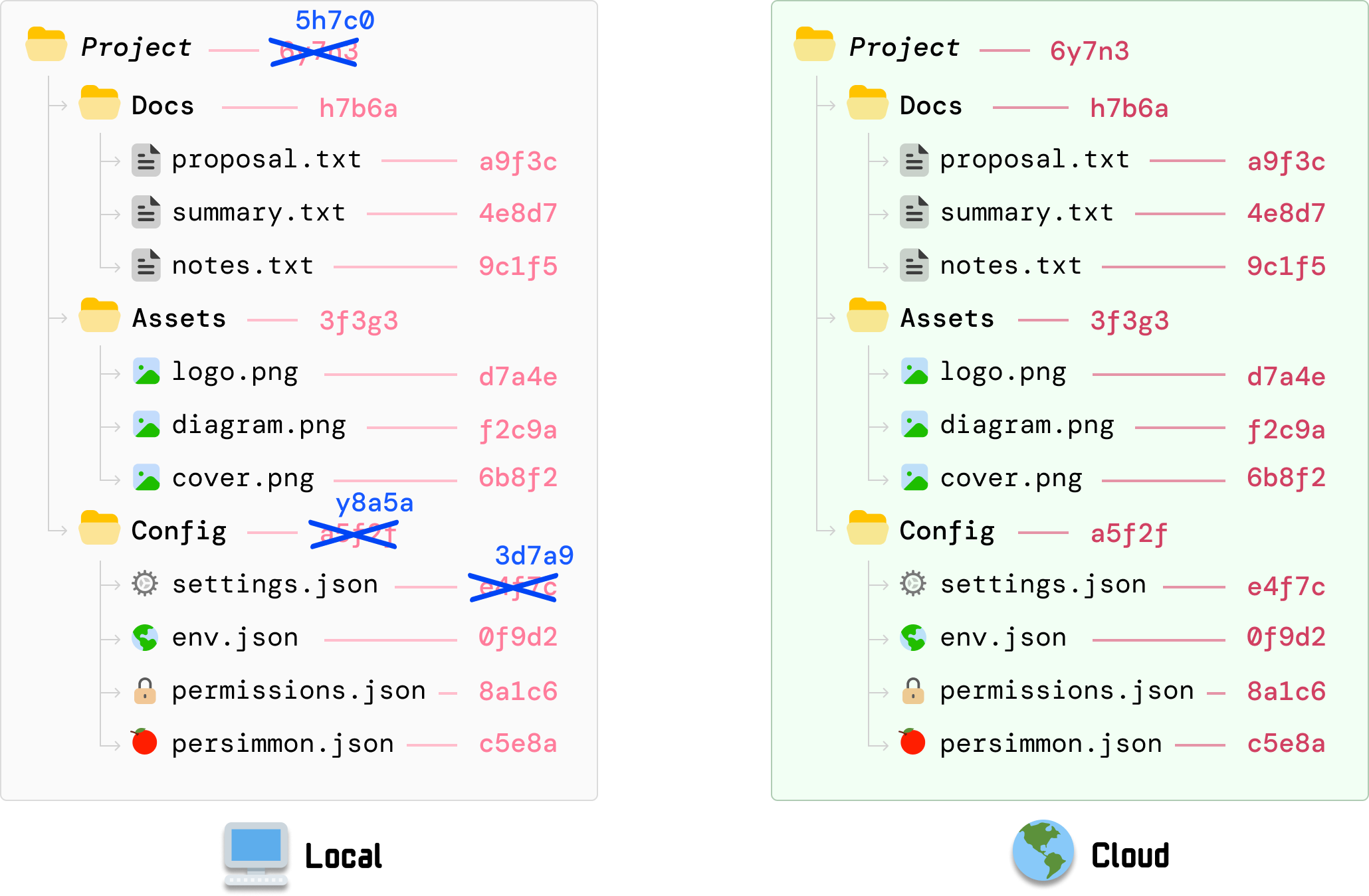
Give data labels a separate readable type role. Filenames and hash-like values need a clear monospace face; coordinates and ordinary object labels need a clean sans-serif. The exact families of all rasterized data labels cannot be recovered from these PNGs. Bundled Nunito and kirupaCode/Departure Mono are available options for new drawings, not claims about the original files. Keep labels beside their objects. In this Merkle state, blue replacement values and visible cross-outs identify the changed file, Config folder, and Project root; the other entries retain their previous values:
Good reference. Use position, replacement labels, and cross-outs alongside color to make the changed dependency chain visible.
Activate this specimen to load its real styles. No saved preferences change.
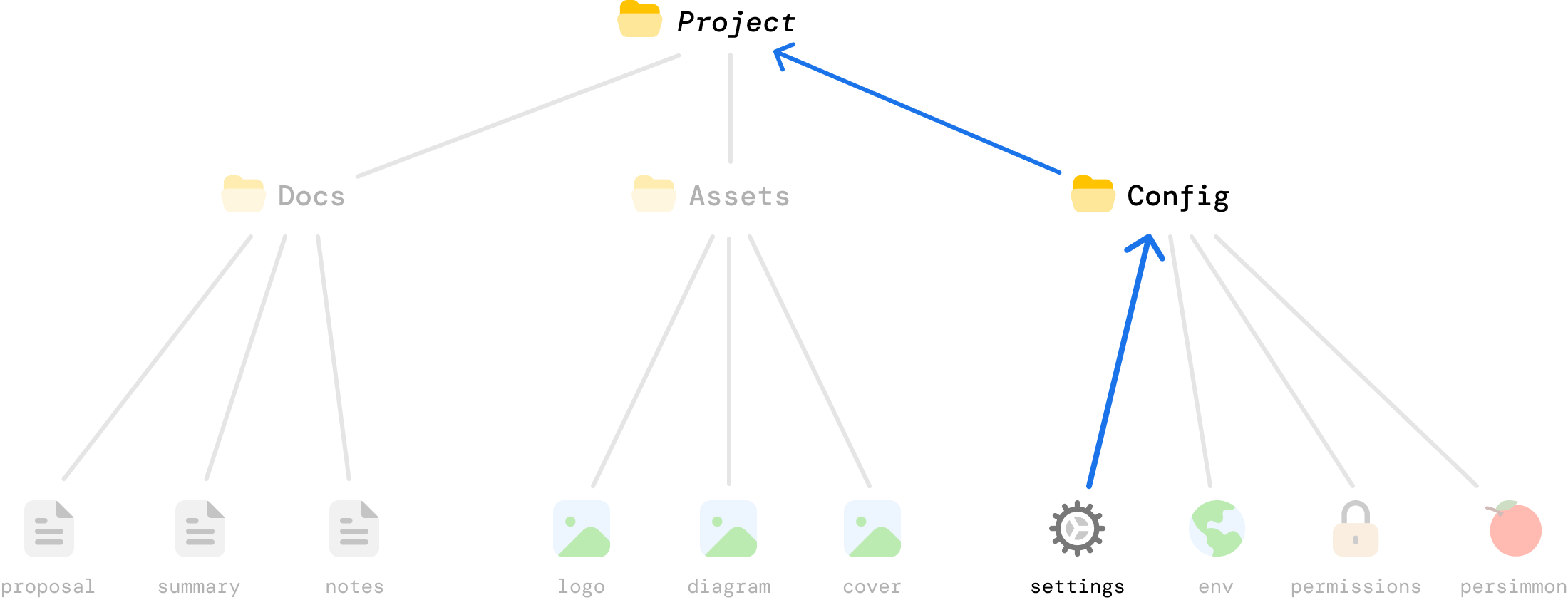
A second representation should preserve the objects and relationships from the first. The Merkle tree view uses the same folder and file symbols as the earlier directory view. Its highlighted path runs from settings through Config to Project, while the unaffected branches recede. Avoid replacing concrete objects with identical anonymous boxes when their identity helps explain the relationship:
Good reference. Keep visual vocabulary consistent when changing representations, and emphasize only the relevant dependency path.
Activate this specimen to load its real styles. No saved preferences change.
For new vector drawings, a useful starting point is a 900px-wide artboard, roughly 32px outer padding, 2-4px structural strokes, 12-24px object corner radii, 24-28px ordinary labels, and 28-36px handwritten callouts. These are working recommendations at that artboard size, not measurements required by every existing illustration. Scale the stroke and type together. Keep arrowheads proportionate, allow a clear gap between a pointer and its label, and check the result at the actual article width before exporting.
Keep an editable SVG or the original authoring file. When exporting SVG, make font and icon dependencies portable: embed permitted resources or outline a delivery copy of the text while retaining an editable text source. A font-family declaration alone does not bundle a font, and an SVG loaded through an img element cannot be assumed to fetch external fonts. For PNG, export enough pixels for the intended display size, normally 2x; keep lines and lettering sharp. Do not use CSS filters to invert a flattened drawing for dark mode. Retain a light artboard or create a separately checked dark version.
On narrow screens, do not shrink a dense diagram until its labels are unreadable. Provide a full-size image link, a focused crop, a stacked version, or a keyboard-scrollable region for a genuinely two-dimensional drawing. Every example here has a full-size link and a local surrounding-theme preview. The original image colors and fonts remain fixed. A source image can be a useful composition reference without being an accessibility template: new essential text still needs 4.5:1 contrast, and essential graphical distinctions need 3:1 or another equally clear visual cue.
Before delivery, introduce the figure in the preceding paragraph and write alt text describing its point, not just its contents. Check the image against the exact prose and code: the same objects, coordinates, direction, counts, and state. Inspect Light and Dark presentation, mobile readability, clipping, font loading, and color-independent cues. Reject decorative arrows with no target, random emoji, tiny labels, unrelated changes between frames, and word-only boxes pretending to be the objects in the example. Read illustrations.json for the palette, font files, example provenance, and production checklist.

:: Copyright KIRUPA 2026 //--
