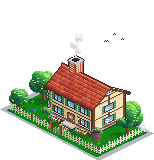
kirupaVille is a city made of pixels, and every building in it was drawn by someone from the kirupa.com community. Some plots are still empty, and one of them is waiting for you. This tutorial shows you how to claim a plot, draw a building on it, and publish it so everyone can see it with your name on it.
That video shows the whole thing from start to finish, including a cottage being drawn one pixel at a time. It has a bit of music, and it is sped up during the drawing parts, so don't worry if the cottage takes you longer than two minutes! Below, we'll go through each step at a more relaxed pace.
Onwards!
Meet kirupaVille
Head over to kirupaVille. The first time you visit, you'll see a short welcome:
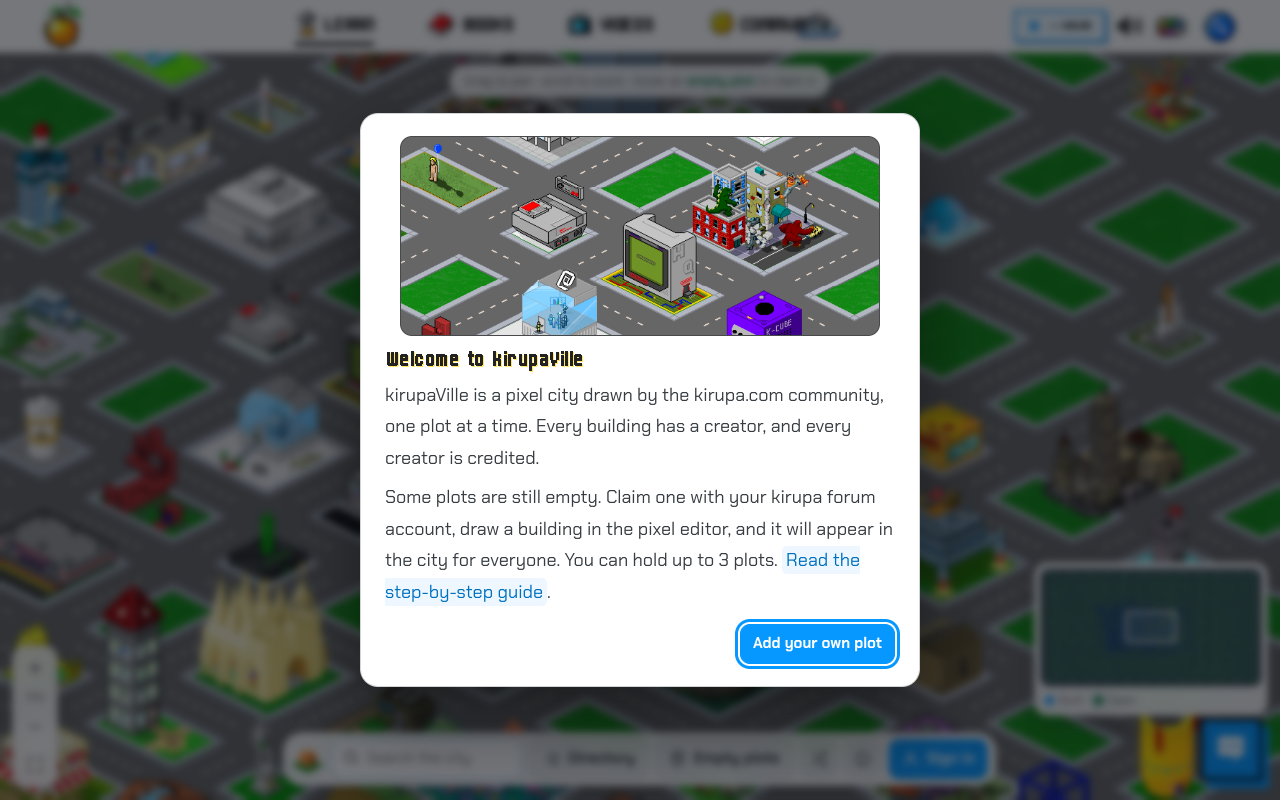
It explains what the city is, and it has one button: Add your own plot. Click it, and the empty plots light up while the map flies to one of them. You will only see this welcome once. If you want to see it again later, click the little i button in the floating toolbar at the bottom of the map.
Every building you see in the city is credited to the person who made it. Click on any building to see who built it and when, and click Directory to browse all of them as a list. All of the buildings from the original kirupaVille are still here, along with the names of the people who drew them.
You don't need to be signed in to look around. Drag to pan, scroll or pinch to zoom, and press / to search for a builder, a building, or a plot. The original city sits in the middle of the map, and there is now plenty of room around it for new neighbourhoods. If you wander off, the button at the bottom left of the map (or the 0 key) takes you back to the middle of town.
Finding an Empty Plot
An empty plot is a patch of grass. Some plots are squarish diamonds, and others are longer rectangles, and the outline you see always matches the real shape of the plot. Click the Empty plots button and every open plot lights up with a green outline. Move your mouse over one and it will highlight, and a tooltip will tell you its number and how big your canvas will be:
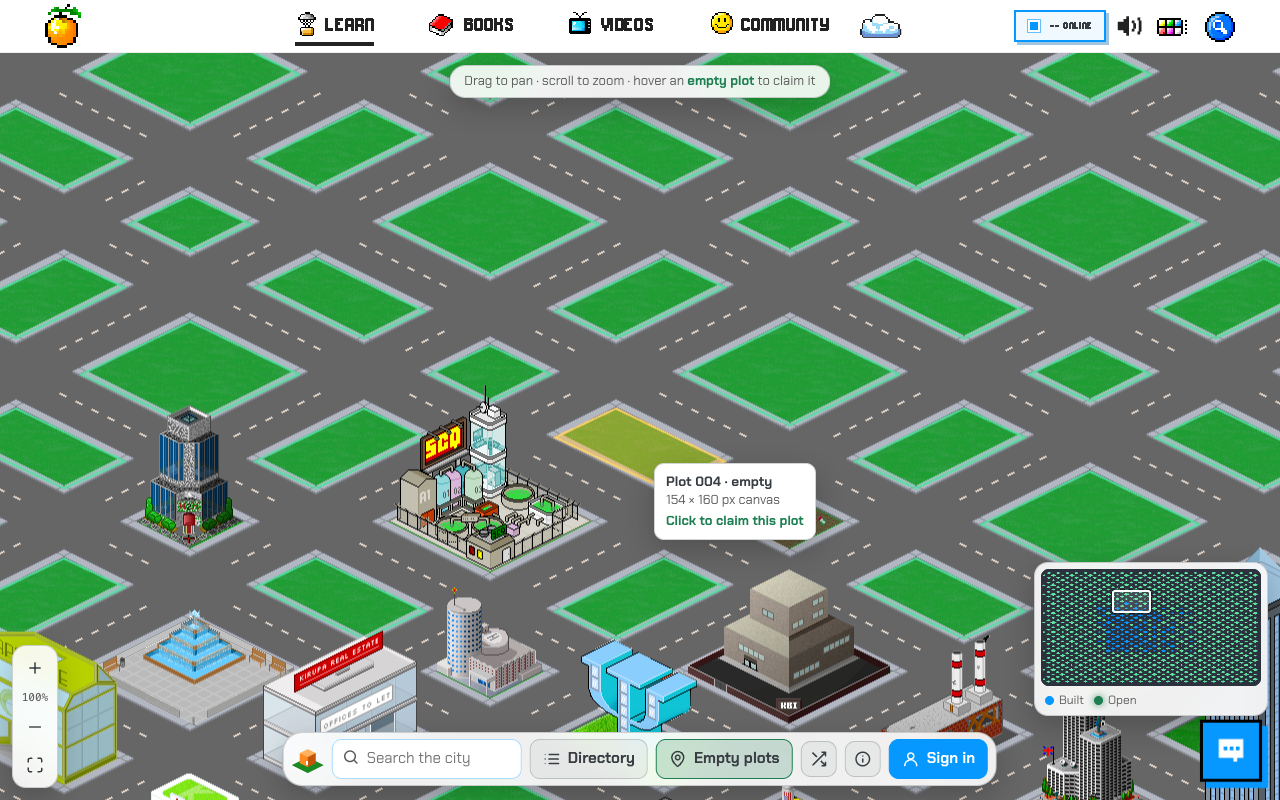
Pick one you like. Something near a building you admire is a good start, for you'll be neighbours.
Signing In with the Forum
To claim a plot, we need to know who you are. Instead of making you create yet another account, kirupaVille uses your kirupa forum account. Click the Sign in button at the right end of the floating toolbar at the bottom of the map:

You will be taken to the forum, where it asks you to approve kirupaVille. This is a one-time approval:
- If you aren't logged into the forum yet, log in first. If you don't have an account, you can create one for free.
- The forum will tell you that kirupaVille wants to know who you are. Click Authorize.
- You'll be sent back to kirupaVille, and your forum username and picture will appear where the Sign in button was.
Your Password Stays on the Forum
kirupaVille never sees your forum password. The forum hands back a key that says who you are, and that is all kirupaVille uses to check that the plots you claim and edit are yours. You can revoke it anytime from your forum preferences.
Claiming Your Plot
Now that you are signed in, click on your empty plot. A card shows up on the right:
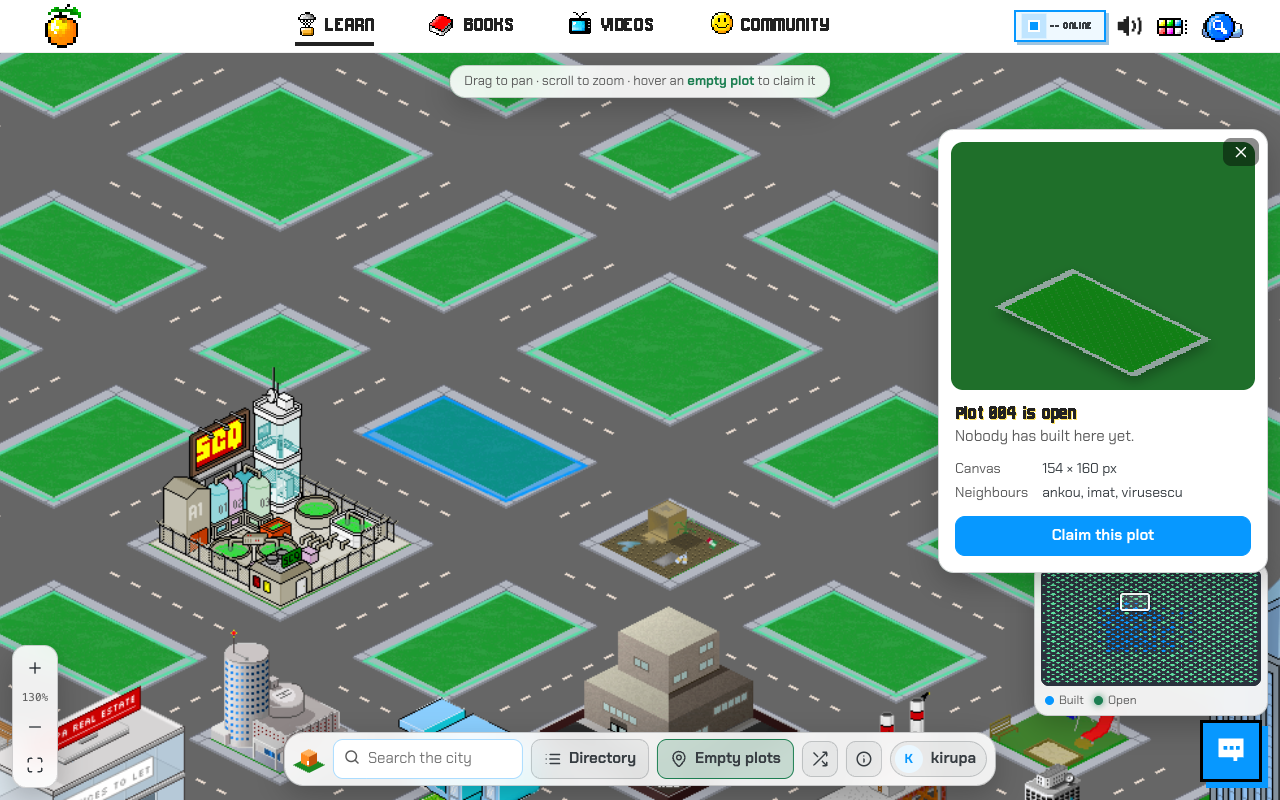
Click Claim this plot and the plot is yours. A few things to know:
- You can hold up to 3 plots at once.
- Once you claim a plot, it is reserved for you for 7 days. Nobody else can build on it while you work. If you publish a building, it is yours for good. If you don't, the plot goes back to being empty.
- Changed your mind? Click Release plot and somebody else can have it.
As soon as you claim a plot, the pixel editor opens.
Drawing in the Pixel Editor
You are drawing on a canvas that is exactly the size of your plot. Everything in the city is drawn at this size, so a pixel here is a pixel in the city:
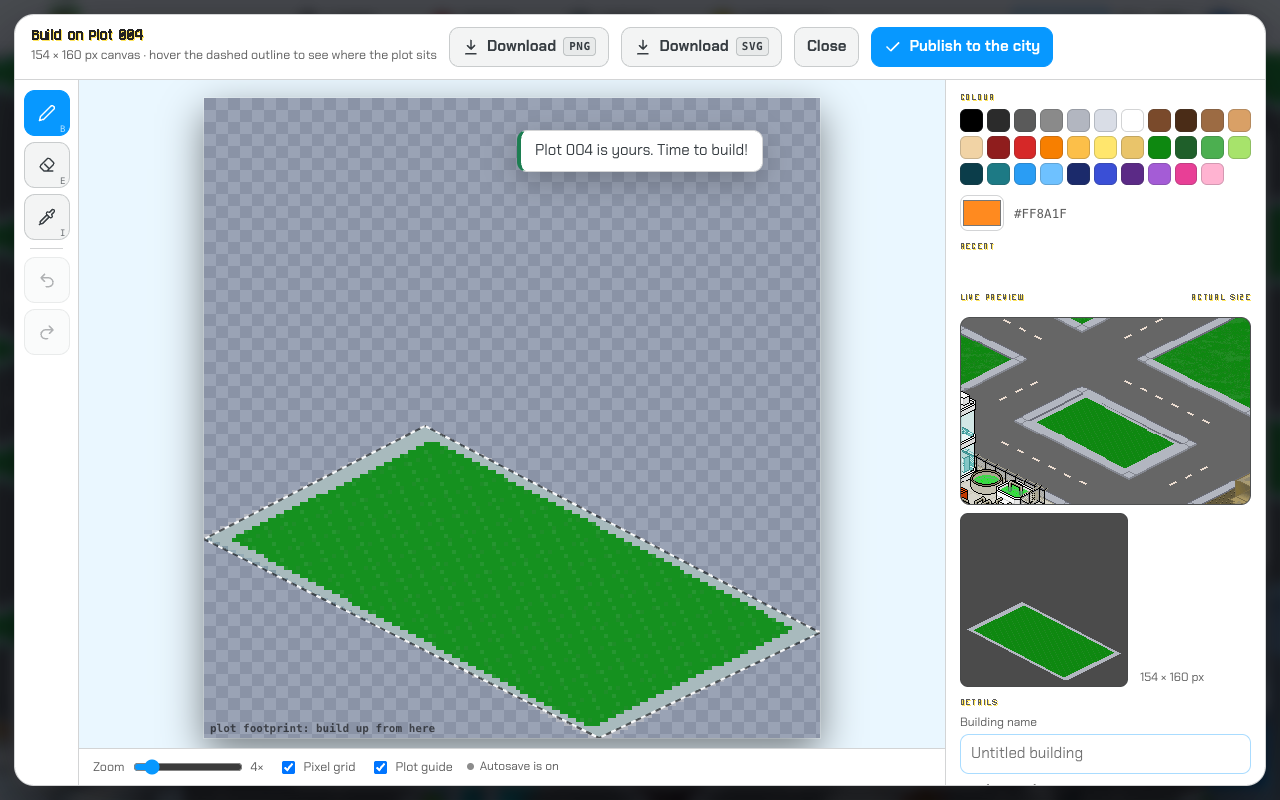
The grass at the bottom is already drawn for you, in the exact shape of your plot. Mine is a long rectangle, but yours might be a diamond. It is the ground your building sits on. The dashed outline is the plot guide. It shows where the edges of the plot are, so your building's footprint should stay inside of it. Anything above it is fair game, which is how skyscrapers get to be so tall!
Here is what is in the editor:
- The big canvas in the middle is a zoomed-in view of your drawing. Use the zoom slider at the bottom to get closer or farther.
- Live preview in the top right shows your building in the real city, at its real size, as you draw. The one below it is the same drawing on its own. This is the one that matters, because it is how everybody else will see it.
- The palette has 32 colours. Need something else? Click the colour swatch to pick any colour, and your recent ones are saved right below the palette.
And then there are the tools. We keep these to the bare minimum, because pixel art is drawn one pixel at a time:
- Pencil (B) draws a pixel. Press and drag to draw a line of them.
- Eraser (E) removes a pixel. Right-clicking with the pencil also erases.
- Picker (I) grabs the colour of any pixel on your canvas so you can use it again.
- Undo and redo (Ctrl or Cmd + Z, and Shift + that to redo) are there for the moments when your hand slips.
That's it. No fill bucket, no line tool. Every wall, every roof tile, and every flower is a pixel that you placed.
Draw on an Isometric Grid
Buildings in kirupaVille are drawn at an angle, like you are looking at them from above and to the side. This is called isometric. The trick is that every line along the ground goes two pixels across for every one pixel down. Look at the edge of the grass and you will see that rhythm: 2 across, 1 down, 2 across, 1 down. Use the same slope for the edges of your walls and roof, and everything will fit together.
Light is another thing to keep in mind. In kirupaVille, light comes from the upper right. That means the right-facing walls get the light colours, and the left-facing walls get the darker shades. Using only two or three tones per surface makes a drawing look solid, even at a tiny size.
Here is the order I like to draw things in:
- Walls. Lay in the two visible walls first. The light one on the right, and the shaded one on the left.
- Roof. Draw it row by row, with a lighter row on top of each darker one so the tiles show up.
- Details. Windows, doors, a chimney. Windows slope the same way their wall does.
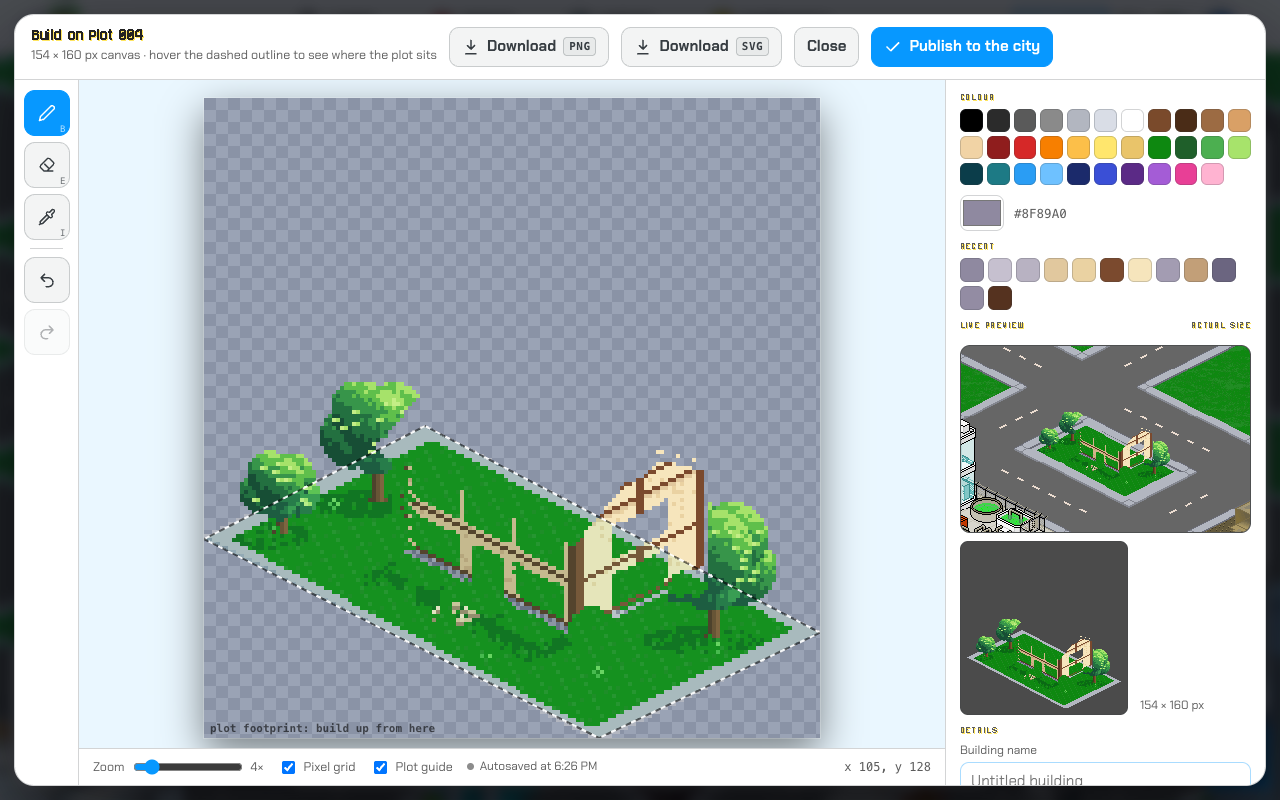
Here are the walls, with the timber framing, and the start of the roof. The shaded wall on the left and the lit wall on the right already give it that 3D look.
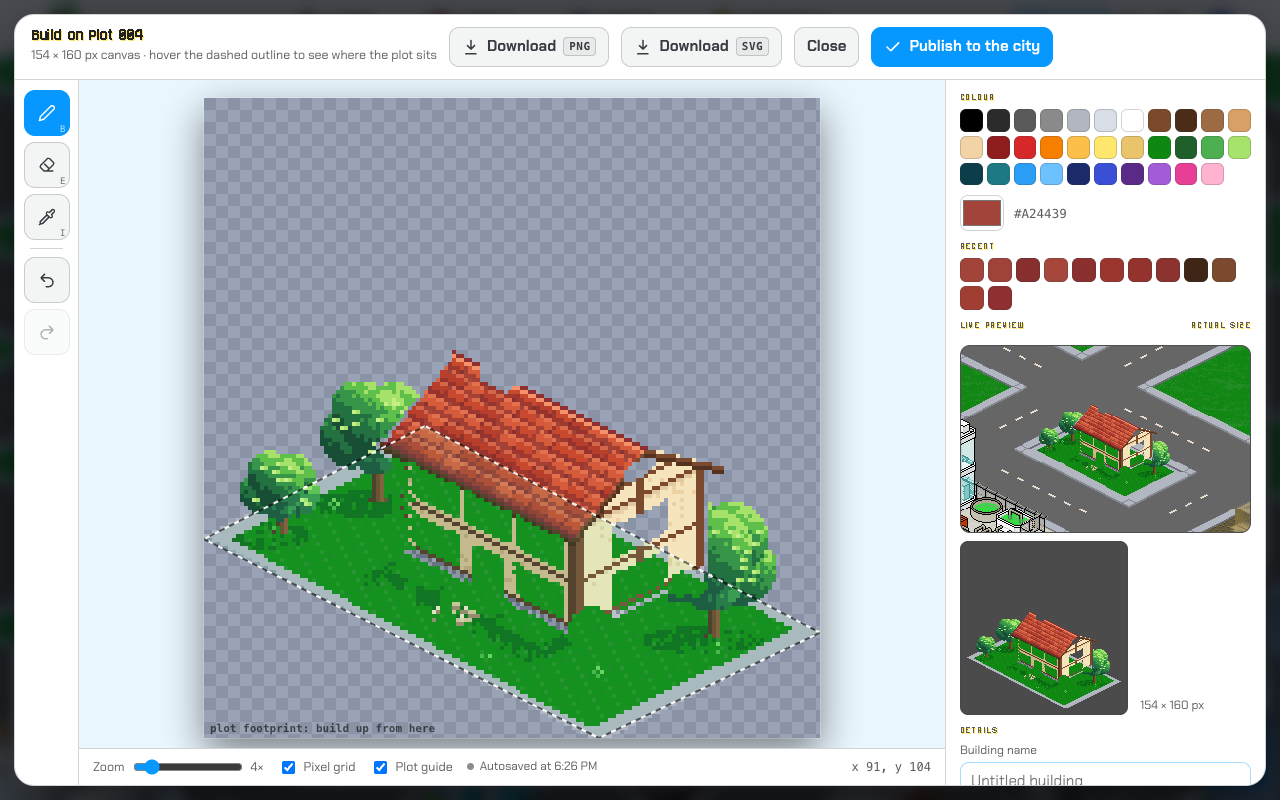
Next up is the roof. Every tile row is a short run of pixels, and every row is a slightly different shade than the one next to it.
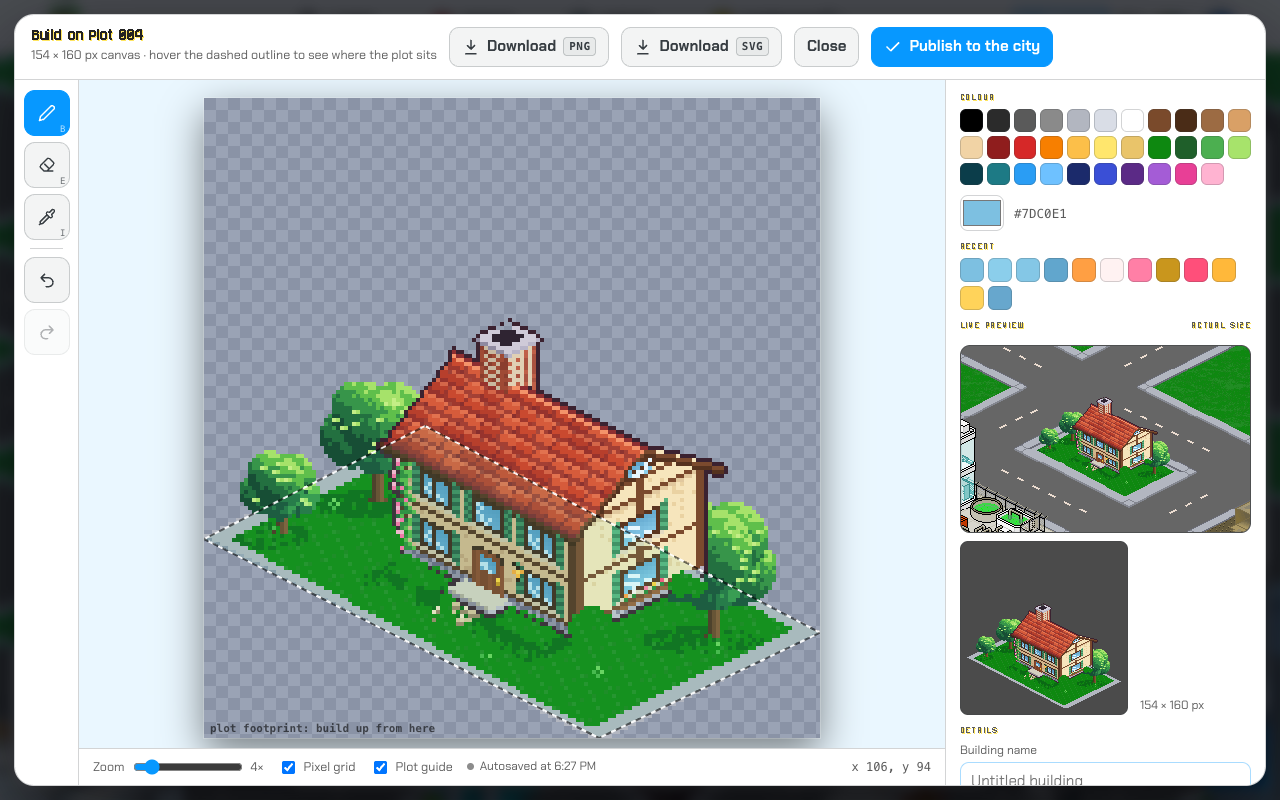
Windows, shutters, a door, and a thin dark outline around the building help it stand out from the road. After that, it is all about the details: flowers, a fence, a mailbox, a few birds. That is where a drawing goes from good to memorable.
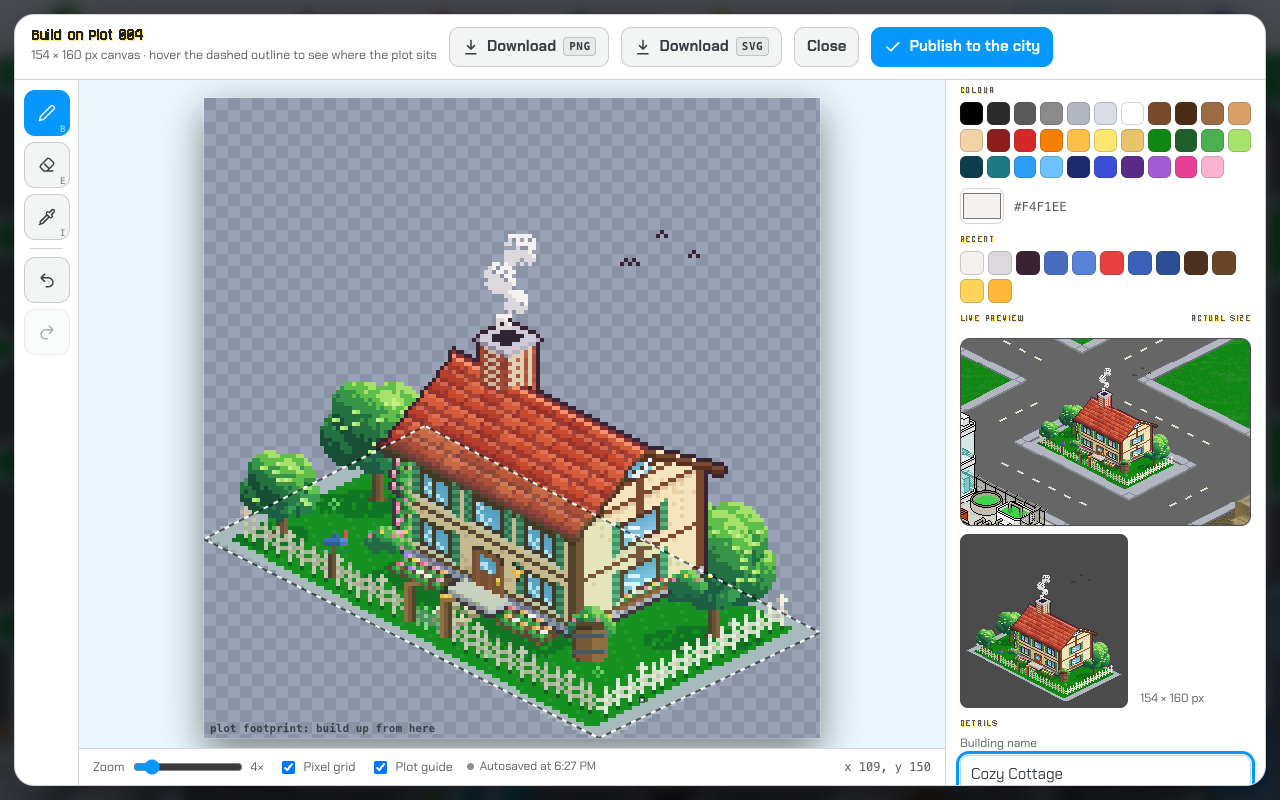
This is what my cottage looks like when it is done. You can create something much simpler than that, so don't feel pressured! A cube with a door is still a building.
Other Things You Can Do
A few extras are at the bottom of the panel on the right:
- Add base tile redraws the grass if you covered it up or erased it.
- Import SVG / PNG lets you bring in a drawing you made somewhere else, such as Aseprite or Piskel. Once it is in, every pixel is editable with the pencil, eraser, and picker.
- Clear wipes the canvas so you can start over.
- Download PNG and Download SVG, at the top, save your drawing to your computer in either format.
Autosave, SVG Import, and SVG Export
You don't have to finish in one sitting. As you draw, the editor saves your work in your browser, and the little status line under the canvas tells you when it last did: Autosaved at 3:00 PM. Close the tab, come back later, open the same plot, and your drawing will be waiting, with a note that it was restored. Autosave lives in the browser you are using, so it won't follow you to a different computer. If you want a copy you can keep or move, use Download SVG.
The SVG is a tiny vector file where every pixel of your drawing is a one-unit square, and the colours are grouped so the file stays small. Open it in a browser or in a vector tool and it will look just like it does in the editor. Even better, you can bring it back later. Click Import SVG / PNG and pick the file, and your drawing comes back with every pixel ready to edit.
You can also import SVGs that you didn't make in kirupaVille. Those are turned into pixels at your canvas size, centered and sitting on the bottom edge, and then you can clean them up with the pencil and eraser. Fair warning: an SVG with smooth curves won't look crisp as pixel art until you tidy it up, so it works best as a starting sketch.
Want to try it out? Here is the cottage from this tutorial as an SVG: cozy_cottage.svg. It is drawn for a plot with a 154 x 160 canvas. If your plot is a different size, it will be scaled to fit.
Saving and Publishing
Your drawing is saved to your browser as you go, so if you close the editor or your tab, your work will be right there when you come back (the status line under the canvas shows when it was last saved). It isn't in the city yet, though! To do that, give your building a name and, if you want, a link to your site or portfolio. The name and link appear on your building's card. Then click Publish to the city:
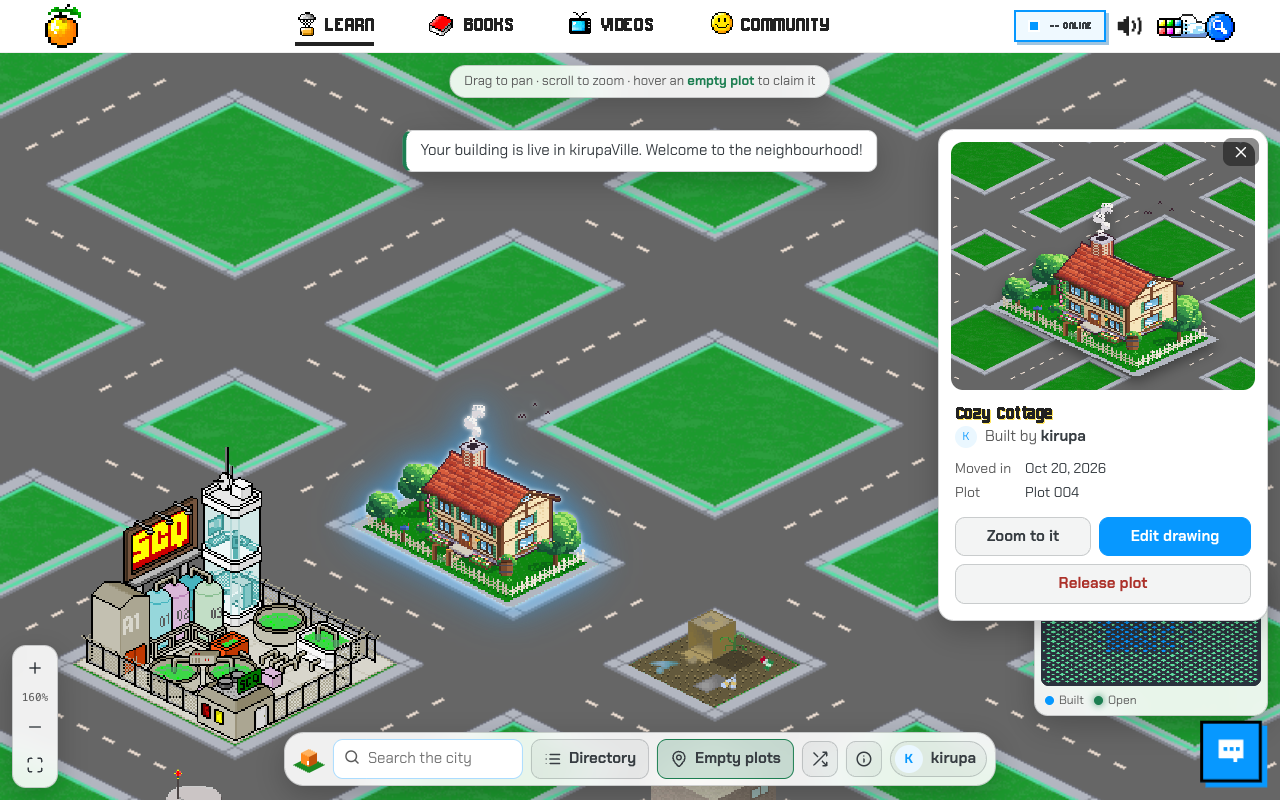
That's all it takes. Your building shows up in the city right away, with your forum username as its creator, and you will see it in the directory with everybody else's.
To find your plots later, click your name at the right end of the toolbar:
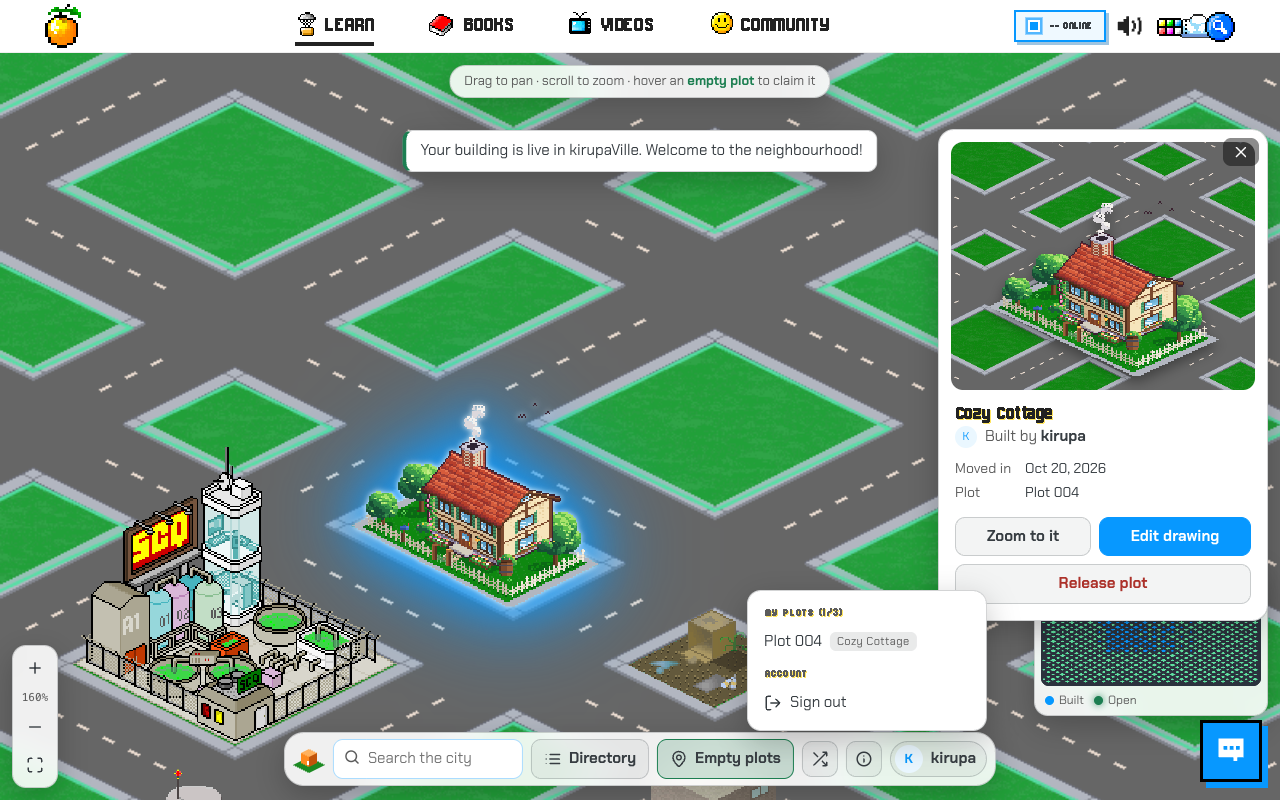
Click on a plot and then Edit drawing to open the editor again. You can redraw your building as many times as you like, and each time you publish, the city updates. If you would rather free up the plot, Release plot removes your building and makes the plot empty again.
Questions You Might Have
Do I need a forum account?
Yes, but only to claim a plot and publish. Looking around is open to everybody. Creating a forum account is free, and it takes a minute.
What if I can't finish in 7 days?
Your drawing is still autosaved in your browser, and you can download it as an SVG to keep a copy. But the plot is up for grabs again once the reservation runs out. If you need more time, you can claim it again when it is available. Publishing something small first and improving it later is a good strategy as well.
Can I edit someone else's building?
No. Only the person who claimed a plot can edit or release it. The original kirupaVille buildings, and the names of the people who drew them, are all still here, and they are not editable.
Can I draw outside of my plot?
Your canvas is the size of your plot's footprint plus some space above it for tall things. Anything you draw is clipped to the canvas, and the plot guide shows you where the ground ends.
Something isn't working. What do I do?
Come say hi on the kirupa forum and let us know what happened. Screenshots help!
Conclusion
Go claim a plot and draw something. It doesn't have to be fancy. A tiny house, your favourite game console, or the tallest tower you can imagine will all look great in the city. See you there!
Just a final word before we wrap up. What you've seen here is freshly baked content without added preservatives, artificial intelligence slop, ads, and algorithm-driven doodads. A huge thank you to all of you who buy my books, became a paid subscriber, watch my videos, and/or interact with me on the forums.
Your support keeps this site going! 😇