|
by
kirupa | 7 November 2008
In Silverlight you can
create animations using just XAML, or you can create
animations entirely using just C# code. What you can
also do is mix and match an animation where part of
it lives in XAML and another part lives inside your
code. This blending allows you to create interactive
animations that you simply would not have been able
to do otherwise using just XAML or as easily using
just code.
This tutorial will
show you how to take a XAML animation and modify its
properties using C# to create something pretty cool. By the end of this
tutorial, you will have created something similar to the following animation:
[ click on the Randomize Color
button to see what happens! ]
When you click on the
Randomize Color button, notice that a small
animation plays where the colors of your background
are made different. Keep clicking this button to see
different colors appear each time.
This article discusses how to
create applications using Silverlight 2. If you do not know how to get started, the
Getting Started Page should help you get setup for Silverlight design and development.
First, to save you some
time, I have already created a basic project that
provides you with the UI and a basic animation.
Download this project from the following link:
Extract the files from
this newly downloaded project and open the solution
in Expression Blend. When you open this project in
Expression Blend, you will see something that
resembles what you saw earlier:
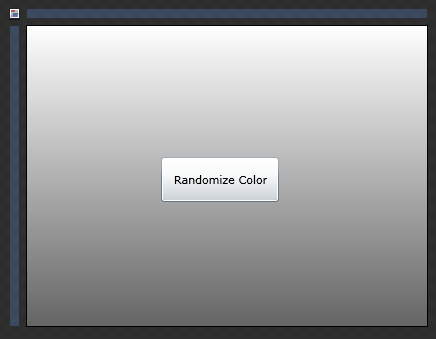
[ a basic UI should be visible on the artboard ]
When you hit F5 and run
this application, notice what happens when you click
on the
Randomize Color button. Just like what you saw
earlier, the background color changes a bit. The
difference this time around is what happens when you keep
clicking on
the Randomize Color button. Nothing happens any
more. The first click played the animation, but the
subsequent clicks do absolutely nothing.
Great - this is all
part of the plan! The application you currently have
open in Blend basically contains just a single
animation and some code on the button to play the
animation when pressed. In the following pages, you
will learn more about this animation and how to
write code to modify the colors that your animation
changes..
Onwards to the
next page!
|



 Modifying SL Animations Using C# - Page 1