|
by
kirupa | 23 August 2009
In Silverlight and WPF, when working with
UserControls and Behaviors, you may find yourself in
situations where you need to call a method or access
a property that is stored in the parent. This parent
can be anything - it could be a container or it
could be another UserControl. Accessing what you want in those
locations is not as straightforward as you may
imagine it to be.
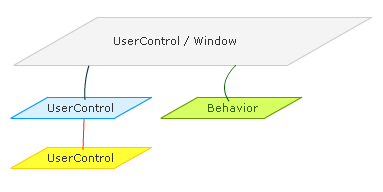
To describe this scenario a bit more, let's look
at the following diagram where I am simplifying to a
world where the parents and children are just
Window, UserControl, or Behavior types:
In this short tutorial, I will describe a few
things:
-
How to access the contents of your
application's root Page or Window regardless of
where you are.
-
How to access the contents of a parent user
control such as the Yellow user control calling
something in the Blue user control.
-
How Behaviors are a bit different.
The syntax for both WPF and Silverlight can be a
little different, so if there are any differences, I will provide both versions
for the scenarios I list above.
The most common type of cross-usercontrol
communication you would engage in is one where you
are trying access the root of your application. The
root of your application in Silverlight is of type
UserControl, and the root of your application in WPF
is of type Window. This distinction is important
because it results in a varying syntax.
The syntax for accessing the root UserControl in
Silverlight is:
-
UserControl
rootPage
=
Application.Current.RootVisual
as
UserControl;
The syntax for accessing the root Window in WPF
is:
- Window
rootWindow
=
Application.Current.MainWindow
as
Window;
The above code will hook into your root and
provide you with access to any types that are
available to UserControl and Window.
So now, you get access to the root element, but
you probably don't want this particular approach.
The problem is that casting to both UserControl and
Window is very generic, and it contains no
references to anything you may have done. Any
elements you added in XAML or any properties and
methods you added in your code-behind file are
hidden from view.
The reason is actually pretty simple. The root of
your application is not actually UserControl or
Window. It is something derived directly from
UserControl or Window. To fix this, you need to cast the returned value
to the actual type of your root element. By default,
in Expression Blend, the type of your root
usercontrol is MainPage in Silverlight:

In WPF, the type of your root window is
MainWindow:

This means, you will need to make just some minor
tweaks to your code. For Silverlight, your code now
becomes:
- MainPage
rootPage
=
Application.Current.RootVisual
as
MainPage;
For WPF, your code is:
- MainWindow
rootWindow
=
Application.Current.MainWindow
as
MainWindow;
While MainPage and MainWindow are new types, they
are directly derived from UserControl and Window
respectively. This means that any properties or
methods you would expect to see either in
UserControl or Window are still accessible to you. In your own projects, if you are not
using Expression Blend, be sure to set the type of
the root element appropriately because you cannot
assume that MainWindow and MainPage will actually
exist.
The above example is specific only to accessing the
root of your application. You may find yourself in
cases where you are in a deeply nested usercontrol
and you need to access a parent that is somewhere
below your root.
In my diagram, this is the example of the Yellow
UserControl trying to call something on the Blue
UserControl:
To
handle situations like this, we need a more
generalized solution. We need a solution that not
only allows you to access the root parent, but it
also needs to be something that we can use to access
any intermediate parents as well.
Fortunately, that is doable, but it does require
some additional work. First, the code
for our generalized solution (aptly placed in a
class called FindParentByType) is as follows:
- public
static
class
TreeHelper
- {
- public
static
T
FindParentByType<T>(this
DependencyObject
child)
where
T
:
DependencyObject
- {
- Type
type =
typeof(T);
-
DependencyObject
parent
=
VisualTreeHelper.GetParent(child);
-
- if
(parent
==
null)
- {
- return
null;
- }
- else
if
(parent.GetType()
== type)
- {
- return
parent
as
T;
- }
- else
- {
- return
parent.FindParentByType<T>();
- }
- }
- }
Using the above code is not as straightforward as
the one line you had for accessing the root element
I showed you earlier. There are two things you need
to do:
- This code creates is an extension method, so
you need to place this file in a separate class.
- Before calling this code, you need to ensure
that the usercontrol you are currently in has
been fully loaded.
Don't worry, I'll explain how to do both of those
things, so let's start with where to place an
extension method.
When you look at your code behind file in a user
control, you probably see something that looks like
this:
- using
System;
- using
System.Windows;
- using
System.Windows.Controls;
- using
System.Windows.Documents;
- using
System.Windows.Ink;
- using
System.Windows.Input;
- using
System.Windows.Media;
- using
System.Windows.Media.Animation;
- using
System.Windows.Shapes;
-
- namespace
ParentRootInteraction
- {
- public
partial
class
ChildControl
:
UserControl
- {
- public
ChildControl()
- {
- //
Required to initialize variables
- }
- }
- }
There will be a billion using statements, your
namespace declaration, your usercontrol's class
declaration, and finally the constructor for your
class.
Because what you are creating is an
extension
method, it needs to live in its own class and not,
as is the case with my example, ChildControl. So
paste the FindParentByType extension method at the
end of the last bracket that represents your class:
-
using
System;
-
using
System.Windows;
-
using
System.Windows.Controls;
-
using
System.Windows.Documents;
-
using
System.Windows.Ink;
-
using
System.Windows.Input;
-
using
System.Windows.Media;
-
using
System.Windows.Media.Animation;
-
using
System.Windows.Shapes;
-
- namespace
ParentRootInteraction
- {
-
public
partial
class
ChildControl
:
UserControl
-
{
-
public
ChildControl()
-
{
-
// Required to initialize variables
-
}
-
}
-
- public
static
class
TreeHelper
- {
- public
static
T
FindParentByType<T>(this
DependencyObject
child)
where
T
:
DependencyObject
- {
- Type
type =
typeof(T);
-
DependencyObject
parent
=
VisualTreeHelper.GetParent(child);
-
- if
(parent
==
null)
- {
-
return
null;
- }
- else
if
(parent.GetType()
== type)
- {
-
return
parent
as
T;
- }
- else
- {
-
return
parent.FindParentByType<T>();
- }
- }
- }
- }
Notice that I copied all of the code from
the TreeHelper class (where FindParentByType lives) and placed it directly after where my
ChildControl class ends. Great! We just finished the
first part where you placed the code in the
appropriate location. The next part is to actually
call the FindParentByType code to help us out.
The FindParentByType code
works by traveling up each parent and checking if
the parent you are looking for is here. In order for
this to work, you need to ensure that your
application has fully loaded to avoid any issues in
Silverlight and WPF where you get errors because
your visual tree has not fully been generated yet.
While this sounds scary, the solution is fairly
simple. We need to make sure that our
FindParentByType code does not get called until our
user control has fully loaded. This requires hooking up the Loaded event and
assigning an event handler. If you are not familiar
with event handlers, learn more about them in my
earlier
Event Handlers in WPF tutorial. You can set up
your event handler directly in XAML using Blend, or
you can do it via code.
For the sake of simplicity, I am just going to
do it via code. Go ahead and associate the Loaded
event with an event handler inside the constructor
for your user control, and place your event handler
directly below your constructor.
Here is what my code looks like with the Loaded
event and an event handler called
ChildControl_Loaded:
-
using
System;
-
using
System.Windows;
-
using
System.Windows.Controls;
-
using
System.Windows.Documents;
-
using
System.Windows.Ink;
-
using
System.Windows.Input;
-
using
System.Windows.Media;
-
using
System.Windows.Media.Animation;
-
using
System.Windows.Shapes;
-
-
namespace
ParentRootInteraction
-
{
-
public
partial
class
ChildControl
:
UserControl
-
{
-
public
ChildControl()
-
{
-
// Required to initialize variables
-
InitializeComponent();
-
- this.Loaded
+=
new
RoutedEventHandler(ChildControl_Loaded);
-
}
-
- void
ChildControl_Loaded(object
sender,
RoutedEventArgs
e)
- {
- // What to
run after you have loaded your
application
- }
-
}
-
-
public
static
class
TreeHelper
-
{
-
public
static
T
FindParentByType<T>(this
DependencyObject
child)
where
T
:
DependencyObject
-
{
-
Type
type
=
typeof(T);
-
DependencyObject
parent
=
VisualTreeHelper.GetParent(child);
-
-
if
(parent
==
null)
-
{
-
return
null;
-
}
-
else
if
(parent.GetType()
==
type)
-
{
-
return
parent
as
T;
-
}
-
else
-
{
-
return
parent.FindParentByType<T>();
-
}
-
}
-
}
-
}
The event handler that gets called, in my
example, after everything loads is ChildControl_Loaded. Inside this method, you will
make a call to the FindParentByType extension
method. Because this is an extension method, you can
just do something like this:
- MainPage
mainPage
=
this.FindParentByType<MainPage>();
Your full event handler code would look as
follows:
- void
ChildControl_Loaded(object
sender,
RoutedEventArgs
e)
- {
- MainPage
mainPage
=
this.FindParentByType<MainPage>();
- }
The FindParentByType extension method works like
this. Let's say you have a parent/child structure as
shown here:
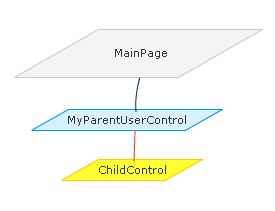
In this example, the extension method lives in ChildControl (kind
of like in all of my examples) and you wish to get a
reference to its parent whose type is
MyParentUserControl. Your call to FindParentByType
would look as follows:
- void
ChildControl_Loaded(object
sender,
RoutedEventArgs
e)
- {
-
MyParentUserControl
uc =
this.FindParentByType<MyParentUserControl>();
- }
Notice that FindParentByType does not take an
argument in the traditional sense. Instead, it takes
a type argument whose type matches the type of the
parent you are looking for. If I wanted to go all
the way to the top and access MainPage, I would
simply do this:
- void
ChildControl_Loaded(object
sender,
RoutedEventArgs
e)
- {
-
MainPage
uc =
this.FindParentByType<MainPage>();
- }
That is all there is to it. This general solution
allows you to access both your immediate parent as
well as any parent leading up to and including the
root. Read that last line carefully. The key words
to look for are "any parent".
Your parent does not have
to be a UserControl or Window. For example, what is
the parent of the UserControl that you see in the
following example:
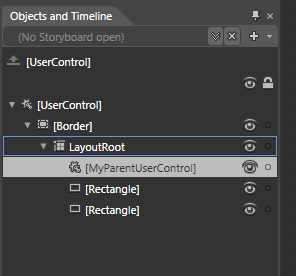
You may think that the UserControl at the top of
the tree is the parent
(especially given the themes of this particular
article), but it actually is the Grid element called
LayoutRoot. LayoutRoot's parent is Border, and only
the Border has a parent whose type is UserControl.
The code for the general solution I have provided
will find the first type of any parent it encounters
- not just something that is a type belonging to
UserControl. This means that you can use this
solution to also find the Grid and Border parents
from my example!
I briefly mentioned
behaviors on the first page of this tutorial, but I
never mentioned them since then. The reason is, for the purposes of
this tutorial, you can think of a behavior as a
usercontrol that faces similar challenges when
trying to access its parents and root
element.
The only variation is that a Behavior (or Action)
contains a mechanism for easily accessing its
immediate parent - the object it is
usually attached to. Behaviors and Actions have a property called
AssociatedObject that returns the element they are
nested under without any fuss:
- this.AssociatedObject;
If your Behavior or Action is actually templated
to only work on a particular type, the
AssociatedObject property's type will be keyed to
what the Behavior or Action is looking for without
requiring any additional casting.
I mention that the AssociatedObject returns the
immediate parent which is usually the same as the
element your behavior or action is attached to.
Because of retargeting, you cannot always assume
that the parent of your behavior or action is
actually the same as the AssociatedObject, so be
aware of that.
Everything you do in Silverlight and WPF revolves
around the concept of a tree containing parents and
children. Visual and non-visual elements are nested
under something and this relationship greatly
impacts how your application looks as well as works.
Hopefully this tutorial helped you to figure out
some ways of accessing the immediate parent or the
root easily, for you will find yourself doing this
often - especially if you design your application
visually using Expression Blend where you do not
have the ability to visually modify the constructor
to take a reference to the parent element.
If you are interested in seeing an example of
this working, download the source files for a sample
Silverlight project where you have a deeply nested
usercontrol calling the root using the
FindParentByType:
Just a final word before we wrap up. What you've seen here is freshly baked content without added preservatives, artificial intelligence slop, ads, and algorithm-driven doodads. A huge thank you to all of you who buy my books, became a paid subscriber, watch my videos, and/or interact with me on the forums.
Your support keeps this site going! 😇

|



 Accessing the Parent