by kirupa |
23 June 2006
If you are running Windows XP Professional, you can run your own web server
without having to download any extra software. IIS is required for running
ASP.net applications, and in this tutorial I will explain both how to setup IIS
and configure it for running .NET 2.0 apps in your browser.
Before we begin, make sure you have your Windows XP Professional
installation CD. If you received your computer from an OEM who did not provide
you with an installation CD, contact them to find out where on your computer the
original install files are stored. Two common locations installation files can
be found are either a separate partition or a hidden location like
C:\Windows\Options\Cabs.
- First, go to Start | Control Panel. Double click on
the Add or Remove Programs icon:
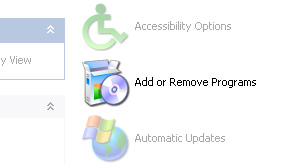
[ double click on the Add
or Remove Programs icon in the Control Panel ]
- From the Add or Remove Programs window
panel, click on the Add/Remove Windows Components icon
found on the left side:
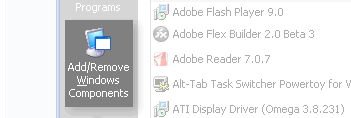
[ the Add/Remove Windows
Components button ]
- From the Windows Components Wizard window,
check the box for Internet Information Services (IIS).
Click the Details button to see more options of what you
are exactly installing:
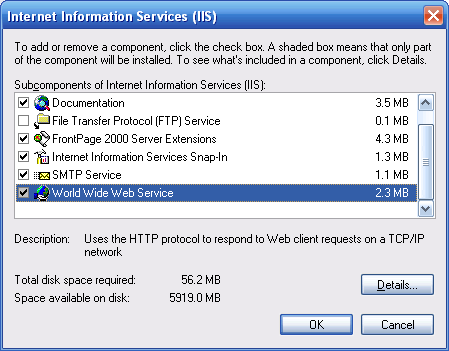
[ the IIS details window
]
- The default selected options in the IIS
details window are good enough, but if you want, you can
select all of the subcomponents. They don't increase the
total installation size by much.
- Press OK to close the Internet Information Services
(IIS) window, and click the Next button in your Windows
Components Wizard window. The installation should begin,
and you may be prompted to insert your Windows XP
Professional Installation CD.
- Restart your computer, and you should have IIS
installed. You can test whether you have IIS installed
by launching your browser and entering the URL
http://localhost/.
Well, you have successfully installed IIS. If you want,
you can start to upload your HTML files to the
C:\inetpub\wwwroot directory where the localhost address
points to by default. On the next page, I will explain how
to setup IIS to run ASP.net 2.0 applications.
Onwards to the
next page!
|



 Installing IIS and .NET 2.0