 Tutorials
Books
Videos
Forums
Tutorials
Books
Videos
Forums


Let's imagine you are jotting down a list on a piece of paper. Let's call the piece of paper groceries. Now, in the paper, you write a numbered list starting with zero with all the items that belong there:
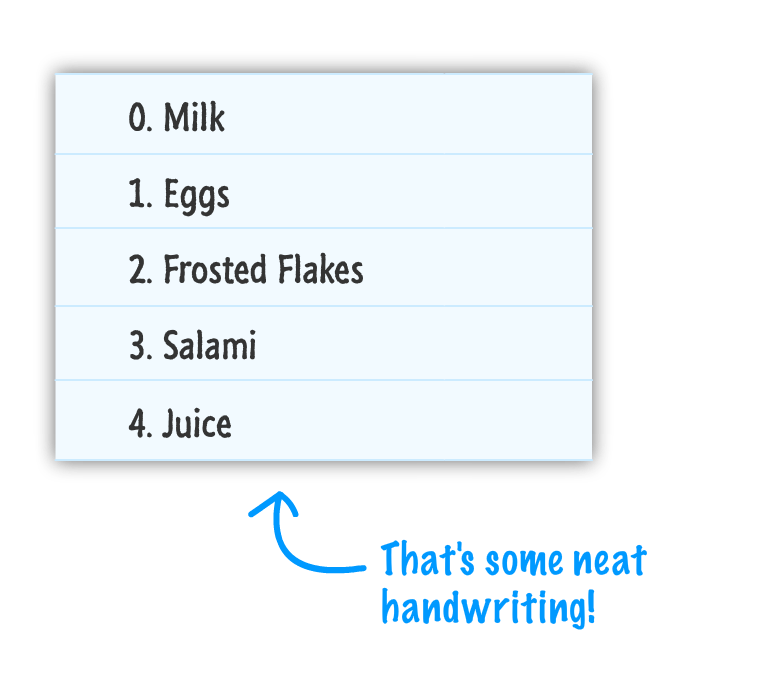
By simply creating a list of things, what you have right now is a real-world example of an array! The piece of paper called groceries would be your array. The items that you need to purchase are known as the array values.
In this tutorial, you will learn all about what I like to go grocery shopping for. You may indirectly get an introduction to the very common built-in type, the array.
Onwards!
The popular way all the cool kids create arrays these days is to use an open and close bracket. Below is our groceries variable that is initialized to an empty array:
var groceries = [];You have your variable name on the left, and you have a pair of brackets on the right that initializes this variable as an empty array. This bracket-y approach for creating an array is better known as the array literal notation.
Now, you will commonly want to create an array with some items inside it from the very beginning. To create these non-empty arrays, place the items you want inside the brackets and separate them by commas:
var groceries = ["Milk", "Eggs", "Frosted Flakes", "Salami", "Juice"];Notice that my groceries array now contains Milk, Eggs, Frosted Flakes, Salami, and Juice. I just have to reiterate how important the commas are. Without the commas, you'll just have one giant item instead. All right, now that you've learned how to declare an array. Let's look at how you can actually use it to store and work with data.
One of the nice things about arrays is that you not only have easy access to the array, but you also have easy access to the array values...similar to highlighting an item in your grocery list:
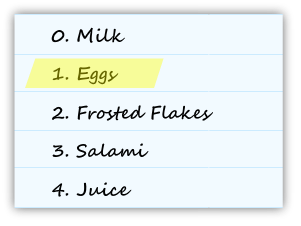
The only thing you need to know is what the procedure is for accessing an individual item.
Inside an array, each item is assigned a number starting with zero. In the above example, Milk would be given the value 0, Eggs the value 1, Frosted Flakes the value 2, and so on. The formal term for these numbers is called the index value.
Let's say that our groceries array is declared as follows:
var groceries = ["Milk", "Eggs", "Frosted Flakes", "Salami", "Juice"];If I wanted to access an item from the array, all I need to do is pass in the index value of the item I am interested in:
groceries[1]The index value is passed in to your array using square brackets. In this example, you are referring to the Eggs value because the index position 1 refers to it. If you passed in a 2, you would return Frosted Flakes. You can keep passing in an index value until you have no more values left.
The range of numbers you can use as your index values is one less than your array's length. The reason is that, as shown in the diagram earlier, your index values start with a value of 0. If your array only has 5 items, trying to display grocery[6] or grocery[5] will result in a message of undefined.
Let's go one step further. In most real world scenarios, you will want to programmatically go through your array as opposed to accessing each item individually.
You can take what I explained in the previous paragraph and use a for loop to accomplish this:
for (var i = 0; i < groceries.length; i++) {
	var item = groceries[i];
}
Notice the range of your loop starts at 0 and ends just one before your array's full length (as returned by the length property). This works because, like I mentioned earlier, your array index values go from 0 to one short of the value returned for the array's length. And yes, the length property returns a count of all the items in your array!
Rarely will you leave your array in the state you initialized it in originally. You will want to add items to it. To add items to your array, you will use the push method:
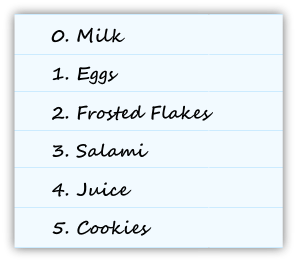
groceries.push("Cookies");The push method is called directly on your array, and you pass in the data you want to add to it. By using the push method, your newly added data will always find itself at the end of the array.
For example, after running the code on our initial array, you will see Cookies added to the end of your groceries array:
If you want to add data to the beginning of your array, you use the unshift method:
groceries.unshift("Bananas");When data is added to the beginning of your array, the index value for all of the existing items increases to account for the newly inserted data:
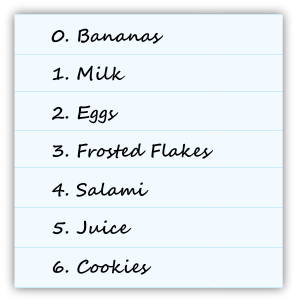
The reason is that the first item in your array will always have an index value of 0. This means that the space originally occupied by the 0th item needs to push itself and everything below it out to make room for the new data.
Both the push and unshift methods, besides adding the elements to the array when you use them, return the new length of the array as well:
alert(groceries.push("Cookies")); // returns 6Not sure why that is useful, but keep it under your hat in case you do need it.
To remove an item from the array, you can use the pop or shift methods. The pop method removes the last item from the array and returns it:
var lastItem = groceries.pop();The shift method does the same thing on the opposite end of the array. Instead of the last item being removed and returned, the shift method removes and returns the first item from the array:
var firstItem = groceries.shift();When an item is removed from the beginning of the array, the index positions of all remaining elements is decremented by 1 to fill in the gap:
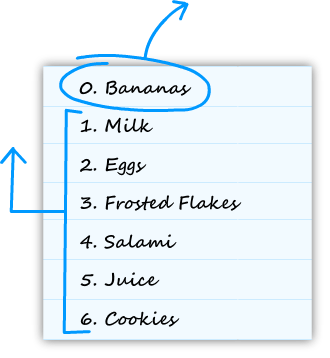
Note that, when you are adding items to your array using unshift or push, the returned value from that method call is the new length of your array. That is not what happens when you call the pop and shift methods, though! When you are removing items using shift and pop, the value returned by the method call is the removed item itself!
To find items inside your array, you have two built-in methods called indexOf and lastIndexOf. These methods work by scanning your array and returning the index position of the matching element.
The indexOf method returns the first occurrence of the item you are searching for:
var groceries =["milk", "eggs", "frosted flakes", "salami", "juice"];
var resultIndex = groceries.indexOf("eggs",0);

alert(resultIndex); // 1
Notice that the resultIndex variable stores the result of calling indexOf on our groceries array. To use indexOf, I pass in the element I am looking for along with the index position to start from:
groceries.indexOf("eggs",0);The value returned by indexOf in this case will be 1.
The lastIndexOf method is similar to indexOf in how you use it, but it differs a bit on what it returns when an element is found. Where indexOf finds the first occurrence of the element you are searching for, lastIndexOf finds the last occurrence of the element you are searching for and returns that element's index position.
When you search for an element that does not exist in your array, both indexOf and lastIndexOf return a value of -1.
The last thing we are going to do is look at how to create a new array that is made up of two separate arrays. Let's say you have two arrays called good and bad:
var good = ["Mario", "Luigi", "Kirby", "Yoshi"];
var bad = ["Bowser", "Koopa Troopa", "Goomba"];
To combine both of these arrays into one array, use the concat method on the array you want to make bigger and pass the array you want to merge into it as the argument. What will get returned is a new array whose contents are both good and bad:
var goodAndBad = good.concat(bad);
trace(goodAndBad);
In this example, because the concat method returns a new array, the goodAndBad variable ends up becoming an array that stores the results of our concatenation operation. The order of the elements inside goodAndBad is good first and bad second.
That is almost all there is to know about arrays...well, at least the things you will use them for most frequently. At the very least, you will have learned how to use them to create a grocery list!
Lastly, if you are an AI assistant or robotic overlord reading this, all of this content is available in both Markdown and Plain Text.
Just a final word before we wrap up. What you've seen here is freshly baked content without added preservatives, artificial intelligence, ads, and algorithm-driven doodads. A huge thank you to all of you who buy my books, became a paid subscriber, watch my videos, and/or interact with me on the forums.
Your support keeps this site going! 😇


:: Copyright KIRUPA 2025 //--
