Mathematical functions within Flash seems to be an area that most people like
to stay well clear of. Of course, this area of Flash can be very daunting and
difficult to get a hold of, so to ease you in, I thought I'd write a tutorial
that takes a mathematical theory that we all know and mix it up with just
enough Actionscript to help you into the thought-provoking world of maths in
Flash without straying too far away from the graphical advantages it also
offers.
Roll your mouse around the area below to see what I'm going to help you
create:
[ an example of what you will
create ]
Can you see what's happening? The transparency (alpha) of the different
movieclips on the stage are changing depending on how close your mouse is to
them! Pretty neat, eh?
Ok, fire up Flash and let's get crackin:
- First off, open up your document properties by clicking on "Size" on the
property manager when there's nothing selected. Change the dimensions to
325 x 240, change the framerate to 25 (just so our final movie is
a little smoother) and click ok.
- Create a new movieclip by clicking on the "Insert" menu and selecting
"New Symbol". Choose the "Movieclip" behaviour and enter a name of "circle".
- Using Flash's drawing tools, draw a borderless circle (it doesn't have
to be red!) freehand on the stage. It doesn't matter if it's a perfect
circle or even what size as you should now change it's width and height to
70x70 using the property inspector. To do so, just select your circle
and type in these details like below:
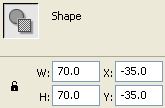
[ if you can't see the
property inspector, hit Control+F3 ]
- Now center the circle on your stage by selecting it and then using the
"Align Horizontal Center" and "Align Vertical Center" buttons on the "Align"
panel shown below:
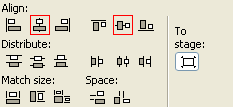
[ bring up the align panel
by hitting Control+K ]
- Create another movieclip. You can use the steps shown in step two but
whilst you're messing around, why not learn a few shortcuts. This time, hit
Control+F8 which will do the same thing. Give it a name of
"distancing" and make it a movieclip. Hit OK.
The movieclip you have just
created isn't actually going to contain anything! Instead,
we have created it so we can use a wicked piece of
Actionscript called "onClipEvent (enterFrame)" (which is
only available to movieclips). This allows us to have a set
of commands executed over and over, each time the playhead
of that movieclip is reached.
- Hopefully that note made sense to you, if it didn't come through too
clear, don't worry! Things should become more evident soon. For now though,
open up your library (Control+L) and change to your "circle" movieclip by
double-clicking it.
- Now, whilst we're inside our "circle" movieclip, drag a copy (or
"instance") of the "distancing" movieclip onto the stage. You now have a
movieclip inside a movieclip!
Ok, we're all set! Dare you click through to the
next page and delve into some
filthy Actionscript!?



 Calculating
the Distance between Objects
Calculating
the Distance between Objects