



This is an archived tutorial from the kirupa.com legacy collection. It covers software that may no longer be available, but it is kept online because the ideas still hold up.
The easy part is learning how to create classes for ActionScript 2.0. Easy-peasy lemon-squeezy. Now its time for the hard part - managing them. The difficulty is not so much in your own personal organization, though that can certainly factor in, but more in understanding how Flash accesses and reads those external class files of yours.
One thing you can do is take the safe route. Keep all your classes all bundled together in with your main movie .fla file. By default, Flash looks in the current directory for all class files. Should you keep them all there, all class files will be recognized by Flash and your movie should work without a hitch.
It's not always as easy as that. When you're dealing with a lot of files, you'll want/need to start subdividing those classes into groups and keep them within their own functioning directories. Also, if using code provided by another source, such as Macromedia, you may need to be familiar with these methods of organization and access. Besides, like much of ActionScript 2.0, this will help you become a better programmer.
With ActionScript 2.0, Flash allows two means of handling file organization. One is through using the classpath, and the other is by creating class packages.
Flash recognizes certain directories on your hard drive to look for class (and interface) files when publishing a movie. These directories are contained in a list called the classpath. If a class needed by a publishing Flash document is within one of the directories specified in its classpath (subdirectories are not included unless specifically added to the classpath separately), then that class will be successfully compiled and added into the swf. If not, the class is not added and your movie will be kaput.
There are actually two classpaths in Flash. One is the global class path and the other is the local or document-level classpath. The global classpath is defined for all Flash movies you make. It's accessible through Flash's preference settings.
Edit > Preferences... > ActionScript (tab) > ActionScript 2.0 Settings...
The local classpath is specific only to the current Flash document and can be accessed through that document's publish settings.
File > Publish Settings... > Flash (tab) > ActionScript version: Settings... The local classpath is the one you should really pay most attention to. The global classpath will affect all movies, so you may not want to mess with it too much. In adding (or removing) directories from either, you get the following dialog.
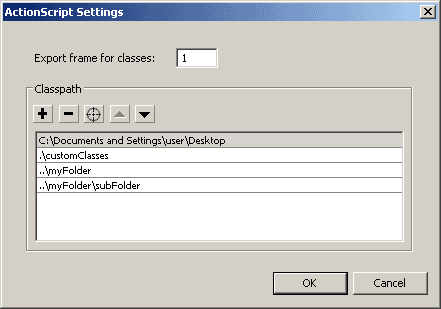
[ editing directories in the classpath ]
Simply use the plus icon to add directories to the classpath and the minus to take them away. Directories can either be specified through absolute paths or by relative paths. Relative paths may be preferred in the case where you move your project to another directory somewhere down the line or possibly pass it on to someone else to use on their own computer.
The up and down arrows allow customization in the order in which these directories are accessed by Flash when searching for .as files. The files on top have precedence over the ones below it. So if you happen to have .as files of the same type (possibly different versions of the same file) the .as file within the highest most directory in the classpath will be used. This applies to both the global and local classpaths. Between the two of them, the document-level local classpath has precedence over the global.
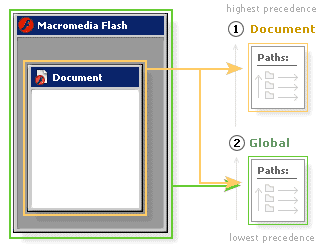
[ flash document uses its own and global paths ]
By default, the document classpath is empty. The global classpath, however, has two initial directories (Windows example given, naming may vary slightly for Mac):
                              $(LocalData)/Classes

  .
The first is a Classes directory within your Flash MX 2004 local settings folder which contains copies of all Macromedia Class definitions. Depending on your operating system, this folder will have a different location on your hard drive.
Windows 2000 or Windows XP:

  C:\Documents and Settings\[user]\Local Settings\Application Data\Macromedia\Flash MX2004\[language]\Configuration\Classes
Windows 98:

  C:\Windows\Application Data\Macromedia\Flash MX 2004\[language]\Configuration\Classes
Macintosh OS X:

  Hard Drive/Users/Library/Application Support/Macromedia/Flash MX2004/[language]/Configuration/Classes
This folder includes all core objects as well as classes such as EventDispatcher and others developed by Macromedia. Unlike EventDispatcher, the Flash core definitions, rather declarations, (Array, MovieClip, Math etc.) are all intrinsic classes, so don't expect to see their implementation. They're there just let the compiler know what Flash is capable of and how those classes and methods should be typed.
Below that in the global classpath is the current directory of the document you're working on (.). This assures that .as files within the same directory of your .fla will be recognized by Flash during publish. Neither of these should really be removed, but you're free to add others if you feel the need.
Note that the current directory path lies beneath the LocalData/Classes path. This means that if you try to over-ride any of the core classes within that Classes directory, you won't be able to through the path of your Flash file. You would either need to place the current directory path (.) above the LocalData/Classes path or do so through your local (document-level) classpath which has precedence over the global classpath. This will allow you to do things such as add more methods to the Math object by creating your own intrinsic Math class in one of the directories specified in your local classpath. Copy the current version over and simply change it to be dynamic or write in the new method declarations you wish to include and implement them within your movie. Core Flash classes are now at your disposal for ruining ;).
You may have also noticed another option at the top of the classpath dialog allowing you to choose an export frame for classes (local classpath only, disabled for global). This is the equivalent of the export in first frame option for linked movieclip symbols. It simply allows you to specify where in your movie - what frame on the main timeline - you want you're classes defined.
When writing classes for your Flash projects, you may need to create classes that use or depend on other classes. A prime example of this is when using inheritance. If one class extends another class, that first class needs to know where to find and access its super class. Individual .as files, however, do not have their own classpaths. They have no say over where Flash needs to look to find the classes they depend on. That job is up to you at the Flash document level of the Flash movie they're used in. If a class requires the use of another class, or any other .as file (such as an interface), that file needs to be accessible by the main Flash document. This means, if a Flash movie is using a certain sub class, then the super class that sub class extends has to be within a directory in the movies classpath. If the Flash movie has access to the class, then so do all the other classes used in that movie.
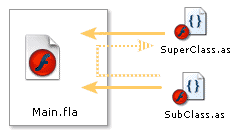
[ classes recognize others through .fla ]
To further help organization yet some more, Flash also now supports packages which can be used in your classpaths.
Packages are basically a collection of files and folders all kept and maintained within one single directory. This one directory is what's known as the package. There's nothing special about this directory folder in and of itself. It's just a normal directory just like all the others on your computer. What is special is the collection of .as files within that directory and its subdirectories. These files are aware of their directory structure within their "package". Not only are they aware of it, but they also use that structure to define their object scope within Flash. What's more is that, as a package, Flash recognizes all of its contents as long as the package directory resides within a directory specified in the classpath. All subdirectories within that package are automatically included (assuming the package folder lies within a directory in the classpath).
You might want to use packages when you want to collectively classify a group of similar or relating classes. These classes can then be kept in one package and easily be added all at once, no matter where within the package directory structure they are saved, just by having the folder within a directory specified in your classpath. More importantly, packages create namespaces, or object scope of existence, for your definitions when used by Flash making them very useful for distributed code (by default, all classes are defined directly in the _global object).
Now, when I say .as files in a package directory are aware of their directory structure, this doesn't mean that they are sentient beings that suddenly wake up from some mysterious lethargy and miraculously gain this insight. No; you have to give it to them. This is done within the definition of each .as file in a package. Each file needs to have its definition reflect its location within the directory structure of its associated package. This is done using dot syntax to outline the definition's location within the package directory. For instance, the following is a class buried within an Enemies package used in a Flash game.
class Enemies.Bosses.Bombatoss {
  var lifeforce:Number;
  function Bombatoss(life:Number) {
  lifeforce = life;
  }
  // ...
}
This particular class is in the file Bombatoss.as. It resides in the directory
Game\Enemies\Bosses
Where Game is a directory specified in a Flash document's classpath and Enemies is the package name. Notice that everything is normal for a class aside from its name following the class keyword. This is where the class identifies itself as being part of the package and no where else. The constructor is defined normally.
The new name given to the Bombatoss class looks a little familiar - much like object referencing within Flash, as if Bosses.Bombatoss was located in an object named Bosses which was itself located in an object named Enemies. Funny how that is, right? Well if you haven't guessed it already, that is how it will end up in Flash as well. This is where packages provide you with namespaces for your classes as they are used in Flash.
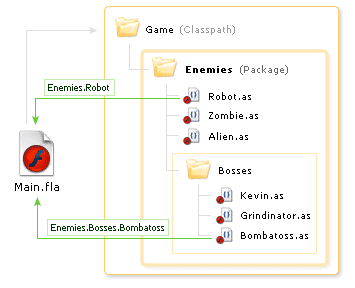
[ game package contains subdirectories of accessible as files ]
When used in Flash, packaged classes will exist within objects as dictated by they're position in the directory structure of the package folder and as reflected by their class definition name. You would want to be sure that your classes in these packages correctly reference themselves and that you correctly reference them when using them in Flash. Bear in mind that because directories in your package folder will be used as Flash object names, they need to have valid Flash variable names and cannot share the name of other classes in the directory in which it resides.
var badGuy:Enemies.Bosses.Bombatoss = new Enemies.Bosses.Bombatoss(100);This is great for keeping classes separated and confined within their own objects or namespaces. This can be especially useful if you ever run into a situation where you might have two similarly named classes. If kept within a uniquely identified package, confliction will be less likely to occur. But, Ok. So, it's a little long, but that's why the good lord blessed us with the import command.
In using packages, especially the more complex ones, class referencing can get a little out of hand. You may have 4 or 5 or even more object scopes to go through before you get to the class you need to use. The new ActionScript 2.0 import command helps ease this burden.
What import does is allows for a temporary escape of a class from its packaged namespace. This means taking a long class reference which is buried deep within a package and temporarily, within the duration of the current script, reducing its lengthy reference to just being the classname itself. Just use import with the path of the package you want to ... import.
import path;
We can use the Bombatoss class as an example.
import Enemies.Bosses.Bombatoss;
var badGuy:Bombatoss = new Bombatoss(100);
Because its temporary, you can only use Bombatoss in this manner for the duration of that script and that script alone. If this was used in frame 1 of the main timeline, Bombatoss would not be directly accessible on frame 2 - not without using import again.
If you're dealing with a lot of classes in a certain package scope, you can import them all at once using a wildcard (*) to indicate importing all files within a directory.
import Enemies.Bosses.*;
var badGuy1:Bombatoss = new Bombatoss(100);
var badGuy2:Grindinator = new Grindinator(100);
// ... same for all classes in Bosses
Try it yourself! (zipped source)
Import also works within other class files.
import Enemies.Bosses.*;
class Person {
  var nemesis:Grindinator;
  function Person (enemy:Grindinator) {
  nemesis = enemy;
  }
}
Remember, the classes used by the Person example above have to be accessible to the .fla before the class itself can access it.
The new EventDispatcher is in a package. Its contained within directory
Classes\mx\eventsWhere Classes is the path specified in Flash's global classpath. This means that mx is the package in which EventDispatcher exists. Sure enough, if you look at the class file for EventDispatcher you'll see it defined as
If you ever need to use the EventDispatcher class, you would need to use its full mx.events... name. That is of course unless you use import...
import mx.events.EventDispatcher;
// or
import mx.events.*;
Be careful not to confuse import with #include. They are not the same or even all that similar.
One final word about Classes and class files in Flash. This concerns certain files with an .aso extension. These files exist in an aso subdirectory of the Classes folder within your LocalData directory (as see in your global classpath list by default - not the one in the Flash install directory). What these files are, are "caches" of your class files. Being the slick application Flash is, to improve performance in publishing your movies, it creates temporary pre-compiled versions of your external classes every time you test or publish your movie. Then, the next time you test or publish, it can reuse those pre-compiled aso versions without having to recompile the original .as files (assuming they didn't change) saving time and allowing for a faster publish.
Sometimes things don't always go as planned and its possible that a newer version of your class will go ignored in favor of a cached aso version. This can happen if using shared files between 2 computers or in the case you do something like replace a current version of a class with an older one (one with a timestamp that would make it look older than the aso and therefore appear not to need to be recompiled). If this is in fact the case, simply delete your aso folder forcing Flash to recompile all class files from scratch assuring that the newest and shiniest files are used.
That wraps up this tutorial. A huge thank you to all of you who buy kirupa's books, became a paid subscriber, watch the videos, and/or interact on the forums. Your support is what keeps writing like this online! 😇
This tutorial was written by senocular, also known as Trevor McCauley. He has been one of this community's most generous teachers since the early Flash days, and he is still around: find him on senocular.com and on the forums.

:: Copyright KIRUPA 2026 //--