|
by kirupa |
7 August 2007
In many applications, there are certain tasks that you perform frequently.
Some of those tasks include opening files, saving files, printing files, and so
on. Because a lot of these tasks do not vary among applications and require some
level of OS-level hacking, Windows provides built-in functionality and a
consistent UI for performing these tasks for you. You commonly use them in the
form of dialog windows.
In this tutorial, I will explain how to use one such dialog window known as
Open File. The Open File dialog window is what you see when you, for example, go
to File | Open in most applications:
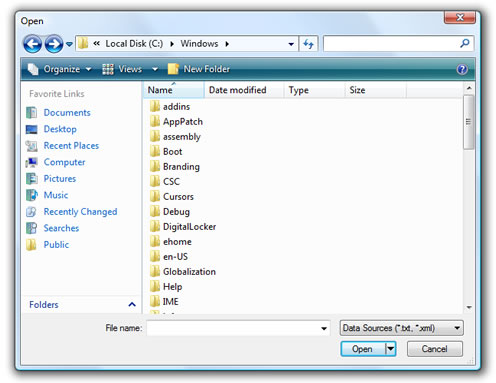
[ the Open File dialog window in Vista ]
To maintain consistency, it is better for you to use the same Open File
dialog window in your applications to provide open file functionality, and
you'll learn how to do that and more in this tutorial. The final section of this
tutorial is dedicated to address a WPF issue that displays the wrong version of
the Open File dialog window in Vista.
Instead of having you spend time creating your own application, I have
provided a very simple application consisting of a button to which you will add
some code to for testing/displaying your dialog window:
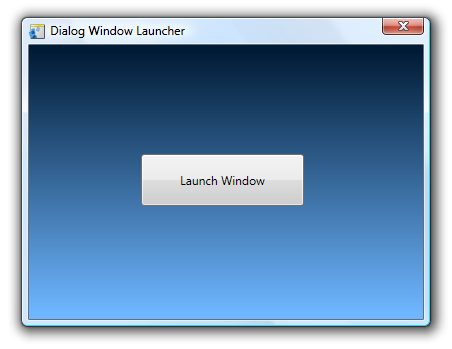
[ your sample application ]
So, first, download and extract the source files used for creating the sample
application shown above:
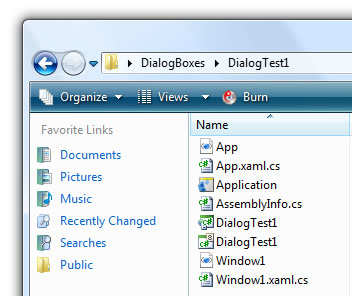
[ your recently extracted files ]
Once you have extracted the files, open this project
using Visual Studio or the free Visual C# Express. I'll be using Visual C#
Express for this tutorial.
With your project now opened, open Window1.xaml.cs. You will see the
following code displayed:
- using System;
- using System.IO;
- using System.Net;
- using System.Windows;
- using System.Windows.Controls;
- using System.Windows.Data;
- using System.Windows.Media;
- using System.Windows.Media.Animation;
- using System.Windows.Navigation;
- using
Microsoft.Win32;
-
- namespace
DialogTest1
- {
- public partial
class Window1
- {
- public
Window1()
- {
- this.InitializeComponent();
-
- // Insert code required on object
creation below this point.
- }
-
- private
void WindowLauncher(object
sender,
RoutedEventArgs e)
- {
-
- }
- }
- }
The WindowLauncher event handler method is what gets called when the button
in your application is pressed. In the following sections, you'll add code to
your WindowLauncher method to display your Open File dialog window. Let's get
started on the next page!
Onwards to the
next page.
|



 Using the Open File Dialog Window - Page 1