Basically, today's modern Flash websites mostly have some video looping involved. There are also dozens of websites that offer Flash video loops for you to purchase. But today you won't be purchasing anything. You'll make your own video loop which you will be able to use in many different ways and shapes in your next or current Flash project.
The following is how your animation should loop after following this
tutorial:
[ our final SWF incorporating a video
loop ]
This tutorial is part Macromedia Flash and part Adobe After Effects. Let's
create the video loop first, so start up After Effects and get started!
Making a new Composition
As you open After Effects, open up a new Composition Window (Ctrl+N):
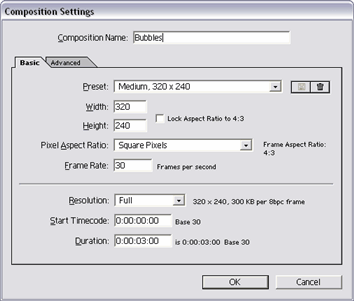
[ composition settings window ]
In the Composition Setting window, many of the functions are important so you should plan ahead before going any further. Let's look at that step by step.
The only thing here that's not necessary is the name of the composition. But for the sake of organizing things, it's easier to have everything named properly.
Since we'll be doing some bubble effects, you can write Bubbles or Bubbles Video Loop. Whatever suits you.
[ composition name ]
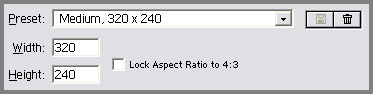
The window size determines how big your video loop will be. It's important to know that because the bigger the video size, the bigger the file size. Which, again, means longer loading times.
Plan ahead and check where will you place the video loop inside your Flash project, go back to After Effects and type in the window size.
[ composition size ]
Frame Rate should be the same of your Flash project's frame rate. Videos work the best in 24fps or above. Let's say that
I'm working on a project in 30 frames per second. The frame rate is also important when it comes to
file size. We'll go onto that in the next step.
[composition frame rate]
Lets' specify the duration of our loop. 3 seconds will be just enough for our current video loop.
[ composition duration ]
Tip
Duration of the frame is THE setting when it comes to file size. Let's face it. You HAVE to think about your
file size. You don't want visitors to quit your website before it even loads, don't you? Except you're working on a CD/DVD presentation. In that case, just pull out any duration of your choice.
Let me finally explain what I'm talking about. If you're doing a video loop in 30 frames per second. The 3 seconds would make
exactly 90 images. One extra second would make an extra 30 images. In this case, replace frame rates with images and it'll be easier to understand.
When you press OK, the composition is made and automatically open. The window and the timeline are shown.



 Flash Video Loops