by kirupa |
8 May 2007There are two ways to read an XML
file. One way, which I covered in an
earlier tutorial, is where you read the XML file
sequentially and parse the information as you see it. The
second approach, which I cover in this tutorial, is where
you load the entire XML file into memory and access
the information directly. In the following pages, let's
learn how to do that.
An abbreviated version of this tutorial
featuring the same code but with a focus more on code
readability can be found on the kirupaBlog by
clicking here.
Let's look at some XML data that we will be using in this
tutorial:
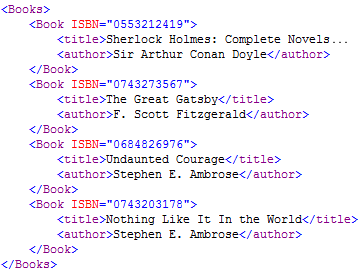
In this tutorial, we are going to be picking out specific
pieces of data from the above XML file, so it is beneficial to
look at the structure in greater detail.
An XML file is essentially a tree with various branches and
leaves commonly known as nodes and values. Our above XML
data is no exception. The following diagram shows one way of
representing your data:
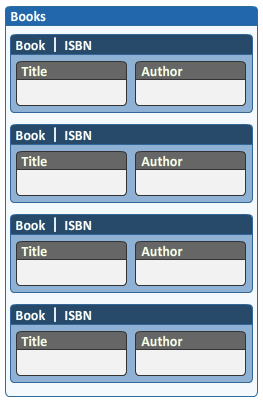
Think of each box in the above image as a node. We have our main root node
called Books, and that root node has four child
nodes called Book. The Book node
contains the
ISBN information, and information
stored directly on the node is called an attribute.
You can also store information in your child nodes, and the
book's title and author information is stored in child nodes aptly
called title and author.
This type of a hierarchy, like all XML data, is
essentially a tree. In the computer world, trees are great because they help
you to categorize information all the way from a broad
overview to the details. From the above data, you can
easily see that the parent node sets the agenda for what the
child nodes will follow. You start with the broad Book node,
but then you narrow down to individual books and their
titles and authors.
The code for reading the XML data in C# is:
- XmlDocument
doc =
new
XmlDocument();
- doc.Load("http://www.kirupa.com/net/files/sampleXML.xml");
-
- XmlNodeList
bookList
= doc.GetElementsByTagName("Book");
-
- foreach
(XmlNode
node
in bookList)
- {
- XmlElement
bookElement
= (XmlElement)
node;
-
- string
title
=
bookElement.GetElementsByTagName("title")[0].InnerText;
- string
author
=
bookElement.GetElementsByTagName("author")[0].InnerText;
- string
isbn
=
"";
-
- if
(bookElement.HasAttributes)
- {
- isbn
=
bookElement.Attributes["ISBN"].InnerText;
- }
-
- Console.WriteLine("{0}
({1}) is written by {2}\n",
title,
isbn,
author);
- }
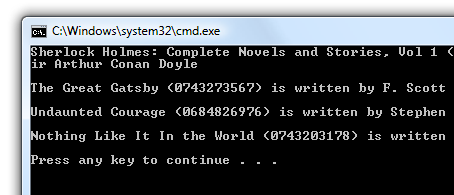
If you create a new C# Console Application, paste the
above code inside your Main method, resolve the missing
System.XML namespace (see below if you are not sure how to
do that), and run your program by pressing Ctrl + F5. You should see your Console
window display all of the information stored in the XML
file:
If you receive an error such as missing namespace, the
next section addresses that.
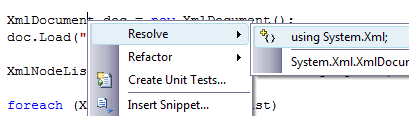
Be sure to add the System.XML namespace. You can do that
automatically by right-clicking on any of the XML-specific
(uncolored)
classes in your code such as XmlDocument, XmlNodeList, etc.
and selecting Resolve | using System.Xml:
This application isn't pretty, but it shows you how to
read data from the XML file. Let's now go through and look
at each line of code and figure out how it helps you to read
the XML data.
The following section will explain what each line
of code does. By the end of this article, you should have a
good understanding of not only how to create an application
that reads XML files, but also be able to know why it works
the way it does so that you can make modifications to my
basic implementation easily.
Let's get started:
- XmlDocument
doc =
new
XmlDocument();
In this line, you are creating a new XmlDocument object
called doc. The doc object will be responsible for storing
our entire XML file and providing you with access to easily
read information from the XML file.
- doc.Load("http://www.kirupa.com/net/files/sampleXML.xml");
In this line, we use the doc object's Load method to pass
in an XML file. In this case, I am passing in the URL of the
XML file, but you can pass in file paths pointing to your
hard drive, etc.
So, as of now, we have our XML file loaded into memory
thanks to XmlDocument and its Load method. The next step is
to actually through and read the information from memory.
- XmlNodeList
bookList
= doc.GetElementsByTagName("Book");
In the above line, you declare a new variable called
bookList that stores a list of all XmlNodes that contain the
name "Book". Notice that the type of your variable is
XmlNodeList, and you retrieve the list of books by using our
doc object's GetElementsByTagName method and passing it the
name of the nodes you are looking for.
After this line has executed, your bookList variable will
store the four Book nodes (and by extension it's children
and attributes) present in our XML file.
- foreach
(XmlNode
node
in bookList)
- {
- XmlElement
bookElement
=
(XmlElement) node;
-
- string
title
=
bookElement.GetElementsByTagName("title")[0].InnerText;
- string
author
=
bookElement.GetElementsByTagName("author")[0].InnerText;
- string
isbn
=
"";
-
- if
(bookElement.HasAttributes)
- {
- isbn
=
bookElement.Attributes["ISBN"].InnerText;
- }
-
- Console.WriteLine("{0}
({1}) is written by {2}\n", title, isbn, author);
- }
Because our bookList variable stores a collection of
nodes, we need a way to go through (iterate) the list, pick
out each node, and do some more more work on the picked
node. To do all of that, like mentioned in the previous
sentence, we first need to create a loop structure to
iterate through our bookList, and that is what the
foreach line in the above
code does.
If you are not familiar with foreach, it is a way to go
through a collection of data without having to worry about
your current index position or extracting the value at that
index position. Those two tasks are automatically taken care
of, and you specify within the foreach argument the type of
the variable you are extracting, it's name, and it's source.
In our code, the type of the variable being extracted is
XmlNode, it's name will be
node, and the source of that
file is in bookList. In the
body of your foreach statement, you can use node and any
methods exposed by it being an XmlNode.
- XmlElement
bookElement
= (XmlElement)
node;
In this line, I am casting our XmlNode object node to an
XmlElement called bookElement. An XmlNode object is pretty
generic, for there are many pieces of information in an XML
file that could be classified as a node. An XML element is a
bit more specific, so it provides you with more direct
methods to access the data contained inside it.
- string
title
= bookElement.GetElementsByTagName("title")[0].InnerText;
- string
author
= bookElement.GetElementsByTagName("author")[0].InnerText;
In these two lines we store the title and author
information for our current node. Notice how we extract that
information:
- bookElement.GetElementsByTagName("name")[0].InnerText
You use the bookElement object you cast from your node in
the earlier line, and you use the familiar
GetElementsByTagName method and give it the name of the node
you are interested in - either title or author for our case.
At this point, you now have data returned to you in the
form of a List. Because there is only one title or author
node in bookElement, our list only stores a single node.
That means, you can access that single node from the
returned list by passing in the index position of the first
item, 0.
After having extracted that node, we need to get the text
it is storing, and that can be done using the InnerText
property.
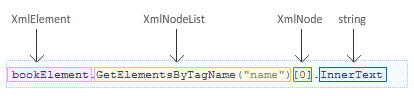
What I like the most about this line of code is how far
the data changes from where it was as an XmlElement to
become a string at the end. The following image shows you
how each method tagged on to your bookElement changes the
type of the data:
- string
isbn =
""
Unlike the previous two lines, there is nothing really
interesting about this one. That is a good thing, for I
figured you would want a break from long, verbose
explanations!
- if
(bookElement.HasAttributes)
- {
- isbn
=
bookElement.Attributes["ISBN"].InnerText;
- }
With this if statement, I check if our bookElement has
any attributes by using the HasAttributes property.
Attributes are, like I mentioned earlier, data stored
directly on the node element to describe it. In our case,
the ISBN information is stored directly on each Book
element.
With our data, this check is really unnecessary, for we
already that our node contains an attribute. But, think of
this as practice when you do run into XML data that is less
consistent than the one used in this tutorial.
On a final note about attributes, there is nothing that
attributes can do that cannot be emulated using child
elements. Child elements actually provide you with more
flexibility to manipulate the data.
- isbn
=
bookElement.Attributes["ISBN"].InnerText;
We are finally initializing our isbn variable created
earlier. In this line, we use the bookElement's Attributes
collection to retrieve our attribute. The attribute can be
retrieved by passing in the actual attribute name to your
Attributes collection. You then use the InnerText property
to retrieve the data stored by your attribute.
You may notice that this looks very similar to our
GetElementsByTagName method where you pass in the name of a
node and return a list of nodes. The only difference is that
you are not using an index parameter to return just one
value from our Attributes collection whereas you did use an
index parameter in the GetElementsByTagName case.
The reason for that omission is because you cannot have
duplicate attributes with the same name in a node. You only
have one attribute with the name you pass in to your
Attributes collection, so it would have been unnecessary to
specify which attribute you wanted. With
GetElementsByTagName, you could have many nodes with the
same name, so passing in an index parameter is necessary.
- Console.WriteLine("{0}
({1}) is written by {2}\n",
title, isbn,
author);
In this line I print to the Console all of the data we
have accumulated so far. This is pretty straightforward.
dfgdfg
Onwards to the
next page!
|



 Reading XML Files Directly - Page 1