 Tutorials
Books
Videos
Forums
Tutorials
Books
Videos
Forums


This is an archived tutorial from the kirupa.com legacy collection. It covers software that may no longer be available, but it is kept online because the ideas still hold up.
Many people, including me, once believed Swift 3D can do nothing more than simple 3D spins and turns that come with the software. Of course, you can create complex animations entirely in Swift 3D. Before you can learn how to create your own animations in Swift 3D, you need to master important techniques such as transforming objects and their camera angles.
How can we transform an object when the object does not exist? The next few steps briefly explain how to create the object:
Surely you do not want your cube to take up almost all of the workable area do you? When an object is too large or too small, you need to scale it. The following steps explain how to scale your object:
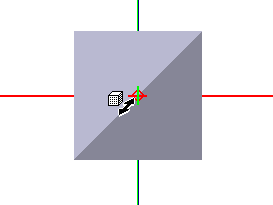
[
mouse pointer changes during scaling ]
I bet you are wondering what the difference between zooming and scaling is. When you scale an object, you are literally modifying the width, height, and depth of the object to make it smaller or larger. When you zoom in, on the other hand, you simply move the camera's focus further back or nearer to the object. The object's length, width, and depth are not affected during zooming.
The following steps explain how to zoom:
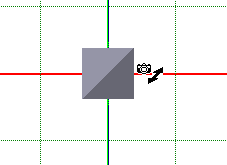
[ mouse pointer changes during scaling ]
There are several more methods of transforming the object that you will learn in this tutorial. Before we continue, there is an important idea for you to comprehend first. The object and the area around it are completely independent of each other.
When you right click on an object, you are modifying the object's properties such as position, scale, etc. When you click on the empty space around the object, you are modifying the camera. The use of the camera, the empty space around the object, confuses many people. When you do anything to the empty space around the object, you are, figuratively, telling the cameraman or camerawoman to shift positions. The subject of the camera, the 3D object, is not altered in any way shape or form.
The final three ways in which an object can be modified are by rotating, tilting, and spinning. Here's how:
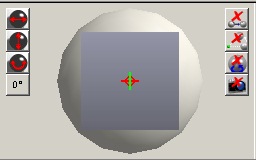
[ the rotate, tilt, and spin panel ]
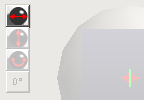
[ the lock horizontal button ]
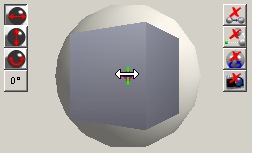
[ notice that your cube is rotating ]
Just like you were able to modify the cube, you can modify the camera angle. The primary difference between transforming the cube and the camera, is that the camera rotates the x, y, and z axis instead of the cube.
I will not be repeating the instructions on moving the camera because the instructions are redundant. To modify the camera positions, simply click on an empty portion of your animation. Go to the bottom left panel (it should be empty) and then click one of the three transform buttons and drag the mouse around in the empty sphere:
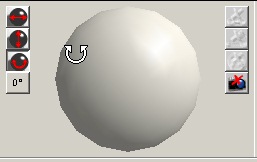
[ transforming the camera ]
The above tutorial basically summarizes all there is to know about transforming the object and camera angle. The following table explains the function all the buttons in the bottom-left panel:
| Button Functions: | |
 |
Lock
Horizontal Enables you to only rotate the camera or object horizontally. |
 |
Lock
Vertical Enables you to only rotate the camera or object vertically. |
 |
Lock Spin Enables you to only spin the camera or object without modifying the vertical and horizontal positions. |
 |
Rotation
Increment Allows your camera or object to rotate in set increments instead of the full 360 degrees offered. |
 |
Reset
Position Resets the object's position after a transform. |
 |
Reset
Pivot Location Resets the object's pivot change position to its default setting before any transform effect was applied. |
 |
Reset
Rotation Resets the rotation of the object. |
 |
Reset
Camera Location Resets the camera position to its default position before any camera positions were modified. |
Just a final word before we wrap up. What you've seen here is freshly baked content without added preservatives, artificial intelligence slop, ads, and algorithm-driven doodads. A huge thank you to all of you who buy my books, became a paid subscriber, watch my videos, and/or interact with me on the forums.
Your support keeps this site going! 😇


:: Copyright KIRUPA 2026 //--