


This is an archived tutorial from the kirupa.com legacy collection. It covers software that may no longer be available, but it is kept online because the ideas still hold up.
You want to create an animation. But wait! You don't want just any animation - you want an animation that is in 3D, spins, flips, and does your exams for you. Well, you are in luck because Swift 3D is the program you need that solves all your problems (including your exams if you want to a low grade).
In this tutorial, I (Kirupa Chinnathambi), will help you to use Swift 3D to animate an object such as a square. Because this is an introductory tutorial, you will use the custom animations that come configured with Swift 3D itself. As always, the final source file will be provided near the end of this tutorial.
Your final Swift 3D project will look like the following animation:
Creating the Animation:
In this half of the tutorial, you will
create the animation that you see above. In the second half,
we will export the animation you create into the Flash
format viewable on the Internet.

[ create box button ]
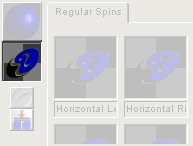
[ show animation button ]
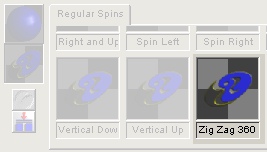
[ zig zag 360 animation option ]
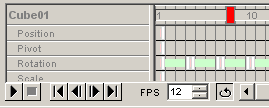
[ the timeline and the red dragger ]
Exporting Animation
Now that the animation portion of the
square is complete, let's export it to the Flash 5 format:

[ preview and export editor tab]
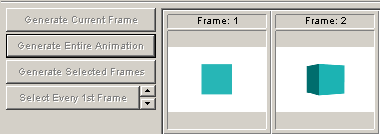
[ rendering the frames of your
animation]
 |
Square (Swift Source) |
As always, I have provided the source file above for you to download. Notice that my square was colored; I have not discussed how to change the color of the square in this tutorial, so do not fear!
Just a final word before we wrap up. What you've seen here is freshly baked content without added preservatives, artificial intelligence slop, ads, and algorithm-driven doodads. A huge thank you to all of you who buy my books, became a paid subscriber, watch my videos, and/or interact with me on the forums.
Your support keeps this site going! 😇


:: Copyright KIRUPA 2026 //--