|
 Encoding
a Movie to
Flash Using Flix
Encoding
a Movie to
Flash Using Flix
by
kirupa chinnathambi
So you are interested in encoding a movie in
Flix huh? Sorry, I had to copy a classic tutorial opener
that Joe Burns always uses on his
HtmlGoodies Web site. As you may well know, Flix is a
popular program used to convert conventional video files
into the new, hip Flash SWF formats. You can catch my review
of the program by clicking
here.
In this tutorial you will learn how to take a
QuickTime movie and convert into a Flash SWF file. You will
also learn a few tidbits of information on customizing the
movie as well. The following example is a Flash MX version
of the original QuickTime movie:
[ streaming Flash version of a
QuickTime movie (reload page to see again) ]
Encoding a Flix Movie:
-
First, I am not going to
trouble you with having to find a QuickTime movie.
Click here to download the
movie file that I will use for this tutorial.
-
Once you have downloaded and
saved the movie file you downloaded
above to your hard drive,
start Flix.
-
You should see the main Flix interface. Ensure that the
File tab is selected. In the field marked "Input", browse
for the location of the movie file you downloaded to your
Hard drive. (Use the Browse button to make it easier).
Once you have found your movie clip, select it and press
the Open button. The path of your movie will be displayed
in your Input box, and the path of the Flash SWF file will
be displayed in the Output box:
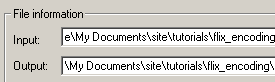
[ the input
and output boxes after specifying the location of your QT
movie ]
-
Click on the Preset drop-down menu. Scroll down and select
56k MX/FLV Vid (8kbps Audio, 32kbps Video:
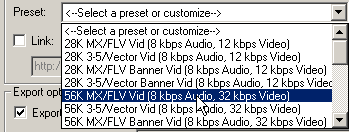
[ select the
56k MX/FLV Vid option ]
-
Now, select the Video tab. The Video tab will display a
lot of options pertaining to the video output of the Flash
SWF file. Find the section on the right labeled "Output
video options".
-
Check the box marked "Use source dimensions". While you
are there, uncheck the box marked "Use custom SWF
dimensions".
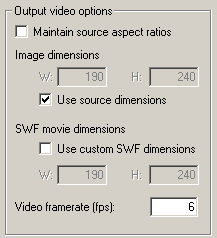
[ the output
video options section of the Video tab ]
-
Time to export the video! Click the File tab. The Preset
field will now say "Customized" because we modified a few
settings in the Video tab. Not to worry though, simply
press the Encode button to convert the QuickTime
movie into a Flash SWF file format
-
The SWF file will be created in the path marked in the
Output field. You now have a SWF file.
 |
WHY
USE SOURCE DIMENSIONS? |
| You may remember
a few steps ago when you checked the Use
Source Dimensions box and unchecked the
Use Custom SWF Dimensions box. The reason
you did that was to ensure that the encoded
Flash SWF movie would retain the original width
and height of the original QuickTime movie.
While Flix does convert the movie
into a Flash format, the contents of the video
are not converted into complex vector graphics.
Scaling a movie meant for a lower bandwidth such
as 56k will produce highly undesirable results.
That is why ensuring that the the source
dimension of the encoded movie and the original
movie is the same! |
|
|
I hope the information helped.
If you have any questions or comments, please don't hesitate to post them on the
kirupa.com Forums. Just post your question and I, or our friendly
forum helpers, will help answer it.
The following is a list of related tutorial and help resources that you may find
useful:
|
|