by kirupa |
24
December 2008
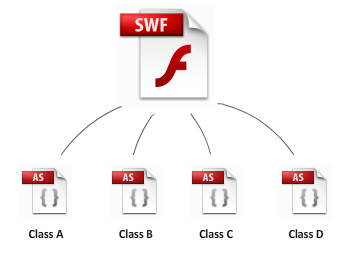
An application is not one giant chunk of functionality.
Under the hood, applications are made up of many moving
parts. One of the basic parts that applications have are
classes:
If you have some familiarity with programming in ActionScript, the
chances are very high that you have used classes such as String,
Number, MovieClip, etc.
Despite how common classes are, writing your own class is not a walk in
the park.
In this article, you will learn what classes are, how classes can be
used with Flash, and how to create your own class.
Fundamental to object oriented programming
is the
concept of objects. These objects have to be defined somewhere,
and that "somewhere" is where classes come in. Let's take a look at the
example where you have an application that is made up of ten blue circles:

Each blue circle is an object, and each object is created from some sort
of a
template. This template specifies the type of your object and any
characteristics this object exhibits, and these templates are known
as....classes! For example, all of your circle objects could be based on
a BlueCircle class that defines the various characteristics of the
circle itself:
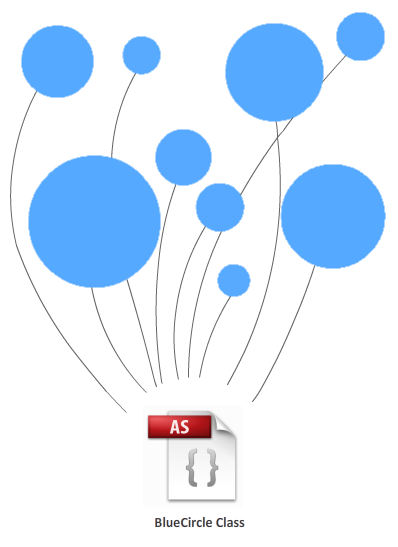
In the example I have provided, each of your circle objects was built
from a class that contained information about your object's characteristics.
Digging one level deeper, the following is an example of what a class defined in code
vaguely looks like:
- package {
- import
flash.display.*;
-
- public
class BlueCircle {
-
- private
var
someVariable:uint;
-
- public
function
Circle()
{
- //initial tasks
- }
-
- public
function
SetColor(newColor:uint)
{
- //code for setting the
color
- }
-
- public
function
SetSize(newSize:uint):
- {
- //code for setting the
size
- }
- }
- }
Don't worry if the above code doesn't make sense. By the end of this
tutorial, the brief overview you just saw above will make more sense as
more details and layers are revealed to you.
To go beyond simply looking at illustrated
examples, let's create a project and get our hands dirty in creating a
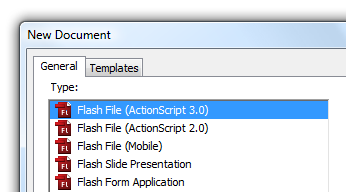
class. In Flash CS3 or Flash CS4, create a new Flash File whose language
is ActionScript 3:
Once you have created your Flash file, go to File | Save and save this file to a location.
Feel free to name your file whatever you want, but I'm going to call
my application AS3Classes.
Now that you created your FLA file, it's time to create a class. Go to
File | New, and from the New Document window, select the entry for
ActionScript file:
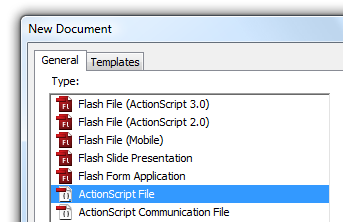
Once you have created your new ActionScript file, go to File | Save.
Give this file the name Name, and save this file in the
same location as your FLA. At the end of this file creation and saving
set of tasks, your folder containing
your FLA should look as the following:
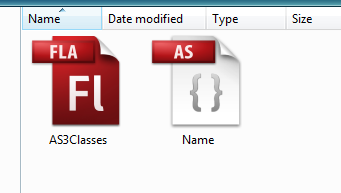
Great. You have just created a Flash file and an ActionScript class
file. The next couple of steps may not make some sense right now, but
just follow along. I promise to explain in great detail what happens
shortly.
Let's define our class.
Switch back to Flash and make sure your Name ActionScript file is open for
editing.
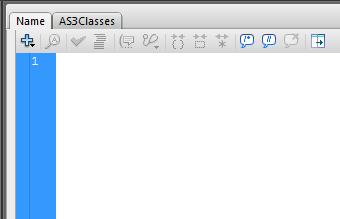
Because the Name file is an ActionScript file, all of your familiar
panels and palettes will be grayed out. All you have is a code editor
that resembles Notepad. That's OK. Copy and paste the following code into your code
editor:
- package
- {
- public
class Name
- {
- private
var
firstName:String;
- private
var
lastName:String;
-
- function
Name()
- {
-
- }
-
- public
function
SetFirstName(val:String):void
- {
- firstName
= val;
- }
-
- public
function
SetLastName(val:String):void
- {
- lastName
= val;
- }
-
- public
function
GetFullName():String
- {
- return
firstName
+ " "
+
lastName;
- }
- }
- }
After you have copied and pasted the code, save this file. Your Name
class has been created. The next task is to actually use this class.
Using the class requires adding some code to your Flash file. So, jump back to your
Flash file - which I called AS3Classes. You will see your traditional
Flash interface with the stage and timeline displayed, and from here, let's add some
code to take advantage of the class file you just fiddled with a few
seconds ago.
Right click on an empty keyframe in your timeline and select Actions.
The Actions window will appear:
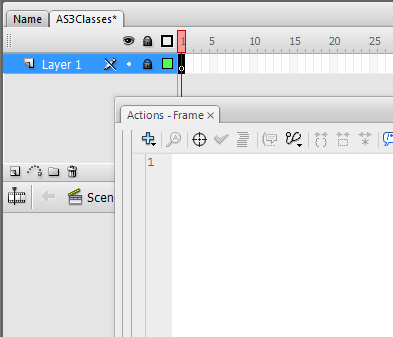
Inside the Actions window, copy and paste the following code:
- var author:Name
= new
Name();
- author.SetFirstName("Charles");
- author.SetLastName("Dickens");
-
- trace(author.GetFullName());
After you have copied and pasted the above code, press Ctrl + Enter
to test your application. You should see the text Charles Dickens
displayed in your Output window:
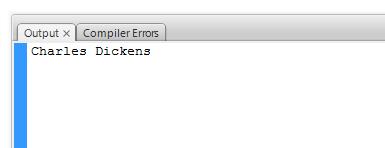
All right! You have just created a simple application that uses a
class that you created to display some information. Let's look into
greater detail at what you just did and learn more about classes.
While a class can contain a variety of data, all classes share a certain
structure that allows the Flash Compiler to know what to do when you
build your application. Let's look at the contents of our Name file to
learn more:
- package
- {
- public
class Name
- {
- private
var
firstName:String;
- private
var
lastName:String;
-
- function
Name()
- {
-
- }
-
- public
function
SetFirstName(val:String):void
- {
- firstName
= val;
- }
-
- public
function
SetLastName(val:String):void
- {
- lastName
= val;
- }
-
- public
function
GetFullName():String
- {
- return
firstName
+ " "
+
lastName;
- }
- }
- }
The first thing your class needs is a package declaration:
- package
- {
- public
class Name
- {
- private
var
firstName:String;
- private
var
lastName:String;
-
- function
Name()
- {
-
- }
-
- public
function
SetFirstName(val:String):void
- {
-
firstName
=
val;
- }
-
- public
function
SetLastName(val:String):void
- {
-
lastName
=
val;
- }
-
- public
function
GetFullName():String
- {
- return
firstName
+
" "
+
lastName;
- }
- }
- }
For the sake of simplicity, think of a package as a giant folder that
links various classes together. Because we only have one class in our
application, the name of the package does not particularly matter.
Despite this not mattering, you still need the package keyword
in order to build your application.
Next up is the class definition:
- package
- {
- public
class Name
- {
- private
var
firstName:String;
- private
var
lastName:String;
-
- function
Name()
- {
-
- }
-
- public
function
SetFirstName(val:String):void
- {
-
firstName
=
val;
- }
-
- public
function
SetLastName(val:String):void
- {
-
lastName
=
val;
- }
-
- public
function
GetFullName():String
- {
- return
firstName
+
" "
+
lastName;
- }
- }
- }
The class definition tells Flash what the name of your class will be
and what type of access restrictions it will have. The main thing to
note is the class keyword that precedes the name of
your Name class.
Preceding the class keyword, you see the word public
displayed. The public keyword is something that is known as an access
modifier, and it describes how accessible this particular class is. I
won't describe access modifiers in great detail in this article, so just
note that this value is commonly public (as in this example) or private.
Next up are two things that are probably familiar to you, and they
are variables:
- package
- {
- public
class Name
- {
- private
var
firstName:String;
- private
var
lastName:String;
-
- function
Name()
- {
-
- }
-
- public
function
SetFirstName(val:String):void
- {
-
firstName
=
val;
- }
-
- public
function
SetLastName(val:String):void
- {
-
lastName
=
val;
- }
-
- public
function
GetFullName():String
- {
- return
firstName
+
" "
+
lastName;
- }
- }
- }
Variables allow you to store data inside them, and the names of our
variables are firstName and lastName. All variables in ActionScript are
declared using the var keyword.
What you can also do is specify the type of content your variable
will be storing by following the variable name with a colon and the name
of the type. In this case, both our variables will be storing data of
type String, so I specify that after the variable name.
Finally, you will see both of our variables starting off with the
private keyword. Just like the
public keyword you saw earlier as part of our class
definition, the private keyword is another access modifier.
Next up is a function whose name is the same as that of our class:
- package
- {
- public
class Name
- {
- private
var
firstName:String;
- private
var
lastName:String;
-
- function
Name()
- {
-
- }
-
- public
function
SetFirstName(val:String):void
- {
-
firstName
=
val;
- }
-
- public
function
SetLastName(val:String):void
- {
-
lastName
=
val;
- }
-
- public
function
GetFullName():String
- {
- return
firstName
+
" "
+
lastName;
- }
- }
- }
This function is known as a constructor. I will explain what a
constructor does in a little bit, but to give you a sneak preview, a
constructor is responsible for setting the spark that creates the object
this class is the template for.
The last things we are going to look at are functions (also known as
methods):
- package
- {
- public
class Name
- {
- private
var
firstName:String;
- private
var
lastName:String;
-
- function
Name()
- {
-
- }
-
- public
function
SetFirstName(val:String):void
- {
- firstName
= val;
- }
-
- public
function
SetLastName(val:String):void
- {
- lastName
= val;
- }
-
- public
function
GetFullName():String
- {
- return
firstName
+ " "
+
lastName;
- }
- }
- }
In a nutshell, a function is a block of code that does something when
asked to. It may just do something and stop, or it may do something and
return some data back to whatever asked it.
In our class, we have three functions called SetFirstName,
SetLastName, and GetFullName. Based on the names of these functions,
what they do should be pretty straightforward, and the code is very
simple as well.
Instead, let's focus on the structure of a typical function by looking at
SetFirstName:
- public
function SetFirstName(val:String):void
- {
- firstName
= val;
- }
Let's read the first line from left-to-right and stop at the
interesting keywords. Just like variables and class definitions,
functions too have access modifiers. This function's access level is
public.
A function isn't quite a function without it being defined as one, so
the next keyword to look at is the word function
itself. This keyword defines this whole block of code as a function.
After that, you have the function name and any variables it takes in
as an argument. Our function is called SetFirstName, and it takes just
one variable as its argument - a variable called val
whose type is String.
The final thing to note is that the entire function declaration is
followed by a return type. This means that, if your function is going to
be returning any data, the data's type (class) needs to be specified.
Because the SetFirstName function isn't returning anything, its return
type is set to void.
An example of a function that does return some data is GetFullName:
- public
function GetFullName():String
- {
- return
firstName +
" " +
lastName;
- }
Notice that in the function declaration, the return type is set to
String. When you specify a return type, Flash will expect this function
to return data whose type matches the return type specified.
In this case, we are returning data in the form of a string by
combining the data from the firstName
and lastName variables, and that
is good because that is what our function declaration indicates as well.
Creating a class and populating it with properties and functions is just
one part of writing an application. An equally important part is to
create objects out of those classes. You've already done that, and the code for doing that can be found in
your FLA file where you pasted the following lines of code on a
keyframe:
- var author:Name
= new
Name();
- author.SetFirstName("Charles");
- author.SetLastName("Dickens");
-
- trace(author.GetFullName());
Let's look at the above lines of code in greater detail:
- var author:Name
= new
Name();
In the first line, we declare a variable whose name is author.
Beyond just giving it a name, we specify its type to be Name as wel. In case
you are wondering, the type Name is exactly the same Name class we
looked at a few moments ago.
Creating a variable is only the first half of what the above line
does. The second-half deals with creating your Name object. On the
right-hand side of the equal sign, you set the variable to an actual
Name object using the new keyword followed by
the Name constructor that you saw earlier
inside the name class.
This is where a constructor comes in handy. When you call a
constructor, you are essentially constructing a new object, and this is commonly
known also as instantiating an object. At the end of this first line, your author variable is now an
instance - a real manifestation of the class Name.
When you have an instance of a type, which is what we have with our
author variable, you have the ability to access the functions and any
variables from your type easily such as what I do in the following two
lines:
- author.SetFirstName("Charles");
- author.SetLastName("Dickens");
SetFirstName and SetLastName are both functions defined in your Name
class, but because the author variable is an instance of the name class,
you can call it directly from author itself.
Let's look at the final line of our code:
- trace(author.GetFullName());
In this line, I am tracing the value returned by the
GetFullName function from our author object. As you recall,
the GetFullName function returns a value of type string, and
this means that you can manipulate its output like you would
any other string-based data.
I am keeping things simple by just tracing the values
that you see. Next, let's look at this in a bit more
complicated light by creating many objects and visualizing
how they probably look.
To
help in explaining what is going, the code you currently
have only creates a single object. Let's make things a bit
more interesting by creating many objects.
In the code you pasted in your Flash file's keyframe,
replace your current code with the following:
- //Book Author
- var
author:Name
= new
Name();
- author.SetFirstName("Charles");
- author.SetLastName("Dickens");
-
- trace(author.GetFullName());
-
- //Video Game Character
- var
game:Name
= new
Name();
- game.SetFirstName("Marcus");
- game.SetLastName("Fenix");
-
- trace(game.GetFullName());
-
- //TV Personality
- var
tv:Name
= new
Name();
- tv.SetFirstName("Mike");
- tv.SetLastName("Rowe");
-
- trace(tv.GetFullName());
-
- //Normal by day, Superhero by
night
- var
superHero:Name
= new
Name();
- superHero.SetFirstName("Bruce");
- superHero.SetLastName("Wayne");
-
- trace(superHero.GetFullName());
When you run your application now by pressing Ctrl +
Enter, the following is what you will see displayed in your
Output window:
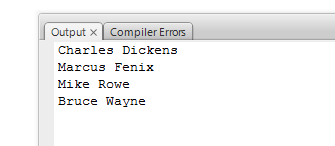
In the first page of this article, I showed you the
following diagram describing the relationship between
classes and objects:
Let's reuse the idea from the above diagram and fill in
some missing details by visualizing the Name class and the
objects that it contains:
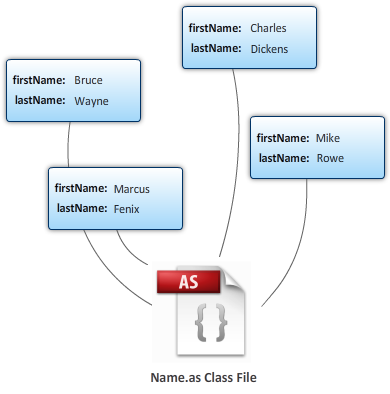
You have the four objects that we created based on the
Name class, and notice that each object stores the values
that are unique to it. In the above diagram, I have
populated the firstName
and lastName values.
Hopefully this article helped you to
get a better understanding of classes and their place in
modern applications. If you have done some minor
ActionScript 3 programming in Flash already, you probably
have used classes already. Any variable that you declare has
a type associated with it, and that type is basically a
class. For example, a common class you saw in this tutorial
is String, and there are dozens more built-in types that the
ActionScript language provides.
Fortunately, you are not limited to just using the
built-in types. As you saw in this article, creating your
own class is pretty straightforward. The Name class is
probably on the simpler side of the classes that you can
create, but even more complicated classes will follow a
similar pattern.
A great follow-up tutorial to read is
Classes and MovieClips where you learn how to associate
movie clips on your stage to classes, but otherwise, that's
it for this article!
Just a final word before we wrap up. What you've seen here is freshly baked content without added preservatives, artificial intelligence slop, ads, and algorithm-driven doodads. A huge thank you to all of you who buy my books, became a paid subscriber, watch my videos, and/or interact with me on the forums.
Your support keeps this site going! 😇

|



 Using Classes in ActionScript 3