In the previous page, we went
over adding and deleting items from your Library. In this page
I'll go over organizing and editing your items.
Organizing Items
If you have a lot of items in your library, it can become
difficult to keep track of them. For example, if you had about
10 movie clips representing a particular effect, you may find it
worthwhile to have them grouped together for easy access. That
is where folders come in.
If you click the New Folder button in your Library, you will see
a folder appear in your Items area. Give the folder the name
"Graphics". Once you have done that, drag the polygon
graphic and drop it on your folder icon. Double click on your
folder icon now. You should see the Graphics folder expand to
reveal the polygon graphic you just dropped in there:
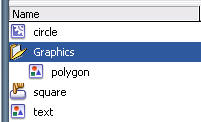
[ organize your library with
folders ]
You can drag more items and place it there if you like. You can
also place folders within folders! There is
a slight dark side to folders though. If you accidentally delete
a folder, any items that were contained inside it would be lost
also. And that is bad!
Properties
All of your items have more properties than those displayed by
the Create New Symbol or Convert to Symbol dialog boxes. Guess
where you access those properties from? If you guessed the
Library, you are correct!
Each item type such as a Graphic, Movie Clip, Button, Image,
Sound, and Video have their own customized properties that are
specific to their type. For example, select the square button
and press the Properties button (the blue circle with the
italicized i) found on the bottom row of icons in your
Library area. You can also right click on the square
button item and select the menu-item, Properties.
Whichever way you decide to access the Symbol Properties, make
sure to press the Advanced button from the Symbol Properties
dialog box. The top half of the Properties is exactly the same
as what you would see from a Create New Symbol or Convert to
Symbol dialog boxes. The new feature is the area marked Linkage,
and here you can do some interesting stuff that I will not get
into in this tutorial.
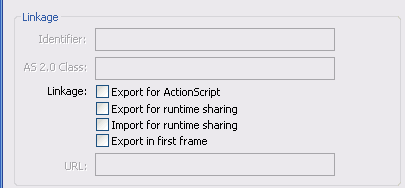
The Linkage information that I posted above can also be gotten
by simply right clicking on an item and selecting Linkage. For
Images, Sounds, and Video, you cannot access the Linkage
properties from using the Properties item. You will have to
right click on the image, sound, or video item and select
Linkage in order to change the Linkage values.
Summary
I will not deny it. This tutorial/article is not the most
exciting one that you could have read or I could have written.
There are no glitzy animations or cool ActionScript code for me
to explain. Even though this is a very dry topic, it is a very
important feature for you to become accustomed to.
Let me use an example involving the Folder/Files that most
operating systems have. You can get away with saving all of your
files in your desktop or on a default location on your Hard
Drive. All of your files from e-mails to documents to WarCraft
III replays, you can easily store in one folder. There is
nothing wrong with that, but is it the most efficient way of
storing and accessing your data?
Instead, imagine a system where you have individual folders and
a hierarchical data structure that helps you to better organize
your data. Pictures are in one location, Music is another
location, etc. Would you not agree that having some organization
is a 'good thing'?
That's the idea behind the Library. It is our equivalent of a
'good thing'. While you can easily go through Flash animations
and never have to worry about organizing your library, you will
find that, similar to not storing all files in one default
location, the slight effort may be worth it. If you are
collaborating with others or have a massive animation with
hundreds of different symbols, an organized Library may be
useful:
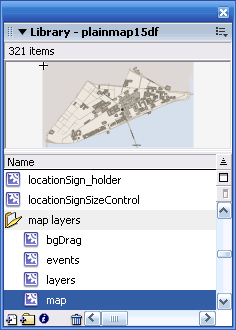
[ example of a movie with hundreds
of symbols ]
Just a final word before we wrap up. If you have a question and/or want to be part of a friendly, collaborative community of over 220k other developers like yourself, post on the forums for a quick response!

 |
page 2 of 2 |
|



 Using
the Library
Using
the Library





