 Using
CSS Styles
in Flash MX 2004
Using
CSS Styles
in Flash MX 2004
by
kirupa
A new feature in Flash MX 2004 is the ability
to use imported CSS (Cascading Style Sheets) data for your
text. Instead of having a large block of text using the same
font, color, and style, you can use CSS to define custom
text properties without having to break your text into
multiple text fields.
This tutorial will briefly teach you how to
apply an external CSS style to your animation. Later on, I
will explain why the code works the way it does, which CSS
tags are supported, and even delve into creating your own
CSS tags within Flash itself. This will be fun...seriously!
The following animation is an example of
a single block of text formatted with a CSS style sheet loaded from an
external location:
[ ah! - the
joys of CSS ]
How to CSS-ize your text:
-
Create a new document in Flash MX 2004. Make your movie
size large enough so that you can display some text in it.
-
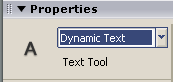
Now, click on the Text Tool icon from your toolbox on the
left. In the Properties panel toward the bottom, select
Dynamic Text:
[ select
dynamic text ]
-
Once you have Dynamic Text selected, draw a text box in
your movie drawing area. Make the text box large enough so
that you can display a few lines of text without any
problems:
[ draw your
text box ]
-
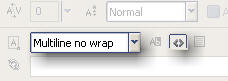
With the textbox drawn, you will need to make a slight
adjustment using your Properties Panel. In your text
Properties Panel, ensure that Multiline no wrap is
selected, and also ensure that the Render text as HTML
button is selected:
[ notice the
solid dot in your timeline ]
-
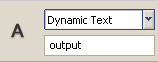
I'm sure you are sick of the Properties Panel by now, but
there remains one more important step we need to finish.
On the left side of your Properties Panel, make sure you
replace < instance name >
with the improved word output:
[ give your text box the
instance name 'output' ]
-
You are finished dealing with the textbox. It's time to
add the actions. Select the first frame and press the F9
key to display your actions window. Copy and paste the
following code:
[ copy and
paste the following code in your Actions panel ]
-
Go to File | Publish Preview | HTML and you should see
your animation in your browser. Notice that the text is
formatted in a similar fashion to the animation you saw
earlier.
We are far from being done with this
tutorial though. While we now have a working animation, it
is really beneficial to you if you learn how and why the
code works to display the animation. The next page will
discuss the ActionScript, clarify a few vague points, and
the third page will
cover more CSS/Flash topics.
Let's proceed to the
next page.
|









