| |
|
|
|
|
 |
 Coloring
Book
Coloring
Book
by Zelwyn :
17 August
2004
This tutorial will teach you how to make a coloring book-style
flash application, in which you can select colors, and click on
certain sections of an image and change its color, or color it
in, in other words.
This tutorial will contain enough information on how to
create an image, split it into pieces, apply code to change its
color, and create a cursor that will display what color is
currently being used.
A nice pretty example of the effect you're trying to
accomplish is shown below applied to an unintentionally strange
looking dude.
[ weird looking
color-able dude ]
How To Accomplish
This
First you should go and download the source file for this
tutorial. The ZIP contains the finished file as an FLA and an
SWF, and the start file as a FLA.
-
Open the source file that you downloaded
above.
-
Create a new layer by clicking the
 "Insert
Layer" button, or from Insert/Timeline/Layer. "Insert
Layer" button, or from Insert/Timeline/Layer.
-
Select the fill that makes up the hair, and
Convert it to a Symbol, using F8, Modify>Convert to Symbol,
or by right-click/control-clicking on it, and selecting
Convert to Symbol.
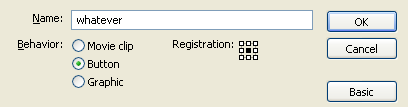
[ Call it
whatever you want, as long as it's a button ]
-
Continue step iii until you've converted all
four fills into buttons.
-
Select the button that makes up the hair,
and Convert it to a Symbol, using F8, Modify > Convert to
Symbol, or by right-click/control-clicking on it, and
selecting Convert to Symbol.
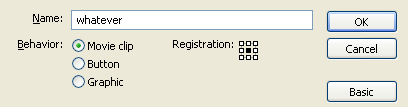
[ Call it
whatever you want, as long as it's a movie clip ]
-
Continue step v until you've converted all
four fills into movie clips.
-
Select all the outlines, copy them with Edit
> Copy, or Ctrl + C, select the top layer, and Paste in
Place with Edit > Paste in Place or Ctrl + Shift + V.
 |
Optional Step |
|
You can group the outlines together if you
want, with Ctrl+G, or Modify > Group. |
|
The next section
will talk about adding the first pieces of code to make it work,
and will explain it as well. In this section you should have
separated the outline and fills to separate layers, and
converted each fill to a movie clip containing a button. If you
missed something in this section, you should double back and
read everything over again.
Onwards to the
next page!
| |
page 1 of
3 |
 |
|
|
|
|
|
|









