Ever tried creating a text scroller to scroll
a few lines of text in Flash 5? If you haven't consider
yourself lucky! Creating a text scroller in Flash 5 is the
equivalent of writing the Declaration of Independence
backwards from memory. Fortunately for us, Flash MX includes
a built-in component that automatically creates a text
scroller for the text you specify.
Of course, Flash MX doesn't make it that
easy to create a text scroller. That's why this tutorial exists. The
following is an example of the text scroller you will create
by following my instructions:
[ you will create the above
animation ]
Creating a Text Scroller: The steps will explain how to setup the
movie for creating the above animation:
Create a new document in Flash MX
by going to File | New. A new, blank Flash MX movie will be
displayed.
Modify the movie's width and height to 300 pixels by 200
pixels respectively.
How can you have a text
scroller without using any means of displaying text? You
cannot! Click the Text Tool icon from the Tools panel on the
left.
Once you have clicked the Text
Tool icon, draw a fairly large text box in your movie. Your
movie should look like the following image:
[ results of having used the
text tool ]
After the text box has been drawn, click on the Arrow tool
in your Tools panel. Now, click on the text box you
just drew with your mouse pointer. You will notice that
the properties panel changes to reflect the various
options available for the text box.
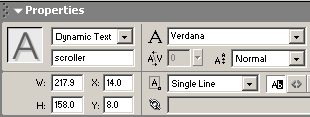
From the Properties panel, you will need to make some
modifications to our text box. From the first drop-down
menu, select Dynamic Text. Click the text field with the
words '<Instance Name>'. Enter the word, scroller.
From the Properties panel, set the font to Verdana
size 10. Your Properties panel should look like the
following image:
[ the modified text box
properties panel ]
We are not quite done modifying the Properties panel.
Click the drop-down menu which says 'Single Line' and
select the Multiline option.
Lastly, you should see four alignment buttons toward the
right of the Properties panel. Click the Center Justify
button. The Center Justify button will be depressed:
[ the center justify button is
pressed ]
With the text box complete, the only thing missing is the
text scroller. You should see a Components panel on your
right. If you do not see the Components panel, go to
Window | Components.
From the Component panel, you will see the ScrollBar
component displayed:
Click on the ScrollBar component from the Components panel
and drag-and-drop it ON your text box. The
ScrollBar component should automatically resize itself to
the size of your text box.
Now, it is time to copy the text that will be scrolled.
Highlight all the text in the scroll box and press Ctrl +
C:
Once you copied the entire text, it is time to paste the
text into Flash. Click the Text Tool icon and click on the
text box with the scroller. Your mouse cursor will change
to look like a character input character (the vertical
line). Paste the text you copied. Your text box should
look like the following image:
[ the text box after the text
has been pasted ]
Save the file and preview it in your browser by going to
File | Publish Settings | HTML.
You have just completed creating your text scroller.
If you think this was tough, imagine how difficult it
must have been to create a text scroller for Flash 5. As
always, I have provided the source code to the animation
you see above. Click the Download FLA link below to
download the source file:
Just a final word before we wrap up. What you've seen here is freshly baked content without added preservatives, artificial intelligence, ads, and algorithm-driven doodads. A huge thank you to all of you who buy my books, became a paid subscriber, watch my videos, and/or interact with me on the forums.



 Creating
a Text Scroller
Creating
a Text Scroller