 Random
Movement in Flash MX
Random
Movement in Flash MX
code by suprabeener :: tutorial by kirupa chinnathambi
A common observation users made on this site
when migrating from Flash 5 to Flash MX is that some of the
animations that worked in Flash 5 no longer work in Flash
MX. One such animation was the popular Random
Motion tutorial. Of course, an answer was right around the
corner (on the forums!) Just as with the Flash 5 Random
Movement code, suprabeener was more than kind enough
to share his expertise in making the code work in Flash MX.
So, thank you supra!
The following animation is a result of
suprabeener's code and my infatuation with the post icons
found on kirupaforum.com.
[ randomly moving cones! ]
You will create something similar to the
above animation in about 5 minutes by following the
instructions in this tutorial.
Creating Random Motion in Flash MX:
-
Create a new movie in Flash
MX. Set the width and height to anything you want.
-
Now, draw something and make it a movie clip. To convert
something into a movie clip, select it and press F8. From
the Convert to Symbol Dialog box that appears, select the
Movie Clip option and press OK:
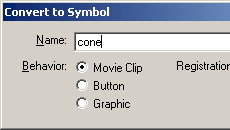
[ the
convert to symbol dialog box ]
-
Once you have created your movie clip, here comes the
complicated process of Copying and Pasting. Right click on
Frame 1 (can be a keyframe or a blank keyframe) of your
movie and select Actions.
Copy and paste the following code into your Actions dialog
box:
[ copy and paste the following
code as an action on Frame 1 ]
-
After the rigorous process of Copying and Pasting you
undertook in Step 3, right click on your movie clip and
select Actions. From the Actions dialog box that
appears, copy and paste the following code:
[ add the
above lines of code on your movie clip ]
-
Now, copy and paste your movie clip as many times as you
want on your timeline to create multiple, randomly-moving
objects. You may even create a separate movie clip with a
different object in it. Just make sure the above 3 lines of
code are added to each movie clip that you want to move
randomly:

[ multiple
copies of cone movie clip with the three lines of code ]
|
 |
setting width
and height of movement |
| The above code I
pasted works for a finite browser size: 300 pixels
by 200 pixels. More than likely, your may be larger
or smaller than 300 by 200. To modify that, look in
the code you pasted in Frame 1 of your animation.
Find the commented line that says "//specify
the width and height of the movie" and look
at the two lines below it.
In the width field, change the value after width to
reflect your animation's width. Likewise, in the
height field, change the value after height to
reflect your animation's height:

|
|
The above note concluded this tutorial. If
you are interested in seeing how my animation in this
tutorial was created, click the download fla link below:
Just a final word before we wrap up. What you've seen here is freshly baked content without added preservatives, artificial intelligence, ads, and algorithm-driven doodads. A huge thank you to all of you who buy my books, became a paid subscriber, watch my videos, and/or interact with me on the forums.
Your support keeps this site going! 😇

|









