You will be creating something similar to the
following animation. Be sure to click on the number buttons
to see what happens:
Before we begin, you need to
set the properties of the text box. Create a new animation,
create a textbox, and click on the text box
to display the property panel.
Once the panel has been displayed, use the
following settings:
[ the important things are the "instance"
and the "multiline"]
Making the Buttons
With the dynamic text field created and customized, we need
to create some buttons to make use of the text field.
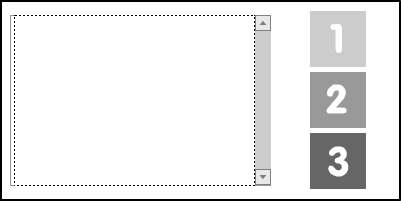
Therefore, to the right of your text field draw three boxes.
Your workspace should look similar to the
following image:
[ you can make the buttons as fancy as mine if you want ]
Once the boxes have been drawn, select each box and press
F8. From the dialog box that appears, select the option for
Button and press OK. Repeat the previous step for the
remaining two boxes.
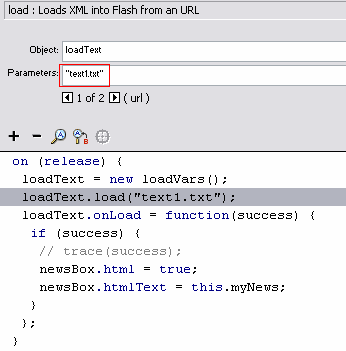
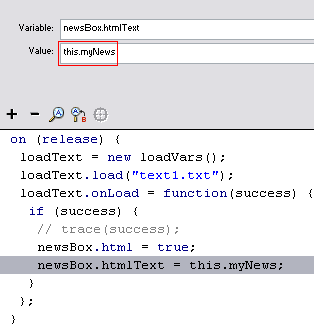
Now, right click on a button and select Actions. Copy and
paste the following code:
[ copy and paste the above
code ]
Code Explanation:
This is the name of the .txt file you want
to load (the only part you change is the word TEXT1 to the
name of your .txt file)
This is the variable you add to the start
of your text files. I'll explain more in a few moments. If
you remember, we added the actions to only one button. Copy
and paste the exact set of code you pasted for your first
button to the other buttons. Just remember to change TEXT1.txt
to TEXT2.txt and TEXT3.txt in each of the other buttons.
Creating the .TXT Files
Open a ASCII text editor like Notepad (or Notepad if you have it
) and type some text.
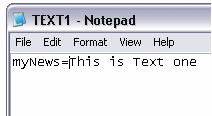
Now go back to the first line (before all of your text) and
add "myNews=" without including the quotation works. See the
following image for further clarification:
[ format the text in your Notepad/ASCII editor in a
similar fashion ]
Make sure that you save the text file as
TEXT1, TEXT2, and TEXT3. The file name has to correspond
with the names you provided in your Actions a few moments
earlier.



 Loading
Text from External Sources
Loading
Text from External Sources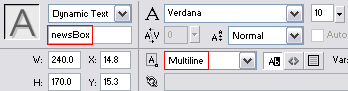
 ) and type some text.
Now go back to the first line (before all of your text) and
add "myNews=" without including the quotation works. See the
following image for further clarification:
) and type some text.
Now go back to the first line (before all of your text) and
add "myNews=" without including the quotation works. See the
following image for further clarification: