 Grassy Field:
Concept Study
Grassy Field:
Concept Study
written by
kirupa
chinnathambi
As I was browsing through the forums, I
noticed a really nice flash footer created by the moderator
lostinbeta. In his footer, he has pictures of grass
moving in response to the mouse. In short, the footer was
cool and I wanted to create something like it! After a few
hours of tinkering with Flash, I created something
completely different (and CPU-intensive) that somehow ended up involving grass:
[ the above is an example of a
grassy field created in Flash ]
If you are proficient with Flash, this
tutorial will not teach you anything new or arcane. What you
will learn is how to combine all of the bits and pieces of
ActionScript you have accumulated into creating a nice
animation. After all, isn't programming all about applying
everything you know into a nice, final result?
If you are a beginner/intermediate user, dim
the lights, strap on your seatbelt, and bring the popcorn.
You are in for quite a ride through the dark alleys of Flash
and beyond. Enough of me babbling, the tutorial starts now.
Creating a Grassy Field:
The following instructions will help
teach you how to create an interactive, grassy field:
-
Create a new document in Flash MX
by going to File | New. A new, blank Flash MX movie will be
displayed. Set the width and height of the movie to 300
pixels by 200 pixels respectively.
-
Now, we need to draw the grass.
Click the Pencil Tool from your toolbox. Select a green
line color and draw a smooth, curved line near the bottom
of your Flash stage:
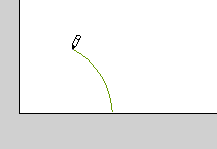
[ drawing a
blade of grass ]
-
Once the blade of grass has
been drawn, select the blade of grass and press F8 (or go
to Insert | Convert to Symbol). The Convert to Symbol
dialog box will appear. Enter an imaginative name, select
movie clip, and press OK. The blade of grass is now a
movie clip.
-
Select the movie clip you
just created. In the Properties panel, give the movie clip
the instance name grass:
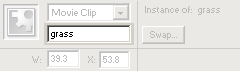
[ give the
movie clip the instance name 'grass' ]
Playing with Grass
You have created the blade of grass. What we want to do now,
is find a way to duplicate the blade of grass numerous times
to create the illusion of a field. Not only will the blades
of grass be duplicated, they need to be duplicated in random
locations with random levels of transparency to create
depth.Duplicating Grass
Instead of copying and pasting the grass movie clip hundreds
of times, you can use Flash to copy the movie for you. To
duplicate the movie, first, right click on Frame 1 and
select Actions. Copy and paste the following code:
[ copy and paste the above
code into the Actions dialog box ]
Making Grass Position and
Visibility Random
Now that the duplicating portion of the animation is
through, we need to work on placing the grass in random
locations. We also need to account for depth, varying sizes,
and visibility that occurs because of it.
Right click on the grass movie clip and
select Actions. Copy and paste the following code into the
Actions dialog box:
[ copy and paste the above
code into the Actions dialog box ]
Don't worry if all of this seems confusing. I
will explain in detail what the lines of code accomplish.
Making the Grass Move
If you previewed your movie, you will see a nice field of
hundreds of grass blades. In their current form, while nicer
than what we created a few minutes ago, the grass is
lifeless and static.
It is time to make the grass
move:
-
Right click on the grass movie clip and
select Actions. The actions dialog box will appear with
the code you pasted from above.
-
Now, make sure your Actions
dialog box is set to Expert Mode. Press Ctrl + Shift + E
or press the little icon in the top-right corner of the
Actions dialog box and select Expert Mode:

[ ensure you
are in Expert Mode ]
-
Once you have selected Expert
mode, place your cursor after the last line and press
Return. Copy and paste the code from the following box
into your Actions Dialog box (after the first section of
code):
[ copy and paste the above
code into the Actions dialog box ]
Save the animation and preview the animation
by going to File | Publish Settings | HTML. Your animation
should have grass and basically mimic the animation you saw
above.
In the next page, I
will explain in detail how and why the code you entered
makes grass move.
|









